1
Andrea Maioli – Instant Developer: User's Guide
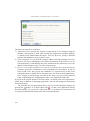
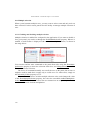
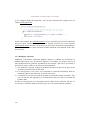
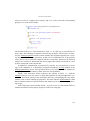
The Validate method returns true if the document has no errors, or false if it has errors.
Errors are normally shown automatically in the user interface, or through the panel's
ShowDocErrors method, which will be covered later.
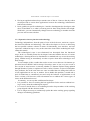
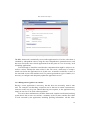
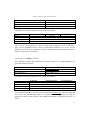
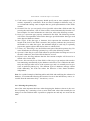
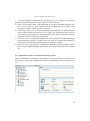
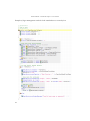
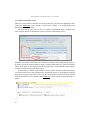
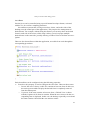
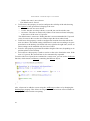
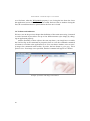
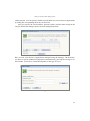
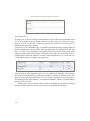
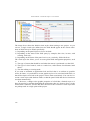
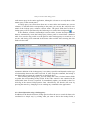
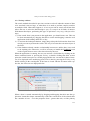
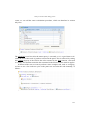
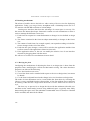
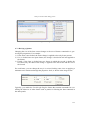
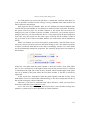
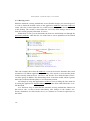
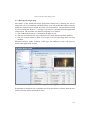
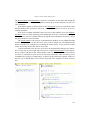
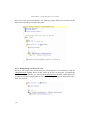
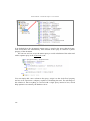
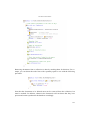
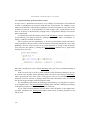
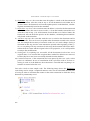
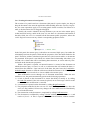
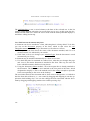
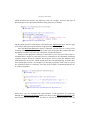
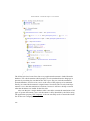
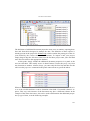
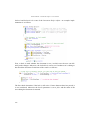
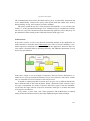
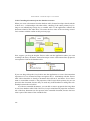
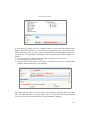
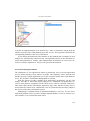
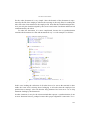
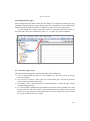
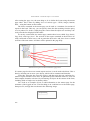
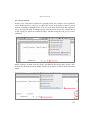
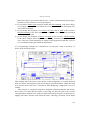
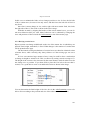
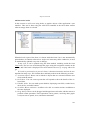
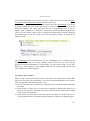
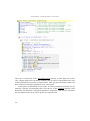
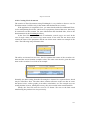
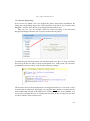
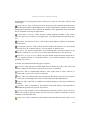
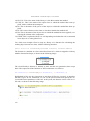
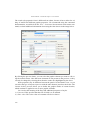
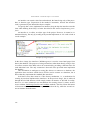
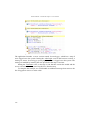
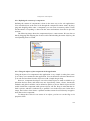
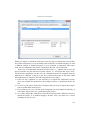
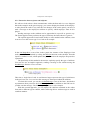
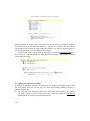
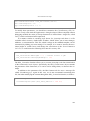
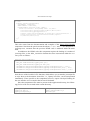
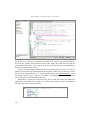
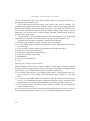
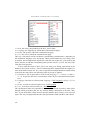
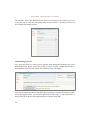
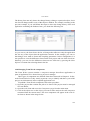
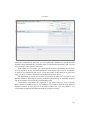
The following validation example shows code that prevents saving orders that do
not have at least one line and that checks that the shipment date is not earlier than the
order date.
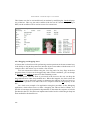
5.4.5 Management of locks
In high-usage business applications, it is possible that multiple users or programs will
attempt to simultaneously edit the same data. To resolve this problem, application
frameworks provide lock management systems.
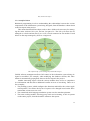
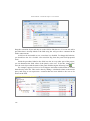
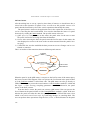
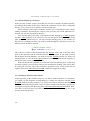
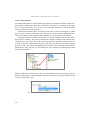
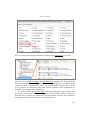
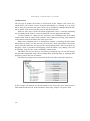
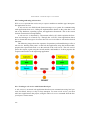
The first and simplest of these systems is implemented in native recordset objects,
both in Microsoft.NET and Java environments, and is called optimistic locking. The
mechanism is simple: each modified or deleted row of the recordset, before being updated in the database, is re-read to see if some other user has changed it since it was last
read. If this is the case, an error is thrown and the changes are not saved in the database.
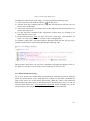
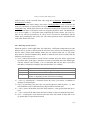
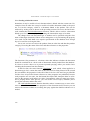
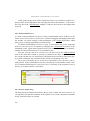
Unfortunately, this lock system has several shortcomings. First, it is oriented to
protection of individual records and not to the document as a whole. If, for example,
two users modify two different order lines, the system does not notice. The second
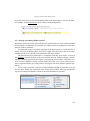
shortcoming is that it is not a true locking system: when a user enters a record to
change it, another user can do so simultaneously, and the faster of the two will "win"
200