1
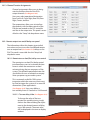
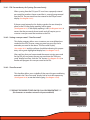
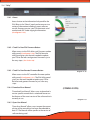
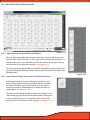
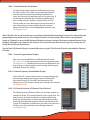
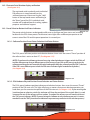
16.10 Loss of "Aux" indicator during firmware update
1.
Do not use more than one USB cable more than 6 feet in length during the firmware update process
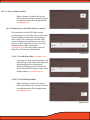
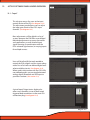
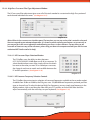
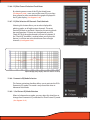
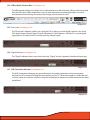
16.11 USB light does not flash and controls do not respond after firmware update
1.
After any firmware update you must shut down the software, shut down the ps8, unplug and plug in
the USB connection and start everything back up for proper connection to take effect
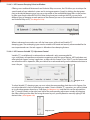
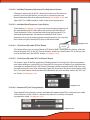
16.12 PS8 turns on then shuts off 2 seconds later and continues “looping”.
This is caused by a variety of conditions that can result in a corrupt settings file. To get the ps8 out of this
"looping" cycle you must follow the steps below exactly. (NOTE THIS IS NOT THE SAME PROCESS AS A
STANDARD FIRMWARE UPDATE)
1.
2.
3.
4.
5.
6.
7.
8.
9.
10.
11.
12.
13.
14.
15.
16.
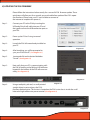
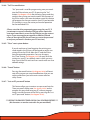
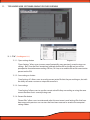
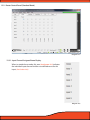
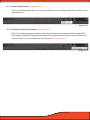
With the system and source unit turned on unplug the PS8's main power block connector.
Next with a pick tool, toothpick or small head ball point pen find and locate the firmware update
button hole to the right of the PS8's main power block connector location
Using your pointed tool, insert the end into the hole and press and hold the firmware update button.
(This is being done while the main power block is still disconnected)
While continuing to hold the firmware update button (DO NOT RELEASE) insert the PS8's power plug
back into the PS8 main chassis. (NOTE: The source unit should still be on and there should still be +12v
active and live on the main power lead and also on the "Remote Input" lead
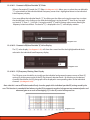
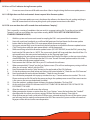
After plugging the main power connection back into the PS8 all of the lights on the top status display
should illuminate. This will indicate that the PS8 is into "forced" firmware update mode. at this time
you can release the firmware update button.
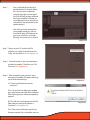
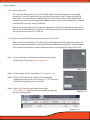
Next connect the USB from the PS8 to your PC and launch the software.
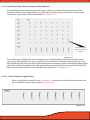
When prompted click "Cancel" on the Sync Options menu (This will not exchange any settings info but
allow you to remain "online" with the PS8.)
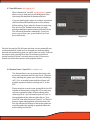
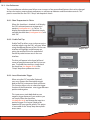
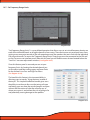
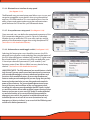
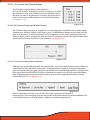
Next locate and click on the "Help" button on the top header of the PS8 Software.
On the drop down menu find, locate and click on the button labeled as "Check for new PS8 Firmware".
Next locate and click on the button labeled as "Check for new firmware"
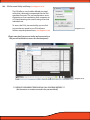
You will then be prompted with a pop up window that says "Cannot read version number". This is ok.
Please continue to click OK and let the processor begin the update process even if the current version
is the same as the one you had already installed.
Once the update is complete locate and press the button labeled as "Re-Start PS8"
At this point shut off the PS8 Software but DO NOT TURN THE PS8 MAIN UNIT OR SYSTEM OFF OR
DISCONNECT THE USB!!!
After the software is shut off restart the software
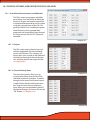
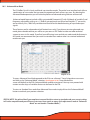
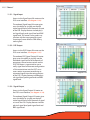
When prompted to choose an option from the "Sync Options" menu find and select the "Send all"
check box and also select you current settings file from the browser button. Then click ok.
After all three presets have sync'd to the PS8 from your selected settings file turn off the entire system
and software and also unplug and reconnect the USB. Then restart the system and the software and
Pageyou will be able to resume normal operation.