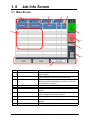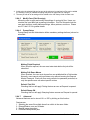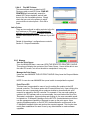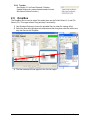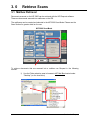
1
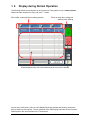
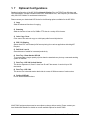
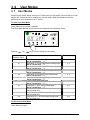
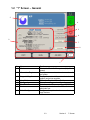
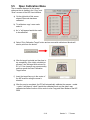
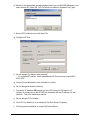
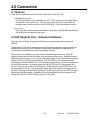
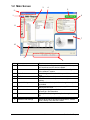
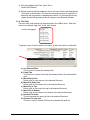
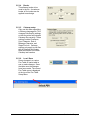
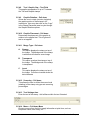
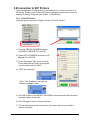
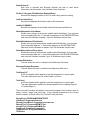
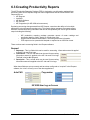
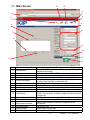
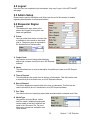
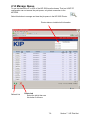
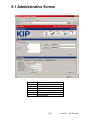
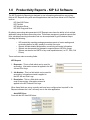
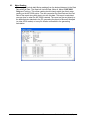
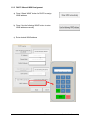
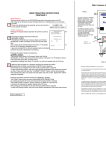
1.1 Main Screen
16
15
2
1
4
3
5
6
10
7
8
11
12
13
9
14
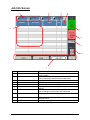
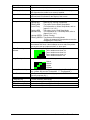
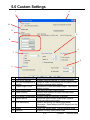
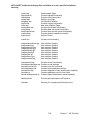
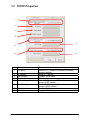
No.
Name
1
Host Address
2
3
4
Logout
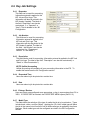
Admin Setup
Queue Management
5
Accounting Region
6
7
8
9
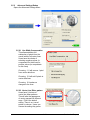
New Job
File Selected Area
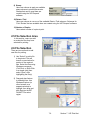
Select
Remove / Remove All
10
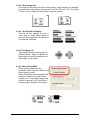
Job Settings
11
12
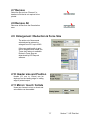
Header / Header Position
Printing Options
13
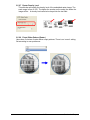
Email Communication
14
15
16
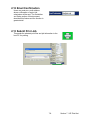
Job Submission
History Queue
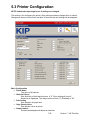
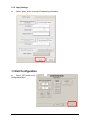
Printer Configuration
Function
Type in the URL of the Server / PC that hosts KIP PrintNET
(password protected )
Logout from the KIP PrintNET session
Administrative feature setup if logged on as administrator
Manages the job queue on the printer.
Selection for Name of Operator, Printer type, Project
number, Time and Date of requested Job,
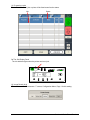
Clear all previous setting to start a new print submission.
Displays file names and the file size of selected files
Browse to select the file(s) for printing from the PC / LAN
Deleting one or all files from the job list.
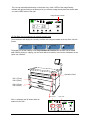
Pen table selection, Media type selection, Stamp selection,
Rotate / Fold selection, number of copies selection and print
/ image size.
Inserting a Header and position of the Header on the print
Provides Mirror, Invert and Collation capability
Add an email address to send auto response for job
acceptance
Send a job / files
View and Re-Submit Jobs
Change Printer Settings
7-3
Section 7 KIP Print Net