1
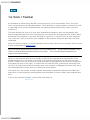
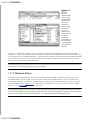
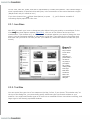
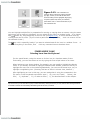
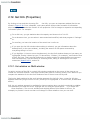
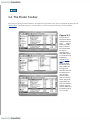
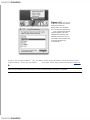
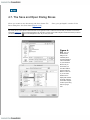
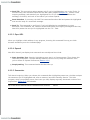
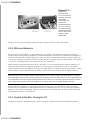
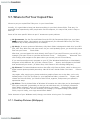
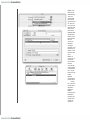
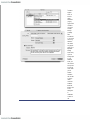
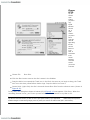
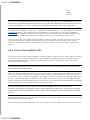
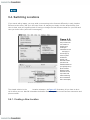
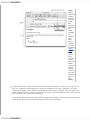
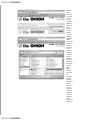
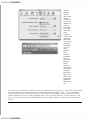
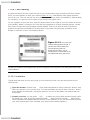
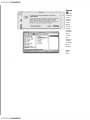
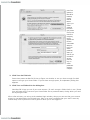
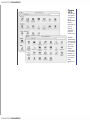
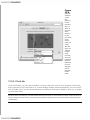
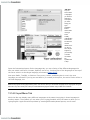
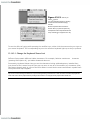
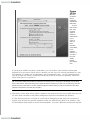
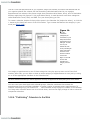
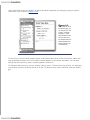
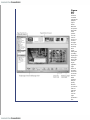
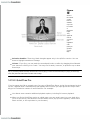
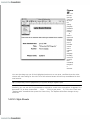
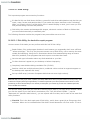
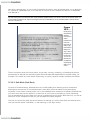
Top: Here's
what
Energy
Saver looks
like in its
expanded
condition on
a laptop.
(On a
desktop
machine,
it's far
simpler.) If
you turn on
the "Put the
display to
sleep"
option, you
can specify
an
independent
sleep time
for the
screen.
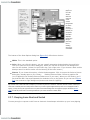
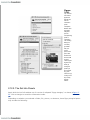
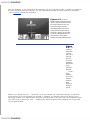
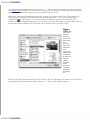
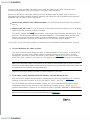
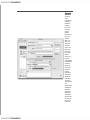
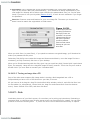
Bottom:
Here's the
relevant
slice of the
Schedule
tabthe door
to the Mac's
selfscheduling
abilities.
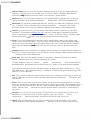
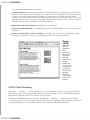
Finally, "Put the hard disk(s) to sleep when possible" saves even more juiceand noiseby stopping
your drives from spinning when not in use. The downside is a longer pause when you return to work
and wake the thing up, because it takes a few seconds for your hard drive to "spin up" again.
13.13.2. Laptop Options
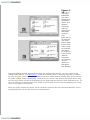
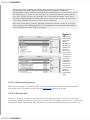
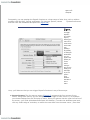
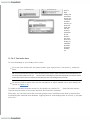
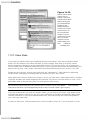
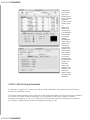
As noted above, Energy Saver on a laptop offers quite a few additional controls (see Figure 13-10).
That's because power management is ten times more important on a laptop, where every drop of
battery power counts.
The pop-up menus at the top of the dialog box, for example, let you create different settings for the
two states of life for a laptop: when it's plugged in (Power Adapter) and when it's running on battery
power (Battery).