1
User Interface
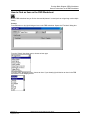
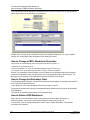
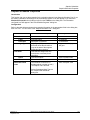
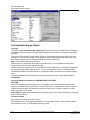
Selecting a Menu
Selecting a Menu
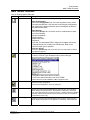
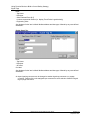
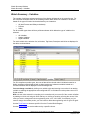
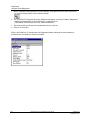
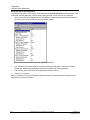
In this application, you select (highlight) a menu and then choose a command from that menu.
Choosing the command carries out the action.
To choose an item from a selected menu:
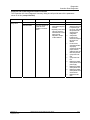
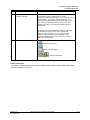
Mouse
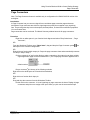
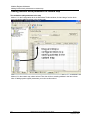
Using the mouse pointer, point to the name of the menu on the menu bar, and click the left mouse
button. This opens the menu. To move directly to a menu item, drag the selection cursor down the
menu until the desired item is highlighted, then release the button.
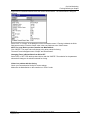
UP/Down Arrow Keys
Press the "ALT" key to highlight the menu bar then use the UP/Down arrow keys on the keyboard to
select the item, then press "Enter".
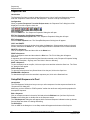
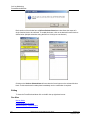
Underlined Letter
If a name in the menu bar has an underlined letter you can press ALT and then type the letter that’s
underlined to open the menu.
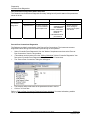
For example: to open the FILE menu in the Designer main window, press ALT+F.
Closing a Menu
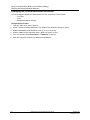
To close a menu:
Click the menu name or anywhere outside the menu, or
Press ESC to close the menu but remain on the menu bar so that you can make another selection
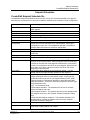
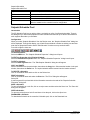
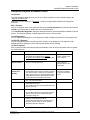
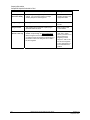
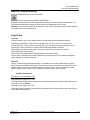
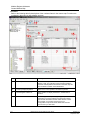
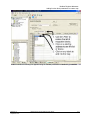
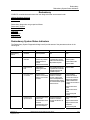
Main Menu
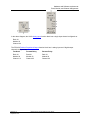
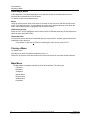
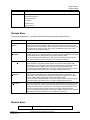
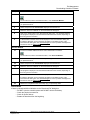
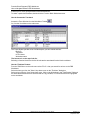
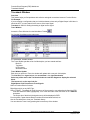
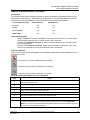
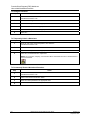
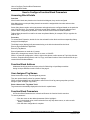
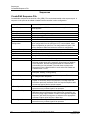
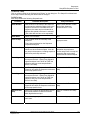
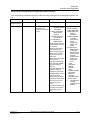
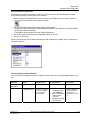
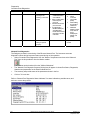
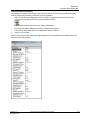
The Main Menu is located across the top of the User Interface. The menus are:
File Menu
Edit Menu
View Menu
Monitor Menu
Recipes Menu
Window Menu
Help Menu
18
HC900 Process Control Designer User Guide
Revision 15
September 2013