1
3.
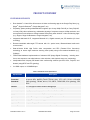
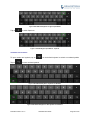
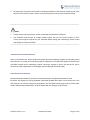
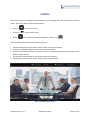
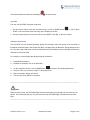
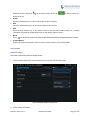
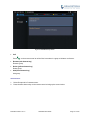
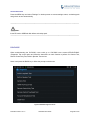
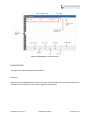
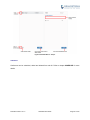
Press the red shortcut key to add more fields.
4.
Press the yellow shortcut key to save the contact information.
Users could press the red shortcut key to add more contact information.
BATCH IMPORT CONTACTS
Import function allows users to batch import contacts. The phonebook with compatible format needs to be
saved to the storage devices like SD card/USB flash drive and plugged into the GVC3200.
1.
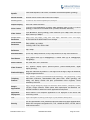
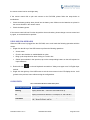
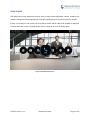
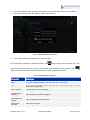
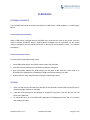
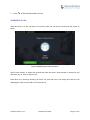
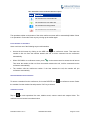
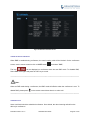
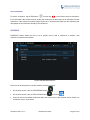
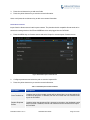
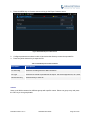
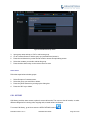
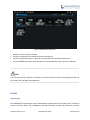
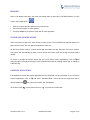
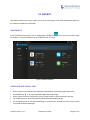
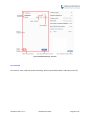
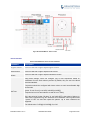
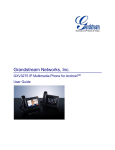
Press the MENU key on Contacts screen and select "Import" to access Import Contacts screen.
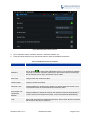
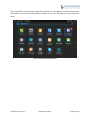
Figure 34 GVC3200 Import Contacts Screen
2.
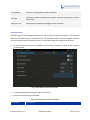
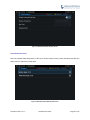
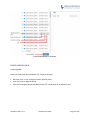
Configure parameters and select the path to save the imported file.
3.
Press the yellow shortcut key to save the contact information.
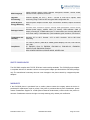
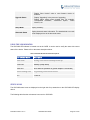
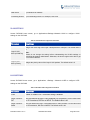
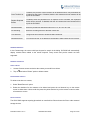
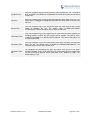
Table 17 GVC3200 Import Contacts Parameters
Parameters
Descriptions
Clear The Old List
If enabled, the previous contact records will be deleted when a new phonebook file
is loaded into the phone. If disabled, both the old contacts and new contacts will be
kept in the GVC3200.
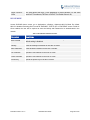
Replace Duplicate
Entries
If enabled, when the phonebook file is imported to the phone, the duplicated entries
will be removed. If disabled, both the old contacts and new contacts will be kept in
the GVC3200.
Firmware Version 1.0.1.5
GVC3200 User Guide
Page 73 of 103