1
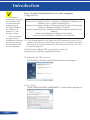
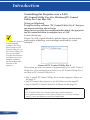
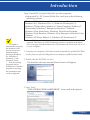
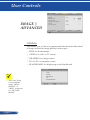
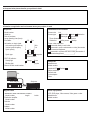
Introduction Controlling the Projector over a LAN (PC Control Utility Pro 4 for Windows/PC Control Utility Pro 5 for Mac OS) [Using on Windows] Using the utility software “PC Control Utility Pro 4” that you can download from our web site (http://www.nec-display.com/dl/en/index.html), the projector can be controlled from a computer over a LAN. Control Functions Power On/Off, signal selection, picture freeze, picture mute, When the projector audio mute, adjusting, error message notification, event schedule. is in the standby condition, the Error Alert function of PC Control Utility Pro 4/ PC Control Utility Pro 5 are not available. To make this function available even in the standby condition, use the E-Mail Alert function of the projector. Screen of PC Control Utility Pro 4 This section provides an outline of preparation for use of PC Control Utility Pro 4. For information on how to use PC Control Utility Pro 4, see Help of PC Control Utility Pro 4. • Step 1: Install PC Control Utility Pro 4 on the computer. Please see the page 21. • Step 2: Connect the projector to a LAN. Please see the page 22. • Step 3: Start PC Control Utility Pro 4. Please see the page 22. TIP: • PC Control Utility Pro 4 can be used with a serial connection. • For update information on PC Control Utility Pro 4, visit our website: http://www.nec-display.com/dl/en/index.html English ... 20