1
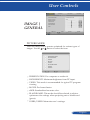
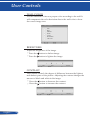
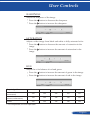
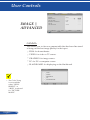
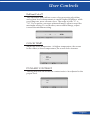
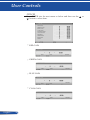
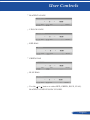
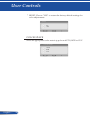
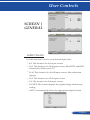
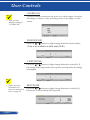
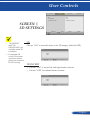
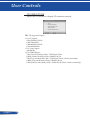
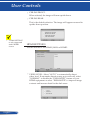
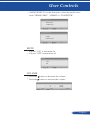
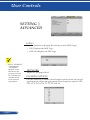
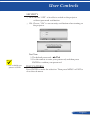
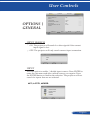
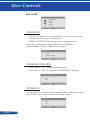
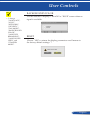
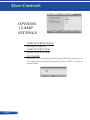
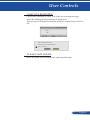
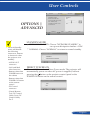
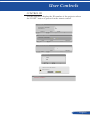
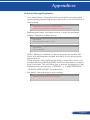
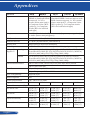
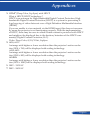
User Controls CEILING FRONT: When selected, the image will turn upside down. CEILING REAR This is the default selection. The image will appear reversed in upside down position. ORIENTATION DESKTOP FRONT DESKTOP REAR CEILING FRONT CEILING REAR “HDMI SETTING” is only supported under HDMI source. HDMI SETTINGS Use this feature to set HDMI1/MHL or HDMI2 HDMI SETTINGS HDMI1 HDMI2 VIDEO LEVEL AUDIO SELECT AUTO HDMI1 SELECT COMPUTER EXIT MOVE VIDEO LEVEL: Select “AUTO” to automatically detect video level. If automatic detection may not work well, select “NORMAL” to disable the “ENHANCED” feature of your HDMI equipment or select “ENHANCED” to improve image contrast and increase detail in the dark areas. VIDEO LEVEL AUTO NORMAL ENHANCED English ... 54