1
WebCenter
10. Localizing WebCenter
Localization is the process of making a program ready to run anywhere in the world.
It encompasses modifying the display language, the way units are displayed, decimal separators,
time and date formats, and currency format to match the local user preferences.
10.1 Understanding Localization in WebCenter
WebCenter uses references to separate language files (text strings files) instead of using hard-coded
words. WebCenter ships with a variety of language files. Additionally, the text strings files can be
translated into any language.
Each WebCenter user can change to a different language in My WebCenter > My Preferences .
The default language can be changed in General Preferences at any time by any WebCenter user
who is a member of the Admins group.
10.2 How to Install Custom Translations
The language files are in the languages subdirectory of the WebCenter installation on the
Web server, such as \Artios\WebCenter\WebServer\tomcat\webapps\<site name>
\languages.
They are named wcstrings_xx.xml where xx is a two-letter code for the language, for example
en for English, fr for French, and de for German.
1. Copy one of the existing language files, and rename the copy changing the two-letter language
code to the new language code.
Note: The language code must match the official list of two-letter ISO 639-1 codes at http://
www.loc.gov/standards/iso639-2/englangn.html. For example, a Danish language
word strings file would be named wcstrings_da.xml.
2. Translate the strings in the file.
3. On
the
Web
server,
open
\Artios\WebCenter\WebServer\tomcat\webapps
\WebCenter_instance\config\config.xml in a text editor or an XML editor. In the
Languages section of the file, add a key for the new language, for example <Language
key=”da”/> for a Danish translation.
4. Put the translated language file in the languages subdirectory of the WebCenter installation.
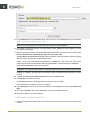
5. Open every other wcstrings_xx.xml file and add a <NLanguage_xx>Language</
NLanguage_xx> string after the strings for the existing languages.
For example, add the string <NLanguage_da>Danish</NLanguage_da> to install a Danish
strings file, substituting the word for Danish in the appropriate language for the string file.
69
10