1
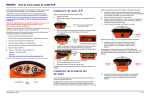
LAND-PAK™ User Guide – Rev. C Figure 105: SurvCE Data Transfer Window 5. Accept the default COM Port setting, COM1. 6. Tap the Carlson/C&G Transfer button. The Explorer 600+ waits for a connection. 7. In X-Port, select Tools > Data Transfer > SurvCE/G2/FastSurvey/SurvStar. X-Port opens the SurvCom window on the PC, and connects to the Explorer 600+. SurvCom provides access to folders and files on both the PC and the Explorer 600+. If the connection fails, select Options from the SurvCom window. Change the COM port to ActiveSync. Select Connect. If ActiveSync opens a box with the message, “Set up Partnership”, select No. Click the Next button. The connection is now active. 8. Transfer a file using SurvCom: a. In the right panel (Remote), browse to the System CF folder and open the Data folder. b. In the left panel (Local PC), browse to and select the file to transfer from the PC to the Explorer 600+. 6-139