1
Instruction for Competing the Self-Assessment in COPA
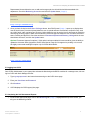
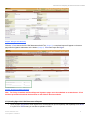
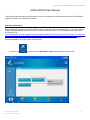
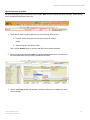
Image 14: Going to Site Monitoring
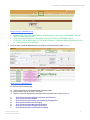
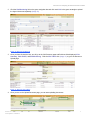
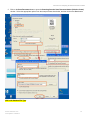
1. Click a Link associated with a completed self-assessment report in the green rectangle (Image 14), the screen
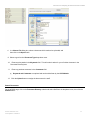
shown below (Image 15) appears. Click each Action Plan Link in the green rectangle (Image 15) on your right
hand side to enter the action plan information for non-compliance finding.
Image 15: Going to Non-Compliance Summary
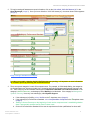
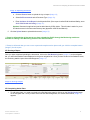
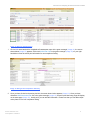
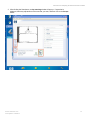
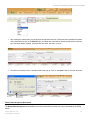
2. Once you have clicked on the action plan link, the screen shown below appears (Image 16). Once you have
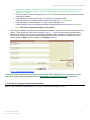
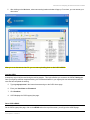
clicked the Add New Action Plan link in the green rectangle (Image 16), an action plan data entry page will display
on the same page (Image 16). At this point, you can add the information. Please note that you can add multiple
action plans for one non-compliance finding.
Author: Michelle Lee
Last Update: 3/22/2013
9