1
NOTE:
• Once an assignment has been checked in you will not be able to access it for further editing. Be
sure you are satisfied with your work before you check it in for grading.
Review Graded Assignments:
When the instructor has graded your assignments you will be able to review them through MTClient in
the Proofed status.
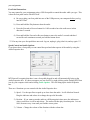
a) Highlight the assignment you wish to review in the Proofed status by clicking on it.
b) Right-click on the assignment and select Review.
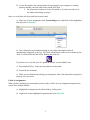
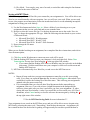
c) The graded assignment will come up in the MTClient Reviewing Module. Your graded
(Changes) report is on the right. The Master transcription and your Transcription will be shown
on the left for you to refer to. You may print Your Graded (Changes) and Transcription report
but not the Master. Click Audio to download and listen to the dictation while reviewing.
d) When you are finished reviewing your work click Close.
NOTES:
• When you are transcribing and reviewing an assignment in MTClient make sure you exit by
closing out MTClient. Do not close by clicking the X in the top right of the Microsoft Word
window.
• Be Patient! If your Internet connection is slow it may take a while to download your
assignments. If you are having difficulties with this contact your Instructor.
Transcribing Tools
The following sets of information will help you to successfully utilize MTClient while transcribing
6