1
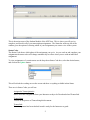
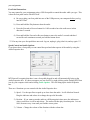
4) Play Mode – You can play, stop, move forward, or rewind the audio using the four buttons
located at the center of the box.
Saving with MTClient:
MTClient brings up Microsoft Word for you to transcribe your assignments in. You will be able to use
Word as you would normally with one exception - how you will save your work. When you are ready
to save your progress on a transcription, follow the instructions below to avoid submitting incomplete
assignments or losing your work entirely.
1) Use the Word menus and select Save As. Select a folder of your choosing to save your
assignments in that you can easily find and access at another time.
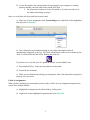
2) Be sure to select the correct file type. Use the drop down menu next to the words “Save As
Type” to choose the appropriate file type. Make the following selection based on your version
of Microsoft Word:
• Microsoft Word 2003: Word document
• Microsoft Word 2007: Word 97-2003
• Microsoft Word 2010: Word 97-2003 document
3) Do not change the file name
4) Click Save.
When you are finished working on an assignment, have completed the above instructions, and wish to
close the transcription,
1) Click Save on the Word menus to ensure any new work will be saved.
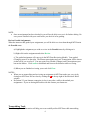
2) Find the flashing MTClient icon near your computer’s clock and right click. Select Close
Transcription. Do not close Word using the X at the top right of the window.
• If you cannot find the flashing MTClient icon Windows may have placed it in the hidden
icons menu. Click the small arrow near your computer’s clock to access this menu and
find the MTClient icon.
3) MTClient will automtically close Word for you and save to the MTClient server.
NOTES:
•
•
Repeat all steps each time you open an assignment to transcribe or to edit your existing
work. Every time you repeat the Save As step, be sure to click Replace when asked if you
would like to replace the existing file of the same name. This will keep your assignments
updated with your most recent work.
It is recommended that you close all other Word documents before transcribing an
assignment. However, if you wish to have a helpful document in the background for
reference, please make sure you close it out before you close your assignment. If, when
closing the extra Word window, it asks if you would like to close and/or save ALL Word
documents, select Cancel and try to close the reference document again by clicking the X in
the top right corner of the window.
***See the MTClient Saving Guide for more information***
Your assignment is now saved on the MTClient server and you will be able to access it again using
MTClient by selecting the status code “Transcribing” from the drop-down menu. Assignments you
have started but have not checked in for grading will appear and you can edit or proofread them as
8