1
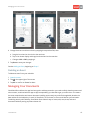
Managing Your Calendar
Adding an Event
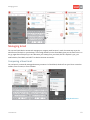
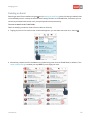
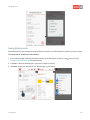
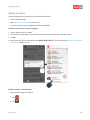
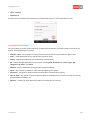
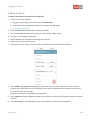
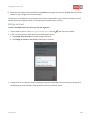
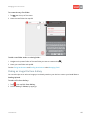
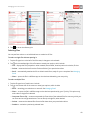
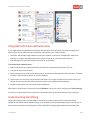
To add a new event with yourself as the organizer:
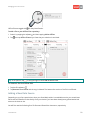
1. Choose one of three methods:
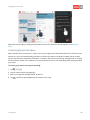
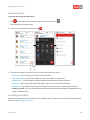
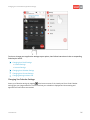
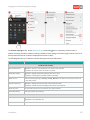
a. Tap
in the upper right of the screen, then select New event.
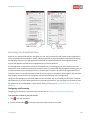
b. In Day view or Month view, tap the start hour you want, then tap it again.
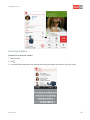
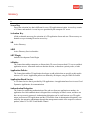
c. Use the Quick Create Tool.
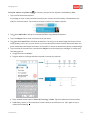
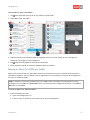
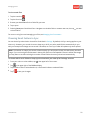
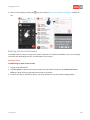
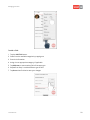
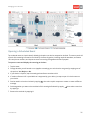
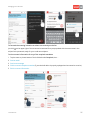
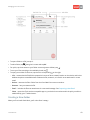
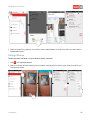
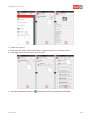
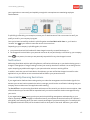
2. Tap in the Event name field and enter a meeting identifier.
3. Tap in the Location field and enter a location for the meeting or appointment.
4. Tap From to set/change the (start) date.
5. Tap the adjacent start time field to set/change the start time.
6. Tap ALL DAY to reserve the entire day.
7. Tap the time zone to change it. Enter the host country and Good Work will determine GMT± n.
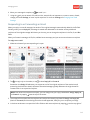
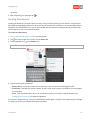
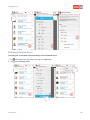
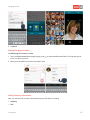
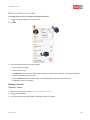
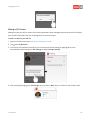
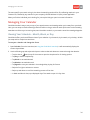
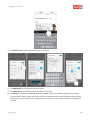
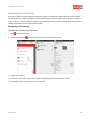
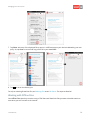
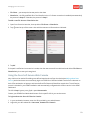
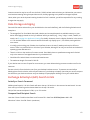
8. Under GUESTS, tap Required and begin typing the name of the first person you want to invite from your
contacts, then, either select one of the matches listed or type an email address for someone not currently in
your contacts list or company GAL.
(swipe up to scroll down or tap Done on the keyboard)
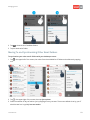
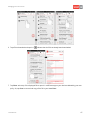
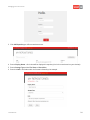
9. Tap in Resources to enter telephone numbers, web conference URLs, and anything else necessary to support
the event.
10. Tap in Description to describe what you want to accomplish or to provide a formal agenda
Good Work™
38