1
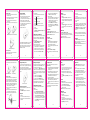
Installing the battery 1. Pull the battery cover from the notch on the bottom and rem ove the cover. 2. Insert the battery by aligning the gold-colored contacts with the contacts in the battery slot. 3. Push down the upper section of the battery until it clicks into place. 4. Replace the battery cover and close it gently until you hear a click. Rem ove the battery cover Inser ting the SIM card Insert the SIM card as follows: 1. Make sure that the phone is switched off and the charger is disconnected from the phone. 2. Turn the phone over and rem ove the battery cover. 3. Rem ove the battery if it is already installed. 4. Hold your SIM card with the cut corner oriented as shown and then slide it into the card holder with the metal contacts facing downward. 5. Replace the battery first. 6. Replace the battery cover. Push down the battery Insert the SIM card Replace the battery cover Removing the battery 1. Make sure that your m obile phone is switched off. 2. Rem ove the battery cover. 11 3. Pull the battery up and rem ove it from the mobile phone. Rem ove the battery cover SIM card (Subscriber Identity Module) is a micro-chip that holds your personal inform ation such as nam es and phone numbers. Your phone won’t work without it. If you already have contacts on your SIM card, they can be transferred in most cases. Charge the battery 12 Entering letters Press A ~ Z to enter desired characters. It does not work in num eric mode. Press to switch between uppercase and lowercase. Press to enter a space. Press to delete letters left of the cursor. Entering numbers In num eric m ode, use the num eric keys to enter numbers. Entering Symbols Press Options→Input method→Insert symbol, then select desired symbol. Adding contact to the Phonebook There are som e numbers that you m ay want to call again and again, so it m akes sense to add these numbers to your Phonebook. You can then access these numbers quickly and easily. 1. Go to Menu→Phonebook→Add new contact→Choose storage. 2. Edit the inform ation and save it. You can also save a number right after you’ve m ade or received a phone call or a text m essage from som eone who is not yet in your Phonebook list. To delete som eone from your Phonebook list, first select the nam e, then select Options→Delete. 3. When you finish writing an SMS/MMS, select Options to send or save the m essage. Receive a m essage Upon receiving a m essage, the m obile phone will alert you with a ringtone, prom pt, or a new m essage icon. 1. Press View to open the new m essage. You can also go to Inbox to read the m essage. 2. Use the Up/Down keys to view the m essage. 3. While the m essage is open, use Options to reply, delete, or forward the m essage. You can also c all back the sender. User profiles Go to Menu→User profiles. You can select Options→Activate to activate a profile. Or you can select Options→Customize to edit a profile. Call center Go to Menu→Call center. Call history Dialed calls, Received calls and Missed calls are saved in Call history. If the records are full, the earliest saved records will be deleted. Also, you can delete call logs and view call timers in Call history. Call settings Go to Menu→Call center→Call settings. You can set call waiting, call divert and call barring and so on. Organizer Go to Menu→Organizer. Calendar Go to Organizer→Calendar. The calendar of the current m onth will be displayed on the screen and the current date will be m arked by a background box in a special color. Alarm Go to Organizer→Alarm. You can view and edit the alarm clocks settings. You can also enable or disable the alarms. Fun&Games Go to Menu→Fun&Games→Games. Your m obile phone has classic gam es and applications pre-loaded. Select a gam e and start it, you can view Help to see the rules of the gam e. Note: please take your handset as the standard. Video player You can select a video and play it. Audio player You can play the audio in your phone or m em ory card. Note: Before using this function, you must insert the mem ory card first. FM radio With the radio, you can search for radio channels and listen to them. In the FM radio interface, you can press the Up/Down keys to adjust volum e, press the Left/Right keys to tune the frequency, and press the Center key to pause. Select Options to enter the subm enu. Note: The quality of the radio broadcast depends on the coverage of the radio station in that particular area. Note: please take your handset as the standard. File manager Go to Menu→File manager. You can check all the folders in the phone or m emory card, create new ones or renam e, delete the folders, etc. Note: W hen you select Format, the data will be lost, so please be careful with this function. 13 15 17 19 21 Inser ting the Memor y Card You can use m em ory card to expand the storage of the phone. You can store or copy files such as photos, music, and so on. Insert the m em ory card as follows: Open the battery cover and rem ove the battery. Insert the card with the m etal contacts facing down until it clicks to the right Making and receiving calls The most basic way to m ake a call is to input the number in the standby m ode and press the Send key. You can also m ake a call from the Phonebook list. To call som eone: Go to Menu→Phonebook. Use the Up/Down keys to find the nam e of the person you want to call. You can also type in the first letter of the nam e of the person you want to call to find the right nam e, and press the Send key. To receive a call, press the Send key. To end a call, press the End/Power key. To reject a call, press the End/Power key. Make sure that you are in an area with sufficient signal coverage to m ake calls. The strength of the network signal is indicated on the Status Bar of the screen. Setting your phone You can adjust various settings of your phone. Go to Menu→Settings. Phone settings: Set tim e and date and schedule power on/off, select language, set pref. input m ethods and LCD backlight, etc. Network settings: Set to autom atically or manually select network and set the preferred networks. Security settings: Set security features to protect your phone and SIM card from unauthorized use. Connectivity: View data accout. Restore factory settings: Enter the phone lock code to restore to the factory settings. Som e personal inform ation might be lost if you use this function, so be careful. Note: You m ay be required to input the phone password in som e of the security settings interfaces. The default password is 1234. Extra Go to Menu→Extra. Calculator You can perform simple calculations. You can add, subtract, multiply or divide, and select M+, M-, MR, and MC to perform relevant operations. Note: This calculator has limited accuracy and rounding errors may occur especially in long division. Flashlight Press Center key or Left soft key to turn on or off the torch. Using Ser vices Go to Menu→Services. Services allow you to view internet content. In Services you can use the STK. STK SIM card Toolkit (STK) services are value-added services provided by your network provider. Your m obile phone supports STK service, but if your SIM card and network provider do not support the service, these functions can’t be used. Internet service You can perform the following operations: Bookm arks: Access your phone’s preset websites. Select a bookm ark to load the website. Input address: Input a URL to visit the site. Recent pages: Display the pages you’ve visited recently. Select an item to visit the page again. Settings: You can set Profiles, Browser options and Preferences. Pull up the battery Charging the battery Your phone is powered by a rechargeable battery. For maximum battery perform ance, it is recommended that you first use up the battery power and then charge it completely. A new battery’s full perform ance is achieved only after three com plete charge and discharge cycles. 1. Connect your travel adapter to the left side of your mobile phone as shown in the diagram. 2. Connect the other end of the travel adapter to the mains socket. 3. When the battery is being charged, the display will show the anim ation of a battery being filled up. 4. When the battery is fully charged, disconnect the charger. Insert the m em ory card Powering your phone on/off Make sure that the SIM card is in your device and the battery is charged. Hold the End/Power key to power on/off the phone. Writing text Text Mode Your m obile phone provides the following input methods:Sm art abc m ode,abc m ode and num eric (123) m ode. 14 Sending and receiving messages You can use your m obile phone to send and receive messages. Send a m essage 1. Go to Menu→Messaging→Write message. 2. Write your m essage. For m ore inform ation on input method, see section ‘Text Input’. W hen you write an SMS, press Options→Send to, and edit the recipient. W hen you write an MMS, you can edit To, Cc, Bcc, Subject and content. In content field, you can select Options and then choose add picture, sound, video, subject. 16 Camera Go to Menu→Camera. Take a photo: aim the cam era at the object and then press the Center key to take the shot. Configure cam era: press the Left soft key to configure your cam era. Note: please take your handset as the standard. Multimedia Go to Menu→Multimedia. Image viewer You can select an im age and view it. Video recorder Aim the cam era lens at the object and then press Center key to start, press it again to pause, and press Right soft key to finish recording. 18 20 22