1
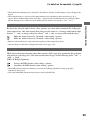
Printing images directly using a PictBridge
compliant printer
Even if you do not have a computer, you
can print images shot using your camera by
connecting the camera directly to a
PictBridge compliant printer.
Stage 2: Connecting the camera
to the printer
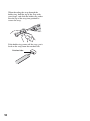
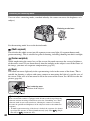
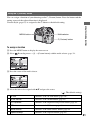
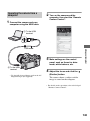
1 Connect the camera to the
• “PictBridge” is based on the CIPA standard.
(CIPA: Camera & Imaging Products
Association)
• You cannot print RAW data files.
printer.
Stage 1: Setting the camera
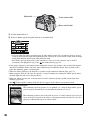
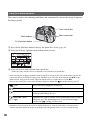
2 To the USB
terminal
USB cable
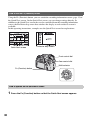
MENU
button
Multiselector
• It is recommended to use the AC Adaptor/
charger (not supplied) to prevent the power
from turning off partway through printing.
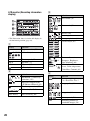
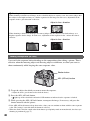
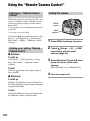
1 Press MENU to display the menu.
2
Select
(Setup) t [2] t [USB
connection] with the multiselector (page 32).
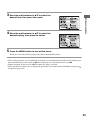
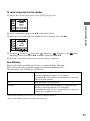
1 To the
USB
terminal
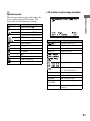
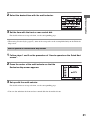
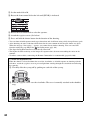
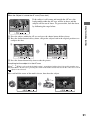
2 Turn on your camera and the
printer.
The following screen appears.
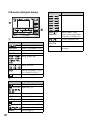
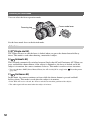
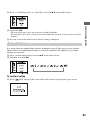
3 Select [PTP] with v/V, then press
the center of the multi-selector.
The USB mode is set to [PTP].
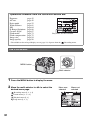
4 Turn the camera off and insert the
memory card that the images
have been recorded.
146
Total
number