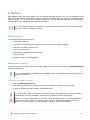
1
Server Edition
V8 Peregrine User Manual
for Microsoft Windows
Copyright Notice and Proprietary Information
All rights reserved.
© Attix5, 2015
Trademarks
® - Microsoft, Windows, Microsoft Windows, Microsoft Windows Server, Microsoft Volume Shadow Copy Service,
VSS, MS Windows, MS Exchange, MS SQL, MS SharePoint, Exchange, Internet Explorer, and Windows Explorer
are registered trademarks of Microsoft Corporation.
Instruction Symbols
The following icons appear in the document:
Note: The information icon precedes important additional information.
Example: The example icon indicates a practical illustration of a process or procedure.
Tip: The hint icon indicates a suggestion or hint to guide or assist users performing a task.
Warning: The warning icon provides a warning against potential mistakes and actions that could cause
critical error.
2
Contents
INTRODUCTION ................................................................................................................................... 6
PRODUCT OVERVIEW ..................................................................................................................................... 6
1. GETTING STARTED ........................................................................................................................... 7
2. INSTALLATION ................................................................................................................................. 7
ATTIX5 PRO SE SETUP WIZARD ....................................................................................................................... 8
Step 1 of 5: Start the Attix5 Pro SE Setup Wizard .................................................................................... 8
Step 2 of 5: Specify a Windows user account .......................................................................................... 8
Step 3 of 5: Specify an install location .................................................................................................... 9
Step 4 of 5: Begin the installation .......................................................................................................... 9
Step 5 of 5: Exit the Attix5 Pro SE Setup Wizard ................................................................................... 10
3. SETUP WIZARD .............................................................................................................................. 11
Step 1 of 7: Specify Storage Platform settings ...................................................................................... 11
Step 2 of 7: Create or connect to a Backup Account .............................................................................. 12
Step 3 of 7: Specify Backup Account details .......................................................................................... 12
Step 4 of 7: Confirm Backup Account summary ..................................................................................... 13
Step 5 of 7: Schedule backup process .................................................................................................. 14
Step 6 of 7: Optimise for backup environment ...................................................................................... 15
Step 7 of 7: Confirm backup configuration ............................................................................................ 15
Congratulations................................................................................................................................... 15
4. UPDATING BACKUP CLIENTS AND PLUG-INS ................................................................................ 16
AUTO UPDATES .......................................................................................................................................... 16
MANUAL UPDATES ....................................................................................................................................... 17
5. GRAPHICAL USER INTERFACE (GUI) ............................................................................................. 20
OPENING THE BACKUP CLIENT ....................................................................................................................... 20
THE GUI EXPLAINED ................................................................................................................................... 21
Menu bar and toolbar buttons .............................................................................................................. 21
Tabs .................................................................................................................................................. 26
Product Help ....................................................................................................................................... 26
Status bar........................................................................................................................................... 27
System tray icon ................................................................................................................................. 27
Notifications ....................................................................................................................................... 29
6. BACKUPS ........................................................................................................................................ 30
HOW TO BACK UP ....................................................................................................................................... 30
Selecting data to back up .................................................................................................................... 30
Determining the backup selection size .................................................................................................. 36
Exporting a selection report ................................................................................................................. 37
Starting a backup manually ................................................................................................................. 38
Scheduling automatic backups ............................................................................................................. 39
Cancelling a backup ............................................................................................................................ 40
Resuming a backup ............................................................................................................................. 41
7. RESTORES ...................................................................................................................................... 42
HOW TO RESTORE ....................................................................................................................................... 42
Selecting data to restore ..................................................................................................................... 42
Restoring data .................................................................................................................................... 43
Finding files in backups ....................................................................................................................... 44
Restoring a backup selection ............................................................................................................... 46
Restoring archived data ....................................................................................................................... 47
3
8. LOGS............................................................................................................................................... 48
ACCESSING LOG FILES .................................................................................................................................. 48
CHANGING LOG FILE SETTINGS ....................................................................................................................... 48
9. OPTIONS AND SETTINGS ............................................................................................................... 49
BACKUP ACCOUNT....................................................................................................................................... 50
Details area ........................................................................................................................................ 50
Security area ...................................................................................................................................... 50
BACKUP SCHEDULE...................................................................................................................................... 52
GLOBAL EXCLUSIONS ................................................................................................................................... 54
Exclude Files area ............................................................................................................................... 54
Exclude Folders area ........................................................................................................................... 55
Profiled Exclusions area ....................................................................................................................... 55
CONNECTION ............................................................................................................................................. 56
Connection Type area ......................................................................................................................... 56
Proxy Server area ............................................................................................................................... 56
CONNECTION THROTTLE ............................................................................................................................... 57
Speed Limits area ............................................................................................................................... 57
Throttle Map area ............................................................................................................................... 58
ADVANCED COMMUNICATIONS........................................................................................................................ 59
Secure Connection .............................................................................................................................. 59
Retries and Timeouts .......................................................................................................................... 60
Concurrent Transfer ............................................................................................................................ 60
BACKUP PRIORITY....................................................................................................................................... 61
COMPRESSION ........................................................................................................................................... 63
Compression Level area ....................................................................................................................... 63
Compression Exceptions area .............................................................................................................. 63
PATCHING................................................................................................................................................. 64
Delta Blocking area ............................................................................................................................. 65
Binary Patching Threshold area ............................................................................................................ 65
Mandatory Patching area ..................................................................................................................... 66
DISK USAGE .............................................................................................................................................. 67
Working Folders area .......................................................................................................................... 67
Disk Footprint ..................................................................................................................................... 68
ADVANCED PERFORMANCE............................................................................................................................. 69
VSS and Change Journal area .............................................................................................................. 69
Backup Limit area ............................................................................................................................... 70
Memory Allocation area ....................................................................................................................... 70
LOGGING .................................................................................................................................................. 71
Backup Logs area ................................................................................................................................ 71
Service Log area ................................................................................................................................. 72
ADVANCED TOOLS ....................................................................................................................................... 73
Add network volume ........................................................................................................................... 73
Remote Management .......................................................................................................................... 73
Multiple backup sets ............................................................................................................................ 74
Health Check ...................................................................................................................................... 76
Backup Snapshots ............................................................................................................................... 79
Restore Snapshots (Disaster recovery) ................................................................................................. 79
Command-line interface ...................................................................................................................... 80
Profiling .............................................................................................................................................. 83
Microsoft NTFS Change Journal use ..................................................................................................... 84
10. PLUG-INS ..................................................................................................................................... 85
EMAIL NOTIFICATION PLUG-IN ....................................................................................................................... 85
SYSTEM STATE PLUG-IN ............................................................................................................................... 87
Installation ......................................................................................................................................... 87
4
System State (using WSB) for Windows 2008 and later ......................................................................... 88
SYSTEM STATE (USING NTBACKUP) FOR OPERATING SYSTEMS PRIOR TO WINDOWS 2008 ............................................. 90
Installation and configuration .............................................................................................................. 90
Restore process .................................................................................................................................. 90
11. REFERENCE .................................................................................................................................. 92
5
Introduction
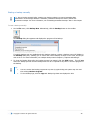
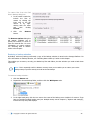
Congratulations on choosing Attix5 Pro Server Edition. Attix5 Pro minimises risk, maximises productivity and
allows businesses to regain control of their most valuable asset - their data.
For technical support, please go to Help > About Attix5 Pro SE, and then use the contact details provided.
Product overview
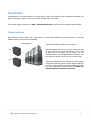
With Attix5 Pro Server Edition (SE), data stored on servers and databases can be backed up to a Storage
Platform quickly, securely and automatically.
Storage Platform
Storage Platform
SE
SE
The following diagram illustrates the scenario:
Files and folders stored on one or more servers running
SE can be backed up to a Storage Platform. In the event
of data loss or corruption on the server, you can
retrieve data from the Storage Platform and restore it to
the original or another server in just a few easy steps.
SE
SE
A Backup Administrator can manage the entire backup
environment (Backup Clients and the Storage Platform)
remotely, using the Attix5 Pro Storage Platform Console.
For more information, please refer to the Attix5 Pro
Storage Platform Console User Manual.
6
1. Getting started
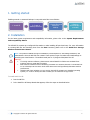
Enabling manual or automatic backups is easy with Attix5 Pro Server Edition:
1. Install SE
2. Create a
Backup Account
3. Select files and
folders for
backup
4. Backup Automatically or
manually
2. Installation
For the latest system requirements and compatibility information, please refer to the System Requirements
and Compatibility Matrix.
The SE MSI file contains pre-configured information to make installing SE quick and easy. For more information
on creating MSI files and launching them from the Run Command, please refer to the Attix5 Pro Storage
Platform Console User Manual.
Note: The options available during the installation process depend on the settings enabled by the
administrator when the MSI file was created. These options range from advanced install settings to
specifying the install location. The default install path is: C:\Program Files\Attix5 Pro SE.
Warning:
If running antivirus software, please ensure that all Attix5 Pro folders are excluded from
antivirus scans to avoid data corruption.
Both antivirus software scans and backup processes are resource-intensive. It is advised not
to run a backup and virus scan at the same time as this will significantly decrease machine
performance.
Windows will check whether you are running the MSI file suited to the installed operating
system (i.e. 32-bit or 64-bit) and will not allow you to install the wrong version.
To install Attix5 Pro SE:
1. Run the MSI file.
2. In the Attix5 Pro SE Setup Wizard that appears, follow the steps as described below.
7
Attix5 Pro SE Setup Wizard
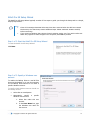
The Attix5 Pro SE Setup Wizard typically consists of five steps to guide you through the Setup task in a simple,
step-by-step manner.
Note:
Some of the settings described below may have been removed when the MSI was created.
Furthermore, the wizard may contain additional steps. Please read each window carefully
before continuing.
If you receive a Windows User Account Control message, asking you if you wish to allow the
Attix5 Pro program to make changes to the computer, click Yes to proceed.
Step 1 of 5: Start the Attix5 Pro SE Setup Wizard
To start the Attix5 Pro SE Setup Wizard:
Click Next.
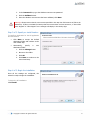
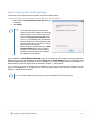
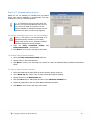
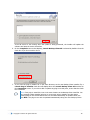
Step 2 of 5: Specify a Windows user
account
To enable the Backup Client to read all files
that must be backed up, it may be necessary
for the Backup Client service to run under a
specific Windows account.
To specify which Windows account should run
the backup service:
Select Run as LocalSystem.
Alternatively, specify
Windows user account:
a
specific
1. Select Run under this user
account.
2. In the User Name box, type
the Windows user name for
the account.
8
3. In the Password box, type the Windows user account password.
4. Click the Validate button.
5. Once the Windows user account has been validated, click Next.
Warning: Please ensure that the user account specified in this step has full access to all files to be
backed up. If files are included for backup that the account does not have access to, a “Some files
were skipped” or “files skipped” error message will display in the backup logs.
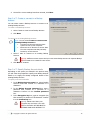
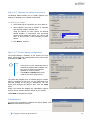
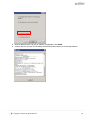
Step 3 of 5: Specify an install location
To specify a destination for the SE application
files and folders:
Click Next to accept the default
destination folder and continue to the
next wizard step.
Alternatively,
specify
destination folder:
a
new
1. Click the Change button.
2. Browse to the folder.
3. Click OK.
4. Click Next to continue to the
next wizard step.
Step 4 of 5: Begin the installation
Once all the settings are configured, the
wizard is ready to begin the installation.
To begin the SE installation:
Click Install.
9
Step 5 of 5: Exit the Attix5 Pro SE Setup Wizard
The last step of the wizard presents the option to launch the Backup Client.
To launch the Backup Client immediately after the Attix5 Pro SE Setup Wizard:
1. Ensure that the Launch Backup Client SE check box
is selected.
2. Click Finish.
Note:
If the MSI file is being run from the same
location as the plug-in installer file, the Setup
Wizard will give you the option to launch the
plug-in installer before launching the Client.
Select the Launch Plug-in Installer check
box to run it immediately after the Attix5 Pro
SE Setup Wizard. For more information about
plug-ins, please refer to the Attix5 Pro Server
Edition Plug-ins User Manual.
Before the Plug-in Installer launches, a User
Account Control dialog box may appear,
asking you if you wish to allow the Plug-in
Installer to make changes to the computer.
Click Yes to run the installer.
If you selected the Launch Backup Client SE check box in the last step of the Attix5 Pro SE Setup Wizard, the
Backup Client will open automatically upon clicking Finish and the Setup Wizard (which is the Backup Account
Wizard and Backup Wizard combined) will launch, enabling you to create a Backup Account and configure your
backup settings. Follow the wizard steps as described in Chapter 3, “Setup Wizard”.
If you opted not to launch the Backup Client immediately, you can open the Backup Client interface at a later
stage via the Start menu or by following any of the instructions listed under Opening the Backup Client in
Chapter 5, “Graphical User Interface”.
Note: The Setup Wizard will launch when you open the Backup Client for the first time.
10
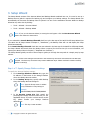
3. Setup Wizard
The Setup Wizard consists of the Account Wizard and Backup Wizard combined into one. It is used to set up a
Backup Account (which is required for backing up) and configure your backup settings. The Setup Wizard runs
automatically the first time the Backup Client is opened. You can run the standalone Account Wizard or Backup
Wizard at any other time by clicking:
Tools > Wizards > Account Wizard
Tools > Wizards > Backup Wizard
Note: If you run the Account Wizard, a warning box will appear. Click the Run Account Wizard
button and follow the instructions.
If you selected the Launch Backup Client SE check box in the last step of the Attix5 Pro SE Setup Wizard (see
The Attix5 Pro SE Setup Wizard in Chapter 2, “Installation”), the Backup Client will run and display the Setup
Wizard automatically.
If the Launch Backup Client SE check box was not selected in the last step of the Attix5 Pro SE Setup Wizard,
the Setup Wizard will launch when the Backup Client is opened for the first time (for more information, see
Opening the Backup Client in Chapter 5, “Graphical User Interface”).
The Setup Wizard typically consists of seven steps to guide you through the setup task in a simple, step-by-step
manner.
Note: Some of the settings encountered in the wizard may have been removed when the MSI was
created. Furthermore, the wizard may contain additional steps. Please read each window carefully
before continuing.
Step 1 of 7: Specify Storage Platform settings
To specify the Storage Platform settings:
1. In the Storage Platform address box, type the
IP address or DNS name of the Storage Platform
where the Backup Account resides.
2. In the Backup Group box, specify which Backup
Group the Backup Account belongs to.
Note: Type the Group name in relation
to any Collections it may belong to.
Example:
COLLECTIONA\COLLECTIONB\GROUP
3. In the Account Create Key field, specify the
preconfigured Backup Account create key for the
applicable Group. If you do not have access to this
key, please contact your Storage Platform
administrator.
Note: This key is case sensitive.
11
4. Once all the correct settings have been entered, click Next.
Step 2 of 7: Create or connect to a Backup
Account
You can either create a Backup Account or connect to an
existing Backup Account.
To create a new Backup Account:
1. Select I want to create a new Backup Account.
2. Click Next.
To connect to an existing Backup Account:
Note: You can select I want to connect to an
existing Backup Account to:
Connect to an Account that has been
opened for use by this computer.
Reconnect to an Account to recover data
from the computer that had previously
backed up to this Account.
1. Select I want to connect to an existing Backup
Account.
Warning: Different servers cannot back up to the same Backup Account. A separate Backup
Account needs to be created for each server.
2. Click Next to continue.
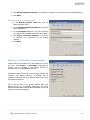
Step 3 of 7: Specify Backup Account details
Depending on the option you selected in the previous step,
you will either be prompted to specify new Backup Account
details or to supply the already configured details of the
existing Backup Account.
To specify new Account details:
1. In the Backup Account name box, type a Backup
Account name that consists of a minimum of 4
characters.
2. In the Backup Account password box, type a
password that consists of a minimum of 4
characters. Confirm it in the Confirm password
box.
3. In the Encryption key box, type an encryption key
that consists of a minimum of 8 characters. Confirm
it in the Confirm key box.
Warning: Please write down your
encryption key and store it in a safe
place as YOU WILL NOT BE ABLE TO
RESTORE YOUR DATA WITHOUT IT.
12
4. Click Set up connection settings… if you’d like to configure your connection to the Storage Platform.
5. Click Next.
When connecting to an existing Account:
1. In the Backup Account name box, type the
Backup Account name.
2. In the Backup Account password box, type the
Account password.
3. In the Encryption key box, type the encryption
key chosen when the Backup Account was created.
4. Click Set up connection settings… if you’d like
to configure your connection to the Storage
Platform.
5. Click Next.
Step 4 of 7: Confirm Backup Account summary
Confirm that the information you have supplied is correct,
and then click Create or Reconnect, depending on
whether you are creating a new Backup Account or
connecting to an existing Backup Account.
The Backup Client will connect to the Storage Platform and
configure your Backup Account. A message will be
displayed confirming that your Backup Account has been
successfully configured.
This is the last step of the Account Wizard. After your
Backup Account is successfully configured, the Setup
Wizard will immediately start the Backup Wizard to help you
configure your backup settings.
13
Step 5 of 7: Schedule backup process
Attix5 Pro can run backups on included files and folders
either upon request (manually) or automatically. This step
enables you to set up a backup schedule.
Tip: It is advised to back up at night when the
server is running and the Backup Client is not in
use. The server must be switched on at the
time(s) specified for scheduled backups, but the
Windows user does not need to be logged in.
To configure the Backup Client to run only manual backups:
Warning: This option is not recommended. If an
automated backup schedule is not created,
backups will have to be run manually. Enabling
automatic backups is strongly advised.
1. Clear the Daily automated backup
Advanced schedule… check boxes.
and
2. Click Next to move to the next step in the wizard.
To schedule a daily automated backup:
1. Select the Daily automated backup check box.
2. Specify a time in the associated box.
3. Click Next to move to the next step in the wizard or create an advanced backup schedule as described
below.
To create an advanced backup schedule:
1. Select the Advanced schedule (back up at the following times) check box.
2. In the Week day box, select a day on which a backup should be initiated.
3. Specify the time in the Backup time box.
4. Click the Add button to add the day and time to the Advanced schedule box.
5. Repeat the steps above until you have added all desired schedules.
6. Click Next to move to the next step in the wizard.
14
Step 6 of 7: Optimise for backup environment
The Backup Wizard enables you to quickly optimise your
settings for backing up in a specific environment.
To optimise your settings:
1. Select what type of connection you use to back up.
2. Select whether you want to optimise to minimise
time and disk usage or transfer size.
Using the options you have chosen, the Backup
Wizard displays a compression and processing
summary that details the effects your choices will
have. It also provides a brief summary of these
effects.
3. Click Next to continue.
Step 7 of 7: Confirm backup configuration
The wizard displays a summary of the choices you have
made. It also shows the working folders which you can edit
by clicking the edit... link.
Note:
If the drive on which the Backup Client is
installed has limited space available, you
can move the folders and selection
database to another location.
The Temp and Cache folders must
reside on the same drive/volume.
The wizard also displays a list of installed plug-ins. Certain
plug-ins, identified by blue text, can be customised from
this step clicking on the plug-in. Alternatively, you can
access and configure the plug-ins later from the Tools
menu.
Finally, the wizard also displays the optimisation options
that you chose, together with the effects of your choices.
Click Finish to complete the wizard.
Congratulations
You have now successfully completed the Setup Wizard. Click
Next and select data to back up.
15
4. Updating Backup Clients and plug-ins
Backup Clients and their plug-ins are usually set up to be updated automatically but the process can be carried
out manually. You’ll find a description of Auto Updates and a set of instructions on how to perform manual
updates in the following sections.
Auto Updates
Attix5 Pro allows you to automate the update process so that the Server Edition Backup Client is updated with
the latest software version during the backup process.
Warning: If a plug-in has been deprecated, the Backup Client will only be updated to the latest version
in which the plug-in was still supported.
Attix5 creates update packs that are distributed to the AccountServer. The AccountServer then distributes these
packs to the different Backup Clients as they are requested during the backup process.
Note:
Auto Updates must be enabled on the Storage Platform for this feature to work. For more
information on enabling Auto Updates, please refer to the Storage Platform Console User
Manual.
By default, if there is less than 500 MB free space available, an update pack is not requested.
This is logged to the Backup Service log.
Backup Clients are always updated to the latest version and service pack available on the
Storage Platform.
If a Backup Client update is available, the following will occur. After the backup process has completed, if the
Backup Client GUI is open, you will be presented with an update dialog box. You have the option to update now
or cancel:
Clicking Update now closes the Backup Client GUI and installs the update.
Clicking Cancel closes the dialog box and does not install the update. The dialog box will appear again
the next time you back up.
If the Backup Client GUI is closed when an automated backup occurs, the update will be installed automatically.
After an Auto Update occurs, the Attix5 Pro system tray icon will display a notification indicating that the update
was successfully applied.
Plug-ins can also be updated automatically. During the backup process, the Storage Platform will compare the
plug-in versions received from the Backup Client with the latest versions available on the Storage Platform. If
newer versions are available, the Backup Client will download the files and automatically update the installed
plug-ins.
16
Manual updates
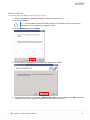
To manually update SE Backup Clients and their plug-ins:
1. Close the Backup Client application interface and the SE system tray icon.
2. Run the SE Installer.
Note: The SE Installer retrieves the install location from the backup service and cannot be
changed as you are upgrading an existing SE Client.
3. On the Welcome screen, click Next:
4. On the Ready to install Attix5 Pro SE screen that appears, click Install:
5. If the Attix5 Pro SE service is running, a Files in Use wizard screen will appear. Click OK to have the
installer stop the service, update the software and then restart the service.
17
If the SE service is not running when the update is being performed, the installer will update the
software and start the service thereafter.
6. On the Completion screen that displays, Launch Backup Client SE is selected by default. Clear the
check box if you do not wish to do so.
7. If you have the plug-in installer file in the same directory as the new Backup Client installer file, a
Launch Plug-in Installer check box will display above the Launch Backup Client SE check box on
the Completion screen. If you wish to add or update any plug-ins at this point, ensure that the check
box is selected.
Note: If the plug-in install file is not in the same location as the Backup Client install file. You
can manually update installed plug-ins by running the plug-in installer at a later stage.
Existing plug-ins are marked with a blue icon and will automatically be updated when you
click Next. The plug-ins can also be updated automatically during the next backup process.
18
8. After the Backup Client and plug-in updates (if applicable), click Finish.
9. Confirm that you can open the SE Backup Client and initiate a backup to the Storage Platform.
19
5. Graphical User Interface (GUI)
You can use the Graphical User Interface (GUI) to:
Select files for backup
Launch backups
Schedule automatic backups
Find files in previous backups
Restore files and folders from previous backups
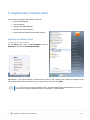
Opening the Backup Client
To open the SE Client interface:
On the Start menu, point to All Programs, point to
Attix5 Pro, and then click Backup Client SE.
Alternatively, if the Client interface is closed but the service is still running (if the Attix5 icon displays in the
system tray), double-click the Attix5 Pro icon or right-click it, and then click Open:
Note: The first time you open the Backup Client, the Setup Wizard launches automatically. For more
information on creating a Backup Account, see Chapter 3, “Setup Wizard”.
20
The GUI explained
You can manage and monitor backups using the Backup Client application window, the system tray icon or the
notification bubbles that appear when certain processes occur. Below are descriptions of each of these items and
the options they provide.
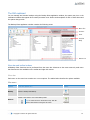
The Backup Client application window contains the following areas:
Menu bar
Toolbar
Tabs
Product
Help
Status bar
Menu bar and toolbar buttons
All Backup Client functions can be performed from the menu bar. Shortcuts to the most commonly used menu
bar functions are also available on the toolbar and right-click menus.
Menu bar
Each menu on the menu bar contains one or more options. The tables below describe the options available.
File menu
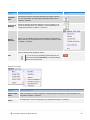
Option
Click the option to...
Backup
Initiate a backup immediately.
Button
Switch to the Restore view in the Backup Client.
Restore
Tip: For faster access to the Restore view, click the
Restore tab instead of using the File menu.
21
Option
Click the option to...
Calculate
Size
Determine the total size of the data included in the backup selection.
For more information, see Determining the backup selection size in
Chapter 6, “Backups”.
Find Files in
Backups
Export
Selection
Button
Access the Find Files in Backups dialog box. This box enables you to
search for particular files in your backups. For more information, see
Finding files in backups in Chapter 7, “Restores”.
Export a list of all backup inclusions and exclusions to an html file for
future reference. For more information, see Exporting a selection report
in Chapter 6, “Backups”.
Close the Backup Client application window.
Exit
Tip: You can re-open the Backup Client window at any
time via the Windows Start menu or by double-clicking
the icon in the system tray.
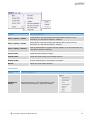
Selection menu
Option
Click the option to...
Filters > New
Filter
Create a new filter to automate inclusions or exclusions based on file type. For more information, see
Using filters in Chapter 6, “Backups”.
Filters > Edit
Filters
Edit existing filters. For more information, see Using filters in Chapter 6, “Backups”.
22
Option
Click the option to...
Filters > [filter] > Include
Include all files in the selected folder that match the filter’s criteria. For more
information, see Using filters in Chapter 6, “Backups”.
Filters > [filter] > Exclude
Exclude all files in the selected folder that match the filter’s criteria. For more
information, see Using filters in Chapter 6, “Backups”.
Filters > [filter] > Deselect
Clear the selected folder of any filters currently applied to it. For more information, see
Using filters in Chapter 6, “Backups”.
Include Folder
Include the selected folder for backup.
Exclude Folder
Exclude the selected folder from the backup selection.
Deselect Folder
Clear the selected folder of any inclusions or exclusions.
Refresh
Refresh the selection being displayed.
Tools menu
Option
Click the option to...
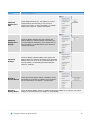
Add Network
Volume
Add a network volume. For more information, see Add
network volume in Chapter 9, “Options and settings”.
23
Option
Click the option to...
Additional
Backup Sets >
Add
Create additional backup sets. This enables you to have
separate backup selections that you can recover as
separate sets of files. For more information, see Multiple
backup sets in Chapter 9, “Options and settings”.
Additional
Backup Sets >
Manage
Access the Backup Schedule page in the Options and
Settings dialog box. Using the settings in this dialog box,
you can manage the schedule(s) of your backup sets. For
more information, see Multiple backup sets in Chapter 9,
“Options and settings”.
Automatic
Backups
Access the Backup Schedule settings in the Options and
Settings dialog box. Configure the settings in the Automatic
Backups area to set up one or more automatic backups. For
more information, see Scheduling automatic backups in
Chapter 6, “Backups”.
Wizards >
Account Wizard
Launch the Account Wizard, which is a standalone wizard
that enables you to change your Backup Account settings.
For more information, see Chapter 3, “Setup Wizard”.
Wizards >
Backup Wizard
Launch the Backup Wizard, which is a standalone wizard that enables you to configure your backup
settings. For more information, see Chapter 3, “Setup Wizard”.
24
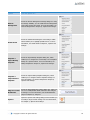
Option
Click the option to...
Remote
Management
Access the Remote Management Settings dialog box. Using
the settings available, you can enable Remote Management
of the Client via the SP Console. For more information, see
Remote Management in Chapter 9, “Options and settings”.
Health Check
Access the Health Check dialog box. Performing a Health
Check enables you to highlight possible issues. For more
information, see Health Check in Chapter 9, “Options and
settings”.
Snapshot >
Export Backup
Snapshot
Access the Export Backup Snapshot dialog box, which
enables you to configure the next backup to be a Snapshot
backup to a specific location. For more information, see
Backup Snapshots in Chapter 9, “Options and settings”.
Snapshot >
Import Restore
Snapshot
Access the Import Backup Snapshot dialog box, which
enables you to configure Restore Snapshot settings. For
more information, see Restore Snapshots in Chapter 9,
“Options and settings”.
Plug-ins > Email
Notification
Access the Email Notification settings dialog box, which you
can use to enable/disable Email notification and configure
its settings. For more information, see Email Notification
plug-in in Chapter 10, “Plug-ins”.
Options
Opens the Options and Settings dialog box that enables you
to modify a range of Client settings. For more information,
see Chapter 9, “Options and settings”.
25
Help menu
Option
Click the option to...
Icon Legend
Access a list of the icons used in the Attix5 Pro
Client and their meanings.
Product Help
Access the Product Help.
About Attix5
Pro
Access the product information and support
contact details. Also displays any plug-in
version inconsistencies.
Menu/Button
Tabs
There are three tabs available in the Backup Client:
Backup Selection: This tab displays the files and folders
on the computer, enabling you to select the items to be
backed up. For more information, see How to select data
to data back up in Chapter 6, “Backups”.
Restore: Use this tab to browse previous backups and
restore files and folders.
Logs: Use this tab to view detailed information on each
backup and restore.
Tip: In the right-hand pane on the Backup Selection and Restore tabs, you can click any of the
column headings to sort the list according to their values.
Product Help
You can access the Backup Client Help by clicking Product Help on the Help menu.
Alternatively, click the Help button on the toolbar.
As you navigate the Client, the Help pane will display information relevant to the selected tab.
26
Status bar
This area displays the date and time of the last backup performed by the system.
System tray icon
The System tray icon
An animated icon indicates that the service is busy with a backup process.
Click or right-click the system tray icon to view the menu options available.
indicates the backup activity status and can be used to perform various tasks.
Note: On the Windows 7 operating system, the system tray icon is hidden by default. To display the
icon, click the Show hidden icons arrow, click Customize. In the dialog box that appears, expand
the Behaviours drop-down next to SERunner.exe, and then select Show icon and notifications.
27
System Tray menu
Options
Click the option to...
Opens the Attix5 Pro Backup Client application window.
Open
Tip: Users can also double-click the system tray icon to open the application window.
For more information, see “The GUI explained” earlier in this chapter.
Backup Now
Manually initiates the backup process without opening the Backup Client application window.
Cancel Backup
If the service is busy with a backup (when the
icon is animated), Cancel will stop the process.
Opens a small window above the system tray that enables you to monitor the status and progress of
the task being performed without opening the application window.
Monitor Status
Notifications
Provides you with options to enable/disable backup notifications. For more information, see
“Notifications” later in this chapter.
About
Displays the splash screen. Click anywhere in the window to close it.
Removes the
Exit
icon from the System Tray.
Note: This will not stop the Attix5 Pro service from running scheduled backups.
To see the icon in the system tray again, simply open the Attix5 Pro Backup Client using the
Windows Start button. For more information, see “Opening the Backup Client” earlier in this chapter.
Warning: The Backup Service must be running at all times for backups (manual or scheduled) to take
place.
Note: To stop or start the Backup Service, open Administrative Tools in the Control Panel, and
then double-click Services. In the list of services that appear, select Attix5 Pro SE and select Stop
or Start on the toolbar. The System Tray icon will appear red when the service is not running:
28
Notifications
Notifications of Backup Client activity will appear as pop-ups in the System Tray. For example:
The following notifications will appear by default but can also be disabled:
1. When a backup completed successfully.
2. When a backup failed to complete.
3. When a backup was completed but
there were warning or errors.
1
2
Tip: To view related log file
information, click anywhere within
the pop-up.
3
Note: You will always be notified if the Backup Client has been upgraded.
To enable or disable notifications:
Right-click the System Tray icon and then enable or disable the check mark next to the relevant Notifications
option.
Tip: Since notifications only appear briefly, hover over the System Tray icon to see when the last
backup occurred.
29
6. Backups
After installing Attix5 Pro Server Edition (SE) and creating a Backup Account, you can tell the Backup Client
which files and/or folders to back up and which to ignore by creating a backup selection (see “Selecting data to
back up” below). You can then start a backup manually or schedule automatic backups (see “Performing a
manual backup” and “Scheduling automatic backups” below).
Note: Any changes, additions or deletions to included files and folders will be backed up intelligently
with every manual or scheduled backup.
How to back up
The following sections describe how to:
Select data to back up
Use filters to specify files and/or folders to be excluded from the backup selection
Determine the backup selection size
Export a selection report
Start backups (automatically and manually)
Cancel a backup
Resume a failed or cancelled backup
Selecting data to back up
You can make your first backup selection or modify a backup selection at any time using the Backup Selection
tab as described below.
Tip: You should exclude the Backup Client installation folder, as including it increases the size of your
backup unnecessarily.
To select files and folders for backup:
1. Click the Backup Selection tab.
2. In the Backup Selection tree, navigate to the folder or directory containing the file or folder.
3. Include or exclude files and/or folders, as described below.
Tip: Once a file or folder is included in the backup selection, any modifications to it will be backed up
automatically. For more information, see Patching in Chapter 9, “Options and settings”.
Warning: If you have limited space on the drive running the Backup Client, it is recommended that
you move the Cache, Logs and Temporary folders as well as the selection database to another
location. For more information, see Disk Usage in Chapter 9, “Options and settings”.
30
To include an individual file:
In the right-hand pane, click the file icon
is displayed with a green icon: .
or right-click the file name, and then click Include. An included file
To deselect a file, you can either click the icon again or right-click the file name, and then click Deselect. A
folder containing some included files is displayed with a green tinted icon:
.
To include an entire folder:
Right-click the folder icon
, and then click Include Folder. Alternatively, you can select the folder in the
Backup Selection tree, and then click Include Folder on the Selection menu. Included folders are displayed
with a green icon:
.
Note: All files in the included folder and its subfolders will be included in the next backup. Any
changes made within this folder or its subfolders will automatically be included as well.
To deselect a folder, right-click the folder icon, and then click Deselect Folder.
To exclude a file or subfolder:
If an entire folder is included but you wish to exclude a particular file or subfolder, right-click the file or folder
icon, and then click Exclude or Exclude Folder. Excluded items are displayed with red icons:
or
.
Included folders that have some files or subfolders excluded are green with a red tint:
.
Tip:
You can create different backup selections for different backup sets. For more information,
see Multiple backup sets in Chapter 9, “Options and settings”.
You can use filters to automate file selection based on file types.
Once you have selected all files to be included and excluded, it may be useful to check the
size of your backup selection before initiating your first backup. For more information, see
Using filters later in this chapter.
Note: Some files and directories are forcefully excluded from the backup selection. On Windows
machines, these are the pagefile.sys and hiberfil.sys files; and the Backup Client cache and
toBackup folders.
Using filters
You can use filters to automate file inclusions or exclusions within a folder, based on file types.
Example: A *.doc filter will include or exclude all Word documents within a folder, as well as any new
Word documents that are added to that folder later.
To apply a predefined filter to a specific folder:
1. In the Backup Selection tree, right-click the folder icon.
2. Point to Filters.
3. Point to one of the available filters in the list (e.g. MS Office documents).
4. Click Include or Exclude.
To modify an existing filter:
31
1. In the Backup Selection tree, right-click the folder icon, point to Filters, and then click Edit filters.
2. Select one of the filters and then modify its properties in the Edit filter box.
3. Click OK.
Tip: To add a new filter from within the Edit filters dialog box, click the New button, supply a name
that describes the filter, enter the file type(s), and then click OK.
To add a new filter via the Backup Selection tree:
1. Right-click the folder icon, and then click New filter.
2. In the Filter name box, type a name to be used in the Filters menu.
3. In the Filter box, specify the file extensions to which the filter will apply.
4. Click OK.
The filter will be added to the Filters menu and you will be able to use it to include or exclude all files matching
its criteria.
To remove filters from a folder:
1. Right-click the folder icon.
2. Point to Filters.
3. Point to the name of the filter you wish to remove.
4. Clear the check mark next to the selection (Include or Exclude).
To identify files and folders selected by filters:
Look at the icon state. Files and folders included in the backup selection by filters display with icons containing
blue check marks:
and
.
Inclusions and exclusions by “profiling”
Some inclusions and exclusions are enforced at administration level on the Storage Platform. This is called
“profiling”. For more information, see Profiling in Chapter 9, “Options and settings”.
Files and folders affected by profiling display with the following icons:
Icon
Status
File inclusion
Filtered file inclusion
File exclusion
Folder inclusion
Filtered folder inclusion
Folder exclusion
32
Note: Profiled selections cannot be modified from within the Backup Client and can only be changed
on the Storage Platform. For more information, please refer to the Attix5 Pro Storage Platform
Console User Manual.
Global exclusions
Global exclusions enable you to specify files and/or folders to be excluded from the backup selection.
To add Global Exclusions:
1. Click the Options button on the toolbar, and then click Global Exclusions.
2. Select the type(s) of filters to apply and then specify their values. (For more information, see Global
Exclusions in Chapter 9, “Options and settings”.)
3. Click OK.
Icon legend
On the Backup Selection tab, each file and folder is displayed with an associated icon. The colour of the icon
indicates the file or folder’s backup selection status.
The following icon legend lists the Attix5 Pro icons and the statuses they indicate. You can access this legend by
clicking Icon Legend on the Help menu.
Note: For more information on backup selections (inclusions and exclusions), see “Selecting data to
back up” earlier in this chapter.
Icon legend
Icon
Status
Description
File (not selected)
The file exists in the folder or directory but is not included in the backup
selection (neither included nor excluded).
Selected by user
The Backup Client user has included the file in the backup selection.
Selected by user filter
The Backup Client user has applied a filter to the parent folder or
directory. That filter has included the file in the backup selection.
Excluded by user
The Backup Client user has excluded the file from being backed up to the
Storage Platform.
33
Icon
Status
Description
Excluded by administrator
The Backup or Storage Platform Administrator has excluded this file or its
file type. Files displaying this icon will not be backed up to the Storage
Platform.
Included by profiling
The Backup or Storage Platform Administrator has included this file or file
type. Files displaying this icon will be backed up to the Storage Platform
and cannot be deselected from within the Backup Client.
Included by profiling filter
The Backup or Storage Platform Administrator has applied a filter to the
parent folder or directory. That filter has included the file in the backup
selection. Files displaying this icon cannot be deselected or excluded from
within the Backup Client.
Excluded by profiling
The Backup or Storage Platform Administrator has excluded this file or its
file type. Files displaying this icon will not be backed up to the Storage
Platform and cannot be included in the backup selection from within the
Backup Client.
Folder (not selected)
The folder exists in the directory but it is not included in the backup
selection.
Some files included by user
The Backup Client user has included some files or folders in the backup
selection.
All files selected by user
The Backup Client user has included all files in the backup selection.
All files selected by user, some
excluded
The folder contains no unselected files. Each file is either included or
excluded.
All files excluded by the user
The Backup Client user has excluded all files in the folder from being
backed up to the Storage Platform.
Filter applied by user
The Backup Client user has applied a filter to the folder. The filter has
included one or more files within the folder or sub-folders.
Filter applied by user, some
excluded
The Backup Client user has applied a filter to the folder that has included
and excluded files within it.
All items included by profiling
The Backup Administrator has included all the files contained in the folder.
All files will be backed up to the Storage Platform. These inclusions cannot
be changed by the Backup Client user.
Filter applied by profiling
The Backup Administrator has applied a filter to the folder. This filter
cannot be removed by a Backup Client user.
Filter applied by user, all items
excluded
The Backup Client user has applied a filter to the folder, resulting in the
folder being excluded from the backup selection.
Filter applied by profiling, some
items included by user
The Backup Administrator has applied a filter to this folder using profiling
and some items have been manually included by the Backup Client user
(see “Selecting data to back up” earlier in this chapter).
34
Icon
Status
Description
Filter applied by profiling, some
items included and some items
excluded by user.
The Backup Administrator has applied a filter to this folder using profiling.
Some items have been excluded and others included by the Backup Client
user (see “Selecting data to back up” earlier in this chapter).
Filter applied by profiling but
items excluded by user.
Items in the folder have been included using filters (see “Using filters”
earlier in this chapter.)
Folder excluded by Global Filter.
The folder has been excluded using Global Exclusions.
All items (files, folders, etc.)
excluded by profiling
The Backup Administrator has excluded all files in the folder and subfolders. These excluded files cannot be included by a Backup Client user.
Plug-in node (not selected)
The plug-in exists but is not selected for backup to the Storage Platform.
Some items selected by user
The Backup Client user has selected some of the items in the plug-in for
backup to the Storage Platform.
All items selected by user
The Backup Client user has selected all items in the plug-in for backup to
the Storage Platform.
All items selected by user, some
excluded
The Backup Client user has included and excluded items in the plug-in.
All items excluded by user
The Backup Client user has excluded all items in the plug-in from being
backed up to the Storage Platform.
Filter applied by user
The Backup Client user has applied a filter to the plug-in; specifying that
certain file types must be included for backup to the Storage Platform.
Filter applied by user, some
excluded
The Backup Client user has applied a filter to the plug-in; specifying that
certain file types be included for backup to the Storage Platform but some
items have been excluded either through the use of an exclusion filter or
by manual exclusion.
Note: For more information, see “Inclusions and exclusions by ‘profiling’” in Chapter 5, “Graphical User
Interface (GUI)” and plug-ins in Chapter 10, “Plug-ins”.
35
Determining the backup selection size
It is useful to determine the backup selection size before starting the backup process to avoid Over Limit errors.
Note: The Backup Client compares your backup selection size with the Backup Account limit (specified
by your Backup Administrator) at the beginning of the backup process. If the selection size exceeds
the Account limit, the backup process will stop and an Over Limit error message will be displayed.
To calculate the backup selection size:
A. On the File menu, click Calculate Size.
B. Alternatively, click the Size button on the toolbar:
The Backup Selection Size dialog box that appears displays total size of your backup selection (i.e. all files
included for backup).
Warning:
If your backup selection size exceeds your Backup Account limit, you need to remove some
items from the selection or ask your Backup Administrator to upgrade your Backup Account
limit.
If a backup fails and an Out of Memory error message is recorded in the backup log, you
need to increase the default amount of server memory you wish to allocate to the backup
service.
To remove a file from the backup selection:
A. In the Size dialog box, right-click the file’s icon:
.
. The icon will turn red to indicate that it is excluded:
Note: To exclude multiple files at once, click a file name in the list, hold down the Shift key
and drag the mouse pointer to highlight the files. Right-click the selection, and then click
Exclude.
B. Alternatively, on the Backup Selection tab, deselect or exclude files or folders that are currently
selected for backup. For more information, see Selecting data to back up in Chapter 6, “Backups”.
36
Exporting a selection report
After creating a backup selection, you can export a list of all backup inclusions and exclusions to an html file for
future reference.
The selection report will specify:
Files and folders included in the backup
Files and folders excluded from the backup
How each item was selected (user-selected, filters, profiling, global exclusions or mandatory patching)
Where each item is located on the machine
The total number of items in the backup selection
To export a selection report:
1. On the File menu,
Selection.
click Export
2. In the Save As dialog box, select
the location in which to save the
file, type a file name in the File
name box, and then click Export.
The file will be saved to the specified
location and can be viewed in any Internet
browser.
37
Starting a backup manually
Tip: Run a backup manually after creating your backup selection to ensure immediate data
transmission to the Storage Platform. Thereafter, automatic backups will ensure hassle-free
continuous backups. For more information, see “Scheduling automatic backups” later in this chapter.
To start a backup manually:
1. On the File menu, click Backup Now. Alternatively, click the Backup button on the toolbar.
The Backup dialog box appears and displays the progress of the backup:
If multiple backup sets are enabled and their backup windows overlap, a backup queue will display in
the Backup dialog box, enabling you to cancel the current backup in favour of the next, should you
wish to do so. For more information, see Multiple backup sets in Chapter 9, “Options and settings”.
2. To close the Backup Client after the backup process has started, click the Hide button. This will not
cancel the backup process and the Backup Client can be re-opened at any time to view the progress of
the backup.
Tip:
You can monitor the backup progress at any time by right-clicking the system tray icon and
then clicking Monitor Progress.
To view backup logs, click the Logs tab. Backup log dates are displayed in blue.
38
Scheduling automatic backups
Automatic backups are usually enabled and configured either during the Setup Wizard or during the Backup
Wizard but you can enable and schedule them at any point in time using the Options and Settings dialog box.
To schedule a daily automated backup:
1. On the Tools menu, click Options. Alternatively, click the Options button on the toolbar.
2. In the Options and Settings dialog box, click Backup Schedule.
3. If multiple backup sets are enabled, ensure that the correct set is selected in the Backup set dropdown box. (For more information on backup sets, see Multiple backup sets in Chapter 9, “Options and
settings”.)
4. Select the Daily automated backup check box, and then specify a backup time in the associated box.
5. Click OK.
To create an advanced backup schedule:
1. Select the Advanced schedule (back up at the following times) check box.
2. In the Week day box, select the day on which a backup should be initiated.
3. Specify the time in the Backup time box.
4. Click the Add button to add the day and time to the Advanced schedule box.
5. Repeat steps 2 to 4 above until you have added all desired schedules to the Advanced schedule box.
Tip:
You are advised to back up at night when the server running the Backup Client is
not in use. It must be switched on at the scheduled backup time(s), but the
Windows user does not need to be logged in.
Configuring automatic backups ensures that all selected data is backed up
automatically, without the need for any user interaction. This is a safer alternative
to relying on manual backups.
Backups will initiate at the scheduled times and the
Backup dialog box will appear displaying the progress of
the backup:
If multiple backup sets are enabled and their backup
windows overlap, a backup queue will display in the
Backup dialog box, enabling you to cancel the current
backup in favour of the next, should you wish to do so. For
more information, see Multiple backup sets in Chapter 9,
“Options and settings”.
Tip:
To close the Backup Client after the backup process has started, click the Hide button. This
will not cancel the backup process and you can re-open the Backup Client at any time to view
the progress of the backup.
You can monitor the backup progress at any time by right-clicking the system tray icon and
then clicking Monitor Progress.
To view backup logs, click the Logs tab. Backup log dates are displayed in blue.
Backups will be stored on the Storage Platform and accessible via the Restore tab. For more information on
restoring data, see Chapter 7, “Restores”.
39
Cancelling a backup
Once a backup is in progress, you can cancel the process via the Backup progress window or using the system
tray icon.
To cancel a backup:
1. Perform one of the following actions:
a) In the Backup progress window, click the Cancel button.
b) Alternatively, you can right-click the runner icon in your system tray, and then click Cancel.
2. In the confirmation dialog box that appears, click Yes.
40
Resuming a backup
By default, the Backup Client tries to connect to the Storage Platform four times before cancelling the backup
process. If, however, the previous backup was not successful and a manual backup is initiated, the Backup
Client will display the prompt: “Do you want to resume the failed backup...?” with a 30 second countdown.
Click Yes to instruct the Backup Client to try to continue from where the process failed during the
previous backup,
Click No to initiate a new backup or
Cancel to return to the Backup Client application window.
Note:
You can only resume a backup if the backup completed the Processing stage.
A new backup will be initiated automatically after the countdown has elapsed.
41
7. Restores
On the Restore tab, you can browse a tree structure representation of all successful backups and their files and
folders.
How to restore
The following sections describe how to select data to restore, start the restore process, and search for specific
backed up files.
Selecting data to restore
On the Restore tab, the Restore tree gives you access to backed up files via two main nodes: Last Backup
and Previous Backups.
The Last Backup node contains the file/folder structure of the last
successful backup and displays the date and time it occurred in
parentheses “( )”.
Note: Restores done from the Last Backup node are typically
faster than those done from the Previous Backups node as
the Backup Client may be able to retrieve the data from the
cache instead the Storage Platform.
When you expand the Previous Backups node, the Backup Client
retrieves the list of previous backups from the Storage Platform and
displays them in the tree.
To select and restore data from the last backup:
1. Click the Restore tab.
2. Expand the Last Backup node to view the files/folders.
3. Include a single file by clicking the
icon next to the file or by right-clicking the file name and then
clicking Include. Each included file is displayed with a green icon: .
4. Include an entire folder by right-clicking the folder and then clicking Include folder. Each included
folder is displayed with a green folder icon:
.
5. If an entire folder is included but you wish to exclude a particular file or subfolder, right-click the file or
folder icon, and then click Exclude or Exclude Folder. Excluded items are displayed with red
icons:
or
. Included folders that have some files or subfolders excluded are green with a red
tint:
.
6. Once all the files and folders to be restored are selected, start the restore process by clicking Restore
on the File menu or the Restore button on the toolbar. For information on the restore options
available, see “Restoring data” later in this chapter.
To select and restore data from previous backups:
1. Click the Restore tab.
2. Expand the Previous Backups node to connect to the Storage Platform and retrieve a list of all
previous backup dates.
42
3. Expand the relevant backup node, and then click the folder/directory containing the data.
4. Include a single file by clicking the
icon next to the file or by right-clicking the file name and then
clicking Include. Each included file is displayed with a green icon: .
5. Include an entire folder by right-clicking the folder and then clicking Include folder. Each included
folder is displayed with a green folder icon:
.
6. If an entire folder is included but you wish to exclude a particular file or subfolder, right-click the file or
folder icon, and then click Exclude or Exclude Folder. Excluded items are displayed with red
icons:
or
. Included folders that have some files or subfolders excluded are green with a red
tint:
.
7. Once all the files and folders to be restored are selected, start the restore process by clicking Restore
on the File menu or the Restore button on the toolbar. For information on the restore options
available, see “Restoring data” below.
Restoring data
After you have selected the files and folders to restore, you can start the restore process as described below.
To start the restore process:
1. On the File menu, click Restore. Alternatively, click the Restore button on the toolbar:
The Restore dialog box will prompt you for a restore location:
2. Select Original location to restore the files to the same location that they were backed up from or
select Folder and then browse to a new location.
Warning: If Original location is selected, the restored files will overwrite any existing files
with the same name in that location. A warning will, however, be displayed before the
Backup Client overwrites any files.
3. In the I want... section, select either the fastest restore (no resume possible) or to resume interrupted
transfers depending on your requirements.
4. Click the Show advanced options... link to display the advanced restore options. You can now specify
the rest of the restore options by selecting or clearing the following check boxes:
43
a. Recreate folder structure – This option is selected by default. It instructs the Backup Client
to recreate the folder structure in the restore folder. Clear this check box if you wish to restore
the files to a single folder.
Note: If restoring files from different folders with the same file names, you need to
recreate the folder structure to prevent overwriting the files
b. Restore empty folders – If the Recreate directory structure option is selected, you can
select this check box to recreate empty folders.
Note: This option is only available when Recreate directory structure is selected.
c.
Restore file and folder permissions – Clear this check box if you do not wish to restore the
file and folder permissions. You would typically only select this option after a complete server
failure (to restore files before user accounts are re-created).
d. Overwrite files – Select this check box if you do not want the Backup Client to prompt you
before overwriting an existing file.
5. Click Restore.
Note: You can view restore logs on the Logs tab. Restore log dates are displayed in green.
Finding files in backups
To find a specific backed up file, it may be easier to use the Find function than to browse the Restore tree.
You have the option to scan only your last backup (locally), or you can connect to the Storage Platform and
search through previous backups.
To search for a file in your latest backup:
1. On the File menu, click Find Files in Backups. Alternatively, click the Find button on the toolbar:
2. Type the file name or part thereof in the File name box, and then click Find.
44
Example: If “sales” is searched for, the Backup Client will display a list of all files in the last backup
containing “sales” in the filename.
Tip: Use the * and ? wildcards for advanced search queries.
To search for a file in previous backups:
1. On the File menu, click Find Files in
Backups. Alternatively, click the Find
button on the toolbar:
2. Type the file name or part thereof
in the File name box.
3. Select the Search through previous
backups (Storage Platform) check
box.
4. If you wish to limit the search to
particular dates, select the Search
backup dates check box and then
use the Start date and End date
boxes to specify a time period.
5. To limit the number of results that
display, select the Limit number
of results to check box and then
type a number in the box provided.
6. Click Find.
Tip: Use the * and ? wildcards for advanced search queries.
Note: If Search backup dates is selected, the backup date is used for the search instead of the
file created or file modified date.
45
To restore files from the Find
Files in Backup dialog box:
1. In the search results list,
include the files to
restore by clicking the
icons next to the file
names or by rightclicking each file name
and
then
clicking
Include.
2. Click
the
button.
Restore
The Restore Options dialog box
will appear, enabling you to
specify the location in which to
save the restored files. For more
information on restore options,
see “Selecting data to restore”
earlier in this chapter.
Restoring a backup selection
By default, with every backup performed, a copy of the backup selection is saved on the Storage Platform. For
more information on backup selection, see “Selecting data to back up” earlier in this chapter.
This enables you to restore, not only your backed up files and folders, but the selection you used to back them
up as well.
Note: This is especially useful in disaster recovery cases, as it enables you to restore your entire
backup setup to perform exactly as it did at the last backup.
To restore a backup selection:
1. Click the Restore tab.
2. Expand the relevant backup folder, and then click the Workspace node.
3. In the right-hand pane, click the icon next to the name of the backup set to include it for restore. If you
have not enabled multiple backup sets (see Multiple backup sets in Chapter 9, “Options and settings”),
include the only entry that displays.
46
4. Click the Restore button on the toolbar.
5. Select the appropriate restore options. (See “Selecting data to restore” earlier in this chapter.)
6. Click Restore.
The backup selection will be restored to the location specified in the restore options.
Restoring archived data
Attix5 Pro allows Backup Administrators to archive Backup Clients’ data to tape or another disk drive using the
Hierarchical Storage Management (HSM) feature. Once data has been archived, the backups will display in the
Restore tree as greyed out folders, allowing you to browse the file/folder structure of the backups. However, if
you try to restore archived data, you may receive a message informing you that the data has been archived to
secondary storage, as illustrated in the screenshot below.
Note: Grey folders indicate archived data. However, if you do not see these folders in the Restore
tree, it does not mean that no archived backups are available. In such cases, please consult your
Backup Administrator for further details about archived backups.
You can access archived data by requesting that your Backup Administrator import the HSM data to the Storage
Platform. Once the data has been imported, it will be available for restore in the same manner as all other
backups.
47
8. Logs
The Backup Client logs all backup and restore processes and their results in log files that you can view on the
Logs tab. The following sections describe how to access log files and modify their settings.
Accessing log files
The Logs tab in the Backup Client provides detailed information about each backup and restore. An additional
toolbar button appears when the Logs tab is opened: the Summary button. Use the button to view only errors
and warnings and the last 14 lines in the log file.
Tip: You can use the Up arrow, Down arrow, Page Up, Page Down, Home and End keys to
navigate the log.
Changing log file settings
You can specify your logging preferences on the Logging page in the Options and Settings dialog box.
Modifiable settings include:
level of detail included
date inclusion/exclusion in time stamp
log file retention period
For information on configuring the log file settings, see Logging in Chapter 9, “Options and settings”.
48
9. Options and settings
To access the Options and Settings dialog box:
On the Tools menu, click Options.
Alternatively, click the Options button on the toolbar:
The various options and settings are grouped in the left-hand pane according to their functions. Click an item on
the left to view the full set of options related to that function.
Example: Click Connection in the left-hand pane to view all connection options on the right:
Warning: The Options and Settings dialog box controls advanced features in the Backup Client.
Please read through this section carefully before changing any settings. Incorrect settings could
cause critical errors.
49
Backup Account
You can use the Backup Account page in the Options and Settings dialog box to:
Retrieve Backup Account settings
Modify security settings
The Backup Account page consists of the following areas:
Details
Security
Details area
This area displays your Backup Account information as it is configured on the Storage Platform. You can use the
Retrieve settings button to retrieve your Backup Account details from the Storage Platform.
Tip: This button is useful to verify that the Backup Account limit has been modified after requesting a
change from the Backup Administrator, or to update Backup Group Profiling settings.
Security area
If you need to change your password or encryption key, click the Change password or Change encryption
key buttons.
50
Warning:
Changing the encryption key involves intensive processing on the Storage Platform and may take
several minutes. You should avoid doing this unless the encryption key has been compromised.
Disaster recovery is not possible without the encryption key. Please ensure that this key is kept in
a safe place. THIS ENCRYPTION KEY IS NOT STORED ON THE STORAGE PLATFORM AND
CANNOT BE RECOVERED OR RESET IF LOST.
You can select whether or not the Backup Client should prompt for the Backup Account password. Three options
are available:
Never (default): The Backup Client remembers the Backup Account password when doing a backup or
restore.
When doing a restore: The Backup Client prompts for the Backup Account password when opening
the Restore tab.
When loading the Backup Client: The Backup Client prompts for the Backup Account password
when opening the Backup Client and the Restore tab.
51
Backup Schedule
You can use the Backup Schedule page in the Options and Settings dialog box to:
Enable/disable a daily automated backup
Create advanced automatic backup schedules
Note: If using multiple backup sets, use the Backup set drop-down at the top of the dialog box to
specify which backup set schedule you wish to configure. For more information, see Multiple backup
sets in Chapter 9, “Options and settings”.
Daily automatic backups are enabled by default unless disabled during the Setup Wizard. If disabled, you can
enable it by following the instructions below.
To enable a daily automated backup:
1. Select the Daily automated backup check box.
2. Specify a time in the associated box.
3. Click Ok.
To create an advanced backup schedule:
1. Select the Advanced schedule (back up at the following times) check box.
2. In the Week day box, select the day on which a backup should be initiated.
3. Specify the time in the Backup time box.
52
4. Click the Add button to add the day and time to the Advanced schedule box.
5. Repeat steps 2 to 4 above until you have added all desired schedules to the Advanced schedule box.
To disable automatic backups (not recommended):
1. Clear the Daily automated backup and Advanced schedule check boxes.
2. Click Ok to close the Options and Settings dialog box.
Warning: This option is not recommended. If an automated backup schedule is not created,
backups will have to be run manually. Enabling automatic backups is strongly advised.
For detailed instructions on how to enable and schedule automatic backups, see Scheduling automatic backups
in Chapter 6, “Backups”.
53
Global Exclusions
You can use the Global Exclusions page in the Options and Settings dialog box to:
Exclude files globally
Exclude folders globally
View profiled global exclusions
The Global Exclusions page in the Options and Settings dialog box consists of the following areas:
Exclude Files
Exclude Folders
Profiled Exclusions
Exclude Files area
In this area, you can specify that files with certain file names, extensions or last modified dates be excluded
from all backups.
54
To exclude files based on their file names or extensions:
1. Select the Exclude these files check box.
2. Type the file name(s) and/or file extension(s) in the box provided; separated by semicolons or listed
beneath each other.
Tip: You can use wildcards. E.g. *.mp3 will exclude all MP3 files from backups.
Example: To exclude all MP3 and AVI files, specify *.mp3 and *.avi in the text box. Separate
entries with a semicolon or type each on a new line.
3. Click OK.
To exclude files based on their 'last modified' dates:
1. Select the Do not back up files older than check box.
2. In the box provided, type the date in dd-mm-yyyy format. Alternatively, click the drop-down arrow and
select a date.
3. Click OK.
Exclude Folders area
In this area, you can exclude certain folders from all backups.
To exclude folders:
1. Select the Exclude these folders check box.
2. Type the folder names in the box provided; separated by semi-colons or listed on separate lines.
Note:
Wildcards and path separators are not supported in this area.
Entries are case sensitive.
3. Click OK.
Profiled Exclusions area
This area will indicate if any file/folder global exclusions have been set by the Backup Administrator. Since
profiled settings can only be changed from the Storage Platform Console, contact your Backup Administrator if
there is a problem with the files/folders being excluded.
Note: Profiled exclusions are combined with the user’s exclusions in the Backup Client. However,
profiled exclusions take precedence over the user’s inclusions.
For more information, see Profiling in the Advanced Tools section later in this chapter.
55
Connection
You can use the Connection page in the Options and Settings dialog box to:
Modify Storage Platform connection settings
Enable/disable/configure proxy server details
The Connections page consists of the following areas:
Connection Type
Proxy Server
Connection Type area
In this area, you can change the type of connection that the Backup Client uses to connect to the Storage
Platform. You can choose between a network or VPN/dial-up connection.
Note: The VPN or dial-up settings… button is enabled if you select Use VPN or dial-up
connection. Click this button to select an existing VPN or dial-up connection configured on the
computer and then supply the username and password for that account.
Proxy Server area
In this area, you can specify whether or not the Backup Client should connect to a proxy server when connecting
to the Internet. If you select that it should, you can specify the proxy server details in the available boxes.
56
Connection Throttle
The Connection Throttle page in the Options and Settings dialog box enables you to specify the Backup
Client's bandwidth usage speed limits. You can do this by creating a throttle map. Backup data will then only be
transferred at the specified speed limits during each interval.
The Connection Throttle page consists of the following areas:
Speed Limits
Throttle Map
Speed Limits area
In this area, you can specify one or more speed limits (in kilobytes per second) that can be applied when
sending backup data to the server.
To specify a speed limit:
Choose a colour to represent the limit and specify the limit in that colour’s Limit box.
You can now schedule the speed limits in the Throttle Map area as described below.
57
Note: A limit of 0 indicates that no limit will be applied.
Throttle Map area
In this area, you can indicate when the speed limits specified in the Speed Limits area should apply by creating a
throttle map.
Tip: By default, a throttle map is provided with different colours indicating week day office hours,
out-of-office hours and weekends (using intervals of 60 minutes). You can either set speed limits for
the colours used in this default map or you can click the Clear button and create a new map by
following the instructions below.
To create a throttle map:
1. In the Interval box, specify the number of minutes that each block in the graph should represent.
2. In the Speed Limits area, click a speed limit colour. Alternatively, click the Selected speed limit box to
cycle between the different limits.
3. In the Throttle Map area, click the schedule interval boxes you wish to apply the limit to. The colour of
the selected interval boxes will change to match that of the chosen limit.
Tip: Should you wish to revert to the default throttle map at any point in time, click the
Default button.
4. Click OK.
58
Advanced Communications
You can use the Advanced Communications page in the Options and Settings dialog box to configure all
advanced communication settings.
The Advanced Communications page consists of the following areas:
Secure Connection
Retries and Timeouts
Concurrent Transfer
Secure Connection
Use secure (SSL-enabled) connection for data transfer (recommended). This option is selected by
default, enabling SSL encryption for Backup Client-to-StorageServer data transfers. Deselecting this option
disables SSL encryption for data transfer. This enhances transfer speeds but should only be done within a secure
network environment.
Note:
Disabling this feature will only have an effect on security for the actual data transfer and not
the encryption of the data on the Storage Platform.
Secure data transfer connections can only be disabled if the StorageServer has been
configured to accept non-secure connections. If the StorageServer cannot accept non-secure
connections, an SSL-enabled connection will automatically be used instead.
Warning: Before disabling SSL encryption, first ensure that the backup environment is secure.
59
Retries and Timeouts
Number of backup or restore retries
By default, the Backup Client tries to connect to the Storage Platform four times before cancelling the backup
process.
Note: You are advised to increase the number of attempts when using a slow Internet connection.
The backup will continue from the previous point of failure and not resend the entire backup.
Duration before connection retries
By default, the Backup Client will try to reconnect to the Storage Platform after 60 seconds, should the
connection be dropped. This setting enables you to increase/decrease the duration between retries.
Socket timeout
The default socket timeout is 60 seconds. If the Backup Client is connected to the Storage Platform and there is
no communication between the two, the time specified in this box (in seconds) is how long the Backup Client will
stay connected before dropping the connection.
Concurrent Transfer
Begin transferring data during the compression phase
Select this option if you wish to make use of concurrent backup processing to speed up the backup process.
With this setting enabled, the Backup Client compresses/patches files in the background using one thread and
transmits files to the Storage Platform using a second thread as soon as the files are compressed/patched.
60
Backup Priority
You can use the Backup Priority page in the Options and Settings dialog box to limit CPU usage and disk
access.
The Backup Client uses a fair portion of the available processing power to patch, compress and encrypt files
during the backup process. The constant disk access that the backup process requires can also reduce
performance for other applications, although it ensures that the process completes as quickly as possible.
If you use the computer while it is backing up, you might experience some performance deterioration. To lessen
this effect, you can choose to run backups in the background or use custom priority on Windows Server 2008
machines or lower the processor usage and/or disk access on Windows Server 2003 machines.
Windows Server 2008
On Windows Server 2008 machines, a Run backups in the background option enables you to
instruct the Backup Client to run all backups in the background, thereby lowering the disk and CPU
usage priority in Windows and allowing other applications to run faster. Alternatively, you can select
Custom priority (which is an advanced feature) and manually set the processor usage and disk access.
Windows Server 2003
On Windows Server 2003 machines, two sliders enable you to adjust the processor usage and disk
access settings to limit performance deterioration.
61
Note: If you use the highest Disk access setting, the Backup Client will continuously use all available
disk access to read and write to the disk, ensuring that the process completes as quickly as possible.
The process will take longer if this setting is lowered but other disk-intensive applications will perform
better.
Warning: If you use the highest Processor usage setting, it will affect server performance during
the backup.
62
Compression
You can use the Compression page in the Options and Settings dialog box to configure the Backup Client
compression level and exceptions.
The Compression page consists of the following areas:
Compression Level
Compression Exceptions
Compression Level area
The Compression Level area allows you to change the compression level by selecting the option that best suits
your needs. The Medium (default) compression level provides the fastest speed, but the compressed files will
be slightly larger than those produced using the High or Maximum options.
Compression Exceptions area
The Compression Exceptions area allows you to specify the file types that the Backup Client should not compress
during the backup process.
Tip: Compression is not effective on all file types as some files may already be compressed or cannot
be compressed at all. The Backup Client could waste some time and processing power trying to
compress these files. This setting can be used to specify a list of file extensions that should not be
compressed during the backup process. The list of file types already specified are types that typically
do not compress well.
63
To exclude files types from compression:
1. Select the Exclude from compression check box.
2. Type the file extensions in the box provided, separated by semi-colons.
Tip: Compression is not effective on all file types as some files may already be compressed or
cannot be compressed at all. The Backup Client could waste some time and processing power
trying to compress these files. This setting can be used to specify a list of file extensions that
should not be compressed during the backup process. The list of file types already specified
are types that typically do not compress well.
3. Click OK.
Patching
You can use the Patching page in the Options and Settings dialog box to:
Enable/disable Delta Blocking
Enable a Binary Patching threshold
Specify mandatory patching
64
The Patching page in the Options and Settings dialog box consists of the following areas:
Delta Blocking
Binary Patching Threshold
Mandatory Patching
Delta Blocking area
Delta Blocking is an alternative to Binary Patching and compares changes on a block level. It is significantly
faster than Binary Patching and does not require a complete copy of a file in the cache to calculate the patch,
only a footprint file. The footprint file requires very little free disk space - 0,0006% of the original file. However,
depending on the data being backed up, Delta Blocking patches can be larger than Binary patches.
Note: It is vital that you read through this section before enabling this option in your Backup Client.
To enable Delta Blocking:
1. Select the Enable Delta Blocking for check box.
2. The Delta Blocking file selection criteria can be set in two ways: by file size or file type. Select the
applicable condition(s) and supply the necessary information. Any recently changed files not matching
these criteria will be patched using Binary Patching.
Tip: You can enable both conditions by selecting both options as well as the and option.
Warning: Some database files may not be suitable for Delta Blocking since data is shifted at the
beginning of the file. When this happens, it will result in a patch as large as the complete file. It is
advisable to closely monitor the sizes of the patches when Delta Blocking is enabled and disable it if it
turns out to be ineffective.
Binary Patching Threshold area
Binary Patching is the most effective form of patching. It is CPU-intensive but will deliver the smallest patches.
The process is only possible if a complete copy of an older version of the file is available in the cache.
Note: Binary Patching is enabled by default and nothing needs to be configured in this area for
normal use.
Enabling Binary Patching threshold: It is possible that a file could be modified in such a way that it
becomes impractical to patch it. An example would be a database that is re-indexed.
In such a case, the patching can take extremely long (it may exceed the backup window) and will eventually
create a patch that is the same size as the complete file. It would be better to abort the patching and compress
the new file instead. When the patching threshold is reached, patching will be aborted and the complete file will
be compressed and resent to the Storage Platform.
65
To specify the Binary Patching threshold:
1. Select the Enable Binary Patching threshold check box.
2. In the associated box, specify the abort threshold in gigabytes.
Note:
When this threshold is reached, patching will be aborted and the complete file will be
compressed and resent to the Storage Platform.
Patching limits should only be enabled if you have severe patching problems with large files.
Mandatory Patching area
The Mandatory Patching area enables you to specify files to be scanned for changes, regardless of whether or
not it appears that they have changed since the last backup.
Tip: Mandatory patching is useful in situations where files are held open by an application (internally
the file has changed but the change is not reflected in the last modified date on the file system or in
the size of the file itself).
Note: VSS enables the backup of these files without impacting the running application or corrupting
the files.
To include files for mandatory patching:
1. Add the files you want to include for Mandatory Patching to your backup selection before they are added
to Mandatory Patching or they will not be backed up.
2. In Mandatory Patching, click the Add button.
3. Use the Open dialog box to select the file(s), and then click Open. The path to the file(s) will display in
the associated box.
4. Click OK to save your settings.
Tip: Select more than one file at a time by holding down the SHIFT key and selecting the files with
your keyboard or mouse.
Files selected for mandatory patching display in the Backup Selection tab with a green icon
containing the letter “M”:
.
66
Disk Usage
You can use the Disk Usage page in the Options and Settings dialog box to specify the working folders and
control the disk footprint.
Working Folders area
If you have limited space on the drive where the Backup Client is installed, you can move the Temp,
Cache and Database folders to another location.
o
Temp – Used as temporary workspace when the files are patched, compressed and encrypted.
o
Cache – Keeps a local, compressed and encrypted, copy of the selected files for a specified number
of days.
o
Database – Compares the latest backup selection with the previous backup to determine the
changes.
Note:
Performance will be degraded if the Temp and Cache folders are on different
drives.
If you move these folders to a network share, please ensure that the Backup
Client has the correct permissions to reconnect and write to that share.
Storing the folders on a UNC path degrades backup performance.
Days to keep files in cache - When modifications are made to a file, the Backup Client only transmits
changes to that file, as opposed to transmitting the complete file again. This is accomplished by the use
of a local cache.
67
By default, recently modified files are kept in the cache for 20 days, after which they will be deleted.
Once a file has been flushed from the cache, a full copy will be backed up when any modifications are
made to the file. The longer files are kept in the cache, the better the chance of only transmitting
patches instead of full copies and thus reducing the amount of data that needs to be transmitted. If
there is limited disk space available, consider shortening the time files are kept in the cache.
Note: If you specify 0 days, patching is disabled. All files in the cache will be deleted, and full
copies of changed files will be transmitted to the Storage Platform during each backup.
To delete the current cache, click the Clear button. If the cache is deleted, full copies of the selected
files will be re-sent to the Storage Platform during the next backup.
Disk Footprint
To enable Streaming Backup:
Select the Stream backups directly to the Storage Platform check box. Streaming Backup causes data to
be transferred to the Storage Platform without being written to temporary storage first. Streaming Backup has
the following benefits:
Extremely fast
Uses very little disk space
Optimised for use in environments where bandwidth usage is not an issue, e.g. data centres
Streaming Backup has the following limitations:
Supports Delta Blocking only, not Binary Patching
Does not support resumes
Provides target de-duplication only, not source de-duplication
Streaming Backup disables certain options:
Advanced Communications > Concurrent Transfer
All patching options aside from Mandatory Patching - Streaming Backup only supports Delta Blocking
Advanced Performance > Backup Limit
To enforce a minimum amount of free space on your hard drive:
To ensure that the Backup Client does not use all available hard drive space during data dumps, patching or
compression, you can select the Enforce minimum free space... check box, and then specify the amount of
free disk space that must remain available.
68
Advanced Performance
You can use the Advanced Performance page in the Options and Settings dialog box to configure the settings
relating to:
VSS and Change Journal
Backup limit
Memory allocation
The Advanced Performance page in the Options and Settings dialog box consists of the following areas:
VSS and Change Journal
Backup Limit
Memory Allocation
VSS and Change Journal area
Use Volume Shadow Copying (VSS) to back up locked files
Microsoft Volume Shadow Copy Service (VSS) provides a solution by creating a snapshot of data at any given
point in time without any interruption to any applications. Using this option enables the backup of open or
locked files.
Note:
For files under heavy use, VSS may increase disk usage during backup. The larger the files,
the greater the disk usage.
Please use relevant plug-ins to back up databases.
69
Use NTFS Change Journal for supported volumes
Select this check box to enable the Backup Client to use the NTFS Change Journal to determine the file and
folder changes on the drive instead of performing a full scan on the drive before every backup.
Tip: This is especially useful when backing up large selections that would result in lengthy scanning
processes.
Backup Limit area
If you wish to limit the total amount of data that may be transferred during each backup, select the Restrict
the size of each backup check box, and then specify a maximum size in the box provided.
Note:
If you enable this option, it may take several backups before all your files are backed up to
the SP. This feature is especially useful if you have a poor Internet connection and you
encounter problems with transmitting large backups.
All patches will be sent in a single backup regardless of whether a size restriction is specified
or not. If backups are set to cycle, the Backup Client will cycle through your full files after all
the patches have been transferred.
Cycle backup process... – You can use this setting in conjunction with the backup size restriction to cycle
backups successively until all data included in the backup selection has been transmitted to the Storage
Platform. This setting can only be enabled if a backup size restriction has been specified.
Memory Allocation area
Use the Backup service and Backup Client interface boxes to set the respective memory amounts.
Note: If you change the backup service amount, you will need to restart the backup service before
the change takes effect. If you change the Backup Client interface amount, you will need to restart
the interface before the change takes effect.
70
Logging
You can use the Logging page in the Options and Settings dialog box to specify your logging preferences.
Modifiable logging settings include:
Location of backup and restore logs
Level of detail included
Date inclusion/exclusion in time stamp
Log file retention period
Debug message inclusion/exclusion in service log
The Logging page in the Options and Settings dialog box consists of the following areas:
Backup Logs
Service Log
Backup Logs area
In this area, you can specify where to store the backup and restore logs, as well as the level of detail to be
displayed in them. You can also select the Include date in log file time stamp check box to add the date to
every line in each log file.
You can also enable a log file retention period by specifying that the Backup Client delete files older than a
particular number of days. To do this, select the Delete log files older than (days) check box, and then
specify the number of days in the box provided.
71
Tip: To delete all logs older than the specified number of days immediately, click the Delete older
logs now button.
Service Log area
In this area, you can specify whether or not debug messages should be logged.
72
Advanced tools
SE includes tools that allow advanced users to modify, enhance and streamline the Backup Client.
Add network volume
The Backup Client provides the option to add network volumes and include files located in these locations to the
backup selection.
Warning: Please ensure that the backup service is started by a user with sufficient permissions to
browse and access the network shares to be included in the backup selection.
The Backup Client will only be able to back up files from a network volume after the share has been accessed
and authenticated by the server on which the Backup Client is installed.
To add a network volume:
1. On the Tools menu, click Add Network Volume.
2. In the UNC Path box, type the UNC network path, starting with "\\". Alternatively, use the Browse
button to browse to the network path.
Example: \\storageserver\documents
On the Backup Selection tab, network volumes are listed in the left-hand pane, accompanied by a network
icon
.
Files in the network volume can now be included or excluded. (For more information on how to include and
exclude files, see Selecting data to back up in Chapter 6, “Backups”):
If some files are included for backup, the icon will display with a green tint:
If the entire share is included it will change to a green icon:
Excluded network volumes are marked with red network icons:
.
.
.
To remove a network volume from the Backup Client:
1. Right-click on the entry in the left-hand pane.
2. Click Remove Network Volume.
The network volume will be removed from the left-hand pane.
Remote Management
Remote Management enables the Backup Administrator to remotely access and configure the Backup Client
using the Storage Platform Console.
To enable Remote Management:
1. On the Tools menu, click Remote Management.
73
2. In the Remote Management Settings dialog box that appears, select the Enable Remote
Management check box.
3. In the Connection area, ensure that the port number in the Port box is correct (9091 is specified by
default). If incorrect, modify as required.
4. If the server has multiple IP addresses available, you can specify whether the Remote Service must bind
to all available IP addresses or to only one IP address.
5. In the Access area, select the access credentials to be allowed.
Note:
Allow SP controlled access enables Backup Administrators with the correct access
permissions to use their Storage Platform User Access Management usernames and
passwords to connect to and administer this Backup Client. If you clear this check
box, Storage Platform administrators will not have remote access.
Select Allow custom access and supply a username and password if you do not
wish to make use of the above-mentioned Storage Platform Access Accounts. These
custom access credentials must be specified in the Storage Platform Console for its
user to gain remote access.
6. Click OK to save the settings. Services will restart automatically to apply the settings.
Note: You can use the command-line interface (CLI) to enable SE Remote Management and to send a
wide range of backup and restore commands. For more information, see “Command-line backups and
restores” later in this chapter.
Multiple backup sets
When a backup is initiated, the backup selection is sent to the Storage Platform as a “backup set”; a set of
included files and folders. You can restore the entire backup set (all its files and folders structured as they were
at the time of backup), or restore individual files and/or folders within it.
The first backup selection you make in the SE Client is automatically saved as the “default backup set”. For more
information, see Selecting data to back up in Chapter 6, “Backups”. You may, however, create more than one
backup set. This enables you to back up different data selections at different times.
Example: A full backup of all data on a server can be scheduled to run once a week (e.g. over the
weekend, when there are no resource limitations) and another backup of only the SQL database on
that same server can be scheduled to run every day. This ensures that the SQL database is backed
up regularly, using minimal resources, and that the entire server is still backed up but at more
convenient and practical time intervals.
Note: A maximum of 10 backup sets are allowed (including the default backup set).
To create a new backup set:
1. On the Tools menu, point to Additional Backup Sets and then click Add. Alternatively, click
the Add button
above the Backup Selection/Restore/Logs tabs.
Note: The Add button will only be available above the Client tabs when at least two backup
sets exist. If this is your first addition, you need to use the Tools menu.
2. In the Backup set name box, type a display name for the set, and then click OK.
3. Ensure that the new name is selected in the Backup set drop-down box.
74
4. Configure the schedule as desired. For detailed instructions on how to schedule backups, see Scheduling
automatic backups in Chapter 6, “Backups”.
Note: If backup set schedules overlap due to manual schedule configuration or overlapping
backup windows, the backups will be placed in a queue. Three seconds after the first backup
in the queue is complete, the next will run. Backup sets are queued alphanumerically. If,
however, two or more backups are scheduled for the same backup set and their backup
windows overlap, the first backup will run to completion and duplicates will be excluded from
the queue.
5. Click OK. The Options and Settings dialog box will close and the SE Backup Client will display the new
backup set name in a Backup set drop-down box above the Backup Selection tab.
Note: The Backup set drop-down and Add and Schedule buttons only display in the SE
Backup Client if more than one backup set is enabled. If only the default backup set exists,
these items will not display.
The Backup Selection, Restore and Logs tabs now display information relevant to the new backup
set and they can be used to configure, restore from and monitor it accordingly.
6. Select the data to be backed up in this backup set.
Included data will be backed up at the times specified in the backup set’s backup schedule and can be restored
using the Restore tab.
To rename a backup set:
1. Click the Manage button
above the Backup Selection/Restore/Logs tabs.
2. Select the backup set name in the Backup set drop-down list.
3. Click the Rename button
.
4. Type the new name in the Backup set name box.
5. Click Ok.
To modify a backup set's backup schedule:
1. Click the Manage button
above the Backup Selection/Restore/Logs tabs.
2. Select the backup set name in the Backup set drop-down list.
3. Configure the schedule. (See Scheduling automatic backups in Chapter 6, “Backups”.)
4. Click Ok.
To delete a backup set:
1. Click the Manage button
above the Backup Selection/Restore/Logs tabs.
2. Select the backup set name in the Backup set drop-down list.
3. Click the Delete button
.
4. In the Confirmation dialog box that appears, click Yes.
5. Click Ok.
75
Plug-ins and multiple backup sets
The following plug-ins function only on the default backup set:
SIMS
System State
Script
The following plug-ins function on additional backup sets if they have items included for backup:
Exchange Single Item Recovery Plus (SIR Plus)
MS SQL Server
VMware
VSS
Health Check
The Backup Client Health Check
provides information to highlight
possible issues before backup
(e.g. free disk space or
file/folder access problems). It
can also provide the estimated
line speed to the Storage
Platform.
The following
available:
options
are
Memory Memory
utilisation statistics from
the last backup as well
as
overall
memory
usage to date.
Data
Protected Information includes the
number of files and
directories included in the backup selection.
Disk Usage - Free space availability for all local drives.
Line Speed - Line Speed estimate to the Storage Platform (determined by transmitting data for 10
seconds).
Service Rights - Information about the service account name and access rights to the working folders.
You can specify which checks to run by selecting or clearing the relevant check boxes in the Options area. Use
the Show Last Health Check button to see the last report. You can Print and/or Export the Health Check
reports.
To run a health check:
76
1. On the Tools menu, click Health Check.
2. In the Health Check dialog box that appears, specify which checks to run by selecting or clearing the
check boxes next to the options. Five checks are available (see above).
3. Click the Start button to begin the health check process. The Health Check dialog box appears,
displaying the progress of the health check until completion.
4. When the message: “Health check complete” displays, click OK.
The Health Check results display in a new dialog box with options to print, export to HTML and export to CSV.
77
78
Backup Snapshots
The Backup Snapshot feature enables you to create a backup of all items included in your backup selection and
send it to a disk drive. This snapshot data can then be moved to the Storage Platform.
You can use this feature to reduce the initial backup window if there is a large amount of data to be transferred,
typically over a slow Internet/network connection. A similar procedure enables you to restore a large amount of
data (e.g. during a disaster recovery). For more information about restore snapshots, see “Restore Snapshots
(Disaster recovery)” below.
Note: A snapshot backup uses Blowfish 448 encryption and the backup encryption key to encrypt the
data.
Warning:
This procedure should only be performed with the assistance of the Backup Administrator.
Ensure that you have an active Backup Account.
It is advised to perform a test backup that transfers only a small amount of data before
beginning the Backup Snapshot process.
To export a Backup Snapshot:
1. On the Tools menu, point to Snapshot, and then click Export Backup Snapshot.
2. Select The next backup must be a Snapshot backup. Ensure Verify snapshot after backup is
selected – this will confirm that the snapshot is not corrupt.
Warning:
Verifying the snapshot causes the backup process to take significantly longer.
Cancelling the verification cancels the backup.
3. Specify a destination in the box provided (C:\Backups\Export\Snapshot-Backup is specified by
default on Windows Server 2008 machines.)
4. Click Backup Now. If you click OK, the next backup you initiate will be a snapshot backup.
The Snapshot data is now stored in the location specified in step 3 above and can be moved to the Storage
Platform. The Backup Administrator can then import the snapshot data to the StorageServer using the Storage
Platform Console. (For more information, please refer to the Storage Platform Console User Manual.)
Note: The Backup Account will be disabled at this point to ensure that the Snapshot data is the most
recent. Once the data has been successfully imported to the Storage Platform, the Account will be
enabled automatically and backups can proceed as usual.
Restore Snapshots (Disaster recovery)
The Restore Snapshot feature enables you to restore large amounts of data from a locally connected device to a
machine via the Backup Client.
Note:
Before you can perform the steps outlined below, the snapshot data needs to be exported
from the StorageServer to a mobile storage device by a Backup Administrator. For more
information, please refer to the Storage Platform Console User Manual.
A snapshot restore uses Blowfish 448 encryption and the backup encryption key to encrypt
the data.
79
To restore data from a Snapshot:
1. Connect the mobile storage device containing the snapshot data to the Client machine or to a Local Area
Network so that it has access to the Client machine.
2. On the Tools menu, point to Snapshot, and then click Import Restore Snapshot.
3. Select whether you wish to restore the data from a disk drive or recovery server.
a. If restoring from disk, select the Show Restore Snapshot(s) in Restore panel check box
and then specify the path to the data in the Snapshot location box.
Note: You need to specify the snapshot data’s parent folder, NOT the snapshot folder
itself. (E.g. If your snapshot data folder is called 20100506124347 and you’ve
pasted it to your Desktop, you need to specify C:\Users\Administrator\Desktop
in the Snapshot location box, NOT
C:\Users\Administrator\Desktop\20100506124347.)
Warning: The default snapshot location specified is: C:\Backups\Import\SnapshotRestore. If you wish to use this location, you need to create the folder structure on
the machine and then paste the snapshot data onto the Snapshot-Restore folder.
This folder is not created automatically. Alternatively, you can use the Browse
button to browse to the location in which you have saved the snapshot data.
b. If restoring from a recovery server, select the Do restores from recovery server check box
and then specify the server address and port number in the boxes provided. If using a proxy
server, select the Use proxy settings for recovery check box.
Note: This option can only be used if the Backup Administrator has prepared a
recovery server.
4. Click OK.
The Snapshot data will display as an entry in the Restore tree, enabling you to browse a directory of its contents
and restore files and folders. For more information, see Chapter 7, “Restores”.
Command-line interface
You can use the command-line interface (CLI) to enable SE Remote Management and to send a wide range of
backup and restore commands. The CLI.bat file is included with each SE installation file.
Warning: The SE Backup Client is required and must be installed on the computer using the CLI.bat
file before the following commands can be used.
In the Command Prompt, run the cli command from the installation folder of the SE Backup Client to view the
various CLI options.
Usage:
cli {restore|dates|status|backup|cancel|configure|update}
backup
[-allowempty]
restore
80
[-rd restoredateidx] [-rp restorepath | -original]
[-fd filterdate] [-fp filterpath] [-fext filterext]
[-backupset backupsetguid] [-compression on|off] [-overwrite]
[-nopermissions] [-noemptyfolders]
configure
{account|remote}
Note:
Specify -allowempty to allow an empty backup to commence.
-rp <restorepath> must be an absolute path and the service must have full write access to
Creating a new Backup Account via CLI (cli configure account) on an existing installation
does not delete the contents of the cache folder. The contents must be manually deleted.
Alternatively, the cache will be cleaned up after your next backup.
When restoring, the default policy is to skip existing files.
Specify -overwrite to overwrite existing files.
Specify –nopermissions to not restore file and folder permissions.
Specify –noemptyfolders to not restore file empty folders (useful with –fext).
the directory.
Example:
To configure a Backup Account:
cli configure account
To configure Remote Management:
cli configure remote
To start a backup of the default backup set:
cli backup
To start a backup of a specific backup set:
cli backup -backupset ac0be91b-08b2-461d-97618c529f46
To view the status of a task currently being performed by the backup service:
cli status
To start a restore from the last backup made, extracting files to the default restore temporary
directory:
cli restore
To view a list of available backup dates to restore from:
cli dates
To restore from a different date index obtained with the dates command:
cli restore -rd 2
To restore all .XLS files starting with the path C:\Documents and Settings and newer than 1
April 2002:
cli restore -fd 04/01/2002 -fext .XLS -fp "C:\Documents and Settings"
To cancel the current running task:
81
cli cancel
To check for and install an update of the Backup Client:
cli update
82
Profiling
Profiling enables your Backup Administrator to propagate certain client-side settings from the Storage Platform
to your Backup Client.
It can be used to enforce the following settings:
Backup schedules
Inclusions and exclusions
Filters
Most options and settings accessible via the Tools menu
Note: Profiled settings take priority over settings specified in the Backup Client.
When the Backup Client connects to the Storage Platform, it receives a list of all profiled settings.
These changes are implemented in the Backup Client. You can, however, connect to the Storage
Platform and update profiled settings manually.
To update profiled settings manually:
1. On the Tools menu, click Options.
2. On the Backup Account page of the Options and Settings dialog box, click the Retrieve
settings button.
The Backup Client will retrieve any profiled settings from the Storage Platform and update its options and
settings accordingly.
Note: Profiled settings are greyed out, and cannot be modified from within the Backup Client.
Inclusions /exclusions applied by profiling are displayed with yellow icons in the Backup Client.
File icons:
Included file
File included by filter
Excluded file
Folder icons:
Included folder
Folder included by filter
Excluded folder
83
Microsoft NTFS Change Journal use
The Microsoft Windows NTFS Change Journal keeps track of every change made to files and/or directories on an
NTFS volume from one point in time to another.
The Backup Client can use this Change Journal to determine the changes made to a volume since the last
backup. This enables it to skip the process of scanning all files and directories before initiating the backup.
Tip: This is especially useful when backing up a large selection that would result in a lengthy
scanning process.
Example: If you have thousands of files selected for backup and would like to do a successive backup
after having changed only one file, with Use NTFS Change Journal for supported volumes
enabled, the Client will not need to scan through all the files to find the change and can start the
backup immediately after obtaining the change record from the Change Journal instead.
Note: This feature can only be used on NTFS-formatted drives and is therefore not supported on MAC
or Linux.
Limitations
In the following instances, the Backup Client will not use the Change Journal and will revert to performing
normal scans instead:
If junction points are used (when a folder points to another folder on a different drive).
If the backup selection changes. (Changing your backup selection results in NTFS not seeing a change
on your drive, so the Backup Client will have to rebuild the index. The Backup Client will only be able to
use the Change Journal from the next backup onwards.)
If the Change Journal logs an error.
If the Change Journal wraps and overwrites entries.
Enabling/disabling NTFS Change Journal use:
1. Click the Options button on the toolbar, and then click Advanced Performance.
2. In the VSS and Change Journal area, select/clear the Use NTFS Change Journal for supported
volumes check box.
3. Click OK.
84
10. Plug-ins
Attix5 Pro Server Edition provides solutions for numerous databases and applications in the form of plug-ins to
the Backup Client.
This User Manual includes instructions for the Email Notification and System State plug-ins, as they are
distributed with the SE Backup Client. Please refer to the Attix5 Pro Server Edition Plug-ins User Manual for
detailed information on the other available plug-ins and settings.
Email Notification plug-in
The Email Notification plug-in enables you to receive email notification on backup activity. You can configure
the plug-in to send emails to specified email addresses, notifying the recipients of the status of backups.
Note:
This plug-in has been included in SE installers since v4.2. If it is not installed, run the Plug-in
Installer and select the Email Notification plug-in.
The Plug-in Installer will run automatically during the SE Client installation if located in the
same folder as the Client MSI.
To configure the email notification plug-in:
1. On the Tools menu, point to Plug-ins, and then click Email Notification.
2. Select the Use email notification check box to enable the plug-in.
3. Select the types of notifications to be emailed. The following options are available:
Notify me when a backup fails
Notify me after a successful backup
Append the subject line with the following options and message:
o
Warnings
o
Errors
Note:
You can modify the Email subjects and content by clicking in the Messages Subject and
Warnings/Errors boxes, and then editing the text.
The Backup Account name is automatically included in the subject, e.g. “Backup Completed
[Backup Account name]”.
85
4. In the Mail settings area, type To and From email addresses in the fields provided and supply the SMTP
server address and authentication information if necessary.
Tip:
In the SMTP Server box, you can specify the SMTP Server name in isolation (e.g.
mail.attix5.com)
or you can include the port number (e.g. mail.attix5.com:80).
When no port is specified, 25 will be used by default.
Note:
You can modify the Email subjects and content by clicking in the Messages Subject
and Warnings/Errors boxes, and then editing the text.
The Backup Account name is automatically included in the subject, e.g. “Backup
Completed [Backup Account name]”.
5. Select Enable STARTTLS to establish a secure connection to an online mail service like Gmail.
6. Click the Test button to verify that the settings are correct. A test email will be sent to the address
specified in the To box and a message will appear confirming if the email was sent successfully. Click
OK to close the message and return to the Email Notification settings dialog box.
7. Select the Attach files check box to include a log file and/or backup selection report as attachments.
8. In the Attachment settings area, select from the following options:
Summary, warnings and errors
Entire log file (as per Advanced Options log level setting)
Backup selection report – Provides a summary of the backup selection
9. Click Ok to save the settings and close the Email Notification settings dialog box.
The Email Notification plug-in is now activated and configured and will start emailing reports during the next
backup.
86
System State plug-in
When the System State plug-in is selected for installation, two plug-ins are actually installed. The plug-in used to
perform a System State backup or restore depends on the operating system that it’s installed on:
System State (using WSB) for Windows 2008 and later
System State (using NTBackup) for operating systems prior to Windows 2008
Note:
The VSS plug-in sometimes picks up a System State writer. This writer is not supported and
should not be used. For System State backup and restore, use the System State plug-in.
System State for Windows Server 2008 requires .NET 3.5. System State for Windows Server
2012 requires .NET 4.
Installation
To install the plug-ins, run the Plug-in Installer and follow the steps outlined below to completion.
Note:
The Attix5 Pro Server Edition Client must be installed on the computer before you can install
any plug-ins.
SE plug-ins require working space for the cache and disk space for creating a data dump and
patches.
Step 1: Specify Backup Client folder location
1. Ensure that the correct Backup Client folder location is selected. If not, click the Browse button, select
the correct folder, and then click OK.
2. Click Next.
Step 2: Modify plug-in selection
1. Select the System State check box.
2. Click Next.
Step 3: Apply changes
On the Summary page, click the Apply requested changes button, and then click Next.
Step 4: Close the Plug-in Installer
Click Finish to close the Plug-in Installer.
87
System State (using WSB) for Windows 2008 and later
Note:
On a new Windows Server 2008 R2 installation, Windows Server Backup Features are not
installed by default. To install Windows Server backup and recovery tools, follow the
instructions as specified by Microsoft:
http://technet.microsoft.com/en-us/library/cc732081.aspx.
Space requirement for Optimise for speed option: Because the WSB plug-in splits the
VHD into separate files when the Optimise for speed option is selected, the drive where
the System State backup is stored needs to have enough space for two copies of the System
State backup. For example, if the System State backup is 8 GB, a drive with at least 16 GB of
space is required.
Configuration
1. On the Tools menu, point to Plug-ins, and then click System State (using WSB).
2. In the Backup Settings dialog box that appears, select the Enabled check box.
3. The Optimise for disk usage option is selected by default. This ensures that the plug-in only uses as
much disk space as the VHD, plus a small amount for workspace (potentially as large as the largest file
in the VHD). Select Optimise for speed if disk space is not an issue and you would like to improve the
backup speed.
Note: Optimise for disk space reduces the disk space usage by between 30% and 50%.
4. Select a dump target drive.
Note: A System State backup can be over 10 GB large. Ensure that you choose a drive with enough
disk space.
5. Click Ok.
Backup
Once the plug-in is enabled, you can select other data to back up, and then schedule backups or initiate one
manually by clicking the Backup button on the toolbar.
Warning: If installed on a Windows 2008 server, the plug-in will also back up Remote Installation
server images. These are included in the backup selection and can inflate the backup significantly.
88
Tip: While the backup is in progress, it is useful to monitor its status in detail. To do this, open a
Command Prompt window and run the following command:
Wbadmin get status
Note: The plug-in will abort the backup if it runs out of disk space.
Restore process
To restore the System State via WSB, you need to restore the System State data to its original location and then
launch the Windows Server Backup restore process via the command prompt.
To restore System State data:
1. In the Backup Client, click the Restore tab.
2. Under the System State Backup target drive node, navigate to the WindowsImageBackup folder.
3. Right click the folder name, and then click Include.
4. Click the Restore button on the toolbar.
5. In the Save files in area of the Restore Options dialog box, select Original location.
6. Click Ok.
7. Once the contents of the WindowsImageBackup files are restored to their original locations, you can
invoke the Windows Server Backup tool to complete the restore process.
To launch the Windows Server Backup restore process:
1. In Windows Explorer, navigate to:
<System State Backup target drive>\WindowsImageBackup\<Machine Name>\SystemStateBackup.
2. Open the restore.txt file and follow the instructions contained therein.
89
System State (using NTBackup) for operating systems prior to Windows 2008
The Attix5 Pro System State plug-in enables you to back up a collection of system-specific components as a unit
to a target directory that is automatically included in the daily backup routine. These components include the
following (depending on the operating system):
Boot files, including system files, and all files protected by Windows File Protection (WFP)
The registry.
COM+ Class Registration database
Active Directory
SYSVOL directory
This plug-in is included in the SE installer. If it is not installed, run the Attix5 Pro Plug-in Installer and select the
System State Backup plug-in. After the installation, open the SE Client application window.
Note: This plug-in is used for Windows Server 2003 only.
Installation and configuration
Windows Server 2003
1. On the Tools menu, point to Plug-ins, and then click System State.
2. In the System State Backup dialog box that appears, select the Enable System State backups
check box.
3. A local target folder is required to create the System State backup. Type the path to a folder in the
Backup to box or use the Browse button to specify it, and then click OK. If the target folder does not
exist, the SE Client will display a message asking if it should create the folder. Click Yes. This folder will
be included in the backup selection list automatically.
The System State plug-in is initiated at the beginning of each backup and uses Windows Backup and Recovery
tools to create the backup file. SE continues
with the rest of the backup procedure after
the System State backup has been saved in
the specified target folder.
Restore process
Windows Server 2003 (complete recovery):
1. Click the Restore tab in the Backup
Client.
2. Expand the backup date folder to
restore from in the left-hand pane
and restore the sysstate.bkf file
located in the target folder.
90
3. Open the Windows Backup and Recovery application (Start > All Programs > Accessories > System
Tools > Backup).
4. If the Restore Wizard does not appear by default, click Restore Wizard on the Tools menu. In the
Restore Wizard, click Next to proceed to the Backup or Restore step.
5. Select Restore files and settings, and then click Next.
6. Browse to the restored sysstate.bkf file. (The default restore location is C:\SystemState.)
7. In the left-hand pane, expand File > sysstate.bkf created, and then select the System State check
box.
8. Click Next, and then click Finish to complete the Restore Wizard.
91
11. Reference
Keyboard shortcuts and hotkeys
Keys
Action
F5
Refresh active window
SPACEBAR x1
Include selected file/folder
SPACEBAR x2
Exclude selected file/folder
SPACEBAR x3
Clear inclusion/exclusion
SHIFT+/
Select multiple files
ALT+Underlined letter on menu bar
Open the corresponding menu
Select previous item, or scroll up if you are in the Logs tab
Select previous item, or scroll down if you are in the Logs tab
Page Up
Scroll up one page
Page Down
Scroll down one page
Home
Scroll to the beginning of the page if you are in the Logs tab
End
Scroll to the end of the page if you are in the Logs tab
92