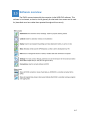
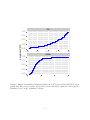
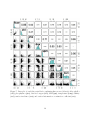
1
S A N F R A N C I S C O E S T UA RY I N S T I T U T E • C L E A N WAT E R P R O G R A M Nutrient Moored Sensor Program Year 1 Progress Update Prepared by: Emily Novick David Senn, Ph.D. CONTRIBUTION NO. 723 AUGUST 2014 4911 Central Avenue, Richmond, CA 948 • p: 510-746-7334 (SFEI) • f: 510-746-7300 • www.sfei.org San Francisco Bay Nutrient Moored Sensor Program: Year 1 Progress Update (July 2013 – July 2014) December 2014 1 Acknowledgements This work was conducted as part of implementing the San Francisco Bay Nutrient Strategy and with funding from the Regional Monitoring Program for San Francisco Bay (RMP) and Bay Area Clean Water Agencies (BACWA). During Year 1, the San Francisco Bay Nutrient Moored Sensor Program’s development benefited from discussions with, and field/laboratory assistance from, a number of collaborators, including: D Schoellhamer, G Shellenbarger, M Downing-Kunz, P Buchanan, K Weidich, A Powell and P Castagna of the USGS-Sacramento Sediment group; B Pellerin, B Bergamaschi, B Downing and JF Saraceno of the USGS-Sacramento Biogeochemistry group; C Silva and T Von Dessoneck, formerly of the USGS-Sacramento Sediment group; J Cloern, T Shraga, C Martin and E Kress of the USGS-Menlo Park SF Bay Water Quality Research and Monitoring Program; C Raleigh of SFSU-RTC; M Dempsey of DWR-IEP; A Malkassian of SFEI/UCSC; and A Jassby of UC Davis. 2 Table of Contents Table of Contents ................................................................................................................................................................ 3 Figures..................................................................................................................................................................................... 5 Tables....................................................................................................................................................................................... 6 1. Introduction .......................................................................................................................................................................... 7 2. Program Overview ............................................................................................................................................................. 7 2.1 Moored Sensor Programs in San Francisco Bay ............................................................................................. 7 2.2 Goals of the Nutrient Moored Sensor Program............................................................................................... 9 2.3 Year 1 Site Selection ................................................................................................................................................. 11 2.4 Initial Instrument Selection .................................................................................................................................. 12 2.5 Overview of Year 1 Activities ............................................................................................................................... 15 3. Sensor In situ Calibration and Uncertainty ............................................................................................................ 16 3.1 Comparison of EXO2 with co-deployed sensors........................................................................................... 17 3.1.1 Stationary In situ Comparison.................................................................................................................... 17 3.1.2 Comparison Bay-wide During Monthly Cruises ................................................................................... 18 3.2 In situ Sensor Calibration and Uncertainty ..................................................................................................... 19 3.2.1 Turbidity and Dissolved Oxygen ................................................................................................................ 20 3.2.1 Chlorophyll-a ...................................................................................................................................................... 21 4. Operation, Maintenance, and Data Management................................................................................................. 23 4.1 Sensor Operation and Maintenance .................................................................................................................. 23 4.1.1 Sensor Deployment .......................................................................................................................................... 23 4.1.2 Maintenance Schedule and Procedures ................................................................................................... 24 4.1.3 Sensor reliability under field conditions................................................................................................. 25 4.2 Data Management ..................................................................................................................................................... 26 4.2.1 Data Acquisition ................................................................................................................................................ 26 4.2.2 Data Post-Processing and Quality Assurance........................................................................................ 26 4.2.3 Managing data for outliers, sensor drift, and fouling ......................................................................... 27 4.2.4 Provisional Year 1 dataset ............................................................................................................................ 29 4.3 Value of Real-time Access to Data ...................................................................................................................... 33 5.0 Year 1 Data Interpretation ......................................................................................................................................... 34 6.0 Main Observations and Priorities for On-going Work .................................................................................... 39 6.1 Summary and Main observations from Year 1.............................................................................................. 39 6.2 Priorities for On-going Work ................................................................................................................................ 40 3 6.2.1 Identify highest priority sites and analytes for future sensor placement ................................. 40 6.2.2 Refine maintenance and data management procedures .................................................................. 42 6.2.3 Design investigations to further constrain our understanding of sensor accuracy .............. 42 6.2.4 Strengthen collaboration across programs............................................................................................ 43 7.0 References ......................................................................................................................................................................... 44 Appendix A Appendix B 4 Figures Figure 2.1 Locations of existing moored sensors in SFB ....................................................................................... 8 Figure 2.2 Dumbarton Bridge moored sensor site photo ................................................................................... 11 Figure 2.3 Alviso Slough moored sensor site photo .............................................................................................. 12 Figure 2.4 Photos of NSMP equipment (YSI EXO2 and SUNA v2) .................................................................... 13 Figure 2.5 Timeline of Year 1 NMSP activities ......................................................................................................... 16 Figure 3.1 Comparison of EXO2 and YSI-6920 during co-deployment in Alviso Slough........................ 18 Figure 3.2 Comparison of EXO2 and Turner 10-AU during co-deployment on R/V Polaris ................ 19 Figure 3.3 Comparison of EXO2 and lab-analyzed DO and suspended sediment samples during R/V Polaris cruises ......................................................................................................................................................................... 20 Figure 3.4 Comparison of EXO2 and lab-analyzed chl-a samples during R/V Polaris cruises ............. 22 Figure 3.5 Comparison of Turner 10-AU chl fl values and discrete lab-analyzed samples taken aboard the R/V Polaris from 2005-2013 ..................................................................................................................... 23 Figure 4.1 Vertical profile data at Station 32 (near Dumbarton Bridge) on July 1, 2013 ...................... 24 Figure 4.2 Common EXO2 data challenges encountered at Dumbarton Bridge in Year 1 ..................... 27 Figure 4.3 Typical EXO2 fouling from biological growth during warm summer months...................... 28 Figure 4.4 Provisional Year 1 EXO2 data for Dumbarton Bridge ..................................................................... 31 Figure 4.5 Provisional Year 1 EXO2 data for Alviso Slough................................................................................ 32 Figure 5.1 Comparison of EXO2 in site estimated chl concentrations from Dumbarton Bridge with discrete lab-analyzed chl samples near Dumbarton Bridge over all of Year 1 ............................................ 35 Figure 5.2 Comparison of EXO2 in site DO (mg/L) values from Dumbarton Bridge with discrete labanalyzed DO samples near Dumbarton Bridge over all of Year 1 ..................................................................... 36 Figure 5.3 EXO2 data at Dumbarton Bridge in June 2014................................................................................... 37 Figure 5.4 EXO2 data at Alviso Slough during June 2014.................................................................................... 38 5 Tables Table 2.1 Characteristics of existing moored sensor monitoring in SF Bay .................................................. 8 Table 2.2 Nutrient Moored Sensor Program Goals ................................................................................................ 10 Table 4.1 Percent of data retained from “raw” to provisional data, at each NSMP site .......................... 30 6 1. Introduction San Francisco Bay has long been recognized as a nutrient-enriched estuary (Cloern and Jassby 2012) but one that has exhibited resistance to some of the classic symptoms of nutrient overenrichment, such as high phytoplankton biomass and low dissolved oxygen. Recent observations, however, indicate that the Bay’s resistance to high nutrient loads is weakening, leading regulators and stakeholders to collaboratively develop the San Francisco Bay Nutrient Strategy (SFBRWQCB, 2012). The Nutrient Strategy calls for a research and monitoring program to address priority science questions and fill key data gaps to inform nutrient management decisions in San Francisco Bay. Among its recommendations, the Nutrient Strategy calls for developing models to quantitatively characterize the Bay’s response to nutrient loads; explore ecosystem response under future environmental conditions; and test the effectiveness of load reduction scenarios and other scenarios that mitigate or prevent impairment. As an early step in the Nutrient Strategy implementation, a team of regional and national experts identified major science questions and specific data needs related to nutrients (SFEI 2014, #731), and among the high priorities was the collection of high frequency water quality data through moored sensors at key locations throughout the Bay In 2013, the San Francisco Bay Regional Monitoring Program initiated funding for the Nutrient Moored Sensor Program (NMSP). The first NMSP sensors were installed in July 2013, and additional sensors were installed in Sept 2013 and July 2014. This report is a Year 1 (July 2013 – July 2014) progress update of the NMSP. The report begins with a summary of the NMSP and an overview of progress to date (Section 2). Year 1 observations and results are then discussed in terms of insights on sensor accuracy and calibration (Section 3), protocols for sensor maintenance and operation (Section 4) and initial interpretations of data (Section 5). Lastly, Section 6 discusses the value of moored sensor data based on the main observations from Sections 3, 4 and 5, and presents recommendations for Year 2 and beyond. 2. Program Overview 2.1 Moored Sensor Programs in San Francisco Bay Several programs currently operate moored sensors in SFB, including multiple USGS groups, San Francisco State University Romberg Tiburon Center (SFSU-RTC), National Estuarine Research Reserve System (NERR), and CA Department of Water Resources Environmental Monitoring Program (DWR-EMP) (Figure 2.1). Each of those programs has its own set of goals, which shape their geographic focus and the parameters measured (Table 2.1), some of which overlap with the NMSP’s goals and needs. However, because of the current spatial distribution of stations (i.e., largely concentrated in Suisun and the Delta) or the parameters being measured (e.g., few stations southwest of Suisun measuring chl-a, DO, or nutrients), there are major gaps in data collection for nutrient-related parameters. The NMSP aims to build capacity to deploy and maintain sensors, as well as manage and interpret data, such that the NMSP may augment these existing efforts where needed, or to the extent possible, play the coordinating role across these existing programs to maximize the utility of the data collected by other programs to help achieve NMSP’s goals. 7 Figure 2.1 Locations of existing moored sensors in SFB, by program. Analytes monitored differ by program, as described in Table 2.1. Both USGS programs are located at the California Water Research Center in Sacramento. Table 2.1 Characteristics of current moored sensor monitoring in SFB, by program. Most moored sensor monitoring for nutrient-related parameters has been limited to areas of north of the Bay Bridge, which is why SFEI focused on South Bay and Lower South Bay in Phase 1 of the NMSP. Program Period of record Locations Analytes monitored USGS-Sacramento SFB Sediment group (USGSSacSed) 1989-present 10 active stations in SFB 6 active stations in the Delta specific conductivity, temperature, depth, turbidity (some sites), dissolved oxygen (some sites) USGS-Sacramento North SFB/Delta biogeochemistry group 2011-present 6 active stations in the Delta specific conductivity, temperature, depth, pH, dissolved oxygen, turbidity, fluorescent dissolved organic matter, chl-a and phycocyanin fluorescence, nitrate, phosphate DWR-EMP 1978-present 9 active stations in North SFB and the Delta specific conductivity, temperature, depth, pH, dissolved oxygen, turbidity, chl-a fluorescence SFSU-RTC SFB Environmental Assessment and Monitoring Station 2002-present 2 active stations in North SFB salinity, temperature, depth, pH, dissolved oxygen, turbidity, chl-a fluorescence NERR 2006-present 4 active stations in North SFB specific conductivity /salinity, temperature, depth, pH, dissolved oxygen, turbidity 8 2.2 Goals of the Nutrient Moored Sensor Program A recent report summarizing high-priority data needs for informing nutrient management decisions in San Francisco Bay identified that the collection of nutrient-related data at higher temporal resolution was essential both for better assessing condition in San Francisco Bay and for calibrating water quality models that will be used to explore nutrient cycling and ecosystem response under current and future environmental conditions (SFEI 2014, #731). Moored sensors offer a number of advantages over traditional ship-based sampling and lab measurement, by allowing logistically-feasible and cost-effective high-frequency in situ measurements and autonomous operation. However, moored sensor use also comes with a number of challenges associated with deployment, maintenance, and data interpretation that need to be considered during program design. The effort and costs associated with moored sensors can be non-trivial due to initial set-up of moored sensor stations, on-going maintenance of sensor packages, sensor calibration, and data management. In addition, moored sensors are in general not a total replacement for ship-based sampling for several reasons: only a limited number of analytes can be reliably measured with existing sensors; data is often needed at locations between moored sensor sites; and regular calibration and corroboration with discrete samples through ship-based sampling remains necessary. Lastly, for some sensors the relationship between values measured by in situ sensors and the “true” value can vary due to interferents, and measurement uncertainty needs to be considered when determining if program goals can be adequately achieved through a moored sensor approach. The overarching goal of the NMSP is to address data needs for ecosystem assessment and model calibration, and to do so through a sustainable program design that maximizes efficacy and costeffectiveness. Table 2.2 presents a set of more specific NMSP goals and key questions, identified to guide NMSP development (Table 2.2). The program can roughly be divided into two phases: Phase 1 focused on program development and site selection, and Phase 2 focused on program implementation and the application of continuous data within other Nutrient Strategy elements (e.g., modeling) to inform management decisions. During Year 1, the majority of effort focused on goals related to program development and structure, and building technical capacity to sustainably manage the program through a team including SFEI staff and collaborators. 9 Table 2.2 Nutrient Moored Sensor Program Goals. Colors indicate the relative priority of each goal during Phase I and II (dark, medium, and light blue indicate high, medium, or low priority or emphasis, respectively) Goals Key Questions Phase 1 priority 1: Identify the best sensors or sensor packages considering program goals, and develop capacity to deploy and maintain moored sensors ● What locations are feasible for sensor deployment? Sections 4.1, 6.3 2: Create/adapt procedures for automated data acquisition, data management, and realtime high-frequency data visualization ● What are standard procedures exist for data processing (i.e. removing 3: Develop understanding of sensor accuracy and potential interferences ● What parameters can be accurately measured by moored sensors? ● How frequently do the sensors need to be serviced? How does this vary seasonally? ● What biofouling prevention tools are most effective? outliers, correcting for fouling/drift)? ● What data processing can be automated? ● What are the data visualization needs of the NMSP, and what is the best way to address those needs? ● How well does the EXO2 agree with other moored sensors being used in SFB? Sections 4.2, 4.3 Sections 3.1, 3.2, 6.3 ● What discrete sampling is necessary to verify sensor output? ● What potential interferences on fluorometer results are most likely in SFB, and how to best infer accurate concentration from fluorometers? ● What is an acceptable level of uncertainty or unexplained variance? 4: Establish collaboration with other moored sensor programs ● What moored sensors currently exist, how well are they distributed 5: Identify NMSP structure that, along with ship-based monitoring addresses the monitoring and data collection needs for the Nutrient Strategy ● What is the optimal combination of ship-based and moored stations? 6: Use moored sensor data to address priority science questions and data gaps What factors influence the onset and termination of a bloom? 7: Use moored sensor data to calibrate/validate water quality models What time-series required for model calibration can be accurately monitored by moored sensors? Are there particular locations and/or time periods where additional calibration data are needed (beyond that collected at established moored sensor sites)? 8: Use moored sensor data to assess condition in SFB What indicators of nutrient-related impairment can most accurately be monitored by moored sensors? If/when nutrient-related impairment occurs along one or more pathways, what extent/duration can be detected by moored sensors? 10 and what is the relative “completeness” of each site? ● What common elements would be needed to integrate existing sensors from multiple programs into one network ? ● How does the cost of integrating existing programs together compare to developing an SFEI moored sensor program at similar sites? ● What spatial distribution (lateral, longitudinal, vertical) is needed to Section 6.4 Sections 4.1, 6.2 sufficiently capture major features of bloom dynamics? ● What parameters are most important to measure in terms of their quantitative influence on predictions or model interpretations? What frequency, magnitude and duration of a bloom is possible? Section 5 Phase 2 priority 2.3 Year 1 Site Selection During Year 1, two major considerations guided initial site selection: 1. Locations where there is currently limited continuous data collection for nutrient related parameters, so “new” information would be gathered during Year 1 (i.e. south of the Bay Bridge); 2. Locations where other moored sensor groups are working, to allow the NMSP to build upon existing infrastructure, to collaborate and cost-share on maintenance trips, and to minimize logistical challenges and allow for increased attention to be focused on sensor operation and data management/analysis. Based on these considerations, sensors were installed at two sites in 2013, both of them co-located with instrumentation that was already installed by the USGS-SacSed group: Dumbarton Bridge near the deep channel, and Alviso Slough, 4 km upstream of confluence with Coyote Creek (see Figure 2.1). NMSP sensors were installed at a third site, San Mateo Bridge, in July 2014, also co-located with a USGS-SacSed site, but that data is not discussed in this report. The NMSP sensors at Dumbarton Bridge are fixed ~12 m above the bottom, and their depth below the water surfaces varies between 1-4m depending on tidal phase (Figure 2.2). USGS-SacSed has sensors deployed at two other depths at the same location (~7m above bottom and ~1 m above bottom), with several parameters measured at each depth (temperature, specific conductivity, depth, turbidity and the mid-depth location; temperature, specific conductivity, depth, turbidity, DO at the deep location). The USGS-SacSed and NMSP sensors are deployed in a similar manner, via a suspension cable attached to a davit on the bridge platform. Access to the sensors is from one of the Dumbarton Bridge structural support platforms, allowing for ample work space. In addition, the Dumbarton sensors are deployed between the concrete bridge support and a set of rubber bumpers that surround the bridge support. This configuration prevents the sensor packages from inadvertent contact with boats and limits the risk of vandalism and theft. The site is also equipped with hard-power, battery back-up, and telemetry that allows for real-time data upload. USGSSacSed also deploys an acoustic Doppler velocimeter (ADV) at Dumbarton Bridge, which continually measures water velocity and allows for analysis of the effects of tidal currents on water quality. Figure 2.2 Photo of SFEI’s Dumbarton Bridge moored sensor site, pulled to the surface for servicing (left), and schematic for deployed configuration (right) 11 The Alviso Slough site is more basic because of the lack of nearby infrastructure, i.e. no hard-power or existing structures to attach instruments (Figure 2.3). Instruments are attached to a steel frame that rests on the bottom in the middle of the slough. The frame is tethered to a weight to keep it in place and prevent theft, and the frame is retrieved via a steel cable that is tied to shore. Sensor depth below water surface varies between 0.5-3.5m, depending on tidal phase. USGS-SacSed deploys a multi-sensor sonde (temperature, specific conductivity, depth, turbidity, DO) and an ADV at this site as well, at the same depth as the SFEI sonde. There is currently no telemetry at Alviso. During Year 1, both sites have yielded interesting observations in regions that are otherwise underrepresented in terms of nutrient-related parameters. Co-locating NMSP instruments alongside USGS-Sac instruments also brought considerable benefit in terms of cost-savings for maintenance trips, technical capacity building, and allowing NMSP deployments to use existing infrastructure and well-tested deployment designs. As the NMSP develops, or as USGS-SacSed station priorities shift, these sites may or may not represent the optimal locations for sensor placement. The current goal is to continue these deployments through at least the end of Year 2. The approach for determining future sensor locations is discussed in Section 6.2. Figure 2.3 Steel frame deployed at Alviso Slough, pulled to surface for servicing (left), and a view of the site (right). Photos courtesy of K. Weidich, USGS 2.4 Initial Instrument Selection Prior to selecting instruments, several options were researched to identify appropriate sensors and sensor packages. Along with a number of programmatic considerations that helped focus the search for sensor packages (Table 2.3), the goal was to begin with an off-the-shelf, field-ready instrument or set of instruments, as opposed to developing customized sets of instruments, with the rationale that this approach would allow us to more quickly reach the field-testing stage and focus effort on the program development related to logistics, maintenance, and data management. Year 1 efforts were also intended to focus on a limited set of analytes, including several basic water quality parameters (temperature, specific conductivity, turbidity, dissolved oxygen, chl-a) and nitrate. Initial research into available sensor packages narrowed the options down to two realistic choices: 12 the Satlantic LOBO system, a package consisting of WQM multiparameter instrument built by WETLabs plus the Satlantic SUNA v2 nitrate sensor; or the YSI EXO2 multiparameter instrument combined with the Satlantic SUNA v2 nitrate sensor. Both options had pros and con and a summary of the decision criteria, as well as the suitability of each option relative to these criteria, are presented in Table 2.2. In upcoming years, the question of the most suitable instrument(s) package will be revisited. After considering the pros and cons of each option, we selected the EXO2 as the basic water quality sensor package (Figure 2.4a), and the SUNA (Figure 2.4b) was determined to be the best option for nitrate. While the convenience and biofouling prevention features of the LOBO/WQM were compelling, its much greater cost would have capped deployments in Year 1 to only 1 site, limiting program development in terms of comparisons among sites and wrestling with the varied logistics associated with managing multiple stations with differing requirements. In addition, the LOBO system is designed to be a complete buoy package, and not all its features were needed during Year 1. Lastly, the EXO2s have been used successfully by the USGS-Sac biogeochemistry group for the past 2 years, and the USGS-SacSed group may transition to EXO2s within the next couple years (they currently use an older YSI sensor package). The EXO2 sensor has 6 probes that measure, depth, temperature (T), specific conductivity (SpC), pH, turbidity (turb), dissolved oxygen (DO), fluorescent dissolved organic matter (fDOM), chl-a and phycocyanin fluorescence (pH and phycocyanin results will not be discussed in this report). For the remainder of this document, we refer to the entire EXO2 as the sensor, and the individual equipment for measuring specific parameter as the probe(s). pH a Wiper T/SpC Chl-a/ BGA DO fDOM Turb b Figure 2.4 YSI EXO2 multiparameter sensor (a) and Satlantic SUNA v2 nitrate sensor (b) deployed during year 1 of the NMSP. There were some challenges with deploying the SUNA, resulting in limited field data and therefore it will not be discussed in this report. 13 Table 2.3 Sensor selection criteria Consideration LOBO package EXO2+SUNA What parameters can be measured and to what level of accuracy? Good Measures temperature (T), specific conductivity (SpC), turbidity (turb), dissolved oxygen (DO), chlorophyll-a (chl-a) fluorescence, fluorescent dissolved organic matter (fDOM) and nitrate (NO3-) in one integrated data stream Good Can measure all the same parameters as the LOBO, plus pH and phycocyanin fluorescence (PC) Equipment needs to measure a range of nutrient-related parameters and needs to be robust in a saline, turbid environment Does not measure pH or phycocyanin fluorescence Suitable for estuarine environments More accurate for DO Suitable for estuarine environments Chl-a and PC fluorescence accuracies not specified More accurate for temperature (T), specific conductivity (SpC), and turbidity (turb) What is the capacity for data storage/transmission? Large data storage allows for longer deployments between servicing. Easy integration with telemetry allows for real-time data How resistant is the instrument to biofouling? Good On-board data storage and telemetry capabilities. Couples telemetered data with a web visualization tool Good Uses copper and bleach injections in flow-through tubes to discourage growth around sensors Good A variety of copper accessories are available to discourage growth. Integrated wiper keeps sensor faces clean. Fair LOBO system ~ $77,000 (WQM, SUNA, deployment cage, datalogger+modem+cables) Good EXO2 ~ $16,000 Data storage/visualization tool ~$5,500 Datalogger+modem+cables ~ $5,000 Fair USGS-Sac Biogeochemistry researchers are currently using the SUNA, but not the entire LOBO package Good USGS-Sac researchers (both groups) are currently using YSI products (some EXO2 and some older models). Other monitoring programs in SF Bay (i.e. DWR-EMP) are also using other YSI products. High bio-fouling resistence improves data quality and reduces the frequency of servicing trips Does the equipment (and necessary cables/adapters) fall within the $80,000 budget? What equipment would best allow for comparisons to and eventual integration with existing moored sensor programs in SF Bay? 14 Fair On-board data storage, but not telemetry. Requires external datalogger and model, as well as the development of web data storage/visualization SUNA ~ $26,000 2.5 Overview of Year 1 Activities A timeline of Year 1 activities is summarized in Figure 2.5. We had originally planned to focus Year 1 NMSP development effort on deploying, maintaining, and operating at only 1 site, the Dumbarton Bridge. In September 2013, though, the opportunity arose to also deploy an EXO2 at the USGSSacSed site in Alviso Slough, where they measure several relevant parameters (turbidity, DO, SpC, T), but not chl-a. Through collaborating with USGS-SacSed on field work and maintenance, and with their technical assistance on sensor deployment, the additional effort and cost to deploy at Alviso was modest. Therefore, with the idea that data collection at Alviso during Year 1 would further the Phase 1 goal of identifying locations for NMSP expansion, we deployed an EXO2 at Alviso in September 2013. Major Year 1 activities related to Dumbarton and Alviso deployments are described below, many of which were carried out in collaboration with staff from USGS-SacSed: Design and construction of floats and housings to attach instruments to the mooring cable Sensor testing and calibration, including validation through side-by-side deployments with other sensors. 18 maintenance trips to Dumbarton Bridge and 10 to Alviso Slough Testing approaches for minimizing biofouling Data logger programming (sampling frequency, data logging, and data telemetry), semiautomated downloading of real-time data, and data management, including developing automated QA/QC scripts to clean data of obvious outliers Data interpretation Several other activities were carried out to test deployment approaches or to gather additional data: USGS-SacSed has infrastructure and sensors installed at the San Mateo Bridge. SFEI staff worked with USGS-SacSed to install an additional mooring at the San Mateo Bridge to accommodate an EXO2 floating near the surface. We field-tested an EXO2 at the San Mateo Bridge for ~1 month in September-October 2013. However, due to limited SFEI field staff, we elected to wait until Year 2 for prioritizing the San Mateo Bridge site, and focused effort instead on the Dumbarton and Alviso deployments. An EXO2 was deployed for ~1 month along with other USGS-SacSed equipment for a shortterm data collection effort on an intertidal mudflat ~600 m southwest of the Dumbarton Bridge. This informed NMSP goals by gathering data in yet another distinct and important subsystem (intertidal mudflats comprise approximately 75% the area of LSB and 10% of the area in all of SFB), and to explore how conditions there differed from deep subtidal (Dumbarton) and slough (Alviso) conditions. Beginning in September 2013, an EXO2 was plumbed into the USGS-Menlo Park research vessel R/V Polaris’ surface water flow- system that continuously pumps water from ~1m below the surface while the ship is underway during sampling cruises. The EXO2 was deployed on 13 full-Bay or South Bay cruises, and collected data continuously to test EXO2 sensor response across a range of Bay conditions, to compare EXO2 sensor response to USGS sensors also plumbed to the flow-through system and to acquire simultaneous discrete samples across several parameters for sensor calibration. 15 Bench-top and initial field tests were carried out with the SUNA. Despite successful benchtop testing of the SUNA prior to deployment, we experienced power and communication issues during two trial field deployments at the Dumbarton Bridge. Through discussions with the SUNA manufacturer, and the USGS-Sac biogeochemistry group who is successfully using the instrument at sites in the Delta, overcoming these issues should be straightforward. However, given limited staff capacity in Year 1 we decided to focus instead on the YSI EXO2 deployments at Dumbarton and Alviso, and shift work with the SUNA to Year 2. Figure 2.5 Timeline of Year 1 NMSP activities across the three sites and aboard R/V Polaris cruises. Because of the limited field deployment at San Mateo Bridge and of the SUNA at Dumbarton Bridge, these results will not be discussed in this report. Dots show approximate timing of servicing trips. Multiple dots indicate that a servicing trip spanned across several days. 3. Sensor In situ Calibration and Uncertainty In Year 1, we evaluated sensor performance several ways: Compared the EXO2 output to the response of other commonly used sensors during sideby-side deployments (Section 3.1) Developed calibration curves for EXO2 probes using environmental samples, and evaluated the goodness of fit (Section 3.2) 16 Further analysis of the relationship between in situ chl-a fluorescence and lab-analyzed concentration in a 7-year, 1800-sample dataset from SFB to assess the level of precision (or prediction error) that can ultimately be expected for NMSP chl-a readings, as more samples are collected (Section 3.2.2) 3.1 Comparison of EXO2 with co-deployed sensors During Year 1 of the moored sensor program, we had several opportunities for side-by-side comparisons of EXO2 with other continuous monitoring equipment already in use in SFB. While this comparison is different than comparing an in situ measurement with a “true”, lab-analyzed value, it provides a means of assessing the response and precision of EXO2 sensors relative to other instrumentation that has been widely-used in the Bay over the past ~20 years, allowing us to assess the degree to which data collected in different areas in the Bay and over time can be compared (in terms of relative response). 3.1.1 Stationary In situ Comparison At the Alviso Slough site, the EXO2 was deployed side-by-side with another YSI instrument (6920 model multi-parameter sensor) from USGS-SacSed, which measures several of the same parameters (T, SpC, turb and DO) but uses an older generation of designs for its probes. Numerous continuous sensor programs nationwide use the YSI-6920, and the USGS-SacSed has been using this instrument configuration in San Francisco Bay for approximately 10 years; however, the EXO2 and its set of probes been less widely used. Therefore this comparison is useful for assessing the EXO2 probes’ behavior and precision compared to widely accepted instrumentation for several parameters that are relatively straightforward to measure. Figure 3.1 compares values for T, SpC, turb, and DO % saturation between the two sensors over 10 months of deployment (n ~ 20,000 for T, turb, and DO % saturation; fewer datapoints for SpC, as discussed in Section 4). The comparisons indicate a high degree of precision (r2 ≥ 0.89 for all parameters), and strong correspondence among estimated values (closeness of actual slope to the 1:1 line). The turbidity probe measurements exhibited the most scatter and were furthest from the 1:1 line: the slope over the full turbidity range was ~1.2, but the relationship was closer to the 1:1 line at lower turbidity values that are more representative of conditions on the open Bay (<100 FNU). While the DO % saturation results were strongly correlated (r2 = 0.95), the EXO2 registered slightly higher values (8%) than the 6920 values. 17 Figure 3.1 Comparison of SFEI YSI-EXO2 and USGS-SacSed YSI-6920 data for common parameters during co-deployment in Alviso Slough, Sept 2013 – May 2014 (when EXO2 T/SpC probe began a prolonged malfunction). 1:1 line is shown in red. USGS data was accessed through http://waterdata.usgs.gov/nwis and should be considered provisional. 3.1.2 Comparison Bay-wide During Monthly Cruises We also conducted side-by-side comparisons of the EXO2 with a Turner 10-AU chl-a fluorometer and nephlometer (measuring optical backscatter) on 13 monitoring cruises aboard the USGS-Menlo Park research vessel R/V Polaris from September 2013 through June 2014. The instruments were plumbed into the ship’s flow-through system that pumps surface Bay water (sample depth approximately 1 m) into the laboratory, and measurements were made continuously as the R/V Polaris conducted its ~150 km survey along the Bay’s axis. The Turner 10-AU chl-a fluorometer and nephlometer have been used aboard the R/V Polaris for the past 9 years. The raw instrument output between both chl-a fluorescence and the turbidity probes were highly correlated, with most relationships having r2 ≥ 0.9 (Figure 3.2). During the cruises when r2 was lower than 0.9 for either parameter, the poor correspondence was typically due to a “cluster” of measurements, and the other measurements were strongly correlated. For example, on 3/11/2014 the r2 for EXO2 and Turner 10-AU fluorometers was 0.44, and this was due primarily to a group of poorly correlated data that had high turbidity (Figure 3.2d, turbidity indicated by color), which can interfere with fluorometer readings. One possible explanation is that “real” fluorescence from chl-a that was detected by the Turner 10-AU was underestimated by the EXO2 due to particles either scattering or 18 absorbing the fluoresced light. It is also possible that something like a gas bubble or a particle interfered with one of the sensor’s readings. While the overall agreement is encouraging, these occasional differences may require further investigation to better define the sources of uncertainty and conditions under which the sensors have substantially different responses. Figure 3.2 Comparison of turbidity and chl-a fl data from the EXO2 and a Turner 10-AU fluorometer/nephlometer during flow-through deployment aboard R/V Polaris cruises. The Turner instrument reports optical backscatter (OBS) and fluorescence in raw voltage, and the EXO2 reports turbidity in FNU and chl-a fluorescence in RFU, and for this reason only r2 results (and not the full regression) are given in the tables. Scatterplots for a select number of individual cruises are shown (a-d). Turbidity explain some of the scatter in the chl fl plots, as indicated by color in the chl fl plots (c,d) 3.2 In situ Sensor Calibration and Uncertainty Moored sensor data is valuable because it can be obtained at high frequency and can be much more cost-effective – on a per-sample basis – than measuring discrete samples. While sensory accurary is checked against standards of known value on every servicing trip (see Appendix A) and some parameters can be estimated with a high degree of confidence using in situ sensors (e.g., T, SpC, and DO), the estimates obtained for other parameters can be subject to substantial uncertainties (e.g, chl-a fluorescence, turbidity) due to potential interferences in natural water. This section focuses on Year 1 efforts related to the in situ calibration of moored sensors for measuring chl-a, turbidity, and dissolved oxygen. We took two approaches to assessing the precision and uncertainty (or prediction error) of calibration samples under field conditions: Comparing concentrations measured in discrete samples collected alongside the sensor with EXO2 sensor readings at the time of sampling. We carried this out in two ways. First, 19 we collected discrete samples during routine maintenance trips at the actual sites where sensors are deployed. Building a dataset of paired discrete and in situ measurements by this approach has the benefit of providing site-specific calibration data. However, the maintenance trip frequency of approximately once per month makes building the dataset a slow process. We therefore also deployed an EXO2 aboard the R/V Polaris plumbed to its flow-through system, and compared the probe readings to measured values of discrete samples collected by USGS. USGS collects 10-20 discrete samples per cruise for chl-a, suspended sediment and dissolved oxygen. These samples are collected throughout SFB and therefore across a wide range of conditions. This approach allowed us to obtain a large number of paired measurements, which is needed to develop meaningful in situ calibration curves and quantify the uncertainty associated with estimated values. Analyzing an 8-year record of paired chl-a fluorescence and lab-analyzed concentration data collected aboard R/V Polaris cruises to assess prediction error in chl-a concentrations. While USGS-Menlo Park uses different instrumentation aboard the R/V Polaris, and we will ultimately want to confirm these results for the EXO2, the existing USGS dataset is much larger than the NMSP Year 1 dataset of the NSMP, and will allow us to develop an a priori understanding of in situ fluorometer precision over a range of conditions. 3.2.1 Turbidity and Dissolved Oxygen During Year 1, 155, 115, and 125 paired measurements of chl-a, turbidity/suspended sediment, and dissolved oxygen, respectively, had been collected throughout the Bay. The relationship between suspended particulate (SPM) matter concentrations and the EXO2 turbidity sensor response were linear and strongly correlated (Figure 3.3a. r2=0.93), although more data are needed in the medium to high SPM range (>50 mg/L). DO estimated by the EXO2 (which is calibrated based on O2 concentration in air) agreed well with discrete samples measured by Winkler titration (slope close to 1). Although the r2 = 0.61 for the DO relationship indicates a fair degree of scatter, the prediction error (95% confidence interval) is approximately ±10%. All of the DO measurements were made at fairly high DO concentrations, and measurements between 2-7 mg/L are needed to assess sensor response in this range. Figure 3.3 Comparison of EXO2 values and simultaneous discrete lab-analyzed samples for turbidity/suspended particulate matter (a) and dissolved oxygen (b), collected during transect cruises aboard the R/V Polaris. Red lines show the 95% confidence bands on the prediction error. The r2 in (a) is 0.93, and the r2 in (b) is 0.61. One outlier was removed in (a) 20 3.2.1 Chlorophyll-a In situ chlorophyll-a probes measure fluorescence in the bulk water surrounding the probe, and a corresponding chl-a concentration is estimated based on a fluor:chl-a. Chlorophyll-a estimates obtained from in situ fluorometers are prone to a higher level of uncertainty than some other parameters (e.g., SpC, T, DO) because of interferents present in natural water and variability in the phytoplankton’s physiological response that can complicate the fluor:chl-a relationship. Suspended sediment, dissolved organic matter or degraded phytoplankton (pheophytin) in the water column can artificially amplify or quench the fluorescence signal of chl-a, leading to an over (or under) estimation of chlorophyll concentration. The amount of fluorescence per unit chlorophyll-a can change depending on the physiological state of the phytoplankton (in response to temperature or light availability) or the phytoplankton community composition. In this analysis, we focus mainly on the effects of intereferents in the water column (particularly suspended sediment). Characterizing the variability in fluorescence per unit chlorophyll will be a priority in Year 2 of the program, particularly diel cycles in fluor:chl-a due to quenching (Marra 1997) While the correlation between discrete chl-a measurements and EXO2 chl-a fluor signal from R/V Polaris cruises is highly significant (p<<0.001; Figure 3.4), the relationship based on Year 1 data does exhibit more scatter than turbidity and DO (Figure 3.3), at least on a percentage basis within this chl-a concentration range. The ~150 samples used for the calibration relationship were obtained from multiple sites across the entire Bay, and their collection was distributed over nearly one year. The abundance of interferents such as suspended sediment, dissolved organic matter, and phaeophytin vary both spatially and seasonally in San Francisco Bay. T, light levels, and phytoplankton community composition also vary seasonally and spatially. In addition, most of the samples had low chl-a concentrations (approximately 70% of samples < 5µg/L), increasing the relative importance of interferences. Because some of the potential fluorometer interferences can also be measured continuously alongside chl-a fluorescence measurements (e.g., turbidity, fluorescent dissolved organic matter), it may be possible to develop relationships that adjust for interferences and more accurately estimate chl-a concentration. As a preliminary test of the potential to correct for some interferents, we included turbidity in a multivariate regression, and found that r2 improved modestly from 0.67 to 0.72. Over time, we may find that developing sitespecific or segment-specific fluor:chl-a relationships decrease the prediction error associated with chl-a estimates. With only 150 samples Bay-wide, and fewer than 20 samples some bay segments, there is currently insufficient data to test the improvement in prediction error from site- or segment-specific calibrations. A recent analysis of a much larger dataset from the USGS SF Bay Water Quality Monitoring Program (aboard the R/V Polaris, Jassby 2014) explores several approaches for improving the precision of chl-a concentration estimates. That analysis indicates that developing segment-specific calibrations is more effective at reducing uncertainty than including additional predictors (see Appendix B for report). However, that finding may result in part from the fact that analyses focused on single-cruises, with only 10-30 samples available for each cruise, limiting both the number of predictors that could be added to the model and the ability to detect an effect. 21 Figure 3.4 Comparison of EXO2 values and simultaneous discrete lab-analyzed samples for chl-a. Red lines show the 95% confidence bands on the prediction error. Adding EXO2 turbidity measurements as a secondary predictor in a multivariate linear regression improved r2 to 0.72 While the size of the Year 1 in situ calibration dataset makes it insufficient for assessing the prediction error of chl-a, it is nonetheless desirable to begin developing some a priori sense of the degree of confidence that can eventually be placed in moored sensor chl-a concentration estimates data, to help in determining the justifiable level of effort and expense that should go toward establishing moored stations. We began quantitatively exploring the issue of minimizing in situ chla prediction error by using the R/V Polaris discrete chl-a concentration and shipboard fluorescence dataset from 2005-2013. Although this is a retrospective analysis, without the benefit of the EXO2, to a first approximation, we expect that the EXO2 sensor would respond similarly to the Polaris fluorometer. In fact, data from the 2013-2014 side-by-side comparisons between the Turner 10-AU fluorometer and EXO2 fluorometer confirm the strong correspondence in the sensor responses over a wide range of conditions (Figure 3.2). Figure 3.5a presents in situ discrete chl-a concentration vs. fluor for 1879 paired measurements that were collected over a wide range of conditions across all stations, years, and seasons from 2005-2013. This dataset is ~10-fold larger than the Year 1 dataset collected for the EXO2 (Figure 3.4), and shows a strong correlation (r2=0.81) and chl-a prediction error of approximately ±5 µg/L, despite the widely varying conditions. A multivariate analysis (not shown) suggests the relationship between chl-a concentration and fluor differs significantly between some subembayments. When stations in Lower South Bay and South Bay are considered individually or in groups of 2-3 adjacent stations, the scatter in the chl-a:fluor relationship decreases considerably (Figure 3.5b), most notably for chla values <10 µg/L, where the prediction error is reduced to ±2-3 µg/L (Figure 3.5c,). Considering the wide range of conditions under which these samples were collected and the fact that no other predictors were included, the fairly low prediction error (±2-5 µg/L) is encouraging, since this uncertainty is comparable to or considerably less than many other potential uncertainties inherent in assessing ecosystem condition or modeling ecosystem response. A more detailed exploration of this dataset will be carried out as part of on-going monitoring program development work to help identify future sampling and ancillary measurements that may minimize chl-a concentration prediction error. 22 Figure 3.5 Surface chl-a fl values (Turner 10AU fluorometer, in volts) compared to simultaneous discrete lab-analyzed samples taken aboard the R/V Polaris from 20052013 at all stations (a), and just Station 32, nearest to the Dumbarton Bridge (b,c). Red lines show the 95% confidence bands on the prediction error. Focusing just on Station 32 reduces scatter, particularly when considering samples where chl-a < 10 µg/L (prediction error band reduced from ±5 µg/L to ±2-3 µg/L 4. Operation, Maintenance, and Data Management Building capacity for operating and maintaining moored sensors in SFB, and optimizing the effort required to sustainably support a program, are high priorities for Phase 1 of the NMSP development, and were major foci of Year 1 activities. This section describes activities and observations from Year 1 related to moored sensor operation, maintenance, and data management. 4.1 Sensor Operation and Maintenance 4.1.1 Sensor Deployment The Dumbarton and Alviso Slough sensors were deployed in the water column at fixed elevations above the bottom, and were under variable water depths depending on tidal stage. In Year 2 we are considering alternate deployment configurations, because, at both sites, several parameters exhibit strong tidal variability, and the fixed-elevation/variable-depth configuration makes it difficult to distinguish whether differences in measured water quality result from vertical gradients (detected as waters rise and fall) or horizontal gradients (detected as tidal action moves different water masses past the sensor). Vertical profile data collected during R/V Polaris cruises shows periodic development of thin (1-2m) surface layers that have substantially different composition than slightly deeper waters (e.g., factor of 4 difference in chl-a between 1 m and 4 m; Figure 4.1). To detect this variability and distinguish between vertical gradients vs. horizontal gradients, 2 or more sensors deployed at constant depths (e.g., at 1m and 3m) would be a better configuration. In Year 23 1 we tested a floating (buoy) sensor combined with general davit configuration (Figure 2.2). This configuration initially proved problematic, apparently because forces from surface currents acting on the buoy shifted and damaged the steel mooring cables. The floating designs can also be problematic for real-time transmission when data or power cables are needed, because slack in the cables at high tide can cause tangling and hang sensors out of the water. With USGS-SacSed’s help, we are currently testing other designs to overcome these issues. Figure 4.1 Vertical profile data for temperature (a), DO (b) and chl-a concentration (c) at Station 32 taken during a USGS R/V Polaris cruise on July 1, 2013. As this plot shows, surface layers can develop with considerably different water quality than the rest of the water column, and moored sensor deployment locations should be designed with this in mind. 4.1.2 Maintenance Schedule and Procedures During Year 1, sensor installations and maintenance were carried out in collaboration with USGSSacSed, who already had sensors deployed at the current NMSP sensor locations and had the means to access sites (current NMSP stations are only accessible by small boat). Eighteen maintenance “events” were carried out for the 2 main NMSP sites, with each event requiring 1-2 field days for NMSP sensor work and summing to 25 total field days. Initially 2 SFEI staffers were needed for the NMSP maintenance, however for routine servicing trips, 1 SFEI staffer (accompanied by USGS working on their sensors) can now generally accomplish all the necessary work for the NMSP sensors with their current configurations. Typical maintenance activities are described in more detail in a separate document (maintenance standard operating procedure; Appendix A), and are described only briefly here. Activities include: i. Downloading and viewing data, and replacing batteries as needed; ii. Performing measurements before and after cleaning probe heads (in buckets of identical site water) to assess the magnitude of 24 biofouling; iii. Removing remaining growth from sensor body and carriage; iv. Performing measurements in standard solutions of known quantity to assess probe drift, and where necessary, recalibrating and/or replacing failed probes; vi. Reprograming and redeploying the instrument, and; vii. Collecting and filtering a discrete chl-a sample. As the biofouling effect on data quality became more apparent, we iteratively implemented additional measures to decrease the fouling impact. The main observations related to maintenance based on Year 1 NMSP experience include: When only routine maintenance is required, Year 1 experience suggests that 2 stations can be maintained per day, assuming the stations are located in close proximity. Maintenance frequency of approximately once per month during Year 1 appeared to be sufficient during colder, low-growth times of the year (e.g., November-March). During warmer months (June-October, and perhaps starting as early as April-May), biofouling occurred quickly on and around the instrument package. This was especially true at Dumbarton Bridge (Figure 4.3), where growth of hydroids was the biggest problem. While in general low growth did not appear to impact data quality, extensive biofouling resulted in highly-compromised data quality (discussed in Section 4.2.3). Even though the EXO2’s wiper brush was successful at keeping individual sensor heads clean, extensive growth occurred on the EXO2 housing, on the titanium sensor stands, and on the instrument carriage. This growth appears to cause a microenvironment to develop around the sensors, and during high-fouling periods measured values likely do not accurately reflect water quality in the surrounding water during extensive fouling periods. During some periods (e.g., at Dumbarton Bridge in July-September), growth occurred so rapidly that only 7-10 days of reliable data were obtained for some parameters. This was not the case year-round, and for more than half the year monthly maintenance was sufficient. The seasonality of fouling rates points to the need for higher frequency maintenance trips during certain times of the year, additional equipment to further minimize biofouling, or both. Possible further measures are discussed in Section 6.3.1. 4.1.3 Sensor reliability under field conditions The EXO2 performed with a high degree of reliability during Year 1 in terms of power, programmed operation (measurements every 15 minutes), and data logging during extended (>4 weeks) unattended deployments. In addition, most of the individual probes worked reliably during deployments. However, 2 pH probes and 4 T/SpC probes malfunctioned during in Year 1, the result of bad probe batches (YSI, personal communication), and the manufacturer replaced faulty probes at no cost. In addition to losing T and SpC data for the malfunctioning periods, that sensors’ malfunctions introduced uncertainty into estimates for other parameters. T corrections are included when converting those probes’ raw output into estimated values. When the T sensor is working correctly, other probes use this temperature data for this correction. If the T probe is no longer reporting data at all, each probe defaults to an internal thermistor that is less accurate than the T probe. For periods when T probes failed, we worked with YSI engineers to fill data gaps and apply any corrections. A ±1oC uncertainty in T data would result in ±1.5% uncertainty in DO (% sat) values and less than ±0.1% uncertainty in chl-a (RFU) values, so we feel fairly confident in temperature-corrected estimates made using the internal thermistors. Unlike T, the SpC data was 25 not recoverable because there are no back-up SpC sensors installed on the EXO2. Estimating DO concentration in mg/L from DO % saturation requires both T and SpC data, since the saturated DO concentration varies as a function of both T and SpC. To estimate DO (mg/L) from % saturation during periods when T/SpC probes malfunctioned, we used the internal thermistor values and SpC data from nearby USGS sensors. The DO concentration estimates are moderately sensitive to potential uncertainties in SpC and T: ±0.2 mg/L assuming SpC uncertainty of ±5,000 µS/cm, and ±0.15 mg/L assuming T uncertainty of ±10C. These uncertainties in DO concentration introduced by the T and SpC data gaps is low compared to the 2-3 mg/L average daily fluctuations in DO observed at each site, so this approach estimation would not overly impact our ability to detect changes in the system. At Alviso Slough, there was one period when the entire sensor experienced a power failure and was down for >1 month (Sept-Oct 2013). The USGS-SacSed Alviso sensors also experienced power failures around this time, and they speculated that the cause was possibly due to near-by electrofishing activities. 4.2 Data Management 4.2.1 Data Acquisition At both sites, the EXO2 is programmed to collect data at 15-minute intervals. Although more frequent (e.g, continuous) or less frequent measurements are possible, Year 1 experience indicates that hourly-resolution data yields relevant information that would be lost at lower resolution. Moreover, the 15-minute data is a compromise resolution that allows for occasional outliers to be removed without sacrificing a full hour of information and permits operation for more than 6 weeks on battery power. At the beginning of each set of measurements, the EXO2 triggers a plasticbristled brush that cleans the probes prior to taking measurements. Data is stored internally by the EXO2, and downloaded during maintenance trips. At Dumbarton, data was also telemetered, allowing for SFEI staff to monitor sensor performance. In the future, real-time data can allow for more rapid response to biofouling or sensor failure and minimize lost data. Eventually, real-time data could also be used to trigger event-driven sampling, but this was not pursued in Year 1. Installing real-time capability at San Mateo is straightforward, and we anticipate doing this in Fall 2014. Adding the necessary equipment for real-time data at Alviso, while entirely feasible, would require more effort and cost than San Mateo, and equipment may be more prone to vandalism or theft at this site. 4.2.2 Data Post-Processing and Quality Assurance In Year 1, we began developing procedures for semi-automated data post-processing. Raw data from in- situ sensors require substantial post-processing and evaluation for quality assurance in order to identify and, if possible correct for, interferences, drift in sensitivity, and “noise”. The NMSP instruments are measuring parameters on a near-continuous basis 24 hours per day, resulting in large amounts of data. Semi-automated protocols are therefore needed to efficiently manage certain post-processing tasks like basic data cleaning to remove outliers. For other needs – 26 sensor drift correction, identifying and removing compromised data due to fouling, and identifying failed sensors – additional manual post-processing is needed. Figure 4.2 presents several examples of commonly-encountered data post-processing needs, and the possible approaches are described in Sections 4.2.3. Figure 4.2 Portions of Dumbarton Bridge SpC (a), chl-a fl (b) and turbidity (c) data to illustrate common data challenges encountered in Year 1. ① indicates fouling due to fine sediment accumulation in SpC ports. ② indicates probe malfunction due to manufacturer defect (4 T/SpC probes and 2 pH probes defective in Year 1). ③ indicates potential outliers (requiring further inspection). ④ indicates fouling due to biological growth on and around probe heads (see Figure 4.3). In year 1, we were only able to automate correction for outliers (correction included in Figures 4.4 and 4.5). To the extent possible, developing and automating procedures for fouling correction will be a high priority for Year 2. 4.2.3 Managing data for outliers, sensor drift, and fouling Outliers are generally easy to identify because they do not persist for a substantial amount of time and the data “recovers” - that is, sensor readings return quickly to values similar to those before the disturbance occurred. Adapting a procedure used by the Chesapeake Bay Monitoring Program (B. Smith, pers. comm.), any value that was more than 3x the mean of the surrounding ±1 hour was considered an outlier and was replaced with a linearly interpolated value (reflected in data shown in Figure 4.4 and 4.5). We believe 1hr window is narrow enough to identify and remove outliers, but not unintentionally remove any meaningful ‘real’, but sharp, changes in a parameter, which one would expect to be accompanied by one or more comparable-magnitude measurements within a ±1 27 hr window. However, as we become more familiar with the system, we could revise our code to account for more (or less) variability as is typical of the system. We have developed code that automates the outlier identification and removal process. As the NMSP moves toward web-based hosting of real-time data for visualization and download, that code can be integrated into the data flow path and run periodically, e.g., on the newest four hours of data, before that data is posted to the web-queried database. Probe output can also be affected by drift (away from last calibration value) and fouling (Figure 4.3). During each site visit, we take a series of measurements to quantify the effects of probe drift and fouling on sensor readings (See Appendix A for detailed description of field servicing procedures). The change due to fouling is determined by placing the instrument into buckets of identical site water immediately after removing from SFB and then again after cleaning. The amount of change due to drift is determined by taking measurements in standards of known value (and then recalibrating as necessary). Depending on the magnitude of drift or fouling, it may be possible to systematically and reliably correct data from an individual probe. We are continuing to investigate approaches and guidelines for robust correction of data from drift and fouling. One basic procedure recommended by USGS (Wagner et al., 2006) for correcting a period of data is as follows: 𝑇𝑖 − 𝑇𝑓𝑜𝑢𝑙 𝑇𝑖 − 𝑇𝑜 𝑉𝑐𝑜𝑟𝑟,𝑖 = 𝑉𝑟𝑎𝑤,𝑖 + 𝐸𝑑𝑟𝑖𝑓𝑡 + 𝐸𝑓𝑜𝑢𝑙 𝑇𝑒 − 𝑇𝑜 𝑇𝑒 − 𝑇𝑓𝑜𝑢𝑙 where 𝑉𝑐𝑜𝑟𝑟,𝑖 = the corrected probe value 𝑉𝑟𝑎𝑤,𝑖 =the raw probe value being corrected 𝐸𝑑𝑟𝑖𝑓𝑡 =the error due to drift (difference between probe reading and standard value) 𝑇𝑖 =the timestamp of the value being corrected 𝑇𝑜 =the first timestamp in the period being corrected 𝑇𝑒 =the last timestamp in the period being corrected 𝐸𝑓𝑜𝑢𝑙 =the error due to fouling (difference between clean and unclean readings) 𝑇𝑓𝑜𝑢𝑙 =the timestamp of when fouling is thought to begin a b Figure 4.3 Typical fouling from biological growth on sensor carriage (a) and probe heads (b) during warm summer months. In Year 1, SFEI tried several methods to reduce fouling and this will remain a high priority in Year 2. 28 In Year 1, we experimented with applying such corrections to our data, but it is not yet a systematic/automated post-processing step. Probe drift occurs gradually over the course of a deployment, and is fairly easy to correct for because its magnitude is relatively small, it is easy to quantify (by measuring clean probes against standards of known value) and corrections can be applied linearly to the entire time series. Fouling can affect readings in less systematic (and less linear) ways and the underlying “true” signal may be difficult to determine.1 Individual probes varied in their rate of and susceptibility to fouling, and the cause of fouling. The fouling rate also varies seasonally and by site. Figure 4.2 illustrates how individual probes respond to the onset of fouling. The SpC probe fouled due to the accumulation of sediments in the conductivity cell, which occurred fairly gradually over the course of deployment (Figure 4.2a). Although earlier YSI SpC probe models also experienced some signal attenuation due to sediment at Dumbarton Bridge, their design was apparently less susceptible to this problem (USGS-SacSed, pers. comm.). We have notified YSI engineers of the problem, and continue to look for ways to minimize SpC probe fouling. Fouled SpC data affects DO concentration (mg/L) estimates in the same way as described in Section 4.1.3; however even if readings drifted by 10,000 µS/cm due to fouling, this would still only result in <0.5 mg/L error in DO (mg/L). The discernible effects of biological growth on probe response arise more abruptly, influencing readings little until a critical amount of growth develops, after which the probe response becomes increasingly erratic (Figure 4.2b,c). The turbidity probe’s response appears to react first to fouling; although non-ideal for turbidity measurements, this may allow the turbidity signal to serve as an indicator of biological fouling. One potential explanation for the early detection of fouling by the turbidity probe is that the mechanical wiper actually disturbs fine particulates that have accumulated in any biological growth near the probes, and the turbidity probe detects those particles. Although the resuspension of particles had a large effect on the turbidity signal, they often did not have a major impact on other probes. It may be possible to correct for some ‘noise’ from biological fouling during data post-processing, but at some point the fouling effect became too large or erratic that it could not be readily corrected. 4.2.4 Provisional Year 1 dataset The cleaned provisional Year 1 datatset for the Dumbarton and Alviso sites are presented in Figures 4.4 and 4.5. This provisional dataset has undergone the following post-processing: 1. Outliers removed via automated process described in Section 4.2.3 2. Data from periods of heavy fouling removed (correction procedures still in development) 3. T/SpC data removed during periods of malfunction, use of other T data for temperaturerelated corrections in probe response, and substitution of estimated T and SpC data for calculating DO concentration (mg/L) (as described in Section 4.1.3) For example, if the extent of growth is such that the sensors are in fact semi-encapsulated within a microenvironment, they are not actually measuring conditions in the surrounding water, and it may be difficult to confidently actual conditions. In the specific case of turbidity, the wiper’s action may be creating the turbidity that is measured. Lastly, when the instrument is removed from the water, the growth on and around the sensors may be disturbed to a degree that Efoul cannot be accurately estimated. 1 29 Data directly affected by substantial drift or fouling have not been included in the provisional data shown here, since procedures for cleaning that data are still being developed. The full data record in Figures 4.3 and 4.4 at Dumbarton and Alviso consists of 500,000 measurements across the 8 parameters, including ‘bad’ data. The percentages of data for each parameter that remained after removing either bad data or failed probes are summarized in Table 4.1. The datasets were most complete for chl-a, DO(%), DO (mg/L), and depth; turbidity, SpC, and T had the most lost data. In several cases, the amount of lost data was non-trivial. Biofouling led to loss of a substantial amount of data for turbidity, fDOM and chl-a. Some amount of data loss is to be expected; however, a major goal in Year 2 is to develop approaches for minimizing data loss due to fouling. Broadly speaking, there are two approaches for minimizing data loss due to fouling: 1. conduct maintenance visits more frequently at problematic sites or during problematic seasons; and 2. make changes to instrument configuration that help reduce the rate of biofouling. Increasing maintenance trips is costly (~$1000/day). Some new equipment developed for the EXO2 can be used to reduce biofouling.2 In addition, other installations designs are also possible (e.g., placing the instrument out of the water and pumping water through biofouling resistant tubing to the surface for measurement, or using a winch that raises and lowers the instrument package and parks it out of the water between samples). Finally, other instrument packages may resist some types of biofouling better than the EXO2 (e.g, the WQM may not have the same problems with SpC fouling because of a different sensor design). All of these options have associated costs and tradeoffs, and will be explored in Year 2. Table 4.1 Amount of data retained from “raw” data in provisional “clean” data at Dumbarton Bridge and Alviso Slough, as well as common reasons for data omission. Probe malfunction and fouling accounted for the greatest amount of data loss (with much of the T/SpC loss due to an manufacturing error in early models of the T/SpC probe). % data retained in provisional Dumbarton dataset Depth T SpC Chl-a fl Turb DO % fDOM DO (mg/L) 2 95% 85% 55% 90% 70% 95% 75% 90% (and 20% estimated) Main reason for omitting data data loss (telemetry failure) probe malfunction probe malfunction/fouling fouling fouling probe malfunction fouling probe malfunction http://gescience.com/Gescience%202.0/Templates/probeguard.html 30 % data retained in provisional Alviso dataset Main reason for omitting data 90% data loss (power failure) 70% 50% 90% 90% 85% 90% 85% (and 35% estimated) probe malfunction probe malfunction data loss (power failure) data loss (power failure) data loss (power failure) data loss (power failure) data loss (power failure) Figure 4.4 Provisional Year 1 data for Dumbarton Bridge. Outliers have been removed and servicing dates are indicated by vertical dashed lines. Data was omitted when lost due to telemetry failure (t), extreme fouling (f) or probe malfunction (m). When T probe was down, T corrections for chl, turbidity, DO % and fDOM were estimated by the method described in Section 4.1.3. T and/or SpC probe malfunction also interfered with accurate DO (mg/L) measurements and was estimated by the method described in Section 4.1.3 (and shown in green because of their potential uncertainty). pH and phycocyanin fluorescence were not analyzed in detail in Year 1. Depth is depth of the instrument below water surface, not total water depth to channel bottom. 31 Figure 4.5 Provisional Year 1 data for Alviso Slough. Outliers have been removed and servicing dates are indicated by vertical dashed lines. Data was omitted when lost due to power failure (p), or probe malfunction (m). When T probe was down, T corrections for chl, turbidity, DO % and fDOM were estimated by the method described in Section 4.1.3. T and/or SpC probe malfunction also interfered with accurate DO (mg/L) measurements and was estimated by the method described in Section 4.1.3 (and shown in green because of their potential uncertainty). pH and phycocyanin fluorescence were not analyzed in detail in Year 1, Depth is depth of the instrument below water surface, not total water depth to channel bottom. 32 4.3 Value of Real-time Access to Data The technology for telemetering data at regular intervals (e.g., hourly) and enabling real-time access to moored sensor data is readily-available. It is also fairly inexpensive (~$3000 for hardware per site, plus data transmission fees). Real-time transmission is in place for the NMSP sensor at Dumbarton Bridge, through USGS-SacSeds’ existing equipment, and we are currently considering expansion to other NMSP sites (San Mateo Bridge, other expansion sites in Year 2 and beyond). There are at least two major benefits of having real-time data access. First, access to real-time data would permit immediate notification that sensors have failed or that fouling is beginning to occur. Assuming that these observations would then guide field maintenance schedules, real-time data access would help minimize instrument downtime and lost data. In this case, the cost of lost data needs to be compared with the cost of implementing real-time data access. Real-time data could also identify low biofouling periods and conceivably allow for some maintenance trips to be postponed, leading to program cost savings. A second benefit of real-time data access is that events, such as a major phytoplankton blooms or low DO periods, detected by sensors could initiate eventbased sampling and further study of conditions through discrete sample collection and analysis. Moored sensors only detect conditions at fixed locations and for a limited set of parameters, while complementary boat/ship-based sampling, triggered by mooring observations, would allow for information to be collected over a larger spatial area and a broader set of parameters (e.g., phytoplankton community composition and toxin samples). A coupled approach like this could contribute substantially to improved understanding of ecosystem response and condition assessment. However, although event-based sampling sounds promising, having a boat and field crew on stand-by would be prove costly and logistically-challenging other than for targeted studies. SFEI staff are currently developing a web interface for visualizing continuous data from NMSP sensors and from collaborators’ sensors at a number of sites throughout the Bay. The major emphasis of this effort is on developing a tool that allows easy access to and meaningful visualization of continuous datasets (multiple sites, multiple parameters, multiple years) that are managed by different entities across the Bay (see Figure 2.1 for the range of potential sites). Both past data (multiple years) and real-time data will be viewable using this tool, with real-time data retrieved and appended to the records from real-time sites. Customized notifications could be built into the tool (e.g., email notifications when a sensor fails, or when a bloom begins). Thus, there will be a powerful tool available to manage and utilize real-time data to improve program efficiency. 33 5.0 Year 1 Data Interpretation While the primary goals in Phase 1 of the nutrient moored sensor program are related to building a solid program foundation, the Year 1 data are already contributing to an improved understanding of ecosystem condition, and will help us identify priorities for program development in Year 2. This section focuses on a subset of data and begins exploring the following questions: ● What do moored sensors capture that may have been missed by monthly or bi-monthly sampling? ● What do we learn about system dynamics based on the shorter time-scale observations from moored sensors? Since this report was intended to focus primarily on program development, and not synthesis/interpretations, the initial interpretations presented below only scratch the surface. Subsequent reports will delve further into data interpretation. The data and interpretations below should be considered provisional, as more work on sensor calibration and data quality assurance are needed. Figure 5.1a presents moored sensor time series data from Dumbarton Bridge for chl-a concentrations (µg/L; estimated from in situ fluorescence using the regression in Figure 3.4), overlaid with discrete samples taken during R/V Polaris cruises at three nearby stations in Lower South Bay. Considering the wide-range of conditions and the potential uncertainties, there is excellent agreement between USGS discrete samples and NMSP in situ chl-a concentration estimates over the course of 1 year. The tidally-driven variability in concentration at Dumbarton – evident as high-frequency max and min, and thick shaded areas – correspond well with the measured concentrations in discrete samples collected at stations near Dumbarton. The continuous data also captures the seasonal variability in chl-a: lower baseline chl-a in the fall and winter with few blooms; and increasing baseline concentrations and higher peaks throughout the spring. However, while the ship-based sampling program identified many of the blooms, the continuous data captured much more structure related to the formation and termination of blooms and identified several blooms missed by discrete sampling, which will translate into more accurate estimates of overall production and allow for better model calibration. In fact, the discrete sampling captures only a fraction of the variability in chl-a. Figure 5.1b presents a zoomed view of December 2013 and January 2014, and offers mechanistic insights into bloom size and origin. For the December bloom, the baseline chl-a signal remains elevated over multiple tidal cycles, indicating that the bloom extends both north and south of the Dumbarton Bridge, and is sufficiently large that the highest and lowest tides do not bring low-chl-a water past the sensor at Dumbarton. The earlyDecember bloom’s chl-a fingerprint differs substantially from that of the late-December/earlyJanuary bloom, during which chl-a peaks at high tides but returns to baseline levels at low tide. This fingerprint suggests that the bloom originated in LSB (increases on the outgoing tide) and does not extend north of the Dumbarton (baseline chl-a on flood tide), and that biomass was tidally pumped out of LSB (low chl-a on flood tide). These tidally-driven variations in measured chl-a at Dumbarton are likely much more finely-resolved than would ever be explicitly used in nutrientrelated regulations. However, the high frequency data, and the tidal time-scale variability it captures, will allow for more mechanistically-accurate water quality models to be developed, and 34 increased confidence in the application of models to forecast response under future conditions, which combined will aid in developing better-informed water quality objectives. Figure 5.1 A comparison of EXO2 estimated chl-a concentrations from Dumbarton Bridge with discrete lab-analyzed chl samples taken at the 3 nearest stations to Dumbarton Bridge over all of Year 1 (a), and during a bloom event (b). Concentration was estimated from EXO2 chl-a fl values (in RFU) using the preliminary chl:fl regression formula shown in Figure 3.4, but possible interferences from turbidity have not been rigorously considered. Outliers have been removed and servicing dates are indicated by vertical dashed lines. Similar to the observations for chl-a, the discrete DO and continuous DO concentration at Dumbarton Bridge agree well (Figure 5.2). Both capture broad seasonal trends, including a gradual increase in DO through winter as water temperature decreases, due to increased saturation concentration at lower T and decreased in microbial respiration rates. The Dumbarton continuous data indicate that DO frequently drops by as much as 2-3 mg/L on the outgoing tide during late summer, fall, and spring, which is evident in the fine-scale variability in the year-long record and more clearly in the zoomed views from September 2013 and May-June 2014 (Figure 5.2b). Because USGS cruises over the past ~20 years have tended to sample in Lower South Bay at high tide, this lower-DO signal has been missed by most of that sampling. Given the range of DO observed on a single tidal cycle, especially considering that it dips near or below the current DO criteria for SFB (5 mg/L), high-frequency data provides valuable insights that are missed by discrete sampling. 35 Figure 5.2 A comparison of EXO2 DO (mg/L) values from Dumbarton Bridge with discrete labanalyzed DO samples taken at the 3 nearest stations to Dumbarton Bridge over all of Year 1 (a). The EXO2 shows that DO can dip by 2-3 mg/L at low tide (b), which may be missed by the discrete samples taken by the R/V Polaris, which frequently samples at high tide. EXO2 DO (mg/L) data needed to be estimated during times during T and/or SpC probe malfunction (see Section 4.1.3), as shown in green. These estimates are thought to be ~1 mg/L uncertain. Outliers have been removed and servicing dates are indicated by vertical dashed lines. Figure 5.3 shows ~3 weeks of moored sensor data from Dumbarton Bridge from June 2014, capturing the development and breakdown of a 10-15 µg/L chl-a phytoplankton bloom. Chl-a begins to increase following a period of 2-3 days of lower turbidity, and continues to increase within a ~5 day window, coincident with a 5oC increase in water temperature that would favor higher growth rates. The upward inflection in chl-a also corresponds with neap tide, suggesting that phytoplankton may have additionally benefitted from higher light levels due to less vertical mixing during a period of lower mixing energy. Following the upturn in chl-a, DO begins to decrease, and departures below 5 mg/L are evident at lowest tide. While the timing of low DO could be related to the respiration of newly-produced biomass within the open-bay areas of Lower South Bay, it is also possible that the DO decrease is related to the spring tide, which would draw more water out of margin habitats where DO concentrations are commonly lower. 36 Figure 5.3 The development and break-down of a phytoplankton bloom, captured at the Dumbarton Bridge in June 2014. Figure 5.4 shows time series at Alviso Slough over the same 3-week period in June 2014. Temperature data are not shown due to a faulty sensor. DO is presented as %sat because SFEI T/SpC probes were malfunctioning (and co-located USGS-SacSed T/SpC data was unavailable), and therefore DO mg/L could not be reported. Between high and low tide, DO (% saturation) varies over a range of 30-90% (minima at low tide), while turbidity and chl-a fluorescence vary by a factor of 4-5 (maxima around low tide). Based on the estimated T and SpC at this site, the DO concentration at 100% saturation corresponds to ~8 mg/L. Using this approximation, DO concentrations decrease to well below the Basin Plan standard of 5 mg/L. Although not shown here, when evaluating DO data at Alviso over longer periods of time it becomes evident that the DO dips are most pronounced during neap tides in spring, summer. During those periods, DO at Alviso drops to and remains at 2-3 mg/L for 12-18 hours before returning to higher concentrations for several hours, and this pattern repeats itself for several days. The periodic occurrence of low DO around neap tides could be due to longer residence times of water within the slough (i.e., not efficiently flushed out of because of weaker tides), and/or periodic stratification that may develop at this location around low tide (SFEI 2014, #732). The observed maxima in chl-a sensor readings (Figure 5.4d, maxima = 10-15 RFU) co-occurred with low tide and were 3-5 higher than those 37 observed at Dumbarton Bridge (Figure 5.3d). The sharp periodic increases in chl-a, which correspond to concentrations of 30-50 µg/L, cannot be explained by in situ production within the short time periods when the concentration increases occurred. Instead, co-occurrence of chl-a maxima and water elevation minima suggest that areas upstream of this site – either within the slough or in margin habitats – act as tidally-driven sources of high-phytoplankton biomass, or that tidal action resuspended benthic algae whose chl-a was then measured in the water column by the EXO2. Figure 5.4 EXO2 data from Alviso Slough during June 2014. Our EXO2 T sensor was down during this time, so T data is not shown and we chose to show DO % saturation (b) rather than estimated DO mg/L. 38 6.0 Main Observations and Priorities for On-going Work 6.1 Summary and Main observations from Year 1 - - - - - - 39 During Year 1 of the Nutrient Moored Sensor Program (NMSP) instruments were deployed at 2 sites (Dumbarton Bridge, Alviso Slough) beginning in Summer 2013, with probes for chl-a, dissolved oxygen, temperature, conductivity, turbidity and several other parameters. Activities during Year 1 included: o Identification of appropriate sensors, laboratory testing of sensors, and selection of Year 1 deployment sites. o 25 field days related to mooring and instrument installation and maintenance trips,. o Side-by-side deployment of EXO2 sensors with other in situ sensors to assess comparability among sensor types. o Sample collection and analysis for in situ calibration o Data analysis Side-by-side measurements of EXO2 probes (chl-a fluorescence, turbidity, and dissolved oxygen) alongside other sensors used in SFB monitoring found good correspondence among the sensors, building confidence in the of EXO2, and indicating that it should be feasible to compare NMSP estimates with those from other stations in the Bay that employ different sensors. Data comparability among sites is a prerequisite for developing a regional moored sensor network among multiple otherwise independent programs (i.e., Figure 2.1). The primary EXO2 probes are capable of estimating parameters with fairly high accuracy. Initial data analysis suggests that prediction errors (95% confidence interval) for DO, chl-a, and turbidity are ±1 mg/L, ±3 µg/L, ±20 FNU, respectively. Continued effort directed toward calibration is needed to achieve these results across sites. Collaboration with USGS-SacSed on sensor deployment, maintenance, and data acquisition allowed considerable progress to be made within the NMSP in Year 1. It was also highly cost-effective, keeping maintenance costs at less than half of what would have been incurred had SFEI staff carried out this work independently. Biofouling is a major issue that varies in intensity by both location and time of year, and degrades data quality for multiple parameters. The fouling rate was worst at Dumbarton Bridge in late-spring, summer, and early-fall. Fouling appears to be less problematic at Alviso Slough, and also less pronounced at other sites throughout the Bay based on USGSSacSed experience over the past 20+ years. Avoiding lost data at Dumbarton Bridge during periods with high biofouling rates would require maintenance trips at a frequency of ≤2 weeks. During Year 1, we iteratively implemented several basic fixes to decrease the biofouling rate, and some improvement was observed. However, to ensure high-quality data, minimize lost data, and minimize required maintenance frequency, we will continue exploring other ways to minimize biofouling in Year 2 Telemetry for real-time data access has two major advantages: knowing when sensors have failed or fouled and being able to schedule maintenance trips to minimize lost data; and triggering event-based sampling in response to a detected event. Of these two, minimizing - - lost data is the most important in the near-term, and alone provides strong justification for installing telemetry where possible. Even with only two active stations in Year 1, large amounts of data are being generated by the 15-minute sampling interval for multiple parameters. As we add more NMSP sites and other potential analytes (e.g., nitrate, phosphate, etc.), the influx of data will increase considerably. In addition, managing real-time data requires periodic attention. Data management – developing and maintaining a database, QA/QC procedures – and interpretation will require an on-going investment in personnel. SFEI is also currently developing a web-based data visualization tool to allow scientists, stakeholders, and regulators to explore water quality data in near real-time across multiple sites. Continuous data at Dumbarton and Alviso from Year 1 are already yielding valuable insights into ecosystem condition and dynamics that cannot be readily inferred from discrete sampling. 6.2 Priorities for On-going Work 6.2.1 Identify highest priority sites and analytes for future sensor placement 6.2.1.1 Geographic location The current plan is to add one more station to the network of NMSP stations in Year 2. The current plan is to carry out a pilot deployment in Coyote Creek, near its confluence with Alviso Slough, which is also close to where Coyote Creek opens up into Lower South Bay. The reasons for considering this site are: USGS monthly ship-based sampling does not extend this far south in the Bay, and there is limited consistently-collected water quality data there. Based on data that do exist, this is an area where nutrient concentrations are substantially greater than the relatively well-mixed open area of LSB, due to proximity to the City San Jose’s wastewater effluent. There is little or no chl-a data from this region. This location would allow for an integrated measure of composition of water draining from multiple sloughs and tidal wetlands at a location up-estuary from where it mixes extensively with open Bay water. Work will also continue at the newly-established San Mateo Bridge site, and at the Dumbarton and Alviso sites. It is anticipated that the nutrient-related monitoring San Francisco Bay will rely on both ship-based and moored sensor monitoring (SFEI 2014, #724). A high priority related to that program’s development is to determine the optimal combination of moored sensors and ship-based sampling – a balance between information gained, accuracy/reliability of data, and cost - for monitoring ecosystem condition and informing nutrient management decisions. To date, most monitoring in the Bay has been conducted in the main channel. However, it is well-known that the Bay’s broad shoals are areas of high productivity, and that shoal conditions can differ substantially from those in the main channel (e.g., Thompson et al., 2008). In Years 2-3, as part of nutrient monitoring program development, a refined plan for moored sensor distribution in the Bay will be developed through analyzing historic USGS monitoring data and NMSP data to determine what lateral and longitudinal spacing of fixed stations is needed to capture the greatest variability in the system. 40 Comparisons of Year 1 data at Dumbarton Bridge and Alviso Slough clearly indicate that slough sites have extremely different conditions than main channels in SFB. While this latter observation is not surprising, the amount of data for margin habitats is severely limited (SFEI, 2014b), making it difficult to assess condition or understand processes there. Given those data limitations, identifying the best locations for moored sensor sites in margin habitats will need to proceed by incremental and iterative additions of stations based careful planning and a conceptual model of system behavior. 6.1.1.2 Vertical spacing As noted in Section 4.1.1, sensors at Dumbarton Bridge and Alviso Slough reside at fixed elevations above the bottom, and therefore are under variable depths of water depending on tidal stage. How much of the observed variations in water quality parameters that occurs at tidal frequencies is due to water masses moving horizontally (laterally or longitudinally) with the tide, and how much is due to the sensor pass through vertical gradients as its relative position in the water column changes? What is the best depth to place sensors? On the one hand, it is desirable for sensors to be positioned in the water column to capture the important processes occurring in the photic zone, which, in SF Bay, extends only to a depth of ~1m. On the other hand, in order to allow for estimates of “average” conditions and for use in mass flux estimates (e.g., as a function of tides), data representative of “average” conditions throughout the water column are needed. Lastly, if low DO in bottom waters is important for assessing condition, that information is also needed. To explore the issue of the best vertical location(s) of sensors, in Years 2-3 we will conduct pilot studies using 2 or more sensors deployed at multiple depths. 6.2.1.3 Highest priority additional analytes In terms of additional analytes, the highest priority in Year 2 is to install and develop calibrations for the SUNA nitrate sensor at Dumbarton. Once the first SUNA is running reliably, a second SUNA sensor may also be deployed at another site. Additionally, SFEI is part of a team (led by UC Santa Cruz) that was recently awarded two imaging flow-cytobots (IFC) for real-time, high-frequency measurement of phytoplankton abundance, size and taxonomy. These are expected to arrive at UCSC in early 2015. After laboratory studies, one IFC will be deployed aboard the R/V Polaris during cruises. The second IFC is planned for in situ deployment at one of the NMSP sites for continuous measurements (e.g, one sample every 1-2 hours), and Dumbarton Bridge is a logical first choice given the excellent on-site infrastructure and the strong gradient in chemical (nutrients) and biological (phytoplankton biomass) conditions. Pilot deployments at Dumbarton Bridge would likely begin mid to late 2015, after sufficient experience is gained with real-time sampling aboard the R/V Polaris, Depending on time and budget, we will also consider piloting other analytes – assuming instruments can be borrowed or leased short-term. Two leading candidates are phosphate and ammonium. 41 6.2.2 Refine maintenance and data management procedures 6.2.2.1 Fouling prevention Year 1 observations demonstrated that biofouling is the greatest obstacle to achieving reliable, high-quality data from moored sensors, especially at Dumbarton Bridge. In the summer months at Dumbarton Bridge, fouling began within just 7-10 days of deployment and can compromise a large portion of the data, depending on the maintenance schedule. We explored several strategies in Year 1 to reduce biofouling (i.e. placing copper guards around and on probes), and these were somewhat successful, but high fouling rates still occurred. More advanced antifouling devices are available from various manufacturers, but at considerable expense and with propensity for mechanical or communication failure. Field testing one of these devices is among the potential activities for Year 2. More frequent maintenance trips, e.g ., as soon as fouling becomes evident based on real-time, is another option for reducing the impact of biofouling. However, this option is also expensive ($1000-2000 per servicing trip). In addition, it would require closer collaboration with USGSSacSed, since the NMSP maintenance schedule is tied to USGS-SacSed’s maintenance schedule We are also considering other options such as different instruments with better biofouling prevention, or other deployment configurations (e.g., shifting to a profiling-buoy configuration that raises and lowers the instrument through the water column and parks the instrument out of the water between profiels). Although we may begin exploring these options in Year 2, any major shifts in equipment or configuration would likely wait until Year 3 or later. 6.2.2.2 Data processing and management As SFEI expands its moored sensor network, data processing and data management efforts will scale accordingly. As much as possible, the NMSP should develop and apply automated processes. In Year 1 we found that correcting for outliers and modest sensor drift is fairly straightforward, and the outlier-removal step is already semi-automated (see Section 4.2.3). However, addressing the effects of biofouling in time series is more complex, and will likely be more manual and timeconsuming work. In Year 2, we intend to continue refining these procedures while simultaneously working to curb fouling, so the biofouling or drift issue becomes less pronounced. SFEI has also begun developing best practices for data acquisition and storage. SFEI has developed codes to autonomously pull real-time data off our sensor and store in a database. The goal is that, as the NMSP network expands, new data streams can be seamlessly plumbed into this existing database. However, not all our sites have the ability to be real-time (due to site constraints), so this database also needs to be flexible enough to accept other means of input. 6.2.3 Design investigations to further constrain our understanding of sensor accuracy As described in Section 3.2, there are many potential factors that introduce uncertainty into the relationship between chl-a concentrations and in situ fluorescence. In year 1, we began both field measurements and data analysis work to explore this issue with the goal of, over time, developing a reliable chl-a:fluorescence relationship. The data available to-date have shown a fairly good chla:fluorescence relationship Bay-wide. Site-specific calibrations, or the addition of secondary 42 predictors (turbidity, fDOM), may help further reduce prediction error. In Year 2, we will continue sample collection for in situ calibration due to interferences, and potentially carry out one or more intensive studies to investigate factors that may influence the fluorescence per unit chlorophyll relationship, particularly the importance of quenching. 6.2.4 Strengthen collaboration across programs Several programs currently operate moored sensors in SFB (Figure 2.1). In Year 2, SFEI will continue engaging with other programs to identify ways for increased cooperation and collaboration, and for inter-program data quality and calibration activities that will allow for reliable comparisons among datasets collected by different programs. As an initial step toward engaging other moored sensor programs, SFEI is developing a web-based data visualization tool that is compatible for use across multiple programs. In its Year 1 pilot phase, in addition to the NMSP sites, we are incorporating data from 6 other sites operated by 2 distinct USGS programs. The visualization tool allows the user to build interactive time series to explore relationships between analytes or between sites. In Year 2, we hope to expand this tool to include more sites and additional programs, incorporate real-time data acquisition, and include additional features based on desired functionality by researchers and managers in the region. 43 7.0 References Cloern, J. E., K. A. Hieb, et al. (2010). "Biological communities in San Francisco Bay track large-scale climate forcing over the North Pacific." Geophysical Research Letters 37. Cloern, J. E. and A. D. Jassby (2012). "DRIVERS OF CHANGE IN ESTUARINE-COASTAL ECOSYSTEMS: DISCOVERIES FROM FOUR DECADES OF STUDY IN SAN FRANCISCO BAY." Reviews of Geophysics 50. Cloern, J. E., A. D. Jassby, et al. (2007). "A cold phase of the East Pacific triggers new phytoplankton blooms in San Francisco Bay." Proceedings of the National Academy of Sciences 104(47): 18561-18565. Jassby, A. D. (2014). Improving Estimates of chlorophyll from fluorescence in San Francisco Bay, Prepared for the U.S. Geological Survery. Marra, J. (1997). Analysis of diel variability in chlorophyll fluorescence. Journal of Marine Research, 55 (4): 767-784 SFEI (2014). Development Plan for the San Francisco Bay Nutrient Monitoring Program Richmond, CA, San Francisco Estuary Institute. Contribution No. 724 SFEI (2014). Scientific Foundation for San Francisco Bay Nutrient Strategy. Richmond, CA, San Francisco Estuary Institute. Contribution No. 731 SFEI (in progress). Lower South Bay Nutrient Synthesis. Richmond, CA. San Fracisco Estuary Institute. Contribution No. 732 Wagner, R. J., R. W. Boulger, et al. (2006). Guidelines and standard procedures for continuous water-quality monitors—Station operation, record computation, and data reporting; U.S. Geological Survey Techniques and Methods 1–D3. Reston, VA, U.S. Geological Survery. 44 Appendix A EXO2 Maintenance and Operation Manual December 2014 A-1 Introduction This document is meant as a reference for the operation and maintenance of SFEI’s moored sensor equipment. We will begin with an equipment description and overview of specifications. This is intentionally brief because more detailed information can be found in the EXO2 user’s manual. We will then describe procedures for before, during and after instrument servicing that can hopefully serve as a step-by-step guide for fieldwork. We will briefly discuss data management procedures, but more information on data validation/QA can be found in the main body of this report. Lastly, we include resources for supplies, technical support and field safety. Table of Contents: 1 Introduction 2 Project Description 2.1 Equipment 2.2 Site descriptions 2.3 Software overview 3 Servicing and Maintenance 3.1 Pre-servicing 3.1.1 Gather necessary field materials 3.1.2 Prepare turbidity standard 3.1.3 Calibrate the spare EXO2 3.2 Servicing trips 3.2.1 Retrieve sonde and download data 3.2.2 Assessing biofouling and sensor drift 3.2.3 Re-deploying 3.2.4 Discrete sample collection 3.3 After servicing 3.3.1 Post-servicing procedures 3.3.2 Long-term equipment storage 4 Data management and validation 4.1 Data storage 4.2 Data validation 4.2.1 Fluorescence calibration 4.2.2 Sensor drift corrections 4.2.3 Biofouling corrections 5 Resources 5.1 Useful phone numbers 5.2 Supplies 5.3 Safety information 6 References A-2 Project Description The moored sensor pilot program is intended as a multi-year effort in which SFEI develops it’s capacity to operate moored sensors, but also simultaneously develops collaboration with existing moored sensor programs in San Francisco Bay and crystallizes the structure of the moored sensor sub-program of the nutrient monitoring program (see the main body of this report). In this first year of the pilot program, SFEI partnered with researchers from USGS-Sacramento Sediment group (USGS-SacSed) for equipment deployment and maintenance. USGS already maintains several moored sensor sites throughout South SF Bay (monitoring temperature, conductivity, turbidity and dissolved oxygen) and were able to lend valuable expertise and field support. In this first year of the moored sensor program, SFEI purchased 4 YSI EXO2 multisensor sondes, one SUNA v2 nitrate sensor and telemetry equipment (datalogger, modem, antennae). Despite successful laboratory testing prior to deployment, our SUNA v2 field deployment was complicated by what we believe to be power supply issues and the SUNA was pulled from the field one month after deployment. Datalogger programming and telemetry set-up was performed mainly by our USGS colleagues, who have prior experience with these technologies. Therefore, we will focus this manual on the EXO2, with potential updates in the future as SFEI becomes proficient with these other instruments. A-3 Equipment Several different multi-sensor sondes were considered, but we went with the EXO2 because it measures all analytes of interest and its lower cost gave us greater potential for field experiments involving multiple sensors during the pilot program . EXO2 is a multi-sensor sonde that can accommodate up to 6 probes plus a wiper and pressure transducer. It has internal programming and datalogging (up to 512 MB). There is also an auxiliary port that can be used connect the EXO2 to other YSI instrumentation. The EXO2 is always reporting in standard time. Fig A-1: Important features of the EXO2. Note that the probes are not always installed in the exact order shown here. The EXO2 is powered either internally from 4D batteries (typically ~90 day lifespan) or 916V DC external power. Data from all probes are temperature corrected to account for T effects on probe output. When the T/C probe is in place they get the T values from this probe (with the exception of turbidity, which always uses an internal thermistor). However, if the T/C probe is not installed or is reporting NAs, they all use an internal A-4 thermistor that is less accurate (accurate to 1-1.5 oC). Below is a brief description of the methods, operating range and accuracy of each probe. Table A-1: EXO2 probe specifications Sensor Description Temperatur e and Conductivity (T/C) T probe uses a thermistor and reports C Depth Depth is calculated using pressure (measured by a vented strain gage pressure transducer) and water density (calculated using T/C data) Up to 100m (there are other deeper models) ±0.13 ft Dissolved oxygen (DO) The optical DO probe uses a luminescent membrane to estimate percent saturation (DO%), and then uses T/C inputs and barometric pressure to calculate DO concentration (in mg/L). 0-500% 0-50 mg/L the greater of ±1% of reading or ±1% of air saturation (±5% above 200%) Turbidity The turbidity probe detects light scattering by suspended o particles at 90 of incident light beam. The turbidity probe defaults to formazin nephelometric units (FNU), but can also report raw signal, nephelometric turbidity units (NTU) or total suspended solids, if the correct correlation factors are provided. 0-4000 NTU the greater of ±0.3 FNU or ±2% of reading (± 5% of reading above 1000 FNU) pH The pH probe measures the differential across a glass surface, the inside of which has a stable pH solution and the outside of which is in contact with the environment 0-14 pH units ±0.1 units when within o 10 C of calibration temperature (±0.02 units across entire range) Fluorescent dissolved organic matter (fDOM) fDOM is measured by a fluorescent probe that excites at 365±5 nm and measures emission at 480±40 nm. We report in relative fluorescent units (RFU), but the probe can also report raw sensor output or concentration (quinine sulfate units, QSU=1ppb quinine sulfate) if the correct correlation factors are provided. 0-300 QSU not specified by manufacturer Chlorophyll a (chl-a) and phycocyanin (blue green algae, BGAPC) Both of these algal pigments are detected by a single dualchannel fluorescent probe . Chl-a excites at 470±15 nm and BGA-PC excites at 590±15 nm. Emission of both is measured at 685±20 nm. We report in relative fluorescent units (RFUs), but the probe can also report raw probe output or concentration (µg/L) if the correct correlation factors are provided. 0-100 RFU not specified by manufacturer o Range Accuracy C: 0-200 ms/cm T: ±0.01 C o o (±0.05 C when >35 C) C probe uses four internal, pure-nickel electrodes to measure solution conductance in µSiemen/cm. Can use conductivity data to caluclate specific conductivity (SpC), salinity (sal) and total dissolved solids (TDS) o C: the greater of ±0.001 mS/cm or ± 0.5% (±1% above 100 ms/cm) A-5 Site descriptions In this first year, SFEI deployed sondes at 2 sites for the duration of the pilot program year, the Dumbarton Bridge and Alviso Slough, and briefly deployed a sonde at the San Mateo Bridge as well. These sites were chosen because USGS-Sacramento also has instrumentation at these sites and we could partner with them on servicing and maintenance trips (since a boat is necessary to access all three sites and SFEI neither maintains a boat nor has a licensed operator on the project at this time). These may not represent most meaningful locations for monitoring nutrient-related impairment, but the data gathered in this first year has still been valuable in our understanding of the system. Future site placement will need to balance the optimal sensor placement for monitoring with feasibility of site access, particularly if SFEI needs to quickly access a site either for maintenance or event-based sampling. The instrument at Alviso Slough is deployed on a metal cage that is approximately 1-4 meters underwater at all times, depending on tide stage. The instrument at Dumbarton Bridge are deployed via a suspension cable mounted to a davit on the footing of the bridge. These instruments are also approximately 1-4 meters underwater at all times. Because of the shallow photic depth in San Francisco Bay, SFEI is currently exploring options of deploying the instruments via floatation to measure the top 1-2m of the water column. davit Figure A-2: Deployment configuration at Dumbarton Bridge A-6 Software overview The EXO2 communicates with the computer via the KOR-EXO software. This software is icon based, so here is a brief glossary for what each icon means and is used for (described once here rather than repeated throughout this manual) A-7 Servicing and Maintenance Standard servicing trips include: cleaning instruments; downloading files; checking calibration and recalibrating probes as necessary; taking discrete samples; and, redeploying the instruments. If any additional activities are planned/desired (i.e. special investigations, changing the deployment configuration), it is best to discuss with USGS 2-3 weeks in advance of the next planned trip to determine if they can accommodate these activities and, if so, refine the field schedule as needed. It is always recommended to have 2 SFEI staffers attend every servicing trip. Even though USGS staff will be on-site, they are not expected to assist with SFEI activities. When looking for staff to join on trips, consider staff who are more comfortable in the field, particularly on boats or staff who may need more billable hours. A-8 Pre-servicing Gather necessary field materials EXO2 1. Spare EXO2+storage case 2. Laptop+charger 3. Calibration supplies: Bring 1L of each standard per site ● pH standards: 7 and 10 ● Specific conductivity standards: 15k, 24.8k and 50k µS/cm ● Turbidity standard: approximately 100 NTU ● MilliQ (organic-free) water for fluorometric probes and 0 NTU turbidity ● Calibration cup ● Plastic sonde guard ● Opaque plastic bag or towel 4. 2 5-gallon plastic buckets 5. Cleaning supplies ● large and small plastic brush ● Q-tips ● rags ● syringe ● putty knife 6. Sonde supplies (order replacements from YSI at www.exowater.com) ● probe wrench ● battery wrench ● copper tape ● USB adapter ● port plugs ● spare O-rings ● Krytox grease Discrete Sampling 1. Vacuum pump 2. Filtering kit: ● manifold ● filters (25mm Whatman GF/F) ● blotting filters or clean paper towels ● Kimwipes ● Foil ● Labels ● Glassware/tubing 3. Amber bottles (for collecting sample) 4. Dry ice cooler A-9 5. Wet ice cooler (if Alviso is being serviced) 6. Opaque/amber container with desiccant (for filters) General field supplies 1. Zip-ties 2. Tools ● Crescent wrench ● Screwdriver(s) ● Snips 3. Spare hardware 4. Lifejackets 5. Foul weather gear 6. Field sheets (see next page for example) A-10 Field sheet, pg 1 Visualize data from each probe Replace if < 5.5V Note fouling level and take pictures A-11 Field sheet, pg 2 Pick 50k, 24.8k or 15k µS/cm 0 Calibration value One additional value 0 Prepared standard Prepared standard 7 7 10 10 A-12 Prepare turbidity standard We want to aim for ~100 NTU turbidity standard since this is the typical upper range of conditions at the Dumbarton Bridge. To prepare this, perform a 40x dilution of 4000 NTU formazin standard (25 mL standard:975 mL milliQ water for 1L of solution). Check the value of the solution using the turbidimeter in SFEI’s lab (take the average of 3 readings), pour the dilution into an opaque 1L bottle and label with the resulting NTU. A-13 Calibrate the spare EXO2 It is important to have a fully calibrated spare EXO2 in the field in the event that a deployed sonde malfunctions. All calibration criteria, with the exception of fluorometric probes, are consistent with USGS recommendations (Wagner et al, 2006). Fluorometric criteria are adapted from guidelines used in the Maryland Department of Natural Resources Shallow Water Quality Monitoring Program for Chesapeake Bay (Michael et al, 2012) [these same procedures should be followed for field calibration]. Step 1: Start KOR-EXO2 and plug the EXO2 to the computer using the USB adapter (it can be picky about this order). If the copper sonde guard is on the EXO2, replace it with the plastic sonde guard (the copper sonde guard can leach into the standard and interfere with calibration) Step 2: Connect to the EXO2 ● Navigate to the Connections menu and select “Rescan” connections ● Select “EXO USB Adapter #xxxxxx” from the list and hit “Connect” Step 3: Perform a 1-point calibration on fluorometric probes (fDOM, chl-a, BGA) using MilliQ water. ● For all fluorometric calibrations, wrap calibration cup in something opaque (towel, black plastic bag) during calibration ● Fill calibration cup to the bottom line with MilliQ water ● Navigate to the Calibrate menu and navigate to “Chlorophyll RFU” ● Select 1-point calibration, with the standard value set to 0.00, and select “Start Cal” ● Wait for the data to stabilize. If the pre-calibration value is <0.05 RFU, there is no need to recalibrate and you should select “Exit”. If the pre-calibration value is >0.05 RFU, hit “Apply” and then “complete” Step 4: Perform a 2-point calibration on turbidity probes using MilliQ water (0 FNU) and the prepared turbidity standard ● Wrap the plastic cup in something opaque during calibration. ● Fill calibration cup to the bottom line with MilliQ water (or, use the same water that is already in the cup from fluorometric calibrations ● Navigate to the Calibrate menu and navigate to “Turbidity FNU” ● Select “2-point” calibration. Enter the first point as 0.00 FNU, and the second point as whatever the value is of the turbidity standard you created ● Select “Start Cal” ● Wait for the data to stabilize. If the pre-calibration value is <0.05 FNU, there is no need to recalibrate and you should select “Exit”. If the pre-calibration value is >0.5 FNU, hit “Apply” and then “Proceed” A-14 ● ● ● Empty the MilliQ water and rinse three times with the non-zero turbidity standard (pour a small amount in the cup, put EXO2 in the cup and shake, and then empty the cup by pouring over the sensors). Pour the non-zero turbidity standard to the bottom line Wait for the data to stabilize. This may take a while for turbidity. If data won’t “stabilize”, but values are fluctuated <2 NTU for approximately 5 minutes, the proceed with calibration. Once stable, hit “Apply” and then “Complete” Step 5: Perform a 1-point calibration on SpCond probes using one of the following standards: 50k, 24.8k or 15k µS/cm. If you are at a more freshwater site, use 15k or 24.8k. The 50k is for the more saline sites. You will check one other standard value after the 1-point calibration (see below) ● Rinse the calibration cup 3x with the desired standard value. ● Fill calibration cup to the top line with chosen standard ● Navigate to the Calibrate menu and navigate to “Specific Conductivity µS/cm” ● Select “1-point” calibration. Enter the standard value ● Select “Start Cal” ● Wait for the data to stabilize. If the pre-calibration error is <3%, there is no need to recalibrate and you should select “Exit”. If the pre-calibration error is >3%, hit “Apply” and then “Complete” ● KOR-EXO only allows 1-point SpC calibrations, but these probes have given us some difficulty during the first year. So, after completing the 1-point calibration, rinse 3x with the other standard and then fill to the top line ● Navigate to the “Dashboard” and note what the SpC reading is. If error is >3%, repeat Step 5 (recalibrate and recheck) Step 6: Perform a 2-point pH calibration using pH 7 and 10 buffer solutions ● Rinse the calibration cup 3x with pH 7 buffer ● Fill calibration cup to the bottom line with pH 7 buffer ● Navigate to the Calibrate menu and navigate to pH ● Select “2-point” calibration. Enter the pH 7 as the first point and pH 10 as the second ● Select “Start Cal” ● Wait for the data to stabilize. If the pre-calibration error is <0.2 pH units, there is no need to recalibrate and you should select “Exit”. If the pre-calibration error is >0.2 pH units, hit “Apply” and then “Proceed” ● Rinse the calibration cup 3x with pH 10 buffer ● Fill calibration cup to the bottom line with pH 10 buffer ● Wait for the data to stabilize. ● Once stable, hit “Apply” and then “Complete” Step 7: Perform a 1-point DO calibration A-15 ● ● ● ● ● ● ● Rise the calibration cup 3x with MilliQ or DI water Fill the calibration cup with approximately ½” of room temperature MilliQ or DI water Let equilibrate 5-10 minutes Navigate to the Calibrate menu and navigate to “DO %” Select “1-point”, “Air-Saturated” calibration. Select “Start Cal” Wait for the data to stabilize. If the pre-calibration error is <3%, there is no need to recalibrate and you should select “Exit”. If the pre-calibration error is >3%, hit “Apply” and then “Complete” A-16 Servicing trips Retrieve sonde and download data If you are servicing any bridge site, the first thing to do when arriving is to contact the U.S. Coast Guard and California Highway Patrol: U.S. Coast Guard: 415-399-3451 California Highway Patrol: 510-286-6920 Inform them of your affiliation, your purpose for being on site, the kind of craft you are in and how long you anticipate being on site. Retrieve sondes: ● For Alviso Slough, all servicing occurs on the boat. ○ The instrument package is pulled from the bottom using an electric winch (first pull up the weights, then the package). ● For bridge sites, servicing occurs from the bridge platform. ○ Unload all needed equipment from the boat (using a haul line if tide is low) ○ Using the deployment line (not the communication cable), pull the instruments up out of the water (to within comfortable reach), removing the black clips as you go, and secure with the extra line on the davet. ○ If there has been a significant amount of fouling, the instrument carriage may be heavy and it would be helpful to scrape off the fouling as it pulled up. ○ Remove the bolt at the top of the carriage, remove the redundant line and communications cable, and extract the EXO2 from the carriage. Download data: ● Start KOR-EXO. ● Connect the EXO2 to the computer using the USB adaptor (KOR-EXO can be picky about starting the software before connecting). ● Navigate to the Connections menu select “Re-scan” and select “EXO USB Adaptor #xxxxx” from the list and select“Connect” ● Navigate to the Deploy menu and select “Stop Deployment” ● Make sure the KOR-EXO is pointing to the correct folder on the computer hard drive. Navigate to the Data menu, select “Settings” and edit the “Default File Location” to your preference. Select “Apply” ● Select “Transfer” (within the Data menu), select the most recent file from the list and hit “Selected”. It will download as a .bin file ● After the data downloads, visualize it by selecting “View/Export” from within the Data menu and pointing KOR-EXO to the file you just downloaded. You can view each timepoint in a table, a graph with KOR-EXO or you can export to Excel (will create a .xlsx file). ● Note any data irregularities on the field sheet A-17 ● Delete the file from the EXO2 (after confirming transfer to laptop) by selecting “transfer” (within the Data menu), selecting the most recent file and selecting “Delete” A-18 Assessing biofouling and sensor drift Accuracy of sensor readings can be affected by biofouling and sensor drift since the last servicing visit. We attempt to quantify these two sources of error on each servicing trip and retroactively apply corrections to the time-series (adapted from USGS standard methods in Wagner et al, 2006) Assessing biofouling: To assess the effects of biofouling, we compare probe readings before and after cleaning in two identical buckets of water. Detailed procedures are as follows: ● Fill the 2 5-gallon buckets with identical water. It may take several grabs to get enough water. Mix water from all grabs together and then subset into the two buckets ● While it is best to leave the biofouling as intact as possible, it may be a good idea to rinse surface dirt/sediment off the EXO2 to prevent it from mixing into the bucket and changing the water composition. ● Put the EXO2 into one bucket. Try to keep the two buckets in similar environments. ● Navigate to the Dashboard menu ● Take a complete set of probe readings and record on the field sheet. Be sure to note time to that any variability in before and after checks due to changes in the water in the buckets (i.e. reaeration) can be backcalculated after the fact. ● Wipe the probes one time (using the button on the Dashboard screen), and take another set of readings (in the “w1” column). If the values did not change significantly, begin cleaning instrument. If they did change significantly, continue wiping until the stabilize (and record readings in “w2”, “w3”, etc. columns). The goal is to assess how much variability between 15-minute readings could be due to the effect of the wiper (possibly pushing something in front of the probes) ● Clean the instrument thoroughly, including between probes and port plugs (Q-tips are good for port plugs). If necessary, add Krytox grease. Be somewhat delicate around the tips of the probes (particularly pH). Use the small black plastic brush and the syringe to clean the ports on the T/C probe. Use the syringe to clean the depth port. Wait to clean the carriage until after the post-cleaning values are reported to as to keep the two buckets of water as identical as possible. ● Every so often (about 3-4 months), check the probe connections. If needed, replace o-rings and reapply Krytox grease ● After cleaning, put the EXO2 in the second bucket and record post-cleaning values (using the Dashboard) Calibration checks: After cleaning the instrument, calibrate each probe in the similar manner described in Section 3.1.3. The only addition to these procedures is that pre and post-calibration values should be recorded on the field sheet. If a probe appears to not be working properly: A-19 1. Insepct and re-clean the probe if necessarily (particularly SpC port) 2. Check probe connections 3. Swap the malfunctioning probe with another to determine if it’s an issue with the probe, the port, or both If the probe is still malfunctioning, swap it with a probe on the spare and note serial numbers of removed and installed probes. A-20 Re-deploying After the sensor is cleaned and calibrated, it is ready to be returned to the water. If battery volatge is <5.5 and next servicing won’t be for 3-4 weeks, replace batteries (unscrew the battery cap with the plastic wrench; replace batteries with + terminal facing away from the probes) Confirm timezone is PST ● Navigate to the Settings menu and select “User” ● Make sure Local Time Zone is “UTC - 08:00 Pacific Time (US & Canada)” ● Confirm the EXO2 is synced with the computer. Navigate to the Settings menu and select “Sonde”, and “Update Time”. Make sure the “Relative to PC” option is enabled and select “Apply”. Even if the computer reads PDT, the sonde will always default to PST (so, the times may look an hour off in Mar-Nov) Set up programming: Navigate to the the Deploy menu. You can either “Open an Template”, to load a saved program, or “Read Current Sonde Settings” to edit the program currently on the Sonde ● There are a few settings to adjust to confirm before deploying. To do this, click on this icon and check the following: ○ Under the “Basic” tab, confirm the sampling interval is 15 minutes, the timezone is PST and the file prefix is appropriate for the site (will help with file management later on). If the time needs to be corrected, see step 2 in Section 3.1.3. ○ For Dumbarton Bridge (and other sites with real-time), under the “SDI-12” tab, confirm the parameters are in the following order (important for proper telemetering of data). Add parameters if needed. For Dumbarton Bridge, the SDI-12 address should be set to “2” 1. 2. 3. 4. 5. 6. 7. Date mm/dd/yy Time hh:mm:ss Battery V Depth meters Temp C SpCond us/cm pH 8. Turbidity FNU 9. Turbidity RAW 10. Chl RFU 11. Chl ug/L 12. Chlorophyll Raw 13. fDOM RFU 14. fDOM QSU 15. fDOM Raw 16. ODO mg/L 17. ODO %sat 18. BGA-PC RFU 19. BGA-PC ug/L 20. BGA-PC Raw ● Under the “Advanced” tab, set the “Logging Mode” to normal, the “Averaging Duration” to 10 seconds and the “Samples Per Wipe” to 1. Make sure “Adaptive Logging” is not enabled ● Begin deployment by clicking on this icon A-21 ● Wait until the next 15 minute interval to confirm the program is running (watch for the wiper to move and fluorescent sensor to illuminate) Redpeloying the sonde: ● Put the sonde back in carriage, attach the communications cable and redundant line, reinstall the bolt (making sure it goes through the bail) and lower the carriage gently back into the water, reattching the clips as you go. ● If you have access to internet, check the IP address (for Dumbarton, http:166.140.153.235) to confirm telemetry is working (timestamps are in PST) A-22 Discrete sample collection In order to accurately infer chl-a concentrations from probe fluorescence measurements, it is important to take a discrete chl sample during each sampling trip that will be used to built a robust chl/fl relationship. When sampling at Alviso Slough, without a power inverter, filtering cannot occur on site. You should put the water sample on wet ice until you have a chance to filter either at a bridge site or back at the dock (ideally within 2 hours). When possible, we should just subset from the USGS discrete sample, but if our sondes are at different depths, then it is necessary to take our own samples. Samples should be taken on a logical 15-minute interval. Taking a sample: ● Use the Niskin sampling bottle to take samples. Attach it to the bridge board (with the retracting cable winch) and set bridge board up on boat or on bridge platform. ● About 2 minutes before you intend to take a sample, engage the doors of the Niskin in the up position (attach the hold wires to the pins in the middle of the bottle), lower the Niskin so that the middle of the bottle is even with the platform (or water surface at Alviso) and zero the dial at this point ● Lower the Niskin bottle so that it is even with the EXO2. At Dumbarton, this is 17.5’ below the bridge platform. At Alviso, that depth depends on what the water depth is at the time (the EXO2 is approximately x’ from the bottom of the slough) ● Approximately 2-3 seconds before you intend to take a sample, release the messenger (assume it travels 10 ft/sec to figure out timing) ● Pull up the Niskin. Do a 3x rinse of the opaque plastic sampling bottle and then fill at least half full ● Filter immediately if possible, or put on wet ice to filter later (within 2 hours) ● Record the discrete sample time (in PST) on field sheet Filtering: These procedures are adapted from those used by USGS-Menlo Park ● Attach the filter manifold to the flask via the tubing/stopper, and attach the flask to the pump via a second piece of tubing ● Make sure valves on filter manifold are turned to “off” ● Remove filter funnels and wipe with kimwipe ● With forceps, place 25-mm filter on frit (black disc) concave side up. Replace filter funnel ● Shake sample vigorously and do a 2x rinse of measuring vessel. Start with the 43.7 mL vessel. Only use smaller one if water is extremely turbid and filters clog. ● Shake sample again and fill measuring bottle, creating a meniscus. Pour into filter funnel ● Repeat the previous two steps for the other filter tunnel ● Turn on vacuum pump, being careful not to exceed 5 psi, and open valves ● As soon as all water has disappeared, turn of vacuum pump A-23 ● ● ● ● ● ● Unscrew filter funnel and use forceps to fold filter in half (inward, so filter contents are protected) and remove excess water with blotting filter Place filter on foil and fold on all sides, fully enclosing the filter Repeat all steps for a triplicate sample Attach a label on all samples that includes date, time (in PST), volume used and unique sample ID Place sample in an opaque container with dessicant and store on dry ice As soon as possible, transfer sample to USGS-Menlo Park for analysis. Store on dry ice or on -80C freezer in the meantime A-24 After servicing Post-servicing procedures Upon returning the office, it is important to unload equipment as soon as possible to prevent mold or saltwater damage ● Unpack chl filtering equipment to allow it to dry. If needed, rinse vacuum pump off (saltwater could damage metal pieces) ● Hang wet weather gear and lifevests out to dry ● Cooler containing chl-a samples should be full of dry ice and placed in the freezer until transfer to USGS-Menlo Park (or a -80C freezer) ● Summarize the day’s activities in the Field Notes spreadsheet ● Enter the biofouling and sensor drift values into the Field Calibration Data spreadsheet A-25 Long-term equipment storage If there is a sonde that is not going to be in use for some time, it is important to store it properly. ● To store sonde for <1 month: ○ pour about ½” of water in the bottom of the calibration cup and store upright. ○ Keep the port plug on to avoid damage to the pins ● To store sonde for several months: ○ It is best to remove all probes and replace with probe port plugs, as well as remove batteries ○ Protect probe connections with plastic caps ○ Store turbidity, fDOM and chl-a/BGA probes with plastic cap on probe end ○ Store DO probe submerged in a container of water. ■ If DO probe is dry for >8 hours, rehydrate by soaking in tap water for 24 hours ○ Store pH probe in pH4 buffer solution. ■ If the pH probe has been allowed to dry, soak overnight in 2M KCl solution (74.6 g KCl per 500 mL water). Use pH 4 buffer if KCl is not available. ■ pH probes occasionally need to be cleaned more intensely. Soak for 10-15 minutes in a solution of dishwashing liquid, then soak for 30-60 minutes in white vinegar, then soak for 1 hour in 1:1 bleach/water solution If this is not done in the field, every so often (3-4 months) it is good to check O-rings at all connections (including probe ports and battery compartment) as well as reapply Krytox grease as needed A-26 Data management and validation SFEI is still refining its procedures for ongoing data management and validation, and this manual will be updated accordingly. Data storage SFEI is currently in the process of developing an automated, real-time data retrieval and storage system, which will ultimately supercede the procedures described here. However, at this point, data is still stored as .bin or .csv files ● Archive the .bin file with an appropriate filename (site, date ranges, sonde serial #) ● If this was not done in the field, transform the file from .bin to .xlsx using the KOR-EXO software. Navigate to the Data menu, select “View/Export”, point ● KOR-EXO to the correct tile and select Copy and paste the newest data into existing spreadsheet with the complete record and save as a .csv A-27 Data quality The raw data that is taken off the EXO2, with no processing, is internally referred to as “Level 0”. We store this data as .bin and .xlxs files, as well as keeping a running spreadsheet of all Level 0 records (in .csv format) for each site. Level 1 data involves the removing and smoothing of obvious outliers (caused by temporary sensor obscuring or other sources of short-lived error). The procedures for this were adopted those used by the MD Department of Natural Resources (B.Smith, pers comm). Each Level 0 data point is compared to to the average of the data points from +/- 1 hour (not including the point in question). If the value is <3x this rolling average, the point is assumed real and is unchanged. If the value is >3x this rolling average, it is assumed an outlier and replaced with a linearly interpolated value. All data at this point is being Level 1 processed. Level 2 data involves correcting time series for the effects of biofouling and sensor drift. While SFEI is currently collecting the necessary information in the field to make these corrections, this level of data processing is currently not occurring (see Section 4.2.3 in main body of the report for details on the difficulty instituting these procedures) We are also still grappling with how to infer accurate chl-a concentrations from fluorescence signals, given the abundance of known interferences (see Section 3.2 in the main body of the report). We are currently working to collect a sufficient number of discrete samples to robustly explore this question and will update this manual as results become available. A-28 Resources Useful phone numbers Table A-2 Helpful phone numbers Who Notes Number YSI EXO2 manufacturer 937-767-7241 Satlantic SUNA manufacturer 902-492-4780 Cambell Scientific Datalogger/modem provider 435-227-9100 U.S. Coast Guard Call when you arrive at bridge sites 415-399-3451 California Highway Patrol Call when you arrive at bridge sites 510-286-6920 Kurt Weidich USGS technician 916-698-7510 (c) 916-278-3065 (w) Paul Buchanan USGS technician 916-278-3121 (w) Amber Powell USGS technician 916-278-3060 (w) A-29 Supplies Table A-3 Who Notes Contact YSI EXO2 manufacturer 1700 Brannum Ln Yellow Springs, OH 45387 (937) 767-7241 Satlantic SUNA manufacturer Satlantic LP Richmond Terminal- Pier 9 3481 North Marginal Road Halifax NS B3K 5X8, CANADA (902) 492-4780 Shape Products for calibration standards 1127 57th Ave Oakland, CA 94621 (510) 534 -1186 www.shapeproduct.com Whatman 25mm glass fiber filters, grade GF/F ordered from Sigma-Aldrich http://www.sigmaaldrich.com/unite d-states.html Thermo Scientific Thermo Scientific Nalgene Polyolefin Pressure-Sensitive Labels (for chl-a filters); polyolefin (80 labels/sheet; L x W: 0.5 x 1.75 in) ordered from Fisher Scientific http://www.fishersci.com/ecomm/s ervlet/home McMaster Carr specialty hardware http://www.mcmaster.com/ Berkeley Plumbing Supply PVC materials for sonde carriages 2160 Dwight Way Berkeley, CA (510) 841-0883 Walter Mork Copper sheeting 2418 6th St Berkeley, CA (510) 845-0992 Ashby Plumbing Supply Copper pipe 1000 Ashby Ave Berkeley, CA 94710 (510) 843-6652 TAP Plastics Buoyant foam 10760 San Pablo Ave El Cerrito, CA 94530 (510) 525-3508 A-30 Safety information We typically launch from San Leandro Marina. Here are the nearest hospitals to that location: Figure A-3 Hospitals near San Leandro Marina A-31 References Wagner, R.J., Boulger, R.W., Jr., Oblinger, C.J., and Smith, B.A., 2006, Guidelines and standard procedures for continuous water-quality monitors—Station operation, record computation, and data reporting: U.S. Geological Survey Techniques and Methods 1– D3, 51 p. + 8 attachments; accessed April 10, 2006, at http://pubs.water.usgs.gov/tm1d3 Michael, B., Parham, T., Trice, M., Smith, B., Domotor, D., Cole, B., 2012. Quality Assurance Project Plan for the Maryland Department of Natural Resources Chesapeake Bay Shallow Water Quality Monitoring Program for the period July 1, 2012 - June 30, 2013. Maryland Department of Natural Resources, Annapolis, MD A-32 Appendix B “Improving estimates of chlorophyll from fluorescence in San Francisco Bay” By Alan Jassby Improving estimates of chlorophyll from fluorescence in San Francisco Bay ∗ Alan Jassby February 7, 2014 Contents 1 Introduction 2 2 The discrete monitoring data 2 3 Measurement uncertainty 4 4 Assessing calibration models 4.1 What form does the model take? . . . . . . . . . . . . . . . . . . . . . . . . 4.2 Estimating prediction error . . . . . . . . . . . . . . . . . . . . . . . . . . . . 6 6 7 5 Secondary predictors 5.1 Which factors to consider . . . . . . . . 5.2 Are secondary predictors useful? . . . . . 5.3 Choosing when to add a second predictor 5.4 Salinity and temperature as predictors . 5.5 When is a sample too small? . . . . . . . . . . . . . . . . . . . . . . . . . . . . . . . . . . . . . . . . . . . . . . . . . . . . . . . . . . . . . . . . . . . . . . . . . . . . . . . . . . . . . . . . . . . . . . . . . . . . . . . . . . . 7 7 11 12 13 14 6 Dealing with low chlorophyll 14 7 Discussion and conclusions 18 ∗ Many thanks to Jim Cloern and Tara Schraga for providing the data used in this report, and for their advice on interpretation and ramifications of the data. The work was supported by U.S. Geological Survey award G12PX01343 to the author. 1 1 Introduction Phytoplankton biomass is a fundamental characteristic of estuaries, and in vivo fluorescence of phytoplankton chlorophyll is a well-established biomass index. But estimating chlorophyll from fluorescence is affected by several kinds of uncertainty. This report attempts to characterize two of these uncertainties – measurement uncertainty and prediction error – using long-term observations from the USGS’s Water Quality of San Francisco Bay monitoring program.1 Measurement uncertainty refers to the variability of chlorophyll-a measurements on subsamples extracted from the same water sample, i.e., analytical uncertainty. It is straightforward to characterize with replicate subsamples. The monitoring program routinely replicates chlorophyll-a analyses and those data will be summarized here. Prediction error refers to the uncertainty arising from a model relating in vivo fluorescence to chlorophyll-a. In the case of discrete monitoring programs, these models are calibrated using extracted chlorophyll-a measurements from a subset of the sampled locations; the models are then used to predict chlorophyll-a at the remaining locations. Estuaries arguably offer the biggest challenge in terms of prediction error, compared to inland waters and the ocean. Suspended particulate matter (SPM) is high and often mostly mineral plus detrital particles, not phytoplankton. Freshwater inflows also carry fluorescent dissolved organic matter (fDOM) that changes with season and position within the estuary. Both SPM and fDOM modulate in vivo fluorescence measurements, but whether their influence can be incorporated into routine chlorophyll-a estimates is another matter. The basic question we ask is: How and when – if ever – should additional factors like SPM be used to estimate chlorophyll-a? The analysis is limited to those factors measured routinely in the USGS monitoring program. Other important factors – phytoplankton species composition and consequent optical properties, for example (Babin et al., 1996) – cannot be analyzed here. Monitoring programs must resolve where to place the effort in reducing uncertainty. The specific answer may depend on whether the goal is to assess regulatory compliance or to increase our understanding of the mechanisms at work. But by examining these uncertainties, we can improve the basis of monitoring design in San Francisco Bay regardless of the goal. 2 The discrete monitoring data The USGS monitoring program measures water quality characteristics, including in vivo fluorescence, at up to 37 stations along a fixed transect from South Bay through Suisun Bay.2 A vertical profile of water quality is recorded at each station, which may include discrete water samples from one or two depths for measuring extracted chlorophyll, pheophytin and other variables. Data were downloaded from the data query site3 on 2013-08-31. Total 1 http://sfbay.wr.usgs.gov/access/wqdata/ http://sfbay.wr.usgs.gov/access/wqdata/archive/tabldescrip.html 3 http://sfbay.wr.usgs.gov/access/wqdata/query/ 2 2 solar radiation is available from the California Irrigation Management Information System,4 recorded by a pyranometer at 2 m above ground level. We used the hourly mean irradiance (W m−2 ) for Union City. The same fluorometer (Turner Designs Cyclops-7 Chlorophyll Sensor) and settings have been used since 2005, except for 2013-02-26 at stations 30 through 34. Our analysis therefore begins with 2005 data, and we ignored these few exceptional cases, resulting in a total of 66941 water sample records from 2005-01-11 to 2013-07-23. Of these records, 3579 include extracted chlorophyll-a measurements. Fifteen stations, each with a minimum of 100 extracted chlorophyll-a measurements since 2005, contribute most of the data in the analysis (Figure 1). Figure 1: Stations along the USGS sampling transect with > 100 extracted chlorophyll-a measurements since 2005. During a single cruise, calibration samples were typically taken in the surface layer at 4 http://wwwcimis.water.ca.gov/cimis/data.jsp 3 2 m and near-bottom (Figure 2: 186 samples deeper than 25 m not shown). These direct chlorophyll-a measurements ranged from 0.5 to 67.3 µg l−1 , with a mean of 5.9. count 1500 1000 500 0 0 5 10 depth 15 20 25 Figure 2: Histogram of depths with extracted chlorophyll measurements, Jan 2005–Jul 2013. 3 Measurement uncertainty Uncertainty of the analytical method for chlorophyll-a is the simplest to characterize because of the large number of replicated measurements made over the years. For the time period of interest here – 2005 to 2013 – a total of 3564 replicated surface and bottom samples were measured. Most were duplicates, with a few triplicate and quadruplicate measurements as well. The coefficient of variation (CV) for chlorophyll-a measurements ranged from 0 to 0.63, but the median was only 0.018 (mean 0.024). More than 90% of the CV values were less than 0.05, which is the recommended guideline for the method (Figure 3).5 The standard error (SE) of the measurements ranged from 0 to 3.4 µg l−1 , but again the median was only 0.050 µg l−1 (mean 0.097). Most importantly, these SE values were almost always a small fraction of the corresponding means, even for the smallest measurements (Figure 4). These measurement uncertainties are relatively unimportant compared to those arising from other sources of uncertainty (see Section 5.2). 5 NEMI method number 445.0 at https://www.nemi.gov/home/ 4 1.00 empirical CDF 0.75 0.50 0.25 0.00 0.001 0.010 chlorophyll-a CV 0.100 chlorophyll-a SE (µg l−1) Figure 3: Empirical cumulative distribution function for chlorophyll-a coefficient of variation from replicates. Vertical dashed line, recommended guideline of 0.05. 1.00 0.10 0.01 0.5 1.0 10.0 100.0 chlorophyll-a mean (µg l−1) Figure 4: Standard error versus mean for replicated chlorophyll-a measurements. Dashed line, SE = 0.05 × mean 5 4 Assessing calibration models 4.1 What form does the model take? Our goal is to come up with a calibration equation that gives the best chlorophyll-a predictions for in vivo fluorescence measurements that are not part of the calibration process. The exact form of the equation is constrained by the number of data available for fitting equation parameters, which in this case is the number of extracted chlorophyll-a samples per transect. Transects generally extend throughout the Bay into the Delta, but these are supplemented by shorter cruises in South Bay during periods of high biological activity. The number of extracted chlorophyll-a measurements per cruise day thus varies between about 10-15 and 25-30, depending on the transect length (Figure 5). chlorophyll samples 30 20 10 2006 2008 date 2010 2012 Figure 5: Numbers of extracted chlorophyll-a samples per cruise day. Studies show that a regression model is subject to possible overfitting when there are less than 10-20 observations per predictor (Harrell et al., 1996). Draper and Smith (1998) similarly suggest that the number of observations should be at least 10 times the number of terms. Good and Hardin (2006) are even more stringent in their data requirements, maintaining that nm observations are required for m variables when n observations are required for a univariate model. All of these works imply that in vivo fluorescence should 6 be used as the only factor in the shorter transects, and perhaps one additional predictor for the longer transects. Accordingly, we confine ourselves here to regression models with chlorophyll-a as the response variable, fluorescence as the predictor variable, and at most one additional predictor. We consider only linear regression models that are also linear in the predictors. 4.2 Estimating prediction error The usual statistics describing a regression, such as the coefficient of determination R2 or the standard error of residuals, are not necessarily a good guide to the predictive accuracy for new data. They are based on the data subset used for calibration, which may not be very representative of the data as a whole, and so they tend to be biased and, in particular, “overoptimistic” for out-of-sample data. A better estimate of predictive ability can be gained from the use of resampling procedures such as the ordinary optimism (Efron-Gong) bootstrap (Efron and Tibshirani, 1993). Here, we make bootstrap estimates of a calibration’s coefficient of determination R2 and root-mean-square-error RM SE, a measure of prediction error: RM SE = v u n uX t (y i − ŷi )2 /n i=1 where yi are the observed and ŷi the predicted values, and n is the number of samples. RM SE is on the same scale as our predicted variable chlorophyll-a (µg l−1 ) and so can be thought of as the “typical” prediction error. R2 and RM SE are intimately related: RM SE describes how much of the variability was not accounted for by the regression; R2 simply describes the remainder – how much was accounted for – but as a fraction of the total variability. They give us the same picture, but from different perspectives. We used the validate function in the rms package for R to make the calculations (Harrell , 2013). The default “boot” method for validate is the optimism bootstrap mentioned above.6 We calculated R2 and RM SE for each cruise date since 2005. To make sure all planned comparisons were balanced, we used only those samples for which chlorophyll-a, SPM, salinity and temperature were simultaneously available. Also, only cruises with at least 10 samples for measured chlorophyll-a were included: smaller bootstrap samples can lead to unreliable results (Chernick , 1999). A total of 162 cruise dates met the criteria. The results when fluorescence alone was used as a predictor are displayed as empirical cumulative distribution functions (CDFs) for R2 and RM SE (Figure 6). The mean R2 was 0.65, and the mean RM SE was 1.4 µg l−1 . 6 http://stats.stackexchange.com/questions/62576/ 7 R2 1.00 0.75 empirical CDF 0.50 0.25 0.00 0.00 0.25 0.50 RMSE 0.75 1.00 1.00 0.75 0.50 0.25 0.00 0 2 4 6 Figure 6: Empirical cumulative distribution functions of R2 (top panel) and RM SE (bottom panel) when fluorescence was the only predictor in the calibration equation for chlorophyll-a. Estimates based on the optimism bootstrap. 8 5 Secondary predictors 5.1 Which factors to consider Which monitoring program variables affect in vivo fluorescence besides chlorophyll-a? The available variables available include pheophytin-a, dissolved oxygen, suspended particulate matter (SPM), temperature, salinity, solar radiation, and vertical light attenuation. The pairs plot (Figure 7) shows all pairwise plots in the lower triangle and corresponding (absolute) correlations in the upper; histograms are along the diagonal. Text sizes for correlations are scaled (by their fourth root) to highlight the largest ones. Five of the distributions – fluor, chl, phe, spm and ext – are highly skewed. Chlorophyll has the largest correlation with fluorescence, as expected, with pheophytin a distant second. The correlations among SPM, pheophytin and vertical attenuation are also notable. The more variables we can exclude from statistical models beforehand, the less likely we will be misled by spurious and biased correlations. So let’s first consider the appropriateness of each variable and exclude it whenever possible: • Pheophytin-a: Its emission spectrum has a broad overlap with that of chlorophyll-a, and pheophytin-a can be important because of its role in photosynthesis and as a degradation product of chlorophyll. Pheophytin-a, however, is measured only in conjunction with direct chlorophyll-a measurements and cannot be used to refine chlorophyll-a estimates from in vivo fluorescence. Nevertheless, its variability may already be accounted for, at least partly, by chlorophyll-a and SPM. • Dissolved oxygen: Not known to have an important effect on in vivo fluorescence yield, at least not for the range typical of estuaries. It will be ignored in the analyses here. • SPM: Overlaps phytoplankton – and therefore both chlorophyll-a and pheophytin-a – but also contains additional fluorescence sources in the form of resuspended microphytobenthos and phytoplankton-derived detrital particles (Irigoien and Castel , 1997). Also may interfere with light transmission during fluorescence measurement. • Temperature: Fluorescence is affected by temperature. Early studies based on the limited data available (Lorenzen, 1966) reported a temperature coefficient of only 1.4% ◦C−1 , implying an 8% change for the interquartile range in our data set. But we now understand that the effects of temperature are actually much more complex (Krause and Weis, 1991, for example). • Salinity: In the case of the upstream Bay and Delta, freshwater inputs may be accompanied by dissolved organic matter (DOM) originating in watershed soils, a possible additional source of fluorescence. Salinity decrease can serve as a surrogate for this DOM (Twardowski and Donaghay, 2001), while not having any apparent effect on its fluorescence (Mayer et al., 1999). Note, however, that strong salinity stresses can affect in vivo fluorescence of plants (Xia et al., 2004). 9 Figure 7: Pairs plot of candidate variables for explaining fluorescence (fluor): chlorophyll-a (chl), pheophytin-a (phe), dissolved oxygen (dox), SPM (spm), temperature (temp), salinity (sal), surface irradiance (sun), and vertical attenuation or extinction coefficient (ext). 10 • Surface irradiance (E0 ): An important source of potential variability in fluorescence yield through nonphotochemical quenching and other processes, especially in transparent waters such as the open ocean (Falkowski and Kolber , 1995). • Vertical attenuation coefficient (k): Influences fluorescence yield at depth through its effect on irradiance. The median k in the Bay is 1.3 m−1 , which implies a very strong vertical gradient. Cosgrove and Borowitzka (2010) describe three components of nonphotochemical quenching that can be distinguished by their dark relaxation kinetics, with relaxation times ranging from seconds to hours. But the dominant form – accounting for up to 90% – has a characteristic time of less than 1 min, suggesting that the instantaneous sample depth irradiance (Ez = E0 e−kz ) is relevant for estimating quenching effects. The existence of thresholds for these irradiance effects, however, may render them less important in the turbid waters of the Bay. Marra (1997), for example, suggested that the relationship between nonphotochemical quenching and irradiance was linear, but only above some critical threshold. On empirical grounds, Holm-Hansen et al. (2000) suggested a critical PAR threshold of 40 µmol m−2 s−1 in Antarctic waters, Hersh and Leo (2012) a threshold of 100 µmol m−2 s−1 in Massachusetts coastal and estuarine waters, and Kinkade et al. (1999) a threshold of 200 µmol m−2 s−1 in the Arabian Sea. For our samples, 100 µmol m−2 s−1 represents the 0.923 quantile, i.e., more than 92% of the samples are below this threshold for nonphotochemical quenching. We won’t deal further with the complications of nonphotochemical quenching here, although it should be considered at some point for near-surface transect samples and moored sensors. These considerations imply that SPM, temperature, and salinity should be considered for possible inclusion as additional factors. 5.2 Are secondary predictors useful? To appreciate the importance of using bias-corrected results, consider the transects of 200503-18 and 2005-03-22, when the number of simultaneous measurements for chlorophyll-a and SPM were n = 10 and 22, respectively. In the case of 2005-03-22, the linear regression of extracted chlorophyll-a on in vivo fluorescence yields uncorrected estimates of R2 = 0.74 and RM SE = 0.94. Adding SPM as a second predictor variable increases R2 to 0.88 and decreases RM SE to 0.65. Apparently the inclusion of SPM as a predictor has merits. Now examining the bootstrap estimates of these values, we note that R2 again increases from a bias-corrected 0.72 to a bias-corrected 0.86, and RM SE decreases from a bias-corrected 1.0 to a bias-corrected 0.74. In other words, the bias-corrected estimates confirm the value of including SPM, although the performance of both the 1- and 2-predictor calibration equations is less than suggested by the usual methods. Turning now to the shorter transect of 2005-0318, the usual regression method exhibits an increase in R2 from 0.88 to 0.90 and a decrease in RM SE from 0.91 to 0.81 when SPM is included, again apparently supporting the inclusion 11 of SPM. But this time the bias-corrected R2 actually drops from 0.86 to 0.62 and the biascorrected RM SE increases from 1.1 to 1.6 µg l−1 . How often and under what circumstances does this latter overfitting occur? To get a better understanding of the extent of this problem, we examined each cruise date since 2005, testing SPM for its merits as a second factor in reducing prediction error. The difference in behavior between the ordinary and bootstrap estimates of R2 and RM SE is illustrated in Figure 8, which shows the empirical CDF for the change in these quantities when SPM is added to the calibration equation. The CDF based on the original (i.e., uncorrected) method of estimating R2 suggests that the change is always positive, i.e., R2 always increases when SPM is included as a predictor along with in vivo fluorescence. The CDF based on the resampling-based bootstrap estimate, however, implies that R2 actually goes down slightly more than half the time. Similarly, the estimated change in RM SE using the original method is always negative, i.e., the prediction error improves (goes down) when SPM is added (Figure 8). But the bootstrap-based CDF suggests that prediction error actually gets worse about half the time. R2 1.00 0.75 empirical CDF 0.50 0.25 0.00 estimate -1.0 -0.5 0.0 0.5 bootstrap RMSE original 1.00 0.75 0.50 0.25 0.00 -1 0 1 2 change when SPM added as predictor 3 Figure 8: Empirical cumulative distribution functions for the change in R2 (top panel) and RM SE (bottom panel) when SPM was included as an additional predictor in the calibration equation for chlorophyll-a. Original, usual estimate; bootstrap, estimate based on optimism bootstrap. 12 5.3 Choosing when to add a second predictor Is there some practical method for deciding whether or not to add a second predictor, using only the statistics usually available from a regression fit? We did the same analysis on those calibrations for which the addition of a second factor resulted in statistically significant (p < .05) coefficients for both in vivo fluorescence and SPM: n = 65, compared to the original set of n = 162. It was gratifying to find that the bootstrap results supported the use of SPM in all but four of these cases (Table 1). We could therefore simply require – in addition to the other assumptions of least-squares regression – that both predictors’ regression coefficients are significant, regardless of the apparent (i.e., biased) size of the R2 and RM SE changes. A problem with this heuristic criterion is the large number of “false negatives” (n = 15) when at least one of the predictor coefficients is not statistically significant. In the language of public health statistics, the test shows a high specificity (82/86, or 95%) but a less stellar sensitivity (61/76, or 80%). We wouldn’t actually make predictions worse except in a few cases, but we would miss many of the cases when adding a second predictor helps. Table 1: Contingency table describing the extent to which improved R2 is related to statistical significance of predictor coefficients. ∆R2 ≥ 0 ∆R2 < 0 Sum Both P < .05 61 4 65 At least one P ≥ .05 15 82 97 Sum 76 86 162 5.4 Salinity and temperature as predictors Although we didn’t examine salinity and temperature at the same level of detail, a summary of the results shows much the same behavior as with SPM (Table 2). In fact, salinity and temperature fare slightly better than SPM. For example, use of SPM improves RM SE (decreases prediction error) in 51% of cases, whereas use of salinity and temperature improves RM SE in 58 to 59% of cases, respectively. Table 2: Change in bootstrapped RM SE when secondary predictors are added to the chlorophyll-a calibration. Predictor Min. 1st.Qu. Median Mean 3rd.Qu. Max. SPM -1.36 -0.170 0.000 0.036 0.115 2.940 salinity -1.27 -0.209 -0.040 -0.029 0.050 4.050 temperature -1.26 -0.196 -0.026 -0.039 0.080 1.660 The within-cruise cross-correlations among these variables for the calibration dataset are much bigger than the correlations for the overall dataset (Figure 7). For example, the 13 correlations between SPM and salinity exceed 0.58, and between salinity and temperature 0.90, in a quarter of the cruises (Table 3). It’s likely that some of these variables are simply markers of water masses that differ in multiple ways, i.e., that they are “stand-ins” for one or more mechanisms actually affecting the calibration, be it a different one of these variables or some other one like community composition. Table 3: Within-cruise correlations of secondary predictors Predictors Min. 1st.Qu. Median Mean 3rd.Qu. Max. SPM, salinity 0.00 0.18 0.31 0.38 0.58 0.99 SPM, temperature 0.00 0.19 0.41 0.39 0.59 0.90 salinity, temperature 0.01 0.42 0.69 0.64 0.90 1.00 The coefficient signs in chlorophyll-a calibration equations give us some clues about whether the corresponding predictors are having a direct effect or are merely correlates. In the case of SPM, the signs are almost all negative (95%) in cruises for which both coefficients (for in vivo fluorescence and SPM) are statistically significant. A little rearranging of the calibration equation shows that SPM therefore has a positive effect on fluorescence almost all the time. This is consistent with chlorophyll degradation products such as pheopigments being the causal mechanism associated with SPM (Irigoien and Castel , 1997), perhaps as detritus resuspended with other SPM from the benthic environment. Similarly, in the case of salinity, the signs are almost all positive (88%) when both coefficients are significant. Salinity thus has a negative effect on fluorescence, which is consistent with an effect due to fluorescent DOM originating in watershed soils and entering with inflow from the Delta. Temperature, on the other hand, shows a split in coefficient signs, with 65% negative and 35% positive, which is less supportive of a direct effect by temperature. 5.5 When is a sample too small? The poor performance when SPM was included for the 2006-08-02 cruise (n = 10) suggests that overfitting is a potential problem, one that in principle increases as sample size gets smaller. Is there any relationship between the change in prediction error and the number of samples? This indeed seems to be the case (Figure 9). There is a tendency for RM SE to rise, i.e., predictions to get worse, as n drops below 15. This is consistent with studies mentioned in Section 5.1 that at least 10 measurements per predictor are required to guard against overfitting. Above 15, there is no obvious relation to n. So the addition of a second factor for data sets smaller than n = 15 and certainly smaller than n = 10 brings much greater risk of getting a biased calibration equation. A prudent approach to calibration would therefore eschew a secondary predictor for transects in which n < 20, i.e., within subdomains of the Bay. In a way, choosing subregions is like choosing a second predictor, with the main difference being that the predictor takes on discrete values (namely, subregion A, B, etc.) rather than continuous values. This makes sense when the stations are grouped because of some 14 RMSE change when SPM added 3 2 1 0 -1 10 15 20 number of measurements per cruise 25 Figure 9: Change in prediction error RM SE versus sample number when SPM is added as a second predictor for chlorophyll-a calibration. 15 unmeasured variable like community composition. Otherwise, it would be preferable to use the actual causal factor. For example, if the subregions differ because of SPM, then there should be a single Bay-wide calibration with SPM as a secondary predictor rather than subregions. Choosing subregions and a secondary predictor is asking too much of the data. 6 Dealing with low chlorophyll The improvement in prediction error from adding a secondary predictor is usually less than 1 µg l−1 chlorophyll-a (Figure 8) and therefore unlikely to change the qualitative conclusions from past data analyses, except perhaps those involving low winter values of chlorophyll-a. In some situations, there is an alternative way to reduce prediction error at these low values: When the constant variance assumption of ordinary least-squares regression is violated, weighted least-squares should be used instead. In this situation, large deviations present at high fluorescence values affect the regression line more than the smaller deviations of low fluorescence values, causing a higher relative error for the low values. Weighted regression counteracts this tendency (see Almeida et al., 2002, regarding calibration curves, and Helsel and Hirsch, 2002, for a general presentation). How do we choose the weighting factors? Population abundance in general and phytoplankton abundance in particular often appears to be lognormally distributed (Halley and Inchausti , 2002; Cloern and Jassby, 2010). Direct proportionality between standard deviation and mean is a characteristic of lognormal distributions. We can see such a relationship in the Bay-Delta by plotting the standard deviation of extracted chlorophyll-a versus fluorescence, first binning the data by increments of 0.1 fluorescence units (Figure 10). The appropriate weighting for this situation – regression of y on x, where y is lognormally distributed – is 1/x2 , or the inverse square of fluorescence in our case. Figure 11 compares a weighted and unweighted least-squares regression for the calibration data of 2007-04-03. The weighted version essentially rotates the regression line so that it passes closer to the lower values and further away from the higher ones. The end result is that the relative standard error is more equable at all values and, in particular, much improved at the lowest values. Table 4 shows these relative standard errors for the 10 lowest values of chlorophyll-a. Weighting has decreased every one of these errors, with especially good improvement for the lowest values. The decision to use weighting, like the decision to use a secondary predictor, must be made for each calibration data set. The major criterion is violation of the constant-variance assumption, which can be decided on the basis of statistical tests or a careful inspection of residuals from an unweighted regression. Note that R2 will probably decrease and RM SE increase, because the goal has shifted to minimizing the sums of the relative standard errors and decreasing the bias at low values. 16 chlorophyll standard deviation 30 20 10 0 0 1 2 3 fluorescence Figure 10: Standard deviation of extracted chlorophyll-a versus fluorescence. The data have been aggregated into bins of 0.1 fluorescence units. Above a fluorescence value of 2, n < 5 and the standard deviation values are not reliable. chlorophyll-a (µg l−1) 32 16 8 4 0.2 0.4 fluorescence 0.8 1.6 Figure 11: Two least-squares regressions of chlorophyll-a versus fluorescence for 2007-04-03. Solid line, weighted; dashed line, unweighted. 17 Table 4: Relative errors of prediction for 10 smallest chlorophyll values measured on 200704-03, with and without weighted regression. chlorophyll unweighted weighted 2.60 0.36 0.14 2.70 0.31 0.10 2.80 0.40 0.21 2.90 0.35 0.17 3.20 0.59 0.46 4.60 0.49 0.43 4.90 0.52 0.48 5.40 0.16 0.10 5.80 0.08 0.03 6.40 0.10 0.06 7 Discussion and conclusions When is it important to reduce prediction error? Accurate estimates of chlorophyll-a are useful for assessing the state of an ecosystem and perhaps its compliance with regulatory thresholds. In most cases, the reduction in prediction error from using a secondary predictor is not that great (10–20% of median chlorophyll-a), not much different from uncertainties in individual measurements when all aspects of sampling and analyzing are taken into account. And the absolute errors of around 1 µg l−1 are also not large compared to the chlorophyll-a thresholds that might be of concern (a minimum of 10 µg l−1 for zooplankton food limitation, perhaps more for eutrophication). The situation is different, however, for understanding how the estuary functions. For example, winter chlorophyll-a minima are typically on the order of 1 µg l−1 and these have perhaps doubled in the past 15 years. These changes are important because they imply a doubling of the photosynthetic energy and organic carbon input into the food web in winter, a change of potentially great importance to the zooplankton, benthos and higher trophic levels. A prediction error of 1 µg l−1 is a problem in trying to identify and understand these changes. In these circumstances, reducing prediction error is worthwhile, but weighted least-squares regression is probably more effective and reliable than a second predictor. Given the drawbacks of a secondary predictor – relatively low benefit for high chlorophylla values; less desirable than weighted regression for low chlorophyll-a values; difficulty of guaranteeing decreased prediction error; lack of a clear-cut causal basis; often too-small sample size – perhaps it is best to avoid them altogether. Currently, the effort is better spent on identifying relatively homogeneous subregions with respect to chlorophyll-a:fluorescence ratios and using weighted regression when warranted. We are likely to make the biggest strides in decreasing predicton error by understanding which mechanisms are at work at the within-cruise scale. Our uncertainty about the causal basis for adding a second predictor – is it simply a stand-in for some other variable? – suggests that at some point we will need to turn to laboratory studies of fluorescence 18 in estuaries. Chlorophyll changes in new water masses can easily be confounded with other changes that alter measured fluorescence; there are too many potential variables in estuaries. The monitoring data provide a critical check on experimentally-determined mechanisms, but it’s unlikely that accurate models based on monitoring data alone can be developed. There appears to be a surprisingly small amount of unpublished laboratory work on fluorescence in estuaries, which is a more complex phenomenon than in oceans and inland waters. This is a research topic with real practical values and a good chance of success. In summary: • Measurement or analytical uncertainty for chlorophyll-a is almost always a small fraction of the measured value and relatively unimportant compared to other sources of uncertainty. • A second predictor such as SPM can sometimes help reduce the error in chlorophyll-a prediction from fluorescence, about half the time for cruises since 2005. • Conventional statistics such as R2 and RM SE are overoptimistic about the usefulness of a second predictor. But requiring statistical significance (p < .05) of predictor coefficients (and an otherwise well-behaved calibration model) appears to be a conservative criterion for using a second predictor, i.e., reliable but overlooking some cases when a second predictor would in fact help. • Secondary predictors should be avoided in smaller samples, n < 20, based on both published simulation studies and results in this report. • Weighted least-squares regression should be used when the constant-variance assumption of ordinary regression does not hold. Use of weighting will also reduce prediction error where it matters most, namely, for low values of chlorophyll-a. • Given the current understanding of factors influencing fluorescence, locating homogeneous subregions and using weighted regression are preferable to using secondary predictors. References Almeida, A. M., M. M. Castel-Branco, and A. C. Falcão (2002), Linear regression for calibration lines revisited: weighting schemes for bioanalytical methods, Journal of Chromatography, B, 774 (2), 215–22. Babin, M., A. Morel, and B. Gentili (1996), Remote sensing of sea surface sun-induced chlorophyll fluorescence: consequences of natural variations in the optical characteristics of phytoplankton and the quantum yield of chlorophyll a fluorescence, International Journal of Remote Sensing, 17, 2417–2448. 19 Chernick, M. R. (1999), Bootstrap Methods: A Practitioner’s Guide, Wiley. Cloern, J. E., and A. D. Jassby (2010), Patterns and scales of phytoplankton variability in estuarine-coastal ecosystems, Estuaries and Coasts, 33, 230–241, doi:10.1007/ s12237-009-9195-3. Cosgrove, J., and M. A. Borowitzka (2010), Chlorophyll fluorescence terminology: An introduction, in Chlorophyll a Fluorescence in Aquatic Sciences: Methods and Applications, edited by D. J. Suggett, O. Prášil, and M. A. Borowitzka, chap. 1, pp. 1–17, Springer Netherlands, doi:10.1007/978-90-481-9268-7. Draper, N. R., and H. Smith (1998), Applied Regression Analysis, 736 pp., Wiley, doi: 10.1002/0471722235. Efron, B., and R. J. Tibshirani (1993), An Introduction to the Bootstrap, 436 pp., Chapman & Hall/CRC, doi:10.1111/1467-9639.00050. Falkowski, P. G., and Z. Kolber (1995), Variations in chlorophyll fluorescence yields in phytoplankton in the world oceans, Australian Journal of Plant Physiology, 22, 341–355. Good, P. I., and J. W. Hardin (2006), Common Errors in Statistics (And How to Avoid Them), 254 pp., Wiley-Interscience. Halley, J., and P. Inchausti (2002), Lognormality in ecological time series, Oikos, 99, 518–530. Harrell, F. E. (2013), rms: Regression modeling strategies. R package version 4.0-0. Harrell, F. E., K. L. Lee, and D. B. Mark (1996), Multivariable prognostic models: Issues in developing models, evaluating assumptions and adequacy, and measuring and reducing errors, Statistics in Medicine, 15, 361–387. Helsel, and Hirsch (2002), Statistical methods in water resources, in USGS Techniques of Water-Resources Investigations of the United States Geological Survey, vol. 4, Hydrological Analysis and Interpretation, chap. A3, pp. 1–524, U.S. Geological Survey. Hersh, D., and W. Leo (2012), A New Calibration Method for in situ Fluorescence. Report 2012-06, 11 pp., Massachusetts Water Resources Authority, Boston. Holm-Hansen, O., A. F. Amos, and C. D. Hewes (2000), Reliability of estimating chlorophyll a concentrations in Antarctic waters by measurement of in situ chlorophyll a fluorescence, Marine Ecology Progress Series, 196, 103–110, doi:10.3354/meps196103. Irigoien, X., and J. Castel (1997), Light limitation and distribution of chlorophyll pigments in a highly turbid estuary: the Gironde (SW France), Estuarine, Coastal and Shelf Science, 44 (4), 507–517. 20 Kinkade, C., J. Marra, T. Dickey, C. Langdon, D. Sigurdson, and R. Weller (1999), Diel biooptical variability observed from moored sensors in the Arabian Sea, Deep Sea Research Part II: Topical Studies in Oceanography, 46 (8-9), 1813–1831, doi:10.1016/S0967-0645(99) 00045-4. Krause, G. H., and E. Weis (1991), Chlorophyll fluorescence and photosynthesis: the basics, Annual Review of Plant Biology, 42, 313–349. Lorenzen, C. J. (1966), A method for the continuous measurement of in-vivo chlorophyll concentration, Deep-Sea Research, 13, 223–227. Marra, J. (1997), Analysis of diel variability in chlorophyll fluorescence, Journal of Marine Research, 55 (4), 767–784, doi:10.1357/0022240973224274. Mayer, L. M., L. L. Schick, and T. C. Loder (1999), Dissolved protein fluorescence in two Maine estuaries, Marine Chemistry, 64 (3), 171–179. Twardowski, M. S., and P. L. Donaghay (2001), Separating in situ and terrigenous sources of absorption by dissolved materials in coastal waters, Journal of Geophysical Research, 106, 2545–2560, doi:10.1029/1999JC000039. Xia, J., Y. Li, and D. Zou (2004), Effects of salinity stress on PSII in Ulva lactuca as probed by chlorophyll fluorescence measurements, Aquatic Botany, 80, 129–137, doi:10.1016/j. aquabot.2004.07.006. 21