1
How to do a Rolling Restart of Your MySQL Cluster
This page last changed on Apr 03, 2009 by stephanielewellen.
How to do a Rolling Restart of Your MySQL Cluster
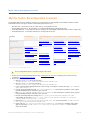
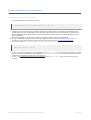
Be sure to comply with the MySQL Cluster rules regarding reconfiguration as published here: Performing Rolling Restart of
MySQL Cluster.
Steps
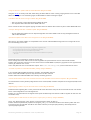
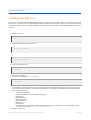
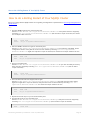
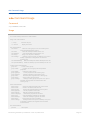
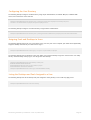
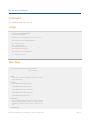
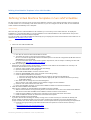
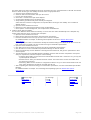
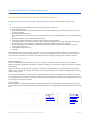
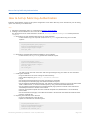
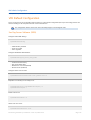
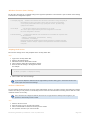
1. Stop the vdadb:core service on the Primary host.
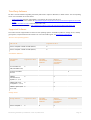
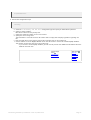
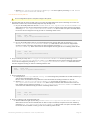
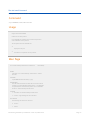
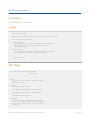
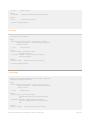
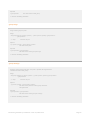
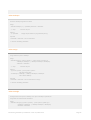
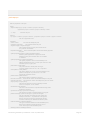
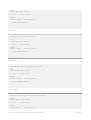
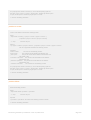
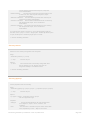
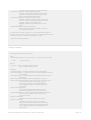
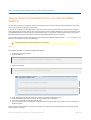
Execute svcadm disable vda:/application/database/vdadb:core. Verify that it has been stopped by
executing svcs svc:/application/database/vdadb:core (this can take a couple of minutes). You should
see an output similar to this one:
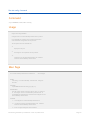
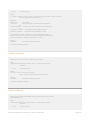
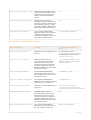
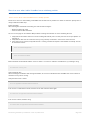
STATE
disabled
STIME FMRI
Dez_09 svc:/application/database/vdadb:core
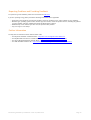
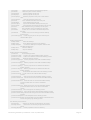
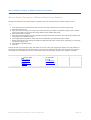
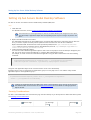
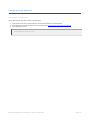
2. Start the vdadb:core service again on the Primary host.
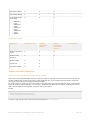
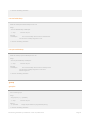
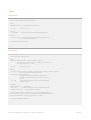
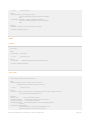
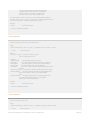
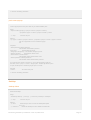
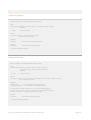
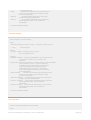
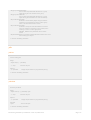
Execute svcadm enable svc:/application/database/vdadb:core. This makes the new MySQL Cluster
configuration effective. Verify that the service has been started by executing svcs svc:/application/
database/vdadb:core (again, this may take a couple of minutes). You should see an output similar to this one:
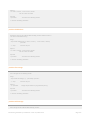
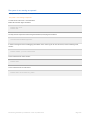
STATE
online
STIME FMRI
Dez_09 svc:/application/database/vdadb:core
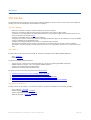
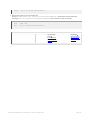
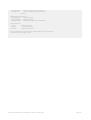
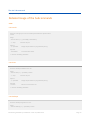
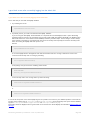
3. Stop your first data node.
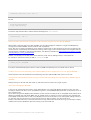
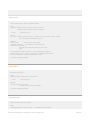
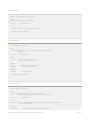
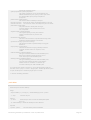
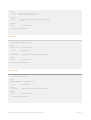
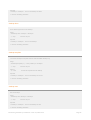
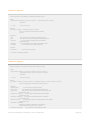
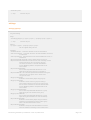
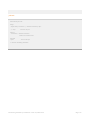
Execute svcadm disable svc:/application/database/vdadb:core on your first Secondary host. Verify
that is has been stopped by executing svcs svc:/application/database/vdadb:core (this can take a
couple of minutes).
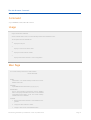
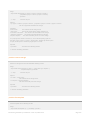
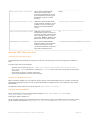
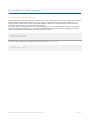
STATE
disabled
STIME FMRI
Dez_09 svc:/application/database/vdadb:core
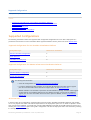
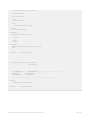
4. Once the data node has been stopped, start it again.
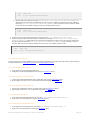
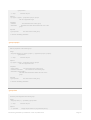
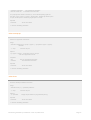
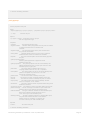
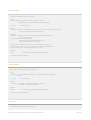
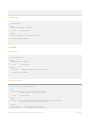
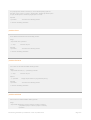
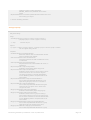
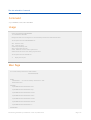
Execute svcadm enable svc:/application/database/vdadb:core and wait until it has been started
(again, this might take a couple of minutes). Verify that the service has been started by executing svcs svc:/
application/database/vdadb:core. You should see output similar to this one:
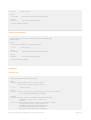
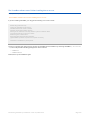
STATE
online
STIME FMRI
Dez_09 svc:/application/database/vdadb:core
5. Repeat the last two steps on your second Secondary host.
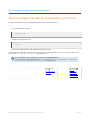
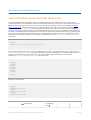
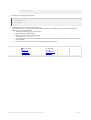
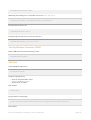
6. Stop the SQL node on every secondary host.
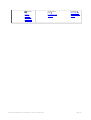
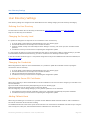
Execute svcadm disable svc:/application/database/vdadb:sql. Verify that is has been stopped by
executing svcs svc:/application/database/vdadb:sql (this can take a couple of minutes).
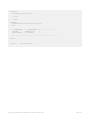
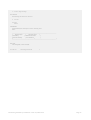
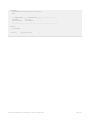
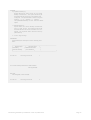
STATE
STIME
FMRI
Document generated by Confluence on Jun 24, 2009 06:55
Page 41