1
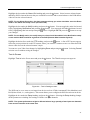
FA-DR4250
4-Channel Digital Video Recorder
WARNING
RISK OF ELECTRIC SHOCK
DO NOT OPEN
WARNING: TO REDUCE THE RISK OF ELECTRIC SHOCK,
DO NOT REMOVE COVER (OR BACK).
NO USER-SERVICEABLE PARTS INSIDE.
REFER SERVICING TO QUALIFIED
SERVICE PERSONNEL.
The lightning flash with arrowhead symbol, within an equilateral triangle, is intended to alert
the user to the presence of uninsulated "dangerous voltage" within the product’s enclosure
that may be of sufficient magnitude to constitute a risk of electric shock.
The exclamation point within an equilateral triangle is intended to alert the user to the presence
of important operating and maintenance (servicing) instructions in the literature accompanying
the appliance.
COMPLIANCE NOTICE OF FCC:
THIS EQUIPMENT HAS BEEN TESTED AND FOUND TO COMPLY WITH THE LIMITS FOR A CLASS A DIGITAL
DEVICE, PURSUANT TO PART 15 OF THE FCC RULES. THESE LIMITS ARE DESIGNED TO PROVIDE
REASONABLE PROTECTION AGAINST HARMFUL INTERFERENCE WHEN THE EQUIPMENT IS OPERATED IN
A COMMERCIAL ENVIRONMENT. THIS EQUIPMENT GENERATES, USES, AND CAN RADIATE RADIO
FREQUENCY ENERGY AND IF NOT INSTALLED AND USED IN ACCORDANCE WITH THE INSTRUCTION
MANUAL, MAY CAUSE HARMFUL INTERFERENCE TO RADIO COMMUNICATIONS. OPERATION OF THIS
EQUIPMENT IN A RESIDENTIAL AREA IS LIKELY TO CAUSE HARMFUL INTERFERENCE, IN WHICH CASE
USERS WILL BE REQUIRED TO CORRECT THE INTERFERENCE AT THEIR OWN EXPENSE.
WARNING: CHANGES OR MODIFICATIONS NOT EXPRESSLY APPROVED BY THE PARTY RESPONSIBLE FOR
COMPLIANCE COULD VOID THE USER’S AUTHORITY TO OPERATE THE EQUIPMENT.
THIS CLASS OF DIGITAL APPARATUS MEETS ALL REQUIREMENTS OF THE CANADIAN INTERFERENCECAUSING EQUIPMENT REGULATIONS.
®
The information in this manual is believed to be accurate as of the date of publication. ATV is not responsible for any
problems resulting from the use thereof. The information contained herein is subject to change without notice. Revisions
or new editions to this publication may be issued to incorporate such changes.
i
User’s Manual
Important Safeguards
1. Read Instructions
All the safety and operating instructions should be read before the
appliance is operated.
2. Retain Instructions
The safety and operating instructions should be retained for future
reference.
3. Cleaning
Unplug this equipment from the wall outlet before cleaning it. Do not use
liquid aerosol cleaners. Use a damp soft cloth for cleaning.
4. Attachments
Never add any attachments and/or equipment without the approval of
the manufacturer as such additions may result in the risk of fire, electric
shock or other personal injury.
5. Water and/or Moisture
Do not use this equipment near water or in contact with water.
6. Ventilation
Place this equipment only in an upright position. This equipment has
an open-frame Switching Mode Power Supply (SMPS), which can
cause a fire or electric shock if anything is inserted through the
ventilation holes on the side of the equipment.
7. Accessories
Do not place this equipment on an unstable cart, stand or table. The
equipment may fall, causing serious injury to a child or adult, and serious
damage to the equipment. Wall or shelf mounting should follow the
manufacturer's instructions, and should use a mounting kit approved by
the manufacturer.
14. Damage requiring Service
Unplug this equipment from the wall outlet and refer servicing to
qualified service personnel under the following conditions:
A. When the power-supply cord or the plug has been damaged.
B. If liquid is spilled, or objects have fallen into the equipment.
C. If the equipment has been exposed to rain or water.
D. If the equipment does not operate normally by following the
operating instructions, adjust only those controls that are covered by
the operating instructions as an improper adjustment of other
controls may result in damage and will often require extensive work
by a qualified technician to restore the equipment to its normal
operation.
E. If the equipment has been dropped, or the cabinet damaged.
F. When the equipment exhibits a distinct change in performance ─
this indicates a need for service.
15. Replacement Parts
When replacement parts are required, be sure the service technician has
used replacement parts specified by the manufacturer or that have the
same characteristics as the original part. Unauthorized substitutions
may result in fire, electric shock or other hazards.
16. Safety Check
Upon completion of any service or repairs to this equipment, ask the
service technician to perform safety checks to determine that the
equipment is in proper operating condition.
17. Field Installation
This installation should be made by a qualified service person and should
conform to all local codes.
18. Correct Batteries
Warning: Risk of explosion if battery is replaced by an incorrect type.
Dispose of used batteries according to the instructions.
This equipment and cart combination should be moved with care. Quick
stops, excessive force, and uneven surfaces may cause the equipment
and cart combination to overturn.
8. Power Sources
This equipment should be operated only from the type of power source
indicated on the marking label. If you are not sure of the type of power,
please consult your equipment dealer or local power company.
9. Power Cords
Operator or installer must remove power and TNT connections before
handling the equipment.
10. Lightning
For added protection for this equipment during a lightning storm, or when
it is left unattended and unused for long periods of time, unplug it from the
wall outlet and disconnect the antenna or cable system. This will prevent
damage to the equipment due to lightning and power-line surges.
11. Overloading
Do not overload wall outlets and extension cords as this can result in the
risk of fire or electric shock.
12. Objects and Liquids
Never push objects of any kind through openings of this equipment as they
may touch dangerous voltage points or short out parts that could result in
a fire or electric shock. Never spill liquid of any kind on the equipment.
13. Servicing
Do not attempt to service this equipment yourself. Refer all servicing
to qualified service personnel.
19. Tmra
A manufacturer’s maximum recommended ambient temperature (Tmra)
for the equipment must be specified so that the customer and installer
may determine a suitable maximum operating environment for the
equipment.
20. Elevated Operating Ambient Temperature
If installed in a closed or multi-unit rack assembly, the operating
ambient temperature of the rack environment may be greater than room
ambient. Therefore, consideration should be given to installing the
equipment in an environment compatible with the manufacturer’s
maximum rated ambient temperature (Tmra).
21. Reduced Air Flow
Installation of the equipment in the rack should be such that the amount of
airflow required for safe operation of the equipment is not compromised.
22. Mechanical Loading
Mounting of the equipment in the rack should be such that a hazardous
condition is not caused by uneven mechanical loading.
23. Circuit Overloading
Consideration should be given to connection of the equipment to supply
circuit and the effect that overloading of circuits might have on over current
protection and supply wiring. Appropriate consideration of equipment
nameplate ratings should be used when addressing this concern.
24. Reliable Earthing (Grounding)
Reliable grounding of rack mounted equipment should be maintained.
Particular attention should be given to supply connections other than
direct connections to the branch circuit (e.g., use of power strips).
WEEE (Waste Electrical & Electronic Equipment)
Correct Disposal of This Product
(Applicable in the European Union and other European countries with separate collection systems)
This marking shown on the product or its literature, indicates that it should not be disposed with other household wastes at the
end of its working life. To prevent possible harm to the environment or human health from uncontrolled waste disposal, please
separate this from other types of wastes and recycle it responsibly to promote the sustainable reuse of material resources.
Household users should contact either the retailer where they purchased this product, or their local government office, for
details of where and how they can take this item for environmentally safe recycling.
Business users should contact their supplier and check the terms and conditions of the purchase contract. This product should
not be mixed with other commercial wastes for disposal.
ii
4-Channel Digital Video Recorder
Table of Contents
Chapter 1 ─ Introduction ......................................................................................................... 1
Features ................................................................................................................................. 1
Technical Overview................................................................................................................ 1
Chapter 2 ─ Installation ........................................................................................................... 3
Package Contents.................................................................................................................. 3
Required Installation Tools .................................................................................................... 3
Video Input......................................................................................................................... 3
Video Loop Through .......................................................................................................... 3
Video Out ........................................................................................................................... 4
RS232 Port ........................................................................................................................ 4
Alarm Input/Output ............................................................................................................ 4
RS485 Port ........................................................................................................................ 5
Factory Reset Switch......................................................................................................... 5
Network Port ...................................................................................................................... 5
Audio In/Out ....................................................................................................................... 5
Power Cord Connector ...................................................................................................... 6
Chapter 3 ─ Configuration ...................................................................................................... 7
Front Panel Controls .............................................................................................................. 7
POWER LED ..................................................................................................................... 7
HDD LED ........................................................................................................................... 7
ALARM LED ...................................................................................................................... 7
Arrow Buttons .................................................................................................................... 8
Enter/Pause Button ........................................................................................................... 8
Menu Button ...................................................................................................................... 8
PTZ/Zoom Button .............................................................................................................. 8
Panic Button ...................................................................................................................... 8
Playback Mode/Clip Copy Button ...................................................................................... 9
Camera Buttons (1 to 4) .................................................................................................... 9
USB Port ............................................................................................................................ 9
ID Button on Remote Control ............................................................................................ 9
Turning on the Power........................................................................................................... 10
Initial Unit Setup ................................................................................................................... 10
Setup Screen ....................................................................................................................... 10
System Information .......................................................................................................... 11
Date/Time Setup .............................................................................................................. 13
Storage Screen ................................................................................................................ 15
User Setup Screen .......................................................................................................... 16
Shutdown Screen ............................................................................................................ 18
Logout Screen ................................................................................................................. 18
Network & Notification Setup ............................................................................................... 18
Network Screen ............................................................................................................... 18
LAN Setup Screen ........................................................................................................... 19
DVRNS Setup .................................................................................................................. 22
WebGuard Setup ............................................................................................................. 23
Notification Setup ............................................................................................................ 23
Configuring Devices ............................................................................................................. 25
iii
User’s Manual
Camera Setup Screen ..................................................................................................... 25
Audio Setup Screen......................................................................................................... 26
Alarm-Out Screen ............................................................................................................ 27
Display Screen ................................................................................................................ 28
Remote Control Screen ................................................................................................... 30
Recording Settings............................................................................................................... 30
Record Screen ................................................................................................................. 30
Schedule Screen ............................................................................................................. 32
Pre-Event Screen ............................................................................................................ 34
Event Settings ...................................................................................................................... 35
Alarm-In Screen ............................................................................................................... 35
Motion Detection Screen ................................................................................................. 37
Video Loss Screen .......................................................................................................... 40
Text-In Screen ................................................................................................................. 41
System Event Screen ...................................................................................................... 44
Event Status Screen ........................................................................................................ 46
Chapter 4 ─ Operation ........................................................................................................... 49
Turning on the Power........................................................................................................... 49
Live Monitoring..................................................................................................................... 49
Freeze Mode ................................................................................................................... 49
Zoom Mode...................................................................................................................... 49
Image Adjustment............................................................................................................ 49
Sequence Mode .............................................................................................................. 50
Event Monitoring .............................................................................................................. 50
Covert Camera ................................................................................................................ 50
PTZ Mode ........................................................................................................................ 50
Using a Mouse ..................................................................................................................... 52
Recording Video .................................................................................................................. 52
Recording Audio .................................................................................................................. 53
Playing Recorded Video ...................................................................................................... 53
Searching Video................................................................................................................... 54
Go to ................................................................................................................................ 54
Record Table Search....................................................................................................... 55
Event Log Search ............................................................................................................ 56
Text-In Search ................................................................................................................. 58
Motion Search ................................................................................................................. 59
Clip-Copy Screen ............................................................................................................ 60
Appendix A ─ USB Hard Disk Drive Preparation ................................................................ 63
Preparing the USB hard disk drive in Windows 2000 .......................................................... 63
Preparing the USB hard disk drive in Windows 98 .............................................................. 63
Appendix B ─ Text-In Search Examples .............................................................................. 64
Search Example I................................................................................................................. 64
Search Example II................................................................................................................ 64
Appendix C ─ WebGuard....................................................................................................... 66
Web Monitoring Mode .......................................................................................................... 67
Web Search Mode ............................................................................................................... 68
Appendix D ─ Troubleshooting ............................................................................................ 71
iv
4-Channel Digital Video Recorder
Appendix E ─ Connector Pin Outs ....................................................................................... 71
I/O Connector Pin Outs ........................................................................................................ 71
RS485 Connector Pin Outs ................................................................................................. 71
Appendix F ─ Map of Screens .............................................................................................. 72
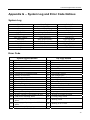
Appendix G ─ System Log and Error Code Notices........................................................... 73
System Log .......................................................................................................................... 73
Error Code ........................................................................................................................... 73
Appendix H ─ Specifications ................................................................................................ 74
List of Illustrations
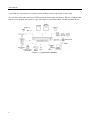
Figure 1 ─ Typical DVR installation............................................................................................................2
Figure 2 ─ DVR rear panel. ........................................................................................................................3
Figure 3 ─ DVR front panel. .......................................................................................................................7
Figure 4 ─ Infrared Remote Control. ..........................................................................................................9
Figure 5 ─ Login screen. ..........................................................................................................................10
Figure 6 ─ Setup screen. .........................................................................................................................10
Figure 7 ─ Virtual Keyboard. ....................................................................................................................11
Figure 8 ─ Information screen. .................................................................................................................11
Figure 9 ─ Upgrade screen. .....................................................................................................................12
Figure 10 ─ Setup Import screen. ............................................................................................................12
Figure 11 ─ Setup Export screen. ............................................................................................................12
Figure 12 ─ System Log screen. ..............................................................................................................13
Figure 13 ─ Date/Time setup screen. ......................................................................................................13
Figure 14 ─ Holiday setup screen. ...........................................................................................................14
Figure 15 ─ Time Sync. screen. ...............................................................................................................14
Figure 16 ─ Storage Information screen. .................................................................................................15
Figure 17 ─ User setup screen. ...............................................................................................................16
Figure 18 ─ New Group setup screen. .....................................................................................................17
Figure 19 ─ New User setup screen. .......................................................................................................17
Figure 20 ─ Shutdown screen. .................................................................................................................18
Figure 21 ─ Logout screen.......................................................................................................................18
Figure 22 ─ Network Menu. .....................................................................................................................18
Figure 23 ─ Network setup screen. ..........................................................................................................19
Figure 24 ─ LAN (Manual) setup screen. .................................................................................................20
Figure 25 ─ Port Numbers setup screen. .................................................................................................20
Figure 26 ─ LAN (DHCP) setup screen. ..................................................................................................21
Figure 27 ─ LAN (ADSL) setup screen. ...................................................................................................21
Figure 28 ─ DVRNS setup screen. ..........................................................................................................22
Figure 29 ─ WebGuard setup screen.......................................................................................................23
Figure 30 ─ Notification Mail setup screen...............................................................................................23
Figure 31 ─ Authentication setup screen. ................................................................................................24
Figure 32 ─ Notification Callback setup screen. ......................................................................................24
Figure 33 ─ Devices Menu.......................................................................................................................25
Figure 34 ─ Camera setup screen. ..........................................................................................................25
Figure 35 ─ Camera PTZ setup screen. ..................................................................................................26
Figure 36 ─ PTZ Device list. ....................................................................................................................26
Figure 37 ─ Port Setup window. ..............................................................................................................26
v
User’s Manual
Figure 38 ─ Audio setup screen. ..............................................................................................................27
Figure 39 ─ Alarm-Out Settings screen. ..................................................................................................27
Figure 40 ─ Display OSD screen. ............................................................................................................28
Figure 41 ─ OSD Margin screen. .............................................................................................................29
Figure 42 ─ Main Monitor screen. ............................................................................................................29
Figure 43 ─ Remote Control setup screen. ..............................................................................................30
Figure 44 ─ Record menu. .......................................................................................................................30
Figure 45 ─ Record setup screen. ...........................................................................................................31
Figure 46 ─ Schedule (Simple Mode) setup screen. ................................................................................32
Figure 47 ─ Schedule (Advanced Mode) setup screen. ...........................................................................32
Figure 48 — Schedule – Settings (Advanced Mode) setup screen. .........................................................33
Figure 49 ─ Default (Advanced Mode) setup screen. ..............................................................................34
Figure 50 ─ Pre-Event setup screen. .......................................................................................................34
Figure 51 ─ Event menu. .........................................................................................................................35
Figure 52 ─ Alarm-In Settings screen. .....................................................................................................35
Figure 53 ─ Alarm-In Actions screen. ......................................................................................................36
Figure 54 ─ Alarm-In Notify menu. ...........................................................................................................36
Figure 55 ─ Motion Detection Settings screen. ........................................................................................37
Figure 56 ─ Motion Detection Sensitivity screen. .....................................................................................37
Figure 57 ─ Motion Detection Zone screen. .............................................................................................37
Figure 58 ─ Motion Detection Zone menu. ..............................................................................................38
Figure 59 ─ Motion Detection Min. Blocks screen. ..................................................................................38
Figure 60 ─ Daytime Setup screen. .........................................................................................................38
Figure 61 ─ Motion Detection Actions screen. .........................................................................................39
Figure 62 ─ Video Loss Settings screen. .................................................................................................40
Figure 63 ─ Video Loss Actions screen. ..................................................................................................40
Figure 64 ─ Text-In Settings screen.........................................................................................................41
Figure 65 ─ Text-In Device Settings screen.............................................................................................42
Figure 66 ─ Text-In Actions screen. .........................................................................................................43
Figure 67 ─ Health Check screen. ...........................................................................................................44
Figure 68 ─ Check Recording screen. .....................................................................................................44
Figure 69 ─ Storage screen. ....................................................................................................................45
Figure 70 ─ System Event Actions screen. ..............................................................................................45
Figure 71 ─ Event Status screen. ............................................................................................................46
Figure 72 ─ PTZ Select Camera menu. ...................................................................................................50
Figure 73 ─ PTZ menu.............................................................................................................................51
Figure 74 ─ PTZ Preset screen. ..............................................................................................................51
Figure 75 ─ Preset View screen. .............................................................................................................51
Figure 76 ─ Mouse menu.........................................................................................................................52
Figure 77 ─ Mouse Display menu. ...........................................................................................................52
Figure 78 ─ Search menu. .......................................................................................................................54
Figure 79 ─ Go to menu...........................................................................................................................54
Figure 80 ─ Go to the Date/Time screen. ................................................................................................55
Figure 81 ─ Record Table Search (Standard View) screen. ....................................................................55
Figure 82 ─ Record Table Search (Expanded View) screen....................................................................55
Figure 83 ─ Calendar Search screen. ......................................................................................................56
Figure 84 ─ Event Log Search screen. ....................................................................................................56
Figure 85 ─ Event Log Search Option screen. .........................................................................................57
Figure 86 ─ Text-In Search screen. .........................................................................................................58
Figure 87 ─ Text-In Search Option screen...............................................................................................58
Figure 88 ─ Motion Search screen. .........................................................................................................59
Figure 89 ─ Motion Search Option screen. ..............................................................................................60
Figure 90 ─ Clip-Copy screen. .................................................................................................................61
Figure 91 ─ WebGuard login screen. .......................................................................................................66
Figure 92 ─ WebWatch screen. ...............................................................................................................67
Figure 93 ─ WebSearch screen. ..............................................................................................................69
vi
4-Channel Digital Video Recorder
Chapter 1 ─ Introduction
Features
Your color digital video recorder (DVR) provides recording capabilities for four camera inputs. It provides
exceptional picture quality in both live and playback modes, and offers the following features:
y
y
y
y
y
y
y
y
y
y
y
y
y
y
y
y
y
y
y
y
y
4 Composite Video Input Connectors
Compatible with Color (NTSC or PAL) and B&W (CCIR and EIA-170) Video Sources
Auto Detection for NTSC and PAL
Multiple Monitor Connectors: 1 BNC Video Out, 1 VGA
Multiple Search Engines (Date/Time, Calendar, Event)
Records up to 120/100 Images per Second (NTSC/PAL)
“Loop-Through” Video Connectors
Continuous Recording in Disk Overwrite Mode
1 USB 2.0 Port
Continues Recording while Transmitting to Remote Site and during Playback
User-friendly Graphical User Interface (GUI) Menu System
Multiple Recording Modes (Time-lapse, Pre-event, Event and Panic)
Two-way Audio Communications
4-Channel Audio Recording and 1-Channel Audio Playback
Text Input for ATM and POS
Alarm Connections Include: Input, Output and Reset Input
Built-in Alarm Buzzer
Live or Recorded Video Access via Ethernet
Time Synchronization using industry standard protocol
Self-diagnostics with automatic notification including hard disk drive S.M.A.R.T. protocol
Infrared Remote Control
Technical Overview
In addition to replacing both a time-lapse VCR and a multiplexer in a security installation, your DVR has
many features that make it much more powerful and easier to use than even the most advanced VCR.
The DVR converts analog NTSC or PAL video to digital images and records them on a hard disk drive.
Using a hard disk drive allows you to access recorded video almost instantaneously; there is no need to rewind
tape. The technology also allows you to view recorded video while the DVR continues recording video.
Digitally recorded video has several advantages over analog video recorded on tape. There is no need to
adjust tracking. You can freeze frames, fast forward, fast reverse, slow forward and slow reverse without
image streaking or tearing. Digital video can be indexed by time or events, and you can instantly view video
after selecting the time or event.
Your DVR can be set up for event or time-lapse recording. You can define times to record, and the schedule
can change for different days of the week and user defined holidays.
The DVR can be set up to alert you when the hard disk drive is full, or it can be set to record over the oldest
video once the disk is full.
1
User’s Manual
Your DVR uses a proprietary encryption scheme making it nearly impossible to alter video.
You can view video and control your DVR remotely by connecting via Ethernet. There is a USB port that
can be used to upgrade the system or copy video clips to external hard disk, CD-RW and flash drives.
Figure 1 ─ Typical DVR installation.
2
4-Channel Digital Video Recorder
Chapter 2 ─ Installation
Package Contents
The package contains the following:
y
y
y
y
y
Digital Video Recorder
Power Cord
User’s Manual (This Document)
RAS Software CD and User’s Manual
Infrared Remote Control
Required Installation Tools
No special tools are required to install the DVR. Refer to the installation manuals for the other items that
make up part of your system.
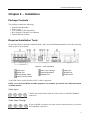
Figure 2 ─ DVR rear panel.
Video Input
RS232 Port
Factory Reset Switch
Power Cord Connector
Video Loop Through
Alarm Input/Output
Network Port
Video Out
RS485 Port
Audio In/Out
Your DVR can be used with either NTSC or PAL equipment.
NOTE: You cannot mix NTSC and PAL equipment. For example you cannot use a PAL camera and
an NTSC monitor.
Video Input
Connect the coaxial cables from the video sources to the BNC Video In
connectors.
Video Loop Through
If you would like to connect your video source to another device, you can use
the Loop BNC connectors.
3
User’s Manual
NOTE: The Loop BNC connectors are auto terminated. Do NOT connect a cable to the Loop BNC
unless it is connected to a terminated device because it will cause poor quality video.
Video Out
Connect the main monitor to the Video Out connector.
A VGA connector is provided so that you can use a standard, multi-sync computer monitor
as your main monitor. Use the cable supplied with your monitor to connect it to the DVR.
The VGA monitor is automatically detected when you connect it.
NOTE: It is possible that the DVR does not detect a VGA monitor automatically if the connected VGA
monitor does not support auto detect function. In this case, press and hold the Panic button on the
front panel for 5 seconds or longer to switch the video output to VGA out. Pressing and holding the
Panic button for 5 seconds or longer again returns to the previous video output mode.
RS232 Port
An RS232 port is provided to connect a remote control keyboard.
Alarm Input/Output
NOTE: To make connections on the Alarm Connector Strip, press and hold the
button and insert the wire in the hole below the button. After releasing the
button, tug gently on the wire to make certain it is connected. To disconnect
a wire, press and hold the button above the wire and pull out the wire.
AI 1 to 4 (Alarm-In): You can use external devices to signal the DVR to react to events. Mechanical or
electrical switches can be wired to the AI (Alarm-In) and G (Ground) connectors. The threshold voltage is
4.3V and should be stable at least 0.5 seconds to be detected. See Chapter 3 ─ Configuration for configuring
alarm input.
G (Ground): Connect the ground side of the Alarm input and/or alarm output to the G connector.
NOTE: All the connectors marked G are common.
NC/NO (Relay Alarm Output): The DVR can activate external devices such as buzzers or lights. Connect
the device to the C (Common) and NC (Normally Closed) or C and NO (Normally Open) connectors.
NC/NO is a relay output which sinks 0.5A@125VAC and 1A@30VDC. See Chapter 3 ─ Configuration
for configuring alarm output.
ARI (Alarm Reset In): An external signal to the Alarm Reset In can be used to reset both the Alarm Out
signal and the DVR’s internal buzzer. Mechanical or electrical switches can be wired to the ARI (Alarm
Reset In) and G (Ground) connectors. The threshold voltage is below 0.3V and should be stable at least
0.5 seconds to be detected. Connect the wires to the ARI (Alarm Reset In) and G (Ground) connectors.
4
4-Channel Digital Video Recorder
RS485 Port
The DVR can be controlled remotely by an external device or control system, such as a control
keyboard, using RS485 half-duplex serial communications signals. The RS485 connector can
also be used to control PTZ (pan, tilt, zoom) cameras. Connect RX-/ TX- and RX+/TX+ of the
control system to the – and + (respectively) of the DVR. See Chapter 3 ─ Configuration and
the PTZ camera or remote controller manufacture’s manual for configuring the RS485 connection.
Factory Reset Switch
The DVR has a Factory Reset switch to the left of the Network port on the rear panel.
This switch will only be used on the rare occasions that you want to return all the settings
to the original factory settings.
CAUTION: When using the Factory Reset, you will lose any settings you have saved.
To reset the unit, you will need a straightened paperclip:
1. Turn the DVR off.
2. Poke the straightened paperclip to the unlabeled hole in the left of the Network port, and turn the
DVR on.
3. Hold the reset switch until the DVR turns on and live monitoring screen appears.
4. Release the reset switch. All of the DVR’s settings are now at the original settings it had when it
left the factory.
Network Port
The DVR can be networked using the 10/100Mb Ethernet connector. Connect a Cat5 cable with
an RJ-45 jack to the DVR connector. The DVR can be networked with a computer for remote
monitoring, searching, configuration and software upgrades. See Chapter 3 ─ Configuration
for configuring the Ethernet connections.
CAUTION: The network connector is not designed to be connected directly with cable or
wire intended for outdoor use.
Audio In/Out
Your DVR can record audio from up to two sources. Connect the audio sources to
Audio In 1, Audio In 2, Audio In 3 and Audio In 4 as needed using RCA jacks.
Connect Audio Out to your amplifier.
NOTE: It is the user’s responsibility to determine if local laws and regulations
permit recording audio.
NOTE: The DVR does not have amplified audio output, so you will need a speaker with an amplifier.
The DVR does not have a pre-amplifier for audio input, so the audio input should be from an amplified
source, not directly from a microphone.
5
User’s Manual
Power Cord Connector
Connect the AC power cord to the DVR and then to a wall outlet.
WARNING: ROUTE POWER CORDS SO THAT THEY ARE NOT A TRIPPING HAZARD.
MAKE CERTAIN THE POWER CORD WILL NOT BE PINCHED OR ABRADED BY FURNITURE.
DO NOT INSTALL POWER CORDS UNDER RUGS OR CARPET.
THE POWER CORD HAS A GROUNDING PIN. IF YOUR POWER OUTLET DOES NOT HAVE
A GROUNDING PIN RECEPTACLE, DO NOT MODIFY THE PLUG. DO NOT OVERLOAD THE
CIRCUIT BY PLUGGING TOO MANY DEVICES IN TO ONE CIRCUIT.
Your DVR is now ready to operate. Refer to Chapter 3 ─ Configuration and Chapter 4 ─ Operation.
6
4-Channel Digital Video Recorder
Chapter 3 ─ Configuration
NOTE: Your DVR should be completely installed before proceeding. Refer to Chapter 2 ─ Installation.
Front Panel Controls
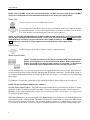
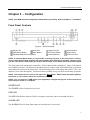
Figure 3 ─ DVR front panel.
Power LED
HDD LED
Enter/Pause Button
Menu Button
Playback Mode/Clip Copy Button
Alarm Out LED
PTZ/Zoom Button
Camera Buttons
Arrow Buttons
Panic Button
USB Connector
NOTE: A separate Alarm button is not provided. Pressing any keys on the front panel or remote
control resets alarm output including the internal buzzer when the alarm is activated. However, when
you are in the menu or PTZ mode, you have to exit the menu or PTZ mode first to reset alarm output.
The front panel looks and operates much like a VCR combined with a multiplexer. Many of the buttons
have multiple functions. The buttons on the infrared remote control, while laid out differently, perform the
same functions as those on the front panel. The following describes each button and control. Take a few
minutes to review the descriptions. You will use these to initially set up your DVR and for daily operations.
NOTE: The infrared sensor is just to the right of the Menu button. Make certain that nothing blocks
the sensor, or the remote control will not function properly.
NOTE: You can also use a USB mouse (not supplied) to navigate through the screens and menus
much like you would on a computer.
POWER LED
The POWER LED is lit when the unit is On.
HDD LED
The HDD LED flickers when the DVR is recording or searching video on the hard disk drive.
ALARM LED
The ALARM LED is lit when alarm output or internal buzzer is activated.
7
User’s Manual
Arrow Buttons
These buttons are used to navigate through menus and GUI. You can also use them to change numbers by
highlighting a number in the menu and using the Up and Down arrow buttons to increase or decrease the
number’s value. These buttons are also used to control Pan and Tilt when in the PTZ mode.
In the playback mode, pressing the button plays video backward at high speed. Pressing the button
again toggles the playback speed from ,
and
, and the screen displays ,
and
respectively. While playing video, pressing the button plays video forward at high speed. Pressing the
button again toggles the playback speed from , ,
and
, and the screen displays , ,
and
respectively. When in the pause mode, pressing the button moves to the next image and pressing
the button moves to the previous image.
Enter/Pause Button
Pressing the
setup.
button selects a highlighted item or completes an entry that you have made during system
In the live monitoring mode, pressing the button freezes the current screen and the screen displays
icon. When in the playback mode, pressing the button pauses playing video.
Menu Button
Pressing the Menu button enters the Setup screen. You will need to enter the authorized user and password
to access Setup. Pressing the button also closes the current menu or setup dialog box. In the Playback mode,
pressing the button displays the Search menu.
When in the live mode, pressing and holding the Menu button for three seconds or longer displays live channels
sequentially.
PTZ/Zoom Button
In the live monitoring mode, pressing the PTZ/Zoom button enters the PTZ mode, and pressing the button
again exits the PTZ mode and enters the zoom mode. When in the zoom mode, pressing the button again
exits the zoom mode.
NOTE: Pressing the PTZ/Zoom button enters directly the zoom mode if there is no PTZ camera you
set up in the Camera setup.
When in the PTZ mode, pressing the arrow buttons or Menu button allows you to control properly configured
cameras.
When in the zoom mode, a rectangle displays on the screen. A rectangle shows the area that will be enlarged.
You can move the rectangle around using the arrow buttons. Pressing the (Enter) button in enlarges the
area in rectangle.
Panic Button
Pressing the Panic button starts panic recoding of all camera channels, and displays
the button again will stop panic recording.
on the screen. Pressing
NOTE: When the DVR does not detect a VGA monitor automatically, pressing and holding the Panic
button on the front panel for 5 seconds or longer switches the video output to VGA out manually.
8
4-Channel Digital Video Recorder
Playback Mode/Clip Copy Button
Pressing the Playback Mode/Clip Copy button enters the playback mode, and pressing the button again exits
the playback mode. When entering the playback mode, video is paused. Pressing the arrow button plays
back video at regular speed. The screen displays when the DVR is in the Pause mode and the screen displays
when the DVR is playing back video. The button is also used to load a Preset View in the PTZ mode.
Pressing and holding the Playback Mode/Clip Copy button for three seconds or longer allows you to copy
video clips.
Camera Buttons (1 to 4)
Pressing the individual camera buttons will cause the selected camera to display full screen, and pressing
the button again changes the display format to the quad (2x2) mode. Buttons 1 to 4 are also used to enter
passwords.
In the PTZ mode, pressing the button 1 zooms in the screen and the button 2 zooms out the screen, and
pressing the button 3 focuses near and button 4 focuses far.
USB Port
A USB port on the front panel is provided to connect external hard disk, CD-RW or flash drives for video
clip copying or system upgrades. Position external drives close enough to the DVR so that you can make the
cable connections, usually less than 6 feet. Use the USB cable provided with the hard disk drive to connect
it to the DVR.
A USB mouse (not supplied) can be connected to the USB port. You can use the mouse to navigate through
the screens and menus much like you would on a computer.
A USB to Serial converter can be connected to the USB port. Multiple text-in devices can be used with a
USB to Serial converter.
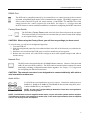
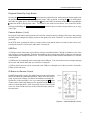
ID Button on Remote Control
If a DVR System ID is set to 0, the infrared remote control will control
that DVR without any additional operations. (Refer to the Information
setup screen in this chapter for further information on setting the
System ID.) If the system ID is 1 to 4, you must to press the ID button
on the remote control and then press the number button (1 to 4) in
order to control that DVR. If the System ID of two or more DVRs
is set to 0, those DVRs will react to the infrared remote control at
the same time.
Figure 4 ─ Infrared Remote Control.
9
User’s Manual
Turning on the Power
Connecting the power cord to the DVR turns on the unit. The unit takes approximately 60 seconds to initialize.
Initial Unit Setup
Before using your DVR for the first time, you will want to establish the initial settings. This includes items
such as time and date, display language, camera, audio, remote control, record mode, network and password.
Your DVR can be set up using various screens and dialog boxes.
Throughout the screens you will see . Highlighting the
the opportunity to reset that screen to its default settings.
and pressing the
(Enter) button gives you
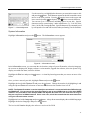
Press the Menu button to enter the setup screens. The Login screen appears.
Select a User and enter the password by pressing the appropriate combination
of Camera number buttons and then the button. There is no default
password when logging in the admin user for the first time.
Figure 5 ─ Login screen.
NOTE: To assure the secure management of the system, setting up a password is strongly
recommended.
NOTE: You can use a mouse (not supplied) to access the Login screen in addition to using the front
panel buttons or the infrared remote control. Click the right mouse button to display the Login screen.
To enter a password, click the … button, and the virtual keyboard displays. See instructions below
for the virtual keyboard.
Setup Screen
Figure 6 ─ Setup screen.
Press the Menu button to enter the setup screen. While setting up the DVR, there will be many opportunities
to enter names and titles. When making these entries, a Virtual Keyboard will appear.
10
4-Channel Digital Video Recorder
Figure 7 ─ Virtual Keyboard.
Use the arrow keys to highlight the character you want in the name or title
and press the button. That character appears in the title bar and the cursor
moves to the next position. Pressing
toggles between the upper and
lower case keyboards,
backspaces, and deletes entered characters.
You can use up to 31 characters including spaces in your title. Special
characters can be created using ^ and a capital letter; e.g. ^J for NL (New
Line), ^M for CR (Carriage Return). Special characters are commonly used
by text input devices and will be useful when performing Text-In Searches.
System Information
Highlight Information and press the
button. The Information screen appears.
Figure 8 ─ Information screen.
In the Information screen, you can name the site location, assign a System ID number, select the language
the screens are displayed in, display software version number, upgrade the software, show the System Log,
display recorded time data, and clear all data.
Highlight the Site box and press the
Name.
button. A virtual keyboard appears that you can use to enter a Site
Once you have entered your title, highlight Close and press the
button.
Highlight the box beside System ID and press the button. Change the number by highlighting it and
using the Up and Down arrow buttons to increase and decrease the number from 0 to 99.
NOTE: The System ID number is used to identify the unit when it is connected with other DVRs through
the RS485 port. You cannot use the same ID number for two or more DVRs that are in the same RS485
network. It is possible to have multiple DVRs with System ID 0 that are in the same area as long as
they are not part of an RS485 network. If this is the case, all will be controlled at the same time when
using the infrared remote control.
Highlight the box beside Language and press
Highlight the desired language and press the
button. A drop-down menu displays the available languages.
button.
The box beside Version displays the software version of the DVR.
11
User’s Manual
To upgrade the software, connect a USB device containing the upgrade package file to the DVR. Highlight
Upgrade… and press the button. The Upgrade screen appears.
The screen displays the upgrade package file names that are available.
The “.rui” indicates that the file is for software upgrades. Select the
desired file and press the button.
Figure 9 ─ Upgrade screen.
Highlighting the Install button and pressing the button will install the
selected software package. Highlighting the Cancel button and pressing
the button will close the window without upgrading the software. If
the upgrade package file is not installed on the DVR properly, you will get
an error message. The system restarts automatically after completing the
upgrade, and it takes approximately one minute to restart.
CAUTION: The USB device must be FAT16 or FAT32 format.
You can import saved DVR settings or export the current DVR settings. To import saved DVR settings,
connect the USB device containing the setup file (.dat) to the DVR. Highlight Setup – Import… and press
the button.
Select the desired setup file and press the Import button to
import the selected settings and change the DVR settings
accordingly. Highlight Include Network Setup and press
the button to toggle between On and Off. When set to Off,
the network settings will not be changed.
Figure 10 ─ Setup Import screen.
To export the current DVR settings, connect the USB device to the DVR. Highlight Setup – Export… and
press the button.
Highlight the box beside File name and press the button.
A virtual keyboard allows you to enter the file name. Selecting
Export will save the current settings in .dat file format on the
USB device.
Figure 11 ─ Setup Export screen.
NOTE: Even after changing the DVR settings by importing saved settings, the time-related settings
(Date/Time, Time Zone and Daylight Saving Time) will NOT be changed.
CAUTION: The USB device must be FAT16 or FAT32 format.
Highlight Show System Log… and press the
12
button to display the System Log.
4-Channel Digital Video Recorder
The System Log screen lists system activities (up to 5,000
from the latest) that have occurred along with the time
and date. The icon will be displayed in the last column
for system activities of the remote site. You can scroll
through the log pages by using the Up and Down arrows,
or you can go directly to a log page by entering the log
page number in the box at the bottom left of the screen.
Highlight Close and press the button to exit the screen.
Figure 12 ─ System Log screen.
The box beside Recorded Data – From / To displays the time information of recorded data.
Highlighting Clear All Data… and pressing the button will clear all video data. You will be asked to
verify that you wish to clear all data before the DVR erases the video data. Clear All Data… will not clear
the System Log.
After you are finished with the Information Screen, you can highlight Save and press the button to save
the changes and exit the screen. If you do not wish to save the changes, highlight Cancel and press the
button to exit the screen.
Date/Time Setup
Highlight Date/Time in the System menu and press the
button. The Date/Time setup screen appears.
Figure 13 ─ Date/Time setup screen.
Highlight the first box beside Date and press the button. The individual sections of the date will highlight.
Use the Up and Down arrow buttons to change the number. Use the Left and Right arrow buttons to move
between month, date and year. Once you have the correct date, press the button.
Highlight the Format box beside Date and press the button. Select from the three available date formats
and press the button to save your selected format.
Highlight the first box beside Time and press the button. The individual sections of the time will highlight.
Use the Up and Down arrow buttons to change the number. Use the Left and Right arrow buttons to move
between hour, minutes and seconds. Once you have the correct time, press the button.
13
User’s Manual
Highlight the Format box beside Time and press the button. Select from the three available time formats
and press the button to save your selected format.
NOTE: The clock will not start running until you have highlighted Save and pressed the
Highlight the box beside Time Zone and press the
the button.
Highlight Use Daylight Saving Time and press the
and Off.
button.
button. Select your time zone from the list and press
button. Pressing the
button toggles between On
Highlight the Holiday tab, and the Holiday setup screen appears
Figure 14 ─ Holiday setup screen.
You can set up holidays by highlighting + and pressing the
button. The current date appears.
Highlight the month and day and change them by using the Up and Down arrow buttons. Press the
button to add the date. Dates can be deleted by highlighting the beside the date and pressing the button.
NOTE: Holidays that do not fall on the same date each year should be updated once the current year’s
holiday has passed.
Highlighting the Time Sync. tab causes the Time Sync. screen to display. You can set up time synchronization
between the DVR and standard time servers that are available in most time zones and countries, or between
the DVR and another DVR.
Figure 15 ─ Time Sync. screen.
14
4-Channel Digital Video Recorder
Highlight the box beside Automatic Sync. and press the
button. This toggles between On and Off.
Highlight the box beside Time Server and press the button. A virtual keyboard appears that you can
use to enter the IP address or domain name of the time server.
NOTE: You can use the domain name instead of IP address if you already set up the DNS Server when
setting up the LAN.
Highlight the box beside Interval and press the
30 minutes to 1 day at various time intervals.
button. Set the time interval for synchronization from
Last Sync-Time displays the last time the DVR was synchronized with the time server.
Highlight Run as Server and press the button. Pressing the button toggles between On and Off.
When it is On, the DVR you are setting up will run as a time server.
You can save your changes by highlighting Save and pressing the
screen without saving the changes.
button. Selecting Cancel exits the
Storage Screen
Highlight Storage in the System menu and press the button. The Storage setup screen appears and
displays information about the DVR’s storage devices.
Figure 16 ─ Storage Information screen.
The capacity of the storage device is displayed in the box beside Capacity.
The box beside Disk Bad displays the percentage of bad sectors. Not Formatted indicates the device is
not formatted.
The box beside Temperature displays the temperature of the storage device.
The S.M.A.R.T. column displays Good, Bad or N/A, depending on storage conditions.
y Good ─ The storage condition is normal.
y Bad ─ Data cannot be written on or read from the storage device.
y N/A ─ Storage conditions are normal, however, the S.M.A.R.T. monitoring is not working or supported.
15
User’s Manual
NOTE: When the storage condition is Bad, the Event Status – Storage screen displays and you can
check the storage condition for details. Once the “Bad” message displays, replacing the hard disk
drive is recommended, usually within 24 hours.
NOTE: Temperature and S.M.A.R.T. information will be available only for internal hard disk drives
supporting the SMART (Self-Monitoring Analysis and Reporting Technology) monitoring program.
“Not Formatted” displays in the upper part of the Format… box if the hard disk drive has not been formatted.
Highlight the Format… box and press the button to format the device for recording.
Selecting Close and pressing the
button exits the screen.
User Setup Screen
Highlight User in the System menu and press the button. The User setup screen displays the authorized
groups and users. You can add and delete groups and users. When adding a group, you can assign authority
levels to the group.
Figure 17 ─ User setup screen.
The +/- column is used to collapse and expand user groups. If there is a + or – in this column, it indicates
the item is a Group Name. If there is a – in front of the Group Name, it indicates that the group has been
“expanded” and all of the User Names within that group are displayed below the Group Name. If there is
a + in front of the Group Name, it indicates that the group has been “collapsed” and all of the User Names
within that group are hidden. To collapse or expand a group, highlight the +/- column in front of the desired
group and press the button.
Highlighting a Group Name and pressing the
to the group.
button allows you to change the authority levels assigned
CAUTION: Write down the new password and save it in a secure place. If the password
is forgotten, the unit must be reset using the Factory Reset Button and all data settings will
be lost.
Highlighting a User Name and pressing the button allows you to add or change the password assigned
to that user. You can also change the group to which the user is assigned.
The column can be used to delete a User Name or an entire Group. If the is grayed out, that Group
or User cannot be deleted. Highlight the and press the button. You will be asked to confirm that you
want to delete the User or Group. To delete the User currently logged into the DVR on a local system or
a PC running RAS, log the user out of the system first and then delete the user.
16
4-Channel Digital Video Recorder
To add a Group, highlight the + Group… box and press the
you to enter the Group name.
button. A virtual keyboard appears allowing
You can use up to 15 characters including spaces in the group name.
Enter the name and assign authority levels to the group. Highlighting
the Authority box and pressing the button will toggle between all
authority levels being turned On and Off. Highlighting the individual
authority level boxes and pressing the button will toggle between
that authority level being turned On and Off.
Figure 18 ─ New Group setup screen.
The authority levels that can be turned On and Off are:
y
y
y
y
y
y
y
y
y
y
y
y
y
Shutdown ─ The user can shut the system down on a local system.
Upgrade ─ The user can upgrade the software on a local system or a PC running RAS.
System Time Change ─ The user can change the system date and time on a local system or a PC running RAS.
Data Clear ─ The user can clear all video data or format disks on a local system or a PC running RAS.
Setup ─ The user without Setup authority cannot establish any system settings excluding system shutdown
and logout on a local system or a PC running RAS.
Color Control ─ The user can control brightness, contrast, hue and saturation for cameras on a local system
or a PC running RAS.
PTZ Control ─ The user can control the PTZ camera on a local system or a PC running RAS.
Alarm-Out Control ─ The user can reset the DVR’s outputs including the internal buzzer during an alarm
by pressing any keys on the front panel or remote control on a local system or alarm-out control button on a
PC running RAS.
Covert Camera View ─ The user can view video from cameras set as Covert while in the Live Monitoring
or Search mode on a local system or a PC running RAS.
System Check ─ The user can view the remote system status or check the remote system status as a batch
process on a PC running RAS.
Record Setup ─ The user can establish all Record settings on a local system or a PC running RAS.
Search ─ The user can access the Search mode on a local system or a PC running RAS.
Clip-Copy ─ The user can copy video clips on a local system or a PC running RAS, and save video data in
an AVI, bitmap or JPEG file format.
To add a User, highlight the + User… box and press the
you to enter the User Name.
button. A virtual keyboard appears allowing
Enter the name and assign the User to a Group and password. You can
use camera buttons 1 to 4 on either the front panel to assign the password.
The password can be up to 8 digits. You will be asked to confirm the
password.
Figure 19 ─ New User setup screen.
NOTE: In addition to using the front panel buttons or the infrared remote control, you can use the
virtual keyboard to assign the password. To display the virtual keyboard click the … button using
the mouse (not supplied).
17
User’s Manual
Highlighting the box beside Auto Login allows you to select a User to be automatically logged in when
the DVR is powered up. It can also be set to never automatically login a user.
Highlighting the box beside Auto Logout allows you to select from a list of times that the user will be
automatically logged out. The options are: Never, 1 min., 3 min., 5 min., 10 min., 15 min., 20 min., 25 min.,
30 min. and 1 hr.
You can save your changes by highlighting Save and pressing the
screen without saving the changes.
button. Selecting Cancel exits the
Shutdown Screen
Highlight Shutdown in the System menu and press the button. The Shutdown screen displays asking
you to confirm whether or not you want to shut the system down.
After selecting Shutdown and pressing the button, a screen will
appear telling you when it is safe to disconnect power.
Figure 20 ─ Shutdown screen.
Logout Screen
Highlight Logout in the System menu and press the button. The Logout screen displays asking you to
confirm whether or not you want to log out the current user.
After selecting Logout and pressing the
logged out.
button, the user will be
Figure 21 ─ Logout screen.
Network & Notification Setup
In the Main screen, use the Left or Right arrow buttons to display the Network menu.
Figure 22 ─ Network Menu.
Network Screen
Highlight Network in the Network menu and press the button. The Network setup screen displays. You
will be able to change the Network, LAN, DVRNS and WebGuard settings.
18
4-Channel Digital Video Recorder
Figure 23 ─ Network setup screen.
Highlight the first box beside Transfer Speed. Press the Up and Down arrow buttons to set the Transfer
Speed from 50Kbps to 100Mbps.
Highlight the second box beside Transfer Speed. You can select the unit of measure for the transfer speed
between: bps and ips. Press the button to set the transfer speed.
NOTE: The local recording speed might be affected by various network bandwidth (Transfer Speed)
conditions.
Highlight the box beside Quality and press the button. You can select the Quality from: Very High, High,
Standard and Low. Press the button to set the Quality.
NOTE: The higher Quality settings require higher Transfer Speed settings. The transfer speed you
set is the maximum speed. Depending on the network environment, this speed may not be achieved.
The DVR supports two-way audio communications between a local system and a PC running RAS.
Highlighting the box beside Remote Audio Channel and pressing the button allows you to select the
audio channel that sends audio to the remote site. Selecting Select From RAS will send audio of the channel
selected from RAS.
NOTE: Depending on network conditions, audio might be interrupted or out of synchronization during
transmission.
LAN Setup Screen
Highlight the LAN tab, and the LAN screen displays.
19
User’s Manual
Figure 24 ─ LAN (Manual) setup screen.
Highlight the box beside Type and press the button. You can select the type of network configuration
from: Manual, DHCP and ADSL (with PPPoE). Select the desired type and press the button.
Selecting Manual from the Type allows you to set up LAN parameters manually.
NOTE: You will need to get the appropriate IP Address, Gateway and Subnet Mask from your network
administrator.
Change the numbers by highlighting them and using the Up and Down arrow buttons to increase or decrease
the number. The factory default LAN settings are:
IP Address:
Gateway:
Subnet Mask:
192.168.1.129
192.168.1.254
255.255.255.0
Highlight the box beside DNS Server. Press the Up and Down arrow buttons to set the IP address of the
DNS server.
Highlight the Port Number Setup… box and press the
button. The Port Number Setup screen appears.
Change the numbers by highlighting them and using the Up and Down
arrow buttons to increase or decrease the number. The factory default
Port settings are:
Remote Admin:
Remote Callback:
Remote Watch:
Remote Search:
Remote Audio:
8200
8201
8016
10019
8116
Figure 25 ─ Port Numbers setup screen.
NOTE: You will need to get the appropriate Port Numbers for each RAS and WebGuard related program
(Admin, Callback, Watch, Search and Audio) from your network administrator.
NOTE: The system restarts automatically after changing the port settings.
NOTE: Do NOT use the same port number for two different programs, otherwise, the DVR cannot be
connected with the PC running RAS or WebGuard.
20
4-Channel Digital Video Recorder
CAUTION: When changing the port settings, you must change the port settings on the PC
running RAS or WebGuard as well. Refer to the RAS manual for details.
Selecting DHCP from the Type and highlighting Save button reads the current IP address of the DVR
configured by DHCP (Dynamic Host Configuration Protocol) network.
Figure 26 ─ LAN (DHCP) setup screen.
Selecting ADSL (with PPPoE) allows you to set up the ADSL network.
Figure 27 ─ LAN (ADSL) setup screen.
Highlight the box beside ID and press the
ID for ADSL connection.
button. A virtual keyboard appears allowing you to enter the
Highlight the box beside Password and press the
enter the password for ADSL connection.
button. A virtual keyboard appears allowing you to
NOTE: Entering the ID and Password and highlighting OK reads the current IP address of the DVR
configured by the ADSL network.
NOTE: If the DVR is configured for DHCP or an ADSL network, the IP address of the DVR might change
whenever the unit is turned on.
21
User’s Manual
DVRNS Setup
Highlight the DVRNS tab, and the DVRNS screen displays.
Figure 28 ─ DVRNS setup screen.
NOTE: When LAN settings have been changed, set up the DVRNS after saving your LAN changes
button.
by highlighting Save and pressing the
Highlight Use DVR Name Service and press the
button to toggle between On and Off.
NOTE: The DVRNS (DVR Name Service) allows the DVR to use Dynamic IP addresses for remote
connection. When this feature is On, you can access your DVR remotely using the DVR name instead
of its IP address. For the DVRNS feature, the DVR should be registered on the DVRNS server.
Highlight the box beside DVRNS Server and press the button. A virtual keyboard appears allowing
you to enter the IP address or domain name of the DVRNS server.
NOTE: You will need to get the IP Address or domain name of the DVRNS Server from your network
administrator.
NOTE: You can use the domain name instead of IP address if you already set up the DNS Server when
setting up the LAN.
Highlight the box beside Port and press the button. Set the port number of the DVRNS server using the
Up and Down arrow buttons to increase or decrease the numbers.
Highlight Use NAT and press the
button to toggle between On and Off.
NOTE: When using the NAT (Network Address Translation) device, refer to the NAT manufacturer’
instructions for the proper network settings.
Highlight the box beside DVR Name and press the button. A virtual keyboard appears allowing you
to enter the DVR name to be registered on the DVRNS server.
Highlight the Check box and press the
button to check whether or not the name you entered can be used.
NOTE: The DVR name you entered should be checked by selecting Check, otherwise the DVRNS
changes will not be saved.
NOTE: When entering no name or a name already registered on the DVRNS server, an error message
displays.
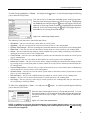
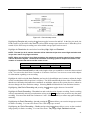
22
4-Channel Digital Video Recorder
Highlighting Save and pressing the button registers the DVR on the DVRNS server. Proper DVRNS
settings will display the help desk information of the DVRNS server in the box beside Help Desk.
WebGuard Setup
Highlight the WebGuard tab, and the WebGuard screen displays.
Figure 29 ─ WebGuard setup screen.
Highlight Use WebGuard Service and press the button to toggle between On and Off. See Appendix C
— WebGuard for detailed descriptions of the WebGuard service.
Highlight the box beside Port and press the button. Set the port number used when accessing WebGuard
by using the Up and Down arrow buttons to increase or decrease the numbers.
You can save your Network changes by highlighting Save and pressing the
exits the screen without saving the changes.
button. Selecting Cancel
Notification Setup
The DVR can be set up to send an email or to contact a computer running RAS (Remote Administration
System) when an event occurs.
Highlight Notification in the Network menu and press the
will be able to change the Mail and Callback settings.
button. The Notification screen displays. You
Figure 30 ─ Notification Mail setup screen.
23
User’s Manual
Highlight Enable and press the
the settings if Mail is enabled.
button to toggle between On and Off. You will only be able to change
Highlight the box beside SMTP Server and press the button. A virtual keyboard appears that you can
use to enter the IP address or domain name of the SMTP server.
NOTE: You will need to get the IP Address or domain name of the SMTP Server from your network
administrator.
NOTE: You can use the domain name instead of IP address if you already set up the DNS Server when
setting up the LAN.
Highlight the box beside Port and press the button. Use the arrow buttons to enter the SMTP Server port
number obtained from your system administrator. The default port number is 25.
Highlight Use SSL/TLS and press the button to toggle between On and Off. When it is On, the DVR can
send an email via an SMTP server requiring SSL (Secure Sockets Layer) authentication.
Highlight the box beside Authentication and press the
button. An Authentication screen appears.
Highlight Use and press the button to toggle between On and Off.
Highlight the box beside User/Password and press the button. A
virtual keyboard appears allowing you to enter the user ID and password.
Figure 31 ─ Authentication setup screen.
Highlight the box beside Sender and enter the sender’s e-mail address. Use the virtual keyboard to enter
the e-mail address.
NOTE: The e-mail address must include the “@” character to be a valid address.
Highlight the box beside Recipient and enter the recipient’s e-mail address. Use the virtual keyboard to
enter the e-mail address.
Highlight the Callback tab, and the Callback screen displays.
Figure 32 ─ Notification Callback setup screen.
24
4-Channel Digital Video Recorder
Highlight LAN and press the
change the IP addresses.
button to toggle between On and Off. When LAN is turned On you can
Highlight the IP Address box that you want to change and press the button. Use the arrow buttons to
enter the IP address of the computer you want contacted during an event. You can enter up to five IP addresses.
Highlight the box beside Retry and enter the number of times you would like the DVR to try contacting
the computer. You can select from 1 to 10 retries.
You can save your Notification changes by highlighting Save and pressing the
exits the screen without saving the changes.
button. Selecting Cancel
Configuring Devices
You can configure the video, audio, alarm, display and remote control devices connected
to the DVR.
Figure 33 ─ Devices Menu.
Camera Setup Screen
Highlight Camera in the Devices menu and press the
button. The Camera setup screen appears.
Figure 34 ─ Camera setup screen.
You can turn the camera number On or Off, and you can change the Title of each camera using the virtual
keyboard. You can also determine which cameras will display on the monitors by selecting Normal, Covert 1
or Covert 2 from a drop-down list in the Use column.
NOTE: When selecting the Covert 1, the DVR displays the camera title and status icons on the covert
video. When selecting the Covert 2, the DVR displays only camera title on the covert video.
NOTE: A user who does not have Covert Camera View authority cannot view video from cameras
set to Covert 1 or Covert 2 in both the live monitoring and playback modes.
25
User’s Manual
Highlight the PTZ tab, and the PTZ setup screen displays.
Figure 35 ─ Camera PTZ setup screen.
NOTE: You will only be able to set up PTZ devices if the PTZ port is set to RS232 or RS485.
Highlight the box in the Product column for the PTZ camera you wish to configure and press the
A list of PTZ devices appears.
button.
Select your camera from the list and press the button. You will need to connect
the camera to the RS232 or RS485 connector on the back of the DVR following
the camera manufacturer’s instructions.
Figure 36 ─ PTZ Device list.
You can assign IDs to each camera by highlighting the box under the ID heading and pressing the button.
Change the number by highlighting it and using the Up and Down arrow buttons to increase and decrease
the number. The PTZ ID number can be set from 0 to 256.
Highlight the Setup… box and press the
button. The Port Setup window appears.
Configure the port’s setting based on the PTZ camera manufacturer’s
instructions.
Figure 37 ─ Port Setup window.
You can save your Camera changes by highlighting Save and pressing the
exits the screen without saving the changes.
button. Selecting Cancel
Audio Setup Screen
Highlight Audio in the Devices menu and press the
26
button. The Audio setup screen appears.
4-Channel Digital Video Recorder
Figure 38 ─ Audio setup screen.
The DVR can record up to two audio inputs. Highlight the box beside the input and press the button.
A list of cameras appears, and you can select which camera you want associated with that audio input.
Highlight Enable Audio-Out and press the
out.
button. This toggles between enabling and disabling audio
NOTE: The DVR will NOT record audio when the recording speed is set to less than 1 ips.
You can save your Audio changes by highlighting Save and pressing the
the screen without saving the changes.
button. Selecting Cancel exits
Alarm-Out Screen
Highlight Alarm-Out in the Devices menu and press the button. The Alarm-Out screen allows you to
change the settings and establish a schedule for each alarm output from the DVR.
Figure 39 ─ Alarm-Out Settings screen.
Highlighting the box beside Dwell Time and pressing the button allows you to set the dwell time of the
alarm output. Dwell times range from 5 seconds to 15 minutes.
You can add and edit alarm output schedules on this screen. Highlight the + and press the button to add
a schedule. Highlighting the boxes under the Column heading and pressing the button allows you to
edit the information in those boxes.
27
User’s Manual
The Day box allows you to select the days that the alarm schedule will be active. The choices are: Sun,
Mon, Tue, Wed, Thu, Fri, Sat, M~F, Hol and All.
The Range box allows you to set the time that the alarm schedule will be active in 15-minute increments
from 00:00 to 24:00.
The Mode box allows you to set how the alarm reacts during the scheduled time. When set to On, the
Alarm-Out is active during the scheduled time. When set to Event, the Alarm-Out is only active when there
is an Event during the scheduled time.
The Alarm-Out box allows you to select between Alarm Output and Beep (DVR’ internal buzzer).
The box allows you to delete an alarm output schedule. You will be asked to confirm whether or not
you really wish to delete the schedule.
You can save your Alarm-Out changes by highlighting Save and pressing the
exits the screen without saving the changes.
button. Selecting Cancel
Display Screen
Highlight Display in the Devices menu and press the
what information will be displayed on the monitor.
button. The Display screen allows you to select
Figure 40 ─ Display OSD screen.
Highlighting an item and pressing the button toggles that item On and Off. When an item is On, there is
a checkmark in the box beside it. The following items can be turned On or Off:
y
y
y
y
y
y
y
y
28
Remote Control — The icon displays when the DVR can be controlled by the infrared remote control.
Zoom ─ The icon displays on the enlarged video.
Network ─ The icon displays when the unit is connected to a network via Ethernet.
Freeze & Sequence ─ The icon displays while in the Freeze mode, and the displays while in the Sequence
mode.
Free Space ─ The icon displays when the DVR is in the Recycle mode, and the percentage of available
storage space displays when the DVR is not in the Recycle mode.
Date/Time ─ The current date and time information displays.
User Name ─ The name of the current user logged in displays.
Camera No. ─ The camera number displays at the top-left corner of each camera screen.
4-Channel Digital Video Recorder
Camera Title ─ The camera title displays at the top-left corner of each camera screen.
Record ─ The record related icons display on each camera screen.
displays on each PTZ camera screen.
PTZ ─ The icon
Text-In ─ The text input strings display on the screen. You can adjust the Display Dwell time (sec.) for the
text input strings displayed on the screen.
y Logo ─ The logo displays on the screen during playback.
y
y
y
y
You can adjust the transparency of the setup screens by highlighting Transparency and using the Left and
Right arrow buttons.
Highlighting OSD Margin… and pressing the
monitor.
button displays how OSD text will be displayed on the
You can adjust the horizontal and vertical margins so that text and icons
will not be hidden beyond the edges of the monitor.
Figure 41 ─ OSD Margin screen.
Highlight the Main Monitor tab, and the Main Monitor setup screen appears.
Figure 42 ─ Main Monitor screen.
You can adjust the display dwell time by highlighting the box beside Interval and pressing the
You can select dwell intervals ranging from 1 second to 1 minute.
button.
Highlight Event Monitoring On and press the button. Pressing the button toggles between On and
Off. When it is On, the DVR will display the camera associated with the event when an event occurs.
You can save your Display settings by highlighting Save and pressing the
exits the screen without saving the changes.
button. Selecting Cancel
29
User’s Manual
Remote Control Screen
Highlight Remote Control in the Devices menu and press the button. The Remote Control setup screen
allows you to select a port and make correct settings for a remote keyboard.
Figure 43 ─ Remote Control setup screen.
Highlight the box beside Port and select between None, RS232 and RS485. If the RS232 port and RS485
port is in use for PTZ control, networking or text input, the remote keyboard cannot be configured.
Highlight Setup… and select the correct Baud Rate, Parity, Data Bits and Stop Bits for the device you
are connecting to the DVR.
Highlight the box beside Remote Control Product and select the device from the list.
You can save your Remote Control settings by highlighting Save and pressing the
Cancel exits the screen without saving the changes.
button. Selecting
Recording Settings
Your DVR offers a variety of flexible recording modes. You can set it up to record all the
time or to only record events. It can be set up to continue recording once the hard disk drive
is full by recording over the oldest video, or you can set it up to alert you when the hard
disk is full and stop recording.
Figure 44 ─ Record menu.
Record Screen
Highlight Record in the Record menu and press the
30
button. The Record setup screen appears.
4-Channel Digital Video Recorder
Figure 45 ─ Record setup screen.
Highlighting Recycle and pressing the button toggles between On and Off. In the Recycle mode, the
DVR records over the oldest video data once all available storage space has been used. When Recycle is
turned off, the DVR stops recording once all available storage space has been used.
Highlight the Resolution box and select from Very High, High and Standard.
NOTE: The total ips of all camera channels will be limited to 60 ips when set to High resolution and
30 ips when set to Very High resolution.
NOTE: When set to High or Very High resolution, the maximum recording speed of each camera
channel decreases by half. However the maximum recording speed of 30 ips will maintain if the
number of cameras that are turned On is two or less.
0
─
No. of cameras set to On and High or Very High resolution
1
2
3
4
30 ips
30 ips
15 ips
15 ips
Highlight the Event Record Dwell box and set the length of time you would like to record for the associated
event. You can set the dwell from 5 seconds to 15 minutes. Refer to Event Actions screen in this chapter
for information regarding event recording.
Highlight the slide bar beside Auto Deletion, and use the Left and Right arrow buttons to adjust the length
of time recorded data will be kept from 1 to 99 days. The DVR automatically deletes video recorded earlier
than the user-defined period under three conditions: at midnight, whenever the system reboots or whenever
the user changes the Auto Deletion settings. Selecting Never will disable the Auto Deletion function.
Highlighting Use Panic Recording and pressing the
button toggles between On and Off.
Highlight the Panic Recording – Duration box and set the duration of panic recording. Panic recording
will stop automatically after the preset duration as long as the Panic button is not pressed to stop the panic
recording. You can set the dwell from 5 minutes to 1 hour. Select No Limit if you want to stop panic recording
manually.
Highlighting the Panic Recording – ips and pressing the button allows you to set the images per second
for Panic recording. You can select from 0.10 to 30.0 images per second.
Highlighting the Panic Recording – Quality and pressing the button allows you to set the recorded
image quality for Panic recording. You can select from: Very High, High, Standard and Low.
31
User’s Manual
You can save your Record settings by highlighting Save and pressing the
exits the screen without saving the changes.
button. Selecting Cancel
Schedule Screen
Highlight Schedule in the Record menu and press the
button, and the Schedule setup screen appears.
Figure 46 ─ Schedule (Simple Mode) setup screen.
Figure 47 ─ Schedule (Advanced Mode) setup screen.
You can program the DVR to record only during certain times based on time, day of the week, and holidays.
The smallest time segment you can use is 15 minutes.
Highlighting Schedule On and pressing the button toggles between On and Off. In the Schedule On
mode, the DVR records video based on the schedule established in the Schedule screen. When turning
Schedule recording Off, you will be asked to confirm your decision, and displays at the top-left corner
of each camera screen. Panic recording will function even when Schedule is turned off.
displays during
panic recording.
Highlight the Schedule Mode box and press the button. You can select between Simple Mode and
Advanced Mode. Selecting Advanced Mode allows you to set up individual recording schedule for each
event.
Highlight the + and press the
32
button to add a schedule item.
4-Channel Digital Video Recorder
Highlight the box under the Day heading and press the button to change the days that the scheduled
recording will take place. Choose from: Sun, Mon, Tue, Wed, Thu, Fri, Sat, M~F, Hol and All.
Highlight the box under the Range heading and press the button to change the time range that the scheduled
recording will take place. The smallest time segment you can use is 15 minutes.
Highlight the box under the Mode heading and press the button to change the recording mode that will
be used. Choose from: No Record, Time, Event and Time & Event. (Simple Mode Only)
When the DVR is in the No Record mode, it will not record during the preset day and time range as long
as the Panic button is not pressed. Use the No Record mode when you do NOT want the DVR to record
during certain times.
When the DVR is in the Time mode, the icon displays at the top-left corner of the screen. The DVR
will record and displays the icon at the top-left corner of the screen during the scheduled times.
When the DVR is in the Event mode, the red icon displays at the top-left corner of the screen. The DVR
will record and displays the icon at the top-left corner of the screen when any event occurs. When the
DVR is in the Pre-Event recoding mode, the yellow icon displays when there is no event, and the DVR
is not recording. When the DVR is in the Pre-Event mode, the red and display when any event occurs
and the DVR starts recoding.
When the DVR is in the Time & Event mode, the DVR will follow the Time settings and the
The DVR follows the Event settings and the icon displays.
Highlight the box under the Channels heading and press the
recorded. (Simple Mode Only)
icon displays.
button to select which cameras will be
Highlight the box under the Settings heading and press the button to define the recording settings. You
can set the ips and Quality (ips, Quality and Dwell for Advanced Mode setup) of the recording for any modes
you set up in the Mode column. If you do not set the ips, Quality and Dwell in the Settings column, the DVR
will follow the default settings. See below for details.
Figure 48 — Schedule – Settings (Advanced Mode) setup screen.
NOTE: Descriptions of the Record icons in the Type column are as follows:
Time-lapse (Time)
Alarm-In
Motion
Video Loss
Text-In
NOTE: Channels that are not defined will use the setting values of the previous schedule item.
33
User’s Manual
NOTE: When multiple events are detected at the same time from a specific channel, the DVR will
record event video with the high setting values if the ips, Quality, Resolution and Dwell values of
events are different from each other. However, the ips will be reset to the supported maximum value
when the ips, Quality, Resolution and Dwell are all set to the highest value. (Advanced Mode Only)
Highlight the box under the heading and press the button to delete the recording settings. You will
be asked to confirm that you want to delete the settings.
Highlight Default… and press the
button. The Default screen appears.
Figure 49 ─ Default (Advanced Mode) setup screen.
Highlighting boxes under ips and pressing the button allows you to set the images per second for Time
and Event recording. You can select from 0.10 to 30.0 images per second. Highlighting boxes under Quality
and pressing the button allows you to set the recorded image quality for Time and Event recording. You
can select from: Very High, High, Standard and Low. Highlighting boxes under Dwell and pressing the
button allows you to set the length of time you would like to record for the associated event. (Advanced
Mode Only)
You can save your changes by highlighting Save and pressing the
screen without saving the changes.
button. Selecting Cancel exits the
Pre-Event Screen
Highlight Pre-Event in the Record menu and press the button, and the Pre-Event setup screen appears.
If you do not have Event set up in the Record Schedule, a message will display alerting you to this fact.
Figure 50 ─ Pre-Event setup screen.
When the DVR is in the Event Record mode it is possible to have it record images before the event occurs.
The Pre-Event screen allows you to define how to handle pre-event recording.
34
4-Channel Digital Video Recorder
You can turn individual cameras On or Off for pre-event recording. The image speed can be set from 0.10 to
30.00 ips (25.00 ips PAL), and image quality can be selectable from Very High, High, Standard and Low.
You can set the amount of time to record prior to the event by adjusting the Dwell. You can set the Dwell
from 5 seconds to 30 minutes. The longer the dwell set, the fewer maximum ips can be set.
NOTE: When the DVR is in the Time or Time & Event mode, it ignores the pre-event settings and
follows the time settings.
You can save your changes by highlighting Save and pressing the
screen without saving the changes.
button. Selecting Cancel exits the
Event Settings
Your DVR can be set to detect many different events. You can also determine how
it reacts to these events.
Figure 51 ─ Event menu.
Alarm-In Screen
Highlight Alarm-In in the Event menu and press the
button. The Alarm-In setup screen appears.
Figure 52 ─ Alarm-In Settings screen.
The alarm terminal strip on the back of the DVR has inputs associated with each alarm. You can set up
each input on the Alarm-In screen. You can turn each input On or Off by highlighting the alarm number
and pressing the button.
Each input can be given a title. Highlight the desired Title box and press the
appears allowing you to enter a title name.
button. A virtual keyboard
Each input can be set as NO (normally open) or NC (normally closed).
35
User’s Manual
Highlight the Actions tab, and the Alarm-In Actions setup screen appears.
Figure 53 ─ Alarm-In Actions screen.
You can set the actions the DVR will take whenever it senses an input on one of its alarm input connectors.
Highlight the desired box under the Record heading, and press the button. A list of cameras appears.
Select the cameras that you want the DVR to record whenever it detects an input on the associated alarm
input.
NOTE: For the Record action, the camera you select should be set to the Event or Time & Event
recording mode in the Record Schedule setup screen.
Highlight the desired box under the Alarm-Out heading, and press the button. Select between Alarm
Output and Beep (DVR’s internal buzzer) that you would like to activate and to sound whenever the DVR
detects an input on the associated alarm input.
NOTE: For the Alarm-Out action, the alarm output and beep you select should be set to the Event
mode in the Alarm-Out setup screen (Schedule tab).
Highlight the desired box under the Notify heading, and press the
appears.
button. The Alarm-In Notify menu
You can toggle the entire list On and Off by highlighting Notification and
pressing the button. You can toggle the individual items On and Off by
highlighting that item and pressing the button. Highlight OK and press
the button to accept your changes.
NOTE: For the Notify action, the notify item you select should be enabled
in the Notification setup screen and the DVR should be registered in the
RAS (Remote Administration System).
Figure 54 ─ Alarm-In Notify menu.
Highlight the desired box under the PTZ heading, and press the button. A list of PTZ presets appear.
Select the preset position for each PTZ camera, where you want PTZ cameras to move to whenever the DVR
detects an input on the associated alarm input.
36
4-Channel Digital Video Recorder
You can save your Alarm-In changes by highlighting Save and pressing the
exits the screen without saving the changes.
button. Selecting Cancel
Motion Detection Screen
Highlight Motion Detection in the Event menu and press the
appears.
button. The Motion Detection setup screen
Figure 55 ─ Motion Detection Settings screen.
Your DVR has built-in video motion detection. Video motion detection can be turned On or Off for each
camera.
Highlighting the box under the Sensitivity heading and pressing the
sensitivity to motion for Daytime and Nighttime independently.
button allows you to adjust the DVR’s
There are five settings with 1 being the least sensitive and 5 being the most
sensitive.
Figure 56 ─ Motion Detection Sensitivity screen.
You can define the area of the image where you want to detect motion; e.g., a doorway. Highlight the box
under the Zone heading, and press the button. The Motion Detection Zone screen displays.
The Motion Detection Zone screen is laid over the video for the
selected camera. You can set up motion detection zones by selecting
or clearing blocks.
NOTE: You can set up motion zones one block at a time in
groups of 4 individual block groups A block group is positioned
within the image area using the Up and Down arrow buttons,
and individual blocks within the block groups are selected or
cleared using the camera buttons.
Figure 57 ─ Motion Detection Zone screen.
Press the
button to display the menu screen. The menu on the setup screen has the following functions:
37
User’s Manual
Select ─ Activates highlighted blocks to detect motion.
Clear ─ Deactivates highlighted blocks so that they will not detect motion.
Reverse ─ Activates inactive highlighted blocks and deactivates active highlighted blocks.
Select All ─ Activates all blocks to detect motion.
Clear All ─ Deactivates all blocks so that they will not detect motion.
Reverse All ─ Activates inactive blocks and deactivates active blocks.
OK ─ Accepts changes and closes Zone setup.
Cancel ─ Exits Zone setup without saving changes.
Figure 58 ─ Motion Detection Zone menu.
You can adjust the minimum number of detection blocks that must be activated to trigger a motion alarm.
Highlighting the box under the Min. Blocks heading and pressing the button allow you to adjust the
minimum number of detection blocks for Daytime and Nighttime independently.
Smaller numbers provide greater sensitivity because fewer detection blocks
must be activated.
Figure 59 ─ Motion Detection Min. Blocks screen.
Turning Zone View On will allow you to observe how the DVR is reacting to motion. When in the motion
viewing mode, any detected motion within the zone will be displayed in red.
You can control excessive event logging and remote notification of motions detected after the motion dwell
time by adjusting the motion ignoring dwell intervals. Highlight the box beside Motion Ignoring Interval
and press the button. A list of intervals ranging from 1 to 5 seconds or Never appears. The DVR will
not log and notify motion events occurred during the preset interval range.
NOTE: The record action for motion events will not be affected by the Motion Ignoring function.
Highlighting the box beside Daytime Setup and pressing the
button allow you to set up the Daytime range.
Highlight the box beside Daytime and press the button. Use the Up and
Down arrow buttons to set the Daytime range. The DVR will consider the
remaining time range as the Nighttime.
Figure 60 ─ Daytime Setup screen.
Highlight the Actions tab, and the Motion Detection Actions setup screen appears.
38
4-Channel Digital Video Recorder
Figure 61 ─ Motion Detection Actions screen.
The DVR can be set to react to motion detection differently for each camera. Each camera can be associated
with another camera, trigger an Alarm-Out connector, sound the DVR’s internal buzzer, notify a number
of different devices, and/or move PTZ cameras to preset positions.
NOTE: You can associate multiple cameras with a camera that detects motion.
Highlight the box under the Record heading and press the button. A list of cameras appears. You can
associate as many cameras with that camera as you wish. If the DVR detects motion on the selected camera,
it starts recording video from all the associated cameras.
NOTE: For the Record action, the camera you select should be set to the Event or Time & Event
recording mode in the Record Schedule setup screen.
Highlight the box under the Alarm-Out heading and press the button. Select between Alarm Output and
Beep (DVR’s internal buzzer) that you would like to activate and to sound whenever the DVR detects motion
on the selected camera’s input.
NOTE: For the Alarm-Out action, the alarm output and beep you select should be set to the Event
mode in the Alarm-Out setup screen (Schedule tab).
Highlight the box under the Notify heading and press the button. You can toggle the entire list On and
Off by highlighting Notification and pressing the button. You can toggle the individual items On and
Off by highlighting that item and pressing the button. Highlight OK and press the button to accept
your changes.
NOTE: For the Notify action, the notify item you select should be enabled in the Notification setup
screen and the DVR should be registered in the RAS (Remote Administration System).
Highlight the desired box under the PTZ heading, and press the button. A list of PTZ presets appear.
Select the preset position for each PTZ camera, where you want PTZ cameras to move to whenever the DVR
detects motion on the selected camera’s input.
You can save your Motion Detection changes by highlighting Save and pressing the
Cancel exits the screen without saving the changes.
button. Selecting
39
User’s Manual
Video Loss Screen
Highlight Video Loss in the Event menu and press the
button. The Video Loss setup screen appears.
Figure 62 ─ Video Loss Settings screen.
The DVR checks to see if anything is obscuring the camera. Highlight the slider bar beside Check Obscuration,
and use the Left and Right arrow buttons to adjust the setting. The sensitivity can be set from Never to 15
(extremely sensitive).
Highlight the Actions tab, and the Video Loss Actions setup screen appears.
Figure 63 ─ Video Loss Actions screen.
The DVR can be set to react to video loss differently for each camera. Each camera can be associated with
another camera, trigger an Alarm-Out connector, sound the DVR’s internal buzzer, notify a number of
different devices, and/or move PTZ cameras to preset positions.
Highlight the box under the Record heading and press the button. A list of cameras appears. You can
associate as many cameras with that camera as you wish. If the DVR detects video loss on the selected
camera, it starts recording video from all the associated cameras.
NOTE: For the Record action, the camera you select should be set to the Event or Time & Event
recording mode in the Record Schedule setup screen.
40
4-Channel Digital Video Recorder
Highlight the box under the Alarm-Out heading and press the button. Select between Alarm Output
and Beep (DVR’s internal buzzer) that you would like to activate and to sound whenever the DVR detects
video loss on the selected camera.
NOTE: For the Alarm-Out action, the alarm output and beep you select should be set to the Event
mode in the Alarm-Out setup screen (Schedule tab).
Highlight the box under the Notify heading and press the button. You can toggle the entire list On and
Off by highlighting Notification and pressing the button. You can toggle the individual items On and
Off by highlighting that item and pressing the button. Highlight OK and press the button to accept
your changes.
NOTE: For the Notify action, the notify item you select should be enabled in the Notification setup
screen and the DVR should be registered in the RAS (Remote Administration System).
Highlight the desired box under the PTZ heading, and press the button. A list of PTZ presets appear.
Select the preset position for each PTZ camera, where you want PTZ cameras to move to when the DVR
detects video loss on the selected camera’s input.
You can save your Video Loss changes by highlighting Save and pressing the
exits the screen without saving the changes.
button. Selecting Cancel
Text-In Screen
Highlight Text-In in the Event menu and press the
button. The Text-In setup screen appears.
Figure 64 ─ Text-In Settings screen.
The DVR can be set to react to text input from devices such as ATMs (Automated Teller Machines) and
POS (Point of Sale; i.e., cash registers). This screen allows you to configure the DVR for each text-in device.
Highlight the box under the Setup heading, and press the button. Selecting the Setup heading changes
all the parameters excluding Port settings of all the text input channels.
NOTE: The system performance might be affected when a large quantity of text inputs are detected
from several channels at the same time.
41
User’s Manual
Figure 65 ─ Text-In Device Settings screen.
Highlight the box beside Port, and press the
(1~4).
button. Select from None, RS232, RS485 and USB-Serial
NOTE: If you have set the Port as None, you will not be able to make any changes to the screen.
NOTE: When using the USB to serial text-in device, do NOT remove the USB cable from the port while
the system is running.
Highlight Setup…, and press the button. Use the ATM or POS manufacturer’s recommended settings
when configuring the RS232, RS485 or USB-Serial ports.
Highlight the box beside Text-In Product, and press the
button. Select your device from the list.
NOTE: The following description is for a Generic Text Device. The screen changes for different
types of text input devices, and there will be different parameter boxes for you to enter information.
Highlight the box beside Transaction Start, and press the button. Use the virtual keyboard to enter
the Transaction Start string. Refer to the device manufacturer’s documentation for the text string that the
device first sends when a transaction starts.
If you want the DVR to react to any character sent from the text input device, you will want to turn On Any
Character. Highlight Any Character, and press the button to toggle between On and Off.
NOTE: If Any Character is turned On, you will not be able to enter any text in the Transaction Start box.
Highlight the box beside Transaction End, and press the button. Use the virtual keyboard to enter the
Transaction End string. Refer to the device manufacturer’s documentation for the text string that the device
sends when a transaction ends.
Highlight the more line(s) box, and press the button. Select the number of additional lines of text that
you want the DVR to record. You can choose from 0 to 10.
Highlight the box beside Line Delimiter, and press the button. Use the virtual keyboard to enter the
character(s) that the device uses to indicate the end of a line. Special characters can be created using ^ and a
capital letter; e.g., ^J for NL (New Line), ^M for CR (Carriage Return). Refer to the device manufacturer’s
documentation for Line Delimiter character(s).
42
4-Channel Digital Video Recorder
Highlight the box beside Ignore String, and press the button. Use the virtual keyboard to enter any
strings of text that you want the DVR to ignore. Refer to the device manufacturer’s documentation for
text strings that the device sends during transactions, so you will know which ones you do not want recorded.
Highlight the Case Sensitive box, and press the button to toggle between On and Off. Refer to the device
manufacturer’s documentation to determine if the text strings are Case Sensitive. If the device distinguishes
between upper and lower case letters, make certain the Case Sensitive box is turned On.
Highlight the box beside Time Out, and press the button. Set the length of time to wait for the new text
string. The DVR will consider a transaction complete if no new text strings are entered between the last
text input and the dwell time out. You can adjust the Time Out dwell from 5 seconds to 15 minutes.
Highlight the Actions tab, and the Text-In Actions setup screen appears.
Figure 66 ─ Text-In Actions screen.
The DVR can be set to react to text input. Text input can be associated with cameras, trigger an Alarm-Out
connector, sound the DVR’s internal buzzer, notify a number of different devices, and/or move PTZ cameras
to preset positions.
Highlight the box beside Record and press the button. A list of cameras appears. You can associate
as many cameras with the Text Input as you wish. If the DVR detects text input, it starts recording video
from all the associated cameras.
NOTE: For the Record action, the camera you select should be set to the Event or Time & Event
recording mode in the Record Schedule setup screen.
Highlight the box under the Alarm-Out heading and press the button. Select between Alarm Output
and Beep (DVR’s internal buzzer) that you would like to activate and to sound whenever the DVR detects
text input.
NOTE: For the Alarm-Out action, the alarm output and beep you select should be set to the Event
mode in the Alarm-Out setup screen (Schedule tab).
Highlight the box beside Notify and press the button. You can toggle the entire list On and Off by
highlighting Notification and pressing the button. You can toggle the individual items On and Off by
highlighting that item and pressing the button. Highlight OK and press the button to accept your changes.
NOTE: For the Notify action, the notify item you select should be enabled in the Notification setup
screen and the DVR should be registered in the RAS (Remote Administration System).
43
User’s Manual
Highlight the desired box under the PTZ heading, and press the button. A list of PTZ presets appear.
Select the preset positions for each PTZ camera, where you want PTZ cameras to move to when the DVR
detects text input.
You can save your Text-In changes by highlighting Save and pressing the
exits the screen without saving the changes.
button. Selecting Cancel
System Event Screen
Highlight System Event in the Event menu and press the
appears.
button. The System Event setup screen
Figure 67 ─ Health Check screen.
The DVR can be configured to run self-diagnostics and report the results.
Highlighting the box beside System and pressing the button allows you to select the interval that you
want the DVR to run self-diagnostics on the system. You can select from 1 hr. to 30 days or Never.
Highlight the Setup... box beside Check Recording and press the
appears.
button. The Check Recording screen
Highlighting Schedule On and pressing the button toggles On
and Off. When set to On, you can select the day, time range and
interval that you want the DVR to run self-diagnostics on the
recorder. The Interval can be selectable from 1 min. to 7 days or
Never. The box allows you to delete a check recording schedule.
Figure 68 ─ Check Recording screen.
Highlighting the box under the Interval heading beside each alarm-in and pressing the button allows you
to change the interval that you want the DVR to run self-diagnostics on Alarm Inputs. You can select from
1 hr. to 30 days or Never.
44
4-Channel Digital Video Recorder
Highlight the Storage tab and the Storage screen displays.
Figure 69 ─ Storage screen.
Highlight the box beside Disk Bad Notify, and press the button. Select percentage level of bad disk
sectors at which you want the DVR to trigger an alert. Percentage levels range from 10% to 90%.
Highlight the box beside Disk Almost Full Notify, and press the button. Select the percentage level of
disk usage at which you want the DVR to trigger an alert. Percentage levels range from 80% to 99%.
Highlight the first box beside Disk S.M.A.R.T., and press the button. Use the Up and Down arrow buttons
to scroll through the numbers. Refer to the hard disk drive manufacturer’s documentation for the correct
temperature setting. If the temperature of hard disk drive exceeds the defined threshold, the system triggers
an alert.
Highlight the second box beside Disk S.M.A.R.T., and press the
ºF (Fahrenheit), and press the button.
Highlight OK, and press the
saving the changes.
button. Select either ºC (Celsius) or
button to accept the changes. Selecting Cancel exits the screen without
Highlight the Actions tab and the System Event Actions screen displays.
Figure 70 ─ System Event Actions screen.
45
User’s Manual
The DVR can be set to react to system events. System events can activate the Alarm-Out connector, sound
the DVR’s internal buzzer, and/or notify a number of different devices.
Highlight the Alarm-Out box beside the desired event (Check Recording, Check Alarm-In, Disk Almost
Full, Disk Full, Disk Bad, Disk Temperature, or Disk S.M.A.R.T.), and press the button. Select between
Alarm Output connector and the DVR’s internal buzzer that you would like to activate and to sound
whenever the DVR detects event.
NOTE: Alarm-Out action cannot be set to System and Panic Record events.
Highlight the Notify box beside the desired event (System, Panic Record, Check Recording, Check
Alarm-In, Disk Almost Full, Disk Full, Disk Bad, Disk Temperature, or Disk S.M.A.R.T.), and press
the button. You can toggle the entire list On and Off by highlighting Notification and pressing the
button. You can toggle the individual items On and Off by highlighting that item and pressing the button.
Highlight OK and press the button to accept your changes.
NOTE: Mail notify is the only option available for the System event.
NOTE: For the Notify action to work, the DVR should be registered in the RAS (Remote Administration
System).
You can save your System Event changes by highlighting Save and pressing the
exits the screen without saving the changes.
button. Selecting Cancel
Event Status Screen
Highlight Event Status in the Event menu and press the
button. The Event Status screen appears.
Figure 71 ─ Event Status screen.
The Event Status screen displays the status of the DVR’s systems and inputs. Events will be highlighted,
and related channels or events will flicker for five seconds when detected.
Alarm-In, Motion, Video Loss and Text-In will be highlighted when each event is detected based on the
settings you made in the Alarm-In, Motion Detection and Text-In setup screen on the Event menu.
Check Alarm-In and Check Recording will be highlighted when each event is detected based on the
settings you made in the System Event setup screen on the Event menu.
46
4-Channel Digital Video Recorder
Panic Record will be highlighted while the DVR is in the panic recording mode.
Disk Almost Full will be highlighted when the DVR is not in the Recycle mode and the level of disk usage
reaches the Disk Almost Full percentage you made in the System Event setup screen on the Event menu.
Disk Full will be highlighted when the DVR is not in the Recycle mode and all available storage space has
been used.
Fan Error will be highlighted when the cooling fan to the left of the power cord on the rear panel is not
working for more than four seconds.
Highlighting the Storage tab will display the hard disk drive status. Refer to the Storage Screen section
for details.
47
User’s Manual
48
4-Channel Digital Video Recorder
Chapter 4 ─ Operation
NOTE: This chapter assumes your DVR has been installed and configured. If it has not, please refer
to Chapters 2 and 3.
The DVR’s controls are similar to a VCR. As with a VCR, the main functions are recording and playing
back video. However, you have much greater control over recording and playing back video. You can
establish recording schedules based on time of day and day of the week. The DVR allows you to search
through the recorded video using much more sophisticated tools than those available with VCRs. Additional
DVR features that are not available with VCRs are remote control and viewing, and recording video at the
same time you are watching previously recorded video.
The front panel controls are described in Chapter 3 ─ Configuration.
Turning on the Power
Once you have installed the DVR following the instructions in Chapter 2 ─ Installation, it is ready to record.
Live Monitoring
As soon as the DVR completes its initialization process, it will begin showing live video on the attached
monitor and playing live audio through the attached speaker. The default mode is to display all cameras
at once. Pressing any camera button will cause that camera to display full screen. It displays live video
and plays live audio until the user enters another mode.
Freeze Mode
Pressing the (Enter) button will freeze the current image on the screen until you press the button again
or press any button except for Menu and Panic buttons. While in the Freeze mode, the icon displays in
bottom-left corner if Freeze is selected in the Display setup screen (OSD tab).
Zoom Mode
You can enlarge an area of the video by pressing the ZOOM button. For a few seconds after pressing the
ZOOM button, a rectangle displays on the screen. A rectangle shows the area that will be enlarged. You
can move the rectangle around using the arrow buttons. Pressing the (Enter) button in the Zoom mode
enlarges the area in rectangle. Exit the Zoom mode by pressing the ZOOM button. While in the Zoom mode,
the icon displays if Zoom is selected in the Display setup screen (OSD tab).
Image Adjustment
NOTE: It is important that cameras and monitors are correctly installed and adjusted prior to making
any image adjustments using the DVR’s controls.
If a user who has Color Control authority logs into the system, the user can adjust the image. Pressing and
holding a camera button for a few seconds displays an image adjustment dialog. You can control brightness,
contrast, hue and saturation for each camera.
49
User’s Manual
NOTE: Any image adjustments you make will be applied to both the live video on the monitors and
the recorded video.
Sequence Mode
Pressing and holding the Menu button for three seconds or longer causes the cameras to display sequentially.
Pressing one of the camera buttons exits the Sequence mode.
Event Monitoring
When an event occurs, the DVR will display the camera associated with the event if Event Monitoring On
is selected in the Display setup screen (OSD tab).
Event monitoring lasts for the dwell time set for event recording. After the dwell time has elapsed, the monitor
returns to the previous screen unless another event has occurred. If you want to return to the live monitoring
mode before the dwell time has elapsed, press one of the camera buttons.
Covert Camera
If a camera is set up as Covert 1 in the Camera setup screen (Settings tab), that camera will not be displayed
unless a user with Covert Camera View authority logs into the system. However the camera title and status
icons will be displayed on the monitor.
If a camera is set up as Covert 2 in the Camera setup screen (Settings tab), that camera appears to be Off
unless a user with Covert Camera View authority logs into the system. The camera title will be grayed
out and status icons will not be displayed on the monitor.
NOTE: When a camera is set up as Covert 1, the DVR displays the camera title and status icons on
the covert video. When set up as Covert 2, the DVR displays only the camera title on the covert video.
If a user who has Covert Camera View authority logs into the system, the user can view video from cameras
set to Covert 1 or Covert 2 including the camera titles and status icons.
PTZ Mode
If a user who has PTZ Control authority logs into the system, the user can control PTZ cameras. The DVR
will control cameras with Pan, Tilt and Zoom capabilities. Press the PTZ button to display the PTZ camera
menu and enter the PTZ mode, and press the button again to exit the PTZ mode.
Select the PTZ camera you wish to control. The icon
flickers on the PTZ camera
screen. You can control the camera using front panel control buttons, by setting up
presets or by selecting the expanded PTZ features. To use the front panel buttons, press
the Left and Right arrow buttons to pan left and right. Press the Up and Down arrow
buttons to tilt the camera up and down. Press the camera button 1 to zoom in, and press
the button 2 to zoom out. You can use the button 3 and button 4 to focus the image.
Figure 72 ─ PTZ Select Camera menu.
Pressing the Menu button displays the following PTZ menu.
50
4-Channel Digital Video Recorder
Set the feature you wish to control by selecting it from the menu. Refer to the camera
manufacturer’s instructions for the proper settings. Depending on the camera specifications,
some features may not be supported.
Figure 73 ─ PTZ menu.
You can save camera position settings as “presets” so that you can go directly to desired views.
Once you have the camera at the desired settings, press the Menu button. Select Set Preset from the PTZ
menu, and the PTZ Preset dialog box will appear. Select the number you want to assign to the preset and
press the (Enter) button. Use the virtual keyboard to enter the preset name.
Select Move to Preset from the PTZ menu or press the button on the front panel to load the PTZ preset,
and the Preset View dialog box will appear. Select the desired preset and press the button to load the
preset.
Figure 74 ─ PTZ Preset screen.
Figure 75 ─ Preset View screen.
You can use a mouse for convenient PTZ control. Position the mouse pointer at the bottom of the screen,
and the following PTZ toolbar will display.
Zoom In / Out
Iris Open / Close
Focus Near / Far
Set / Load Preset
Clicking on the left side exits the toolbar. If you want to display the toolbar again, position the mouse
pointer at the bottom of the screen. Change the toolbar location by clicking the empty space on the left side
of the toolbar and drag it to where you want it located on the screen. Use the arrow buttons on the toolbar
to pan or tilt the camera in the direction you want.
51
User’s Manual
Using a Mouse
You can use a mouse instead of the front panel buttons to perform many of the DVR functions. The following
operations are supported when using a mouse during live monitoring.
When in quad (2x2) display mode, clicking the mouse button on a camera image switches that camera to
full screen. Clicking the mouse button again returns to the quad (2x2) screen format.
Clicking the right mouse button during live monitoring displays the following menu:
Selecting Sequence, Freeze and PTZ… is the same as pressing the Menu , (Enter) and
PTZ buttons as described above in the Live Monitoring section of this chapter.
NOTE: Sequence will be selected from the menu only in full screen mode.
Selecting Zoom… zooms in on the live image. While in the zoom mode, there are two ways
to move around the enlarged portion of the video. First, there is a rectangle showing what
area of the image will be enlarged. Click inside the rectangle to move to another area of
the image you want enlarged. Second, click and hold the mouse button on the enlarged video
and drag the video.
Figure 76 ─ Mouse menu.
Selecting Display shows the following menu:
Clicking Camera and selecting the camera number is the same as pressing the individual
camera buttons on the front panel which displays the selected camera full screen. Selecting
2x2 displays the cameras in the quad (2x2) screen mode.
Figure 77 ─ Mouse Display menu.
Recording Video
Once you have installed the DVR following the instructions in Chapter 2 ─ Installation, it is ready to record.
The DVR will start recording based on the settings you made in the Record setup screen. See Chapter3 ─
Configuration.
Recycle On or Recycle Off. The factory default is Recycle On. It does this by recording over the oldest
video once the hard disk is full. Setting the DVR to Recycle Off causes it to stop recording once the hard
disk is full.
Standard (CIF), High (Half D1) or Very High (D1). The factory default resolution is Standard. When set
to Standard, the DVR has a maximum recording speed of 120 ips. When set to High, the DVR has a maximum
recording speed of 60 ips. When set to Very High, the DVR has a maximum recording speed of 30 ips.
Pressing the Panic button starts panic recording of all cameras, and pressing the button again stops panic
recording. If you set the Panic Recording Duration in the Record Screen, panic recording will stop automatically
according to the preset duration as long as the Panic button is not pressed.
NOTE: When the DVR is not in the Recycle mode and all available storage space has been used, panic
recording will not operate.
52
4-Channel Digital Video Recorder
Although you will be able to record without changing the unit from its original factory settings, you will
want to take advantages of the DVR’s many tools. See Chapter 3 ─ Configuration for detailed descriptions
of the recording mode options.
Recording Audio
If the DVR was set up to record audio, it will record audio from up to four inputs when video is recording.
The DVR will not record audio when the recording speed is set to less than 1 ips.
NOTE: Make certain you comply with all local and federal laws and regulations when recording audio.
Playing Recorded Video
If a user who has Search authority logs into the system, the user can view recorded image. Once video
has been recorded, you can view it by pressing the Playback Mode button. When playing video for the
first time, the DVR will display the most recent image. When playing video subsequent times, the DVR
will start playing video from the last recalled image. Recorded audio will be played when the DVR displays
a camera with recorded audio in full screen mode.
NOTE: Only the administrator and users with Covert Camera View authority can view video from covert
cameras. The covert cameras in the playback mode are determined by the current camera settings.
Camera Buttons (1 to 4): Pressing the individual camera buttons will cause the selected camera to display
full screen.
Arrow Buttons: Pressing the button plays video backward at high speed. Pressing the button again toggles
the playback speed from ,
and
. Pressing the button plays video forward at high speed.
Pressing the button again toggles the playback speed from , ,
and
. When in the pause mode,
pressing the button moves to the next image and pressing the button moves to the previous image.
Pause Button: Pressing the
button pauses playing video.
Playback Mode Button: Pressing the Playback Mode button enters the playback mode, and pressing the
button again exits the playback mode. When entering the playback mode, video is paused. Pressing the
button plays back video at regular speed. The screen displays when the DVR is in the Pause mode and
the screen displays when the DVR is playing back video.
Zoom Button: Pressing the ZOOM button zooms in the current image on the screen.
You can use a mouse for convenient playback control. Position the mouse pointer on the playback screen,
and the following playback toolbar will display.
Clicking on the left side exits the toolbar. If you want to display the toolbar again, position the mouse
pointer on the screen. Change the toolbar location by clicking the empty space on the right side of the toolbar
and drag it to where you want it located on the screen.
53
User’s Manual
The individual controls on the toolbar perform the following functions as described below:
Go to the first image
Go to the previous image
Go to the next image
Go to the last image
Fast backward play
Play
Fast forward play
Searching Video
Pressing the Menu button or clicking the right mouse button while in the Playback mode displays the Search
Menu.
Figure 78 ─ Search menu.
y
y
y
y
y
y
y
y
Go to… ─ Displays the first or last recorded image, or searches by data and time (see below for more details)
Record Table Search… ─ Search using a recording table (see below for more details)
Event Log Search… ─ Selects video from the event log (see below for more details)
Text-In Search… ─ Searches text input strings (see below for more details)
Motion Search… ─ Searches motion events (see below for more details)
Clip-Copy… ─ Clips a video segment and saves it (see below for more details)
Zoom… ─ Zooms the current playback image
Use De-Interlace… ─ Turns the de-interlace filter on
NOTE: The video signal has a time difference of 1/60 second (1/50 second for PAL) between odd
and even fields because it is composed of 60 interlaced fields per second (50 fields for PAL). When
recording video with Very High (D1) resolution, video is made up of frame units combining two fields –
one odd field and one even field. This can cause horizontal scan lines or flashes in areas with motion
because of the time difference between the two fields. Turning on the de-interlace filter provides
clearer video by eliminating these horizontal scan lines and flashes.
y Slow Play… ─ Plays video at low speed (x1/2, x1/3, x1/4, x1/6 and x1/8)
y Exit Search ─ Exits the Search Menu
Go to
Selecting First displays the first recorded image and selecting Last displays the last recorded
image.
Selecting Date/Time displays the Go to the Date/Time screen.
Figure 79 ─ Go to menu.
54
4-Channel Digital Video Recorder
Move the cursor over the date and time and press the (Enter) button. You can
use the Left and Right arrow buttons to highlight the year, month, day, hours,
minutes and seconds. Use the Up and Down arrow buttons to change to the date
and time you want to search for video.
Once you have set the date and time you want, press the button. Then highlight Go and press the button.
The selected date and time will display. (If no video was recorded during the selected time, a message
appears alerting you that no image was recorded at that time.) The button and arrow buttons can now
be used to review the surrounding video.
Figure 80 ─ Go to the Date/Time screen.
Record Table Search
Figure 81 ─ Record Table Search (Standard View) screen.
Figure 82 ─ Record Table Search (Expanded View) screen.
Recording information about video images currently displayed on the screen displays on the recording status
bar. A white vertical line indicates the current search position. To search specific video, move the vertical
line by using the Left or Right arrow buttons on the front panel or by clicking the mouse on the desired segment.
If the DVR’s time and date have been reset to a time that is earlier than some recorded video, it is possible
for the DVR to have more than one video stream in the same time range. In this case, the overlapping time
range in the record table will be separated by a yellow vertical line.
NOTE: The recorded data in the time range located after the yellow vertical line is the latest.
There are two view modes. Selecting (Standard view) or (Expanded view) located at the bottom switches
to the other view mode. Standard view displays combined recording information of all camera channels
currently displayed on the screen. Expanded view displays the recording information of each camera channel
currently displayed on the screen.
Selecting or located at the bottom zooms the record table. Selecting displays eight hours (1-minute
based), and selecting displays 24 hours (3-minute based) at once. To move to earlier or later times that
are not shown in the current record table screen, select the arrows located at the end of the times by using
the arrow buttons on the front panel or remote control.
NOTE: If the DVR has images recorded in more than one recording mode in the same time range,
the recording status bar displays recording information in the following priority order: Panic Æ
Pre-Event Æ Event Æ Time. The color of the bar indicates different recording modes: Red for Panic,
Yellow for Pre-Event, Purple for Event, and Blue for Time.
55
User’s Manual
Selecting
located at the bottom displays the Search menu.
Selecting
located at the bottom displays the Calendar Search screen.
Days with recorded video display on the calendar with white numbers.
You can highlight the days with recorded video by using the arrow
buttons. Once you have highlighted a day, press the (Enter) button
to select it. The first recorded image of the selected date will pause
on the screen. Once you have selected date you want to search, review
the surrounding video by using the playback controls located at the
bottom of the Record Table Search screen. Refer to the Playing Recorded
Video section of this chapter for information regarding playback controls.
Figure 83 ─ Calendar Search screen.
Selecting
located in top-left corner exits the Record Table Search screen.
Event Log Search
Figure 84 ─ Event Log Search screen.
The DVR maintains a log of each time the Alarm Input port is activated. The Event Log Search screen
displays this list. Use the arrow buttons to highlight the event for which you would like to see video.
Pressing the (Enter) button will extract the event video and display the first image of the event. Pressing
the button will start playing the “event” video segment. Pressing Playback Mode button returns to live
monitoring.
NOTE: It is possible that no recorded image displays on the current screen. Change the screen mode
to 2x2, and you will be able to easily see the camera have recorded video during target time.
You can also narrow your event search by selecting the Option… button and setting up the new search
condition.
56
4-Channel Digital Video Recorder
You can search video from the first to last recorded
images, or you can set the start and stop times and dates.
Highlight the box beside From and press the button
to toggle between On and Off. When set to Off, you can
enter a specific Date and Time. When set to On, the search
will be from the first recorded image.
Highlight the box beside To and press the button to
toggle between On and Off. When set to Off, you can
enter a specific Date and Time. When set to On, the search
will be from the last recorded image.
Figure 85 ─ Event Log Search Option screen.
Highlight the box beside Check Time Overlap and press the button. It toggles between On and Off.
You will only be able to turn the Check Time Overlap on or off if a user-defined date and time is set to From
and To. If the DVR’s date and time have been reset, it is possible for the DVR to have more than one
overlapping start and stop time. When set to On, you will be asked to select one of the overlapping start
and stop time. When set to Off, the DVR will display search results from all start times to all stop times.
Highlight the box beside Alarm-In and press the
to include in your search.
Highlight the box beside Motion and press the
any reports of motion detection.
button. You can select the alarm inputs that you want
button. You can select the cameras for which you want
Highlight the box beside Video Loss and press the
want any reports of lost video.
Highlight the box beside Text-In and press the
any report of text input.
button. You can select the cameras for which you
button. You can select the text-in devices which you want
Highlight the box beside Record Channels and press the button. You can select the cameras that you
want to search for any reports of event recorded data. The DVR will display the events (not the camera
channels) that occurred and that also are recorded on the camera channel that you selected. If you do not
select a camera channel in this field, the DVR will search events that are not associated with cameras.
You can also toggle On and Off self-diagnostic events as part of your search. The choices are:
y
y
y
y
y
y
y
y
Panic Record
Check Recording
Check Alarm-In
Disk Almost Full
Disk Bad
Disk Temperature
Disk S.M.A.R.T.
Fan Error
Once you set your desired search conditions, highlight Search and press the button to display the search
results in the Event Log Search screen. Selecting Cancel exits the screen without saving the changes.
57
User’s Manual
Text-In Search
Figure 86 ─ Text-In Search screen.
The DVR maintains a log of each time there is Text Input. The Text-In Search screen displays this list.
Use the arrow buttons to highlight the event for which you would like to see video.
Pressing the (Enter) button will extract the video associated with the Text Input and display the first image
of the event. Pressing the button will start playing the “event” video segment. Pressing Playback Mode
button returns to live monitoring.
NOTE: It is possible that no recorded image displays on the current screen. Change the screen mode
to 2x2, and you will be able to easily see the camera have recorded video during target time.
NOTE: Text Input information will be overlaid on the image while the recorded video is played at
regular speed.
You can also narrow your event search by selecting the Option… button and setting up the new search
condition.
You can search video from the first to last recorded images,
or you can set the start and stop times and dates.
Highlight the box beside From and press the button
to toggle between On and Off. When set to Off, you can
enter a specific Date and Time. When set to On, the search
will be from the first recorded image.
Highlight the box beside To and press the button to
toggle between On and Off. When set to Off, you can
enter a specific Date and Time. When set to On, the search
will be from the last recorded image.
Figure 87 ─ Text-In Search Option screen.
Highlight the Channel and press the
button. Select the text-in devices that you want to search for text input.
Highlight the text input device box and press the
button. Select your Text Input Device from the list.
NOTE: The following description is for a Generic Text device. The screen changes for different
types of text input devices, and there will be different parameter boxes for you to enter information.
58
4-Channel Digital Video Recorder
Highlighting the + and pressing the button allows you to add a new set of search parameter. Set up the
desired search parameter. Refer to the Appendix B – Text-In Search Examples for further information on
setting up search parameters. The column can be used to delete a set of search parameter or entire sets
of search parameters.
Highlight Case Sensitive and press the button. This will toggle between On and Off. When this feature
is On, the search will find only those text strings in which the case matches.
Highlight Load and press the
settings.
button to load saved search option settings. Select the desired search option
Highlight Save and press the button to save the current search option settings. A virtual keyboard appears
that you can use to enter the search option name.
Once you set your desired search conditions, highlight Search and press the button to display the search
results in the Text-In Search screen. Selecting Cancel exits the screen without saving the changes.
Motion Search
Figure 88 ─ Motion Search screen.
The Motion Search… can be selected from the Search menu while the DVR displays the camera full screen.
The Motion Search screen displays a list of motion events. Use the arrow buttons to highlight the event
for which you would like to see video and press the (Enter) button to display the video associated with
the selected event on the small search screen.
Highlighting Close and pressing the button will extract the video associated with the Motion event and
display the first image of the event. Pressing the button will start playing the “event” video segment.
Pressing Playback Mode button returns to live monitoring.
You can also narrow your event search by selecting the Option… button and setting up the new search
condition.
59
User’s Manual
You can search video from the first to last recorded images, or
you can set the start and stop times and dates.
Highlight the box beside From and press the button to toggle
between On and Off. When set to Off, you can enter a specific
Date and Time. When set to On, the search will be from the
first recorded image.
Figure 89 ─ Motion Search Option screen.
Highlight the box beside To and press the button to toggle between On and Off. When set to Off, you
can enter a specific Date and Time. When set to On, the search will be from the last recorded image.
Highlight the box beside Type and press the button. You can select between Motion Search and Museum
Search. Motion Search detects motion in the defined area. Museum Search detects if a defined object
has moved.
Highlight the box beside Zone and press the button. An image from the video appears with a grid overlaid.
You can turn sensor blocks On and Off to define the area of the picture in which you want to search for motion.
NOTE: When setting the Museum Search Zone, the zone should be placed inside of the border line
of the target object. If the selected block is placed on the boarder line, the sensitivity of the Museum
Search may decrease.
The zone should be placed or focused on the centre or, at least, within the outline of targeted object.
Highlight the box beside Sensitivity and press the
to 5 (high sensitivity).
button. You will be able to select from 1 (low sensitivity)
Highlight the box beside Min. Blocks and press the button. You will be able to set the number of sensor
blocks that must be activated. Setting the Min Blocks will only be available if Motion Search is selected.
Once you set your desired search conditions, highlight Search and press the button to display the search
results in the Motion Search screen. Selecting Cancel exits the screen without saving the changes.
When you search for motion events of another camera, you will be asked whether or not you want to delete
the previous search results from the list.
Clip-Copy Screen
The Clip-Copy screen can be used to copy video clips to an external USB hard disk, CD-RW or flash drive.
The copied video clips can be viewed on computers running Microsoft Windows 98, ME, 2000, XP or Vista.
Refer to the Appendix A ─ USB Hard Disk Drive Preparation for information on preparing the external drive
for clip copy. The clip copy can be simply done by pressing the Clip Copy button.
Pressing and holding the Clip Copy button for three seconds or longer during the playback will set the starting
point of the video to be clip copied, and the icon displays at the bottom-left corner of the screen. Pressing
and holding the Clip Copy button for three seconds or longer again will set the ending point of the video to
be clip copied by displaying the Clip-Copy screen.
60
4-Channel Digital Video Recorder
Figure 90 ─ Clip-Copy screen.
You can search video from the first to last recorded images, or you can set the start and stop times and dates.
Highlight the box beside From and press the (Enter) button to toggle between On and Off. When set to
Off, you can enter a specific Date and Time. When set to On, the search will be from the first recorded image.
Highlight the box beside To and press the button to toggle between On and Off. When set to Off, you
can enter a specific Date and Time. When set to On, the search will be from the last recorded image.
Highlight the box beside Channels and press the
like to include in your video clip.
button. You can select the cameras that you would
Highlight the box beside Password and press the
enter the password for reviewing the video clips.
button. A virtual keyboard appears allowing you to
Highlight the box beside Dest. and press the button. You can select the storage device on which you
would like to record the video clip. You can choose from USB Storage and USB CD-RW.
CAUTION: The USB device for clip copy must be FAT 16 or FAT32 format.
NOTE: While copying video clips on the CD-RW, the recording speed might decrease.
The DVR automatically assigns a file name to the video clip. However, you can give the video clip file a
different name. Highlight the box beside File Name and press the button. A virtual keyboard appears.
Enter a file name for the video you are backing up and select Close. The DVR will automatically add the
camera number (for example “01”) and “.exe” to the file name.
NOTE: When naming a file, you cannot use the following characters: \, /, :, *, ?, “, <, >, |.
Once you have given the video clip a file name, highlight the Start button and press the button. The
confirmation screen displaying data size will appear. When the storage device does not have enough space,
the DVR will ask if you want to copy as much of the video clip as possible in the available space.
Highlight the Continue button and press the
button to continue clip copy.
Once the clip copy starts, you can cancel it by selecting Cancel or hide the screen by selecting Close. When
selecting Close, Clip Copy continues and a confirmation screen will display when complete.
NOTE: The file size for clip copy is limited to 2GB.
61
User’s Manual
You can use other functions on the DVR while video is being backed up. To do this, highlight the Close
button and press the button. You can return to the Clip-Copy screen at any time to check the progress.
You do not need to install any special software on your personal computer to review the video clips. Refer
to the RAS manual for instructions on how to review video clips you have copied.
NOTE: During Clip Copy, you cannot shut the system down, clear data on the storage device, or format
the storage device.
CAUTION: Do NOT disconnect the USB cable or the power from the external drive while
copying video clips. If the external drive is shut down or the USB cable is disconnected
while copying video clips, THE DVR SYSTEM MAY NOT WORK NORMALLY OR THE
EXTERNAL DRIVE COULD BE DAMAGED, and you will get an error message the next time
you try to copy video clips. You will need to power down the DVR and restart it to get rid
of the error message. Once the file system of the USB hard disk drive has been corrupted,
this error message cannot be dismissed. Even after restarting the DVR it may automatically
restart while preparing to clip copy. You must recover the file system using the recovery
program, or you must reformat the hard disk drive.
62
4-Channel Digital Video Recorder
Appendix A ─ USB Hard Disk Drive Preparation
Preparing the USB hard disk drive in Windows 2000
NOTE: Preparing a USB hard disk drive under Windows XP and Windows Vista is almost identical
to Windows 2000.
1.
2.
3.
4.
5.
6.
Connect the USB hard disk drive to your computer using the USB Cable.
Turn on your computer.
The USB device icon should display on the Taskbar.
If the USB hard disk drive is partitioned or has data, it will show up in My Computer as a hard disk
drive icon. Check the file system by right clicking on the icon and checking under Properties >
General > File System. If the file system is NOT FAT32 format, format the USB hard disk drive
using the FAT32 format.
If the USB hard disk drive is not partitioned, go to Administrative Tools in Control Panel and launch
Computer Management. Open Disk Management in Storage and right click an unallocated region
of the USB hard disk drive. Then, click Create Partition.
In the Create Partition wizard, click Next then Primary Partition, and follow the instructions on
the screen. Make sure that the FAT32 is selected for the file system.
NOTE: The partition size should be less than 32GB because of Microsoft limitations.
After formatting is complete, the USB hard disk drive will be added to My Computer.
7.
Connect the USB hard disk drive to the DVR.
Preparing the USB hard disk drive in Windows 98
NOTE: Preparing a USB hard disk drive under Windows ME is almost identical to Windows 98.
1.
2.
3.
4.
5.
6.
7.
8.
9.
10.
11.
12.
13.
14.
Connect the USB hard disk drive to your computer using the USB Cable.
Turn on your computer. The Add New Hardware wizard window will appear.
Install the device driver for the USB backup device following the instructions provided with your
USB hard disk drive.
If the USB hard disk drive is partitioned or contains data, it will show up in My Computer as a hard
disk drive icon. Check the file system in Properties > General > File System. If the file system
is NOT FAT32 format, format the USB hard disk drive with FAT32 format.
Run the FDISK utility by clicking Start then RUN. Type “fdisk” and click OK.
When the MS-DOS command prompt appears, type “Y” and hit the enter key.
In the FDISK Option menu, choose “5. Change current fixed disk drive.”
Choose the appropriate letter corresponding to the USB hard disk drive.
In the FDISK Option menu, choose “1. Create DOS partition or Logical DOS Drive.”
In the Create DOS Partition or Logical DOS Drive menu, choose “1. Create Primary DOS
Partition.” And Type “Y” to use all available space and hit the enter key. Hit ESC to exit the
screen after the USB hard disk drive partition is created.
Restart your computer and verify the newly created drive is in My Computer.
Right click the newly created hard disk drive icon and select “Format”.
In the Format Screen, select “Full” as the “Format type” and click “Start”.
After formatting is complete, connect the USB hard disk drive to the DVR.
63
User’s Manual
Appendix B ─ Text-In Search Examples
Search Example I
1
2
3
4
5
6
123456789012345678901234567890123456789012345678901234567890
Item
Unit price
Qty
amount
==================================================
Coke
| $
2.20 |
1(s) | $
2.20
Fanta
| $
2.20 |
1(s) | $
2.20
Hotdog
| $
3.50 |
3(s) | $
10.50
Pepsi
| $
1.95 |
1(s) | $
1.95
==================================================
total : $
16.85
Thank you~~
In the above text-in data, you can find that the comparison value is located at 17th (Unit price, $ mark will
be ignored automatically), 28th (Qty) and 40th (amount) characters (including spaces) from the left. In this
case, you can enter “17”, “28” and “40” in each Column box.
For example, if you want to search for Coke with a Qty (Quantity) of more than 1 and Hotdog with an amount
totaling over $8, the following search condition can be set.
Search Example II
1
2
3
4
5
6
123456789012345678901234567890123456789012345678901234567890
Item
Unit price
Qty
amount
==================================================
Coke
| $
2.20 |
1(s)
$
2.20
Fanta
| $
2.20 |
1(s)
$
2.20
Hotdog
| $
3.50 |
3(s)
$
10.50
Pepsi
| $
1.95 |
1(s)
$
1.95
==================================================
total : $
16.85
Thank you~~
64
4-Channel Digital Video Recorder
In the above text-in data, you can find that the comparison value is located at 17th (Unit price, $ mark will
be ignored automatically), 28th (Qty) and 40th (amount) characters (including spaces) from the left, but the
value of amount category is located on a different line from Item. In this case, you can enter “17”, “28”
and “40” in each Column box and enter “1” in the Line box for the next line.
For example, if you want to search for Coke with a Qty (Quantity) of more than 1 and Hotdog with an amount
totaling over $8, the following search condition can be set.
65
User’s Manual
Appendix C ─ WebGuard
WebGuard allows you to access a remote DVR, monitor live video images and search recorded video using
Internet Explorer web browser anytime from virtually anywhere.
Computer system requirements for using the WebGuard program are:
y
y
y
y
y
Operating System: Microsoft® Windows® 2000, Microsoft® Windows® XP or Microsoft® Windows® Vista
CPU: Intel Pentium III (Celeron) 600MHz or faster
RAM: 128MB or higher
VGA: 8MB or higher (1024x768, 24bpp or higher)
Internet Explorer: Version 6.0 or later
Start Internet Explorer on your local PC. You can run the WebGuard program by entering the following
information in the address field.
–
–
–
“http://IP address:port number” (The DVR IP address and the WebGuard port number (default: 12088)
set in the Network setup screen (WebGuard tab))
Or, “http://DVRNS server address/DVR name” (The DVRNS server address and the DVR name registered
on the DVRNS server)
Or, “http://www.dvronline.net” (Entering the DVR IP address or the DVR name will be required when
logging in)
NOTE: WebGuard only works with Microsoft Internet Explorer and will NOT work with Netscape or
other browsers.
Select between the WEBWATCH (Web monitoring) and
WEBSEARCH (Web search) modes and enter the appropriate
port number of the program. Entering ID and PASSWORD
and clicking the [LOGIN] button logs in using the selected
mode. Selecting Save ID saves the ID you entered.
Figure 91 ─ WebGuard login screen.
You will need to enter the DVR IP address in the DVR ADDRESS field when running the WebGuard
program by entering http://www.dvronline.net. Selecting the Use DVRNS option allows you to enter the
DVR name registered on the DVRNS server instead of the IP address. You must enter the DVRNS server
address and port number in the SETUP setting when selecting the Use DVRNS option.
NOTE: The port numbers for WEBWATCH, WEBSEARCH and AUDIO should be the same with port
numbers for Remote Watch, Remote Search and Remote Audio set during Network setup.
NOTE: When running the updated WebGuard for the first time, Internet Explorer might occasionally
load the information of the previous version. In this case, delete the temporary internet files by
selecting Tools Æ Internet Options Æ General tab, and then run WebGuard again.
NOTE: There might be a problem that the bottom of WebGuard page is cropped due to the address
or status bars in Microsoft Internet Explorer 7.0. In this situation, it is recommended that websites
open windows without address or status bars by changing the internet setting. (Go to the Tools Æ
Internet Options Æ Security tab Æ Click the Custom level… button Æ Select Enable for the Allow
websites to open windows without address or status bars option)
66
4-Channel Digital Video Recorder
NOTE: When running WebGuard in the Microsoft Windows Vista operating system, it is recommended
to start Internet Explorer with elevated administrator permissions. Click the right mouse button on
the Internet Explorer icon and select the Run as administrator option from the context menu. Otherwise,
some functions of WebGuard might be limited.
NOTE: There might be a problem with screen display or screen update due to low image transmission
speed when using the Microsoft Windows Vista operating system. In this situation, it is recommended
you disable the Auto Tuning capability of your computer.
Run the Command Prompt with elevated administrator permissions (Go to the Start Menu Æ
Accessories Æ Command Prompt Æ Click the right mouse button and select the Run as
administrator option). Then enter “netsh int tcp set global autotuninglevel=disable” and hit the
enter key. Restart your computer to apply the changes.
If you want to enable the Auto Tuning capability again, enter “netsh int tcp set global autotuninglevel=
normal” after running the Command Prompt with elevated administrator permissions. Restart your
computer to apply the changes.
Web Monitoring Mode
WebWatch is a remote web monitoring program that allows you to monitor live video transmitted in real-time
from the remote DVR.
Figure 92 ─ WebWatch screen.
① Click the
to log out the WebGuard program.
② Click the
to access to the web search mode.
③ Position the mouse pointer on the WebWatch logo to see the version of the WebGuard program.
④ The DVR information window displays the login information of WebGuard.
⑤ Click the screen format to select the desired display mode. When changing the screen format, the selected
camera on the current screen will be located in the first cell of the new layout.
67
User’s Manual
⑥ Click the camera button (1 to 4) to select the camera to be viewed.
⑦ Click the
to adjust the brightness, contrast, saturation and hue of monitoring image.
⑧ Click the
to control pan, tilt and zoom of the camera from a remote site.
⑨ Click the
to control alarm out devices at the remote site.
⑩ Click
to save the current image as a bitmap or JPEG file format.
⑪ Click
to set up the image drawing mode and OSD display. You can adjust the display speed by
changing the image drawing mode, and select OSD information to be displayed on the screen.
⑫ The event status window at the bottom displays a list of events that were detected from the remote site.
⑬ Selecting a camera on the screen and clicking the right mouse button displays the text menu screen.
y Change Camera Title: Changes the camera name.
y Enable Audio: Enables audio communication with the remote site. When the audio
control panel displays, click the to send audio to the connected remote site and click
the button again to stop sending audio. Click the to monitor live audio from the
connected remote site through the attached speaker and click the button again stop
monitoring live audio. Clicking both button and button allows two-way communication. Clicking
the button disables audio communication.
y Aspect Ratio: Changes the image aspect ratio.
y Deinterlacing: Using a deinterlace filter for interlaced video enhances image display quality by eliminating
horizontal scan lines and noise in areas with motion.
y Anti-Aliasing Screen: Enhances image display quality by eliminating stair stepping (aliasing) effects in
the enlarged image.
NOTE: A camera name change in the Web Watch mode does not affect the camera name set up on
the remote site. Leaving the Camera Title blank causes the camera name set up on the remote site
to display.
NOTE: The icon will display on each camera screen when audio communication is available between
the WebGuard system and a DVR.
Web Search Mode
WebSearch is a remote web search program that allows you to search recorded video on the remote DVR.
NOTE: The remote site connection in the Web Search mode will automatically be disconnected if
there is no activity for 30 minutes.
68
4-Channel Digital Video Recorder
Figure 93 ─ WebSearch screen.
① Click the
to log out the WebGuard program.
② Click the
to access to the web monitoring mode.
③ Position the mouse pointer on the WebSearch logo to see the version of the WebGuard program.
④ The DVR information window displays the time information of recorded data on the remote DVR and
login information of WebGuard.
⑤ Click the
to blur, sharpen, equalize and interpolate playback images. Click the
to zoom out or zoom in the recorded image. Click the
to adjust the brightness of
the recorded images.
NOTE: Image processing works only in the pause mode.
⑥ The playback function buttons include fast backward, pause, play, fast forward, go to
the first image, go to the previous image, go to the next image, and got to the last image.
⑦ Click the screen format to select the desired display mode.
⑧ Click the
to enter the time-lapse search mode which allows you to search for recorded
data by time and then play back images found within the time parameters. The Timetable
window located at the bottom displays the time information for the image of the date
selected on the calendar. If more than one video stream in the same time range, you can
select the video stream you want to search. Clicking a specific time displays the image
recorded at that time on the screen. Selecting the allows you to display an image from a specific time.
⑨ Click the
to enter the event search mode which allows you to search for event log entries using specific
conditions and play back the images associated with those event entries.
⑩ Click the
to save any video clip of recorded data as an executable file, or click the to save the
current image in a bitmap or JPEG file format. Click the to print the current image on a printer
connected to your computer.
⑪ Click
to set up the image drawing mode and OSD display. You can change the display speed by
adjusting the image drawing mode, and select OSD information to display on the screen.
69
User’s Manual
⑫ Click the
to reload the recording data.
⑬ The timetable displays recorded data of the selected camera by time (in hour segments).
⑭ Selecting a camera on the screen and clicking the right mouse button displays the text menu screen.
y Change Camera Title: Changes the camera name.
y Aspect Ratio: Changes the image aspect ratio.
y Deinterlacing: Using a deinterlace filter for interlaced video enhances image display
quality by eliminating horizontal scan lines and noise in areas with motion.
y Anti-Aliasing Screen: Enhances image display quality by eliminating stair stepping
(aliasing) effects in the enlarged image.
NOTE: A camera name change in the Web Search mode does not affect the camera name set up on
the remote site. Leaving the Camera Title blank causes the camera name set up on the remote site
to display.
70
4-Channel Digital Video Recorder
Appendix D ─ Troubleshooting
Problem
Possible Solution
No Power
y Check power cord connections.
y Confirm that there is power at the outlet.
No Live Video
y
y
y
y
No Live Video on the VGA
Monitor
If the DVR does not detect a VGA monitor automatically, press and hold
the Panic button on the front panel or remote control for 5 seconds or
longer to switch the video output from Video out to VGA out.
DVR has stopped recording
If hard disk drive is full, you will either need to delete video or set the
DVR to the Overwrite Mode.
The icon displays,
however, the DVR is not
recording.
When the DVR is in the Pre-Event recording mode, the yellow and
display when there is no event, and the DVR is not recording. The red
and display when any event occurs and the DVR starts recording.
Check camera video cable and connections.
Check monitor video cable and connections.
Confirm that the camera has power.
Check camera lens settings.
Appendix E ─ Connector Pin Outs
I/O Connector Pin Outs
Outputs
Inputs
AI (1 to 4)
G
ARI
NC
C
NO
Alarm Inputs 1 to 4
Chassis Ground (2 connectors)
Alarm Reset In
Relay Alarm Outputs (Normally Closed)
Relay Common
Relay Alarm Outputs (Normally Open)
RS485 Connector Pin Outs
Master Unit
–
→
+
→
–
→
+
→
To
To
To
To
Slave Unit
→
TX–
→
TX+
→
RX–
→
RX+
71
User’s Manual
Appendix F ─ Map of Screens
72
4-Channel Digital Video Recorder
Appendix G ─ System Log and Error Code Notices
System Log
Boot Up
Shutdown
Restart
Upgrade
Upgrade Fail
Time Change
Time Zone Change
Time Sync
Time Sync Fail
Disk Bad
Login
Logout
Setup Begin
Setup End
Remote Setup Change
Remote Setup Fail
Setup Imported
Setup Import Failure
Setup Exported
Setup Export Failure
Setup Export Cancel
Schedule On
Schedule Off
Panic On
Panic Off
Clear All Data
Format Disk
Disk Full
Auto Deletion
Search Begin
Search End
Clip-Copy Begin
Clip-Copy End
Clip-Copy Cancel
Clip-Copy Fail
Callback Fail
Error Code
No.
0
1
2
3
4
100
101
102
103
104
105
300
301
302
303
304
400
401
402
500
System Upgrade Related
Description
Unknown error.
File version error.
Operating system version error.
Software version error.
Kernel version error.
Upgrade device mounting failed.
Package is not found.
Extracting package failed.
LILO failed.
Rebooting failed.
Invalid package.
Remote connection failed.
Remote network error.
Remote upgrade is not authorized.
Saving remote package failed.
Remote upgrade is cancelled by the user.
USB device mounting failed.
Reading upgrade package on the USB device
failed.
Copying upgrade package on the USB device
failed.
System is busy clip copying.
No.
0
1
2
3
4
5
6
7
8
9
10
11
12
13
14
15
16
Clip Copy Related
Description
Unknown error.
Device error.
Mounting failed.
No media.
Invalid media.
File already existed.
Not enough space.
Creating temporary file failed.
Opening disk failed.
Formatting disk failed.
Database has been changed.
Appending failed.
Bad sector.
No executable file.
Opening executable file failed.
Writing executable file failed.
Creating image failed.
17
Burning failed.
18
Burning is out of time.
73
Manuel de l’utilisateur
Appendix H ─ Specifications
VIDEO
Signal Format
Video Input
Monitor Outputs
Video Resolution
Playback/Record Speed
(images per second)
NTSC or PAL (Auto Detect)
Composite: 4 looping inputs, 1 Vp-p, auto-terminating, 75 Ohms
Composite: 1 BNC, 1 Vp-p, 75 Ohms
VGA: 1 (Auto Detect)
Composite: 720x480 (NTSC), 720x576 (PAL)
VGA: 720x480@60Hz (NTSC), 720x576@75Hz (PAL)
120/120ips (NTSC), 100/100ips (PAL) (Full Duplex)
INPUTS/OUTPUTS
Alarm Input
Alarm Reset Input
Internal Buzzer
Network Connectivity
Audio Input
Audio Output
Text Input
4 TTL, programmable as NC or NO, 4.3V threshold
1 relay output, terminal blocks, programmable as NC or NO, 0.5A@125VAC,
1A@30VDC
1 TTL, terminal block
80dB at 10cm
10/100 Mbps Ethernet (RJ-45)
RCA Input: 4 (independent), Line In
RCA Output: 1, Line Out
POS Interface, ATM Interface
Video Input
Video Loop
Monitor Output
Audio In
Audio Out
Alarm Input/Output
Ethernet Port
RS232C Serial Port
RS485 Serial Port
USB Port
IR Port
Composite: 4 BNC
Composite: 4 BNC (Auto Terminating)
Composite: 1 BNC
VGA: 1 VGA
4 RCA connector
1 RCA connector
Terminal blocks
RJ-45
DB9 (P)
Two-connector terminal block
1 (USB 2.0)
1 Remote Control
Primary Storage
Secondary Storage
SATA hard disk drive
USB hard disk drive, CD-RW drive or flash drive
Dimensions (W x H x D)
Unit Weight
Shipping Weight
Shipping Dimensions
(W x H x D)
Operating Temperature
Operating Humidity
Power
Power Consumption
Approvals
13.4" x 1.8" x 12.2" (340mm x 46.5mm x 310mm)
6.6 lbs. (3.0kg)
9.9 lbs. (4.5kg)
Alarm Output
CONNECTORS
STORAGE
GENERAL
17.3" x 5.6" x 16.1" (440mm x 143mm x 410mm)
41°F to 104°F (5°C to 40°C)
0% to 90%
100 – 240 VAC, 0.8 – 0.4 A, 60/50Hz
Max. 30W
FCC, UL, CB, CE
Specifications are subject to change without notice.
74
V1.3