1
8. FIXTURE MENU
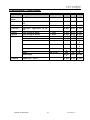
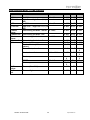
On-Board System Menu: The Impression™ comes with an easy to navigate system menu.
This next section will detail the functions of each command in the system menu.
LCD Control Panel: The control panel located on the arm of the fixture allows you to access
the main menu and make all necessary adjustments to the Impression™. During normal
operation, tapping the “MODE” key once will access the fixture’s main menu. Once in the
main menu you can navigate through the different functions and access the sub-menus with
the Up and Down buttons. Once you reach a field that requires adjusting, tap the ENTER
button to activate that field and use the UP and Down button to adjust the field. Tapping the
Enter button once more will confirm your setting. Once a setting is saved the LED will briefly
readout PASS to confirm a new setting has been made and locked into memory. You may
exit the main menu at any time without making any adjustments by tapping the MODE
button.
MODE Button - To access the main menu locate the MODE button on the front of the unit.
Press this button to activate the system menu. Tap the UP button until you reach the
function you wish to change. When you reach the function you wish to change tap the
ENTER button once to select that menu function. When a function is selected the menu will
begin to flash, use the UP or DOWN button to change the function. Once your changes are
made tap the ENTER button yet again to lock the change in the system menu. To exit
without making any changes tap the MODE button.
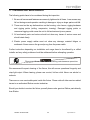
The control panel located on the side of the fixture allows you to
access the main menu and make all necessary adjustments to the
Impression. During normal operation, tapping the “MODE” key
once will access the fixture’s main menu. Once in the main menu
you can navigate through the different functions and access the
sub-menus with the Up and Down buttons. Once you reach a field
that requires adjusting, tap the ENTER button to activate that field
and use the UP and Down button to adjust the field. Tapping the
Enter button once more will confirm your setting. Once a setting is
saved the LED will briefly readout OK to confirm a new setting has
been made and locked into memory. You may exit the main menu
at any time without making any adjustments by tapping the MODE
button.
©Elation Professional®
21
impression™