1
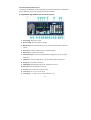
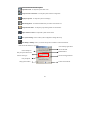
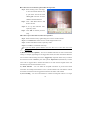
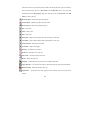
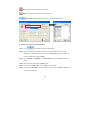
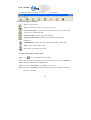
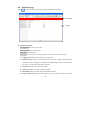
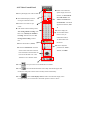
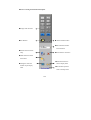
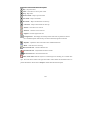
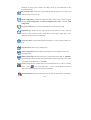
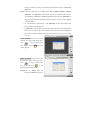
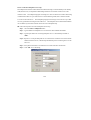
Resize – Resize the video clip.
Decrease frame rate – Decrease the frame rate.
Normal frame rate – Adjust frame rate back to normal.
Increase frame rate – Increase the frame rate.
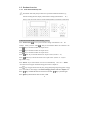
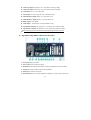
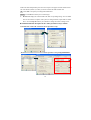
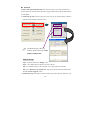
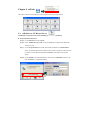
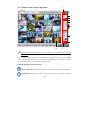
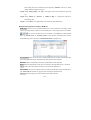
Screen size can be adjusted by selecting different multiple displays. Click
click
to view videos in 352 x 288; click
view videos in 160 x 120.
to view full screen;
to view videos in 176 x 144; click
to
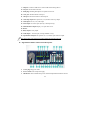
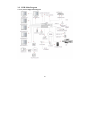
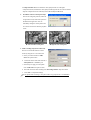
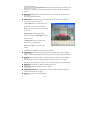
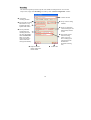
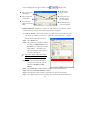
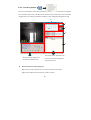
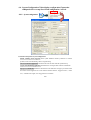
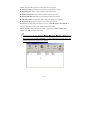
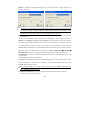
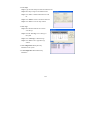
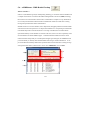
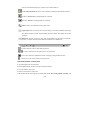
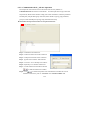
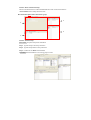
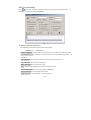
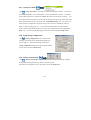
Smart search video: Mark the objects in a selected region for searching in a recorded video
clips. The events will be listed in the right side window. Please follow the introduction below to
perform this function.
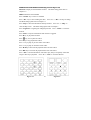
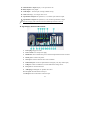
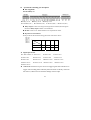
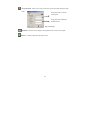
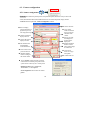
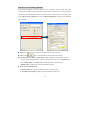
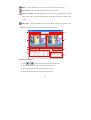
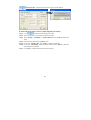
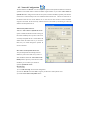
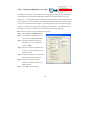
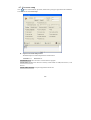
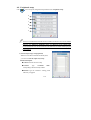
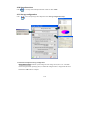
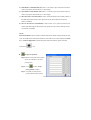
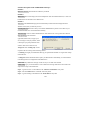
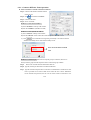
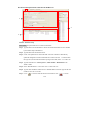
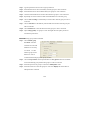
z Function description of the Smart Search:
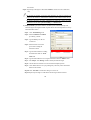
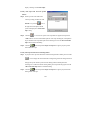
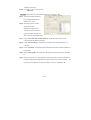
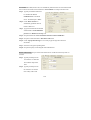
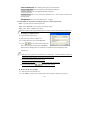
Sensitivity: Adjust the sensitivity function based on the
selected region size. If it is set as high sensitivity with the
large selected search area, the system may display very tiny
changes on the list, oppositely, if it is set as low sensitivity
with the small search region, nothing might be found as the
result.
Speed: Set the searching speed for the smart search
function, higher degree represents faster speed; oppositely,
lower degree represents slower speed.
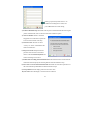
Range: Select “One clip”, “All videos”, or “Range” for smart search function. If you select
“Range”, you can set up the video clips range for searching.
Stop to search when object is detected: The system will stop the search process when the
marked object is detected.
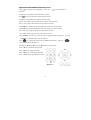
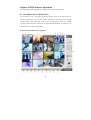
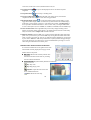
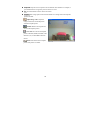
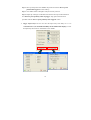
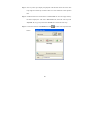
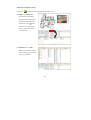
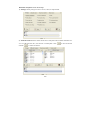
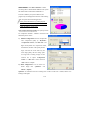
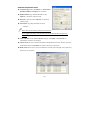
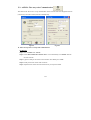
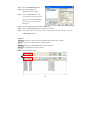
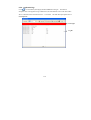
z Playback video clips via “Smart search” function:
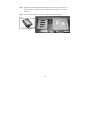
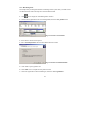
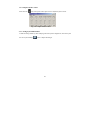
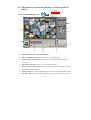
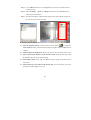
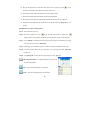
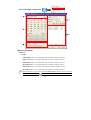
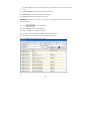
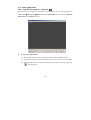
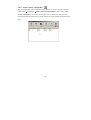
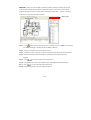
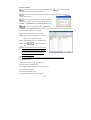
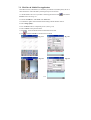
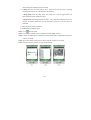
Step 1. Press
icon on the playback toolbar to display the “Smart search” interface.
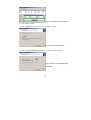
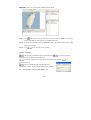
Step 2. Press and hold the mouse left button to mark a specific search area.
81