1
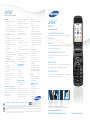
JetSet
Get to know the JetSet
TM
TM
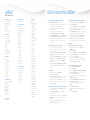
MENU NAVIGATION
1. RECENT CALLS
1: Outgoing Calls
2: Incoming Calls
3: Missed Calls
4: All Calls
5: Call Timer
6: Data Counter
2. MESSAGES
1: Send Message
1: Text Message
2: Picture Message
3: Video Message
2: Inbox
3: Outbox
4: Drafts
5: Voice Mail
6: Erase Messages
7: Message Settings
3. CONTACTS
1: Find
2: Add New Entry
3: Speed Dial
4: Group
1: No Group
2: Business
3: Colleague
4: Family
5: Friends
5: Memory Info
4. MULTIMEDIA
1: Camera (2.0 Megapixel)
2: Camcorder
3: Music Player
4: My Images
5: My Videos
6: My Ringtones
7: My Sounds
8: Ringback Tones
5. BROWSER
1: Go to Web
6. Games & Apps
1: Games & Apps
7. TOOLS/UTILITIES
1: Bluetooth®
1: Registered List
2: Bluetooth® Settings
2: Calendar
3: Memo Pad
4: Alarm Clock
1: Alarm 1
2: Alarm 2
3: Alarm 3
5: World Time
6: Calculator
7: Stop Watch
8: Converter
1: Currency
2: Length
3: Weight
4: Volume
5: Area
6: Temperature
9: Tip Calculator
8. VOICE SERVICE
1: Voice Commands
2: Voice Settings
1: Choice Lists
2: Sensitivity
3: Digit Dialing
4: Sound
5: Voice Launch
6: About
9. SETTINGS
1: Location
2: Display Settings
1: Menu Style
2: Wallpaper
3: Clock Format
4: Theme
5: Dialing Font
6: Banner
7: Backlight
8: Front Contrast
3: Sounds Settings
1: Volume
2: Ringer Type
3: Alerts
4: Key Tone
4: Call Settings
1: Call Answer
2: Call Alert
3: Auto Answer
4: Auto Retry
5: TTY Mode
6: Voice Privacy
5: Phone Settings
1: Airplane Mode
2: Language
3: Security
4: System Select
5: Set Time
6: Quick Search
6: Memory Manager
1: Save Options
2: Phone Memory
3: Card Memory
7: Phone Info
1: Phone Number
2: Icon Glossary
3: Version
4: ESN/MEID
5: Warranty Date Code
6: Refurbish
MUSIC PLAYER WITH microSD™ SUPPORT
Installing the microSD™ Card
1. Insert microSD™ in the memory card slot located on the left side of the phone, labeled microSD™.
2. Insert memory card label side up and smaller end
toward phone.
3. Press card into slot until it locks in place.
4. Press the Menu soft key, then Select Settings.
5. Press Memory Manager, then press Card Memory.
6. Select Format card. “Format Card?” will display. Press Yes. The card will proceed to format. You are now ready to load MP3 files onto your microSD™ for use with
the JetSet.
Transfer Music from PC to the microSD™
1. On PC, find folder containing desired song.
2. Connect the JetSet to the PC using the USB cable via the phone charging slot.
3. The JetSet will display “Use Mobile Phone as Mass Storage Device?” message. Press 1 for Yes.
4. On the PC, a “Removable Disk” will appear in the “My Computer” folder. “Open folder to view all files.”
5. Drag and drop song file from PC to the “My Music” folder on card.
6. Press the Done soft key. “Exit Mass Storage Mode?”
will display, press OK key for Yes and disconnect
USB cable.
Listen to Music
1. In Menu mode, press 4 for Multimedia.
2. Press 3 for Music Player.
3. Press the left soft key for Library. To choose the set of songs you would like to play, scroll to each song you want to play and press the OK key after each selection.
4. When you are finished selecting your songs, press the
left soft key for Play.
TAKE A PICTURE USING THE 2.0 MEGAPIXEL CAMERA
1. From Standby mode, press the Camera key on the right upper side of the JetSet.
2. Press the Options soft key to choose the specific
camera settings.
3. Scroll left and right to each option. Use the up and down Navigation keys to select each setting, and press the OK key.
4. Press the OK key for Take. You now have the choice to Save, Send, or Erase your picture.
ACTIVATE BLUETOOTH® WIRELESS TECHNOLOGY
1. In the MENU mode, press 7 for Tools/Utilities.
2. Press 1 for Bluetooth.
3. Press 1 for Registered List. Then choose Add New
Device. You will be prompted to place the pairing
devices near each other. Press OK.
4. In the Add New Device screen, you will see a list of
compatible devices. Highlight the one you wish to
communicate with and press the OK key to PAIR.
5. Enter the Passkey for the new device and press the OK soft key on the JetSet. These two devices will then be paired and able to wirelessly communicate.
MESSAGING
Sending a Simple Text Message or MMS
1. From the Standby mode, press the left soft key
for MENU.
2. Press 2 for Messages.
3. Press 1 for Send Message and 1 for Text Message.
4. In the Create Text Msg screen, enter the recipient’s
number and press the OK key.
5. Enter the text message using the keypad. You can
access different text modes by pressing the left soft
key. Press the OK key for SEND.
Sending a Multimedia Message or MMS
1. Press the left soft key for MENU.
2. Press 2 for Messages.
3. Press 1 for Send Message and 2 for Picture Message.
4. In the Create Pic Msg screen, enter the recipient’s
number and press the OK key.
5. Using the keypad, enter Subject and press the down Navigation key to enter Text.
6. Press the down Navigation key for Pictures and press the left soft key for Images.
7. Scroll to highlight the desired picture and press the
OK key.
8. Press left soft key for Sounds.
9. Scroll to highlight the desired sound clip and press the OK key.
10.Press OK key for SEND.