1
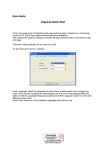
CapsLite main window:
After installation you will get a display similar to the above.
A:
B:
C:
D:
E:
F:
F:
H:
Select between ‘Schedule’ and ‘Files’, to start select ‘Schedule’.
Main categories ‘C’ commercials, ‘N’ news, ‘P’ program, ‘M’ music, ‘B’ broadcasts,
You can select which categories are visible in the window. In the example all are
selected
Program (schedule) window, right click to create blocks, drag music from
F-categories in this window to play.
Click and drag the lines to resize the windows
Player window, if the player buttons are not visible at first start, resize the player
window and/or click/drag an audio item in this window to play.
Click on the small button with ‘…’ to open the settings window for the player.
Tabs for ‘Schedule’, ‘Files’, ‘F-categories’ and ‘JM’ Jingle machine.
Click on the small button with ‘…’ to open the settings window for the schedule.
If installed on a standard PC all audio will be played trough the standard audio output. With
additional audio hardware you can configure the program to play different types of audio to
other outputs. A and B main output, Jingle output, Commercial output.
Faderstarts can be connected to a parallel printer port.
Eela Audio CapsLite