1
Remote Payroll Entry (RPE) User Manual
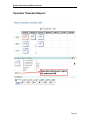
Entering Foreman Vacation Pay Timesheets
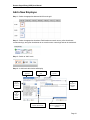
Step 1 – Select shift 2 of the prior year’s December 31st date. e.g., If the current year is 2008,
then select December 31, 2007.
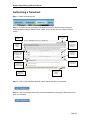
Step 2 – Click the “add new timesheet” icon.
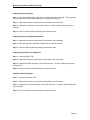
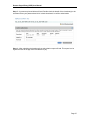
Step 3 – Select “Foreman Vacation Pay” from the list of templates.
Step 4 – It is suggested to enter the name “Foreman Vacation Pay” and the year as the
description. Click OK to create the timesheet.
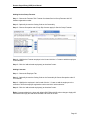
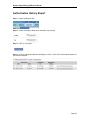
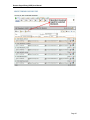
Step 5 – On the timesheet click the “Add” button and select the Foreman to be included in the
timesheet.
Step 6 – Click the “Add selected employees to timesheet:” button.
Step 7 – When the employees have been added to the timesheet, click the “Edit” button to return
to edit mode.
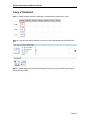
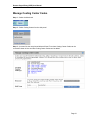
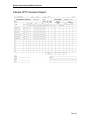
Step 8 – The timesheet will contain all the foremen that you selected and each of them will have
a gross pay amount.
Entering Bereavement Leave Timesheets (for foremen)
Step 1 – Select shift 2 on any date.
Step 2 – Click the “add new timesheet” icon.
Step 3 – Select “Foreman Bereavement Leave” from the list of templates.
Step 4 – It is suggested to enter the name “Bereavement Leave” as the description. Click OK to
create the timesheet.
Step 5 – On the timesheet click the “add” button and select the Foreman to be included in the
timesheet.
Step 6 – Click the “add selected employee(s) to timesheet” button.
Step 7 – When the employee has been added to the timesheet, click the “Edit” button to return to
edit mode.
Step 8 – The timesheet will contain the foremen that you selected and each of them will have a
gross pay amount of 8 hours multiplied by the current hourly rate for occupation code 05.
Page 15