1
25
Installation and Configuration Guide
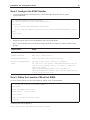
c. Click
3
to start the server.
Start WebLogic server and deploy project on JDeveloper:
a. From menu bar select Run and then select Start Server Instance (IntegratedWeblogicServer) to start the
WebLogic Server.
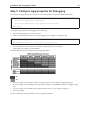
b. Right-click the project, click Deploy and click your project's name. The Deploy dialog appears.
c. In the Deploy dialog, select Deploy on Application Server, click Next, then select
IntegratedWeblogicServer.
d. Accept the default setting and click Next.
e. At the last page, click Finish.
f. Note down the host IP and port number from the server's Deployment log. For example, the following may
appear in the log: <Channel "Default" is now listening on 10.10.1.1:7101 for
protocols...>
In this case, note down 10.10.1.1:7101.
4
Launch a Web browser and enter the URL address http://<localhost:port>/<context> to launch the home page
for ISDK Demo. For example:
• For Eclipse, the URL can be http://<localhost>:7001/filesys.
• for JDeveloper, the URL can be http://10.10.1.1:7101/ISDKSamples-filesys-context-root.
5
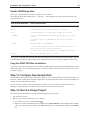
If you run into an issue when launching the project, verify that the FilesysVueLink and VueServlet servlets are
running properly using the following URLs:
• http://<host:port>/context/servlet/FilesysVuelink
• http://<host:port>/context/servlet/VueServlet
Replace the <host:port> using your own host name, WebLogic server’s port.
Replace context with the context for Filesys project on IDE.
If VueLink and VueServlet are running properly, the URLs load and display their respective version and build
information, and in the case of the VueServlet, whether the connection state is OK. If you do not get a successful
response, perform the following verifications:
•
•
•
•
Verify that the AutoVue server is running.
Verify that your project is installed deployed correctly.
Verify that web.xml is configured properly.
Verify that your application server is running and functioning properly.
ISDK Web Services Sample Server
The ISDK Web Services Sample Server project can be created by either basing it on an existing project or by creating
a new project manually. The following sections discuss both methods.
Note: The SOAP Message Transmission Optimization Mechanism (MTOM) is not supported in this release of
Sample Web Services Server.
In the event you have updated the BluePrint WSDL file, it is recommended that you create the project manually by
following the steps described in "Method 2: Create a Project Manually".
Method 1: Use an Existing Project Template
The following steps describe how to create an ASP.NET Web Services Server project using Microsoft Visual Studio
2008 based on an existing project template.