1
Installation and Configuration Guide
1
Copy the template wsserver_VisualStudio2008.zip from the <ISDK Installation
Root>\WebServicesIntegration\WebServicesSampleServer\C# directory to the <User home
directory>\Templates\ProjectTemplates\Visual C# directory.
2
Select New and then select Project.
3
From the left panel select Other Languages and then select Visual C#.
4
From My Templates select wsserver_VisualStudio2008.
5
In the Name field change it to wsserver_VisualStudio2008.
6
Click OK.
7
Open Service1.asmx.cs file.
8
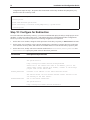
Locate the following lines and verify that the filepaths mentioned are available.
26
// Path to the filesys repository sample data. You might need to update it.
private static string filesysRepositoryRoot = "c:\\Oracle\\filesysRepository\\";
// Path to the Stamp files (dmstamps.ini and stampimage.bmp) and
// MarkupPolicy.xml. You might need to update it.
private static string definitionPath = "C:\\Oracle\\definition\\";
Note: After the ISDK default installation on Window OSes, the Filesys repository sample data is available in a
compressed format (*.zip) at C:\Oracle\AutoVueIntegrationSDK\FileSys\Repository\filesysRepository.zip. You
must extract the contents of the file to the filesysRepositoryRoot location as defined in the
Service1.asmx.cs file.
The definition files are available from the
C:\Oracle\AutoVueIntegrationSDK\FileSys\WebApplication\filesys\WEB-INF\lib directory. You must copy
these files file to definitionPath as defined in the Sevice1.asmx.cs file.
9
Verify that the project compiles without error.
10 Run the project.
Method 2: Create a Project Manually
The following steps describe how to create an ASP.NET Web Services Server project manually using Microsoft
Visual Studio 2008.
1
Generate the ASP.NET Web Services code from the ISDK 20.2.1 Web Services WSDL file. To do so:
a. Open Visual Studio Command Prompt.
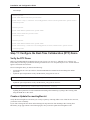
b. Run the following command from the temp folder:
wsdl.exe /Language:CS
/si wsdl_location xsd_location
Note: After the ISDK default installation on Windows, the ISDK Web Services WSDL file is located at
C:\Oracle\AutoVueIntegrationSDK\WebServiceClient\WSDL\BluePrint.wsdl and the ISDK Web Services XSD
file is located at C:\Oracle\AutoVueIntegrationSDK\WebServiceClient\WSDL\BluePrint.xsd.
c. A BluePrintInterfaces.cs file is generated in the temp folder.
2
Create the ASP.NET Web Services project using Microsoft Visual Studio 2008:
a.
b.
c.
d.
3
Select New and then select Project.
Select Visual C# and then select Web.
Select ASP.NET Web Services Application.
Enter the project name and then click OK.
Update the ASP.NET Web Services project: