1
Installation
Topaz Impression
User Manual
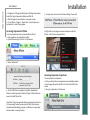
3. Navigate to C:\Program Files\Topaz Labs\Topaz Impression.
Select the Topaz Impression folder and click OK.
4. Click OK again to return back to your main screen.
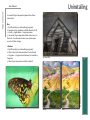
5. Go to Effects-> Plugins-> Topaz Labs-> Topaz Impression
and select it to start the program.
5. You may also choose to check these settings if you wish:
Accessing Impression in iPhoto
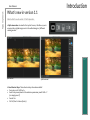
6. Right click on an image to choose whether to edit it in
iPhoto or the chosen external editor.
To access Impression as an external editor in iPhoto:
1. Run Impression as a standalone editor.
2. Open iPhoto and go to iPhoto-> Preferences.
5
3. Select ‘Advanced’.
Accessing Impression in Aperture
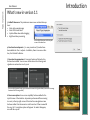
4. Under ‘Edit Photos’ navigate to the Mac Applications
folder to select Impression and click Open. It should then appear in the Edit Photos list.
Important: Only one external editor can be used at a time. So
if you are using Fusion Express, photoFXlab, Photoshop or
another external editing program, you’ll have to forgo using
them in order to use Impression.
To use Impression in Aperture:
1. First you will need to run Impression as a standalone editor.
2. Your image will need to be 8-bit or 16-bit and in RGB color
mode.
3. Next go to Aperture-> Preferences.