1
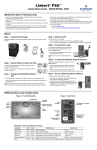
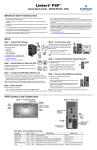
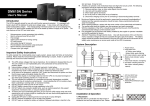
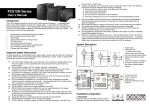
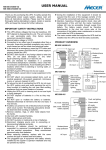
Do not plug the unit input cord to its own output. 4. Product Overview 5. Installation and Start up Do not allow liquids or any foreign object to get inside the unit. PowerShield CompuGuard will protect your computer and other Install the unit in a controlled environment area that is free from Do not place any liquid formed materials on the top of the unit computer devices from various power disturbances including black dust and has adequate sir for ventilation. or right next to it. out. For safety purpose, proper grounding is necessary during Front and Rear View : installation of the unit in order to reduce the leakage current below 3.5mA. Hazardous due to electric shock. Although, unit is disconnected from the mains, hazardous voltage may still be accessible through supply from the battery. Battery Plug the AC input corn into the wall outlet and turn the unit on by connection should be disconnected when servicing the VERY IMPORTANT In order to validate your warranty it is essential that you register it. Warranties must be registered online Please register your warranty by visiting product. pressing on/off button to recharge the battery. Please allow 8 Do not attempt to open enclosure for modification and hours to recharge the battery. service, there are no serviceable parts inside the unit. www.powershield.com.au Modification applied to this unit void product warranty. 1. Introduction CAUTION : Thank you for purchasing CompuGuard 650. It is designed to provide safe and reliable power protection for your computer equipment ( Not for server application ). Before you start using the product, please read this user’s manual. It contains instructions relating to safety, installation, operation BATTERY SAFETY 1. On/Off Switch There is no serviceable part in this product. Please visit our Turn on and off unit with and without utility. Never ! Connect a laser printer/ scanner, AC line filer, vacuum web page when you require service of your product including 2. LED indicator. cleaner and motor to the UPS outlets. This may cause the damage replacing battery. www.powershield.com.au See 7. “LED and Beeper” section for detail to the unit. for further information on service of the product. 3. UPS and Surge Protection outlets Do not dispose of batteries in a fire. The battery may explode. These outlets provide backup power when main has failed and maintenance and warranty. Do not open or mutilate the battery. Released electrolyte is units turned on. Connect peripherals that need battery backup Please keep this manual in a safe place for future use. harmful to the skin and eyes. 2. Safety instruction A battery can present a risk of electric shock and high short circuit current. NOTE : This product only detects Overload condition during on This unit contains no serviceable components. Repairing of battery operation. Please turn off and turn on or perform battery Please read following safety instruction carefully before using the product must only be performed by qualified service CompuGuard 650 personnel. ATTENTION ! : ELECTRICAL SAFETY. To prevent the risk of fire and electric shock, install the product in a controlled temperature and humidity indoor area where it is free from conductive contaminants. To reduce the risk of overheating of the product, do not cover the cooling vent holes and avoid exposing the unit under direct sunlight or installing the unit near heat emitting appliances such as heaters or furnaces. Do not connect non computer related equipment such as medical equipment, life-support system, microwave oven, vacuum cleaners. Also since this unit output is not sinusoidal, please do not connect AC line filters, motors and other inductive / capacitive equipment. This equipment might damage the unit. protection. selftest from software when you increase amount of load connected to these outlets. 6. Software Installation. 4. USB interface port 1. Insert NetGuard CD into PC and run autorun.exe to start the You should have received the following items inside of package. Connect USB cable and computer. Install NetGuard UPS installation of the software. PowerShield CompuGuard650 monitoring software for advanced power protection. 2. PC will show following menu below. PowerShield CompuGuard User’s manual. 5. Full time Surge Protection Outlet. USB communication cable This outlet does NOT provide battery backup when mains has NetGuard Monitoring software CD failed. This outlet provides continuous protection against surges 3. Package Contents Note : Before installation, please inspect the unit and make sure and spikes. Connect peripheral that does not require battery that no damages have occurred during transit. If any damage is backup. found, please notify your dealer. Please keep the shipping 6. Resettable input circuit breaker. materials in the event the product must be returned to a repair Breaker will trip when there is overload / short circuit occurs at center for service. output of the unit. The circuit breaker rating is rated at 7Amp Click install button and the installation starts. 8. Trouble Shooting 10. Warranty and Service. 11. Product Specification Please check PowerShield FAQ web page or contact technical support for an assistance with the problem that cannot be resolved Warranty Condition Model # PSCG650 using the trouble shoot table below. The standard warranty is TWO (2) years from the date of purchase. Capacity 650VA/390W The standard PowerShield procedure is to replace the original unit INPUT with a factory refurbished unit. PowerShield will ship the Voltage Recharge the replacement unit once the defective unit has been received by the Acceptable input voltage battery for 8 hours. service department, or cross ship upon the receipt of a valid credit Frequency Call PowerShield card number. The customer pays for shipping the defective unit to OUTPUT for service. PowerShield. PowerShield pays ground freight transportation Press on/off button costs to ship the replacement to the customer within Australian to turn the unit on. capital cities metro areas only. Problem No LED lit on the Possible causes Low Battery front panel Battery maybe fault Unit not turned on Please follow instruction on the screen and complete the software installation. Battery backup time 3. After all installation is completed the icon below appears on the CompuGuard is too short The UPS maybe overloaded taskbar of your desktop. To launch GUI of NetGuard, please click Solution Remove some peripherals from the WARRANTY SEVICE PROCESS : UPS outlets. the icon in the task bar. Battery capacity Recharge the maybe low battery for at least 8 hours. Battery maybe bad 1. this manual to eliminate common problems. 2. If the problem still persists, please call 1300-305-393 for Reduce some 7. LED and Beeper continuously and overloaded peripherals from the for on line technical support. CompuGuard provides status indicator through Two LEDs located Red LED turns on UPS outlets. Following details are needed for warranty claims. for service. Status Green Red Beeper LED LED On line mode On Off No Beep On battery Flashing Off 2 beeps every mode every 10 sec Low battery Flashing condition every 1 sec Overload Off secs Off On Beeps every Internal fault Call PowerShield for service. Flashing No Beep On Continuous Beep Frequency 50/60Hz ±1Hz Transfer time 2~6 ms ( Typical ) Waveform ( Batt mode) Simulated sinewave Outlets – UPS protection 2 Outlet – Surge protection 1 BATTERY Battery Type 12V/9Ah Approx 25 min Model number Serial number The date of purchase 8 hours to 90% capacity. PROTECTION Surge 156 Joules / 4500A Safety EN62040-1-1 2003, IEC60950-1 2001 EMC EN62040-2 2006 COMMUNICATION 4. Be prepared to troubleshoot the problem over the phone with USB Interface PowerShield NetGuard PowerShield technical support. supports Windows™, Linux, 5. If technical support finds that the product is defective, then the Unix, and Mac technical support will issue a Return Material Authorization Number ( RMA # ) 9. Storage and Maintenance store in a cool and dry condition. During storage, recharge the every 1 sec Off operation. Storage : Before storage, please recharge the unit for 8 hours and mode Internal Fault mode Continuous during battery protection This is normal 1 sec Beep Off Beeps every 2 secs Unit is in battery 30 sec condition Thermal Unit beeps every 30 240Vac ±10% Recharge Time ( Typical ) 3. Unit maybe Call PowerShield Output Voltage ( Batt mode) Backup time ( 1 PC @ 100W ) Unit beeps Internal fault 50/60Hz ( Auto Sensing) Verify that no input/output circuit breaker is tripped. A tripped technical support or fill in the form in PowerShield web page at front panel as well as beeper. The indicators are shown below. 180 – 270Vac circuit breaker is the most common problem. Call PowerShield for service. Review the problems discussed in the troubleshoot section of 240Vac (Nominal ) battery in accordance with the following table : Storage Recharging temperature frequencies -25℃ to 40℃ Every 3 months 4 to 6 hours 40C ℃ 45℃ Every 2 months 4 to 6 hours 6. If the unit is under warranty, repair is free. If not there is a repair charge. 7. Pack the unit in its original packaging. Pack properly to avoid damage during transit. Damage sustained in transit is not Charging time covered under warranty. Maintenance : This unit has no user serviceable parts. If the 8. Mark the RMA # on the outside of the package. 9. Return the defective unit by insured, prepaid carrier to the PHYSICAL Dimension D x W x H Net Weight 232 x 83 x 200 (mm) 3.6Kg OPERATING ENVIRONMENT Temperature Humidity 0 to 40℃ 0 to 90% ( Non Condensing ) address given to you by Technical support. battery service life ( 3 to 5 years at 25C ambient temperature ) has been exceeded, the battery must be replaced. Please call PowerShield technical support for detail. 990-1002 Rev01