1
AXIS Camera Station Administration
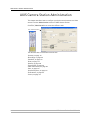
Station for motion detection.
When the AXIS Camera Station does the motion detection rather than the
cameras the performance of the server may be affected by the extra
processing load. There is also some network traffic between the cameras and
the server when this option is used for motion detection.
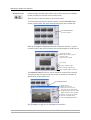
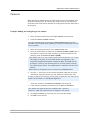
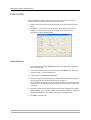
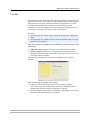
To set up motion detection:
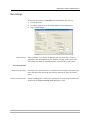
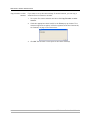
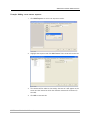
1. Under Recordings, select a camera from the Select Camera drop-down list.
For a camera to appear in the drop-down list, it must be registered under
the Cameras tab, see Cameras, on page 19 for instructions.
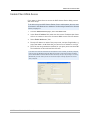
2. Check the checkbox for Record on I/O alarms and motion detection.
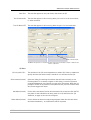
3. Click on the Motion detection settings button.
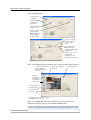
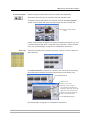
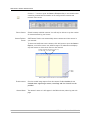
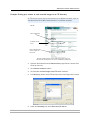
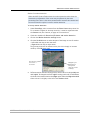
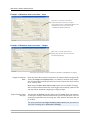
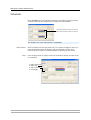
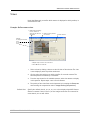
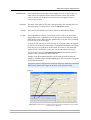
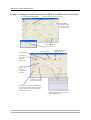
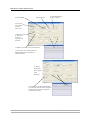
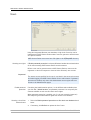
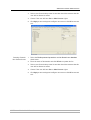
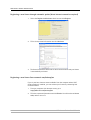
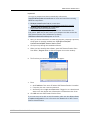
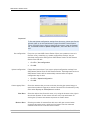
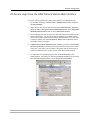
4. Click the Set Grid button to select the part of the image to scan for motion.
- Left-click and drag to add new areas.
- Right-click and drag to delete areas.
The grid may be shown in different colors, but this is simply to increase
visibility. Click OK when done.
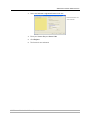
Click to select
area to scan
for motion.
Red/green grid
depending on
background
color (to increase
visibility).
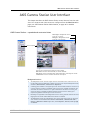
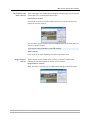
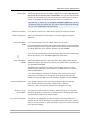
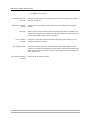
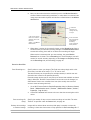
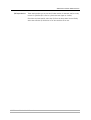
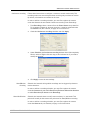
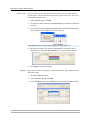
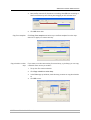
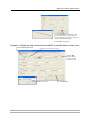
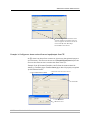
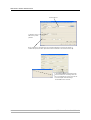
5. Different motion detection settings can be used for when it is bright (day) and
dark (night). To change the default “night” settings, wait until it is dark where
the camera is located and select the Night option. Move the Night threshold
slider so that it is slightly to the left of the Darkness level.
AXIS Camera Station User’s Manual
27