1
LED condition:
switch on power and insert two HD in terms of different working pattern
PATTERN
RAID0
RAID1
JBOD
BIG
HDD carries on the self-checking
Material transmission
HDD1 and HDD2 LED glitter in turn
with blue& red lights. Self- checking
completes when LED sends blue
light
Under the material transmission: The
HDD1 and the HDD2 LED glitter with
purple light. The material transmission
completes when LED sends the blue
light
HDD1 and HDD2 LED glitter in turn
with blue& red lights. Self- checking
completes when LED sends blue
light
Under the material transmission: The
HDD1 and the HDD2 LED glitter with
purple light. The material transmission
completes when LED sends the blue
light
HDD1 and HDD2 LED glitter in turn
with blue& red lights. Self- checking
completes when LED sends blue
light
Under the material transmission
condition: LED glitters with purple light
while operating different HDD. The
material transmission completes when
LED sends blue light
HDD1 and HDD2 LED glitter in turn
with blue& red lights. Self- checking
completes when LED sends blue
light
Under the material transmission: The
HDD1 and the HDD2 LED glitter with
purple light. The material transmission
completes when LED sends the blue
light
perform similar volume management activities, but those products are very
sophisticated and are not included in this manual.
Procedure
Before you can use DiskPart.exe commands on a hard drive disk
partition/volume, you must first list and then select the partition/volume to extend
their capacity to match the virtual hard drives created in the SteelVine Manager
GUI.
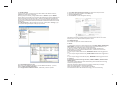
1. Open a command prompt window by clicking Start --Run, then entering "cmd"
2. At a command prompt, type “diskpart”.
Switch on power then insertion HD or two HD have a damage in the situation
under the different working pattern the LED condition (HDD1 normal, HDD2 is
unusual, otherwise also establishes)
3. Type” list volume” to display the existing volumes on the computer.
PATTERN
HDD carries on the self-checking
Material transmission
RAID0
HDD1 and the HDD2 LED glitter in
turn with blue & red lights. Selfchecking completes when the
HDD1 LED sends blue light, and
the HDD2 LED continues glittering
in turn with blue& red lights.
Under the material transmission condition: The
HDD1 LED glitters with purple light, and the
HDD2 LED glitters in turn with blue & red lights.
The material transmission completes when
HDD1 LED sends blue light and the HDD2 LED
continue glittering in turn with blue & red lights.
RAID1
HDD1 and the HDD2 LED glitter in
turn with blue & red lights. Selfchecking completes when the
HDD1 LED sends blue light, and
the HDD2 LED continues glittering
in turn with blue& red lights.
Under the material transmission condition: The
HDD1 LED glitters with purple light, and the
HDD2 LED glitters in turn with blue & red lights.
The material transmission completes when
HDD1 LED sends blue light and the HDD2 LED
continue glittering in turn with blue & red lights.
HDD1 and the HDD2 LED glitter in
turn with blue & red lights. Selfchecking completes when the
HDD1 LED sends blue light, and
the HDD2 LED continues glittering
in turn with blue& red lights.
Under the material transmission condition: The
HDD1 LED glitters with purple light, and the
HDD2 LED glitters in turn with blue & red lights.
The material transmission completes when
HDD1 LED sends blue light and the HDD2 LED
continue glittering in turn with blue & red lights.
HDD1 and the HDD2 LED glitter in
turn with blue & red lights. Selfchecking completes when the
HDD1 LED sends blue light, and
the HDD2 LED continues glittering
in turn with blue& red lights.
Under the material transmission condition: The
HDD1 LED glitters with purple light, and the
HDD2 LED glitters in turn with blue & red lights.
The material transmission completes when
HDD1 LED sends blue light and the HDD2 LED
continue glittering in turn with blue & red lights.
JBOD
BIG
5
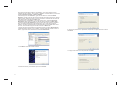
4. Type select volume <volume_number> where “<volume_number>” is number
of the volume that you want to extend. In this case that will be “2”.
5. Type “extend”
6. Type “exit” to quit Diskpart.exe
The volume size will be updated to reflect the expanded physical storage capacity
while maintaining all of the existing data that is stored on the volume.
18