1
MSQ-800 Operating Manual
Wavetek™ Series Field Meter
MSQ-800 Operating Manual
Wavetek™ Series Field Meter
MSQ-800 Operating Manual
Table of Contents
Table of Contents
Section 1: General Information . . . . . . . . . . . . . . . . . . . . . . . . . . 1
1.1 Introduction . . . . . . . . . . . . . . . . . . . . . . . . . . . . . . . . . . . . . . 1
1.2 Safety Precautions . . . . . . . . . . . . . . . . . . . . . . . . . . . . . . . . 2
Section 2: General Description and Principles of Operation . . 3
2.1 Function . . . . . . . . . . . . . . . . . . . . . . . . . . . . . . . . . . . . . . . . . 3
2.2 Package Contents . . . . . . . . . . . . . . . . . . . . . . . . . . . . . . . . . 4
Section 3: Preparation for Operation . . . . . . . . . . . . . . . . . . . . . 5
Section 4: Operation Procedure . . . . . . . . . . . . . . . . . . . . . . . . . 5
4.1 Controls and Indicators . . . . . . . . . . . . . . . . . . . . . . . . . . . . . 5
4.2 Preparation for Measurements . . . . . . . . . . . . . . . . . . . . . . . 6
4.3 Measurement Procedure . . . . . . . . . . . . . . . . . . . . . . . . . . . . 8
4.3.1 General Information . . . . . . . . . . . . . . . . . . . . . . . . . . . . 8
4.3.2 LEVEL Measurement Mode . . . . . . . . . . . . . . . . . . . . . 10
4.3.3 SCAN Measurement Mode . . . . . . . . . . . . . . . . . . . . . 14
4.3.4 TILT Measurement Mode . . . . . . . . . . . . . . . . . . . . . . . 15
4.3.5 MER/BER Measurement Mode . . . . . . . . . . . . . . . . . . 16
4.4 Autotest . . . . . . . . . . . . . . . . . . . . . . . . . . . . . . . . . . . . . . . . 18
4.4.1 General Information . . . . . . . . . . . . . . . . . . . . . . . . . . . . 18
4.4.2 Channel Plan Editor . . . . . . . . . . . . . . . . . . . . . . . . . . . 18
4.4.3 Channel Autotest . . . . . . . . . . . . . . . . . . . . . . . . . . . . . . 22
4.5 Device Status Mode . . . . . . . . . . . . . . . . . . . . . . . . . . . . . . . 28
4.5.1 General Information . . . . . . . . . . . . . . . . . . . . . . . . . . . . 28
4.5.2 Temperature . . . . . . . . . . . . . . . . . . . . . . . . . . . . . . . . . 29
4.5.3 Battery Level Status . . . . . . . . . . . . . . . . . . . . . . . . . . . 29
4.5.4 Firmware Status . . . . . . . . . . . . . . . . . . . . . . . . . . . . . . 29
4.5.5 Calibration Table Status . . . . . . . . . . . . . . . . . . . . . . . . . 29
4.5.6 Channel Plan and Channel Autotest Memory Status . . 29
4.5.7 Internal Device Status . . . . . . . . . . . . . . . . . . . . . . . . . . 29
4.6 Setup . . . . . . . . . . . . . . . . . . . . . . . . . . . . . . . . . . . . . . . . . . 30
4.7 Information . . . . . . . . . . . . . . . . . . . . . . . . . . . . . . . . . . . . . . 31
4.8 Battery Operation . . . . . . . . . . . . . . . . . . . . . . . . . . . . . . . . . 31
Section 5: Maintenance . . . . . . . . . . . . . . . . . . . . . . . . . . . . . . . 34
Section 6: Troubleshooting . . . . . . . . . . . . . . . . . . . . . . . . . . . . 35
Section 7: Storage . . . . . . . . . . . . . . . . . . . . . . . . . . . . . . . . . . . . 36
Section 8: Transportation . . . . . . . . . . . . . . . . . . . . . . . . . . . . . . 36
Section 9: Enviromental Conditions . . . . . . . . . . . . . . . . . . . . . 36
Rev. 002
i
MSQ-800 Operating Manual
Table of Contents
ii
Rev. 002
MSQ-800 Operating Manual
Section 1: General Information
Section 1: General Information
1.1 Introduction
The purpose of this Operating Manual is to introduce the design, function, and basic instructions related to operation and servicing of the
MSQ-800.
MSQ-800 is designed for testing and adjustment of television and
broadcasting distribution networks as well as of separate components
of such networks, or other electronic devices. The MSQ-800 allows
measurement of analog and digital channel levels, as well as digital
QAM modulation parameters, MER and BER, for DVB-C channels.
The MSQ-800 can be used both in a lab setting, powered by an
external power source, and in the field, powered by batteries or a
vehicle's cigarette lighter outlet.
Performing regular maintenance procedures ensures the continued
reliability of the MSQ-800. Refer to Section 5: Maintenance for the
maintenance procedures and the intervals in which they should be
performed.
The following abbreviations are used in this manual:
Rev. 002
PC
- Personal Computer
LCD
- Liquid Crystal Display
DVB-C
- Digital Video Broadcasting - Cable
BER
- Bit Error Ratio
MER
- Modulation Error Ratio
QAM
- Quadrature Amplitude Modulation
1
MSQ-800 Operating Manual
Section 1: General Information
1.2 Safety
Precautions
Before operating the MSQ-800, make sure you thoroughly inspect the
product and carefully read the related documentation to get
acquainted with all safety markings and instructions.
WARNING
Only trained service personnel aware of the hazards involved
should perform repairs on the MSQ-800.
CAUTION
Tuning the MSQ-800 and replacing components influencing the
accuracy of measurements without authorized service
personnel is strictly prohibited. The components used in the
MSQ-800 are purpose-made and their replacement results in
inaccurate operation of the MSQ-800. To prevent the possibility
of mechanical damage to the MSQ-800, follow the instructions
for storage and transportation (see Section 7: Storage and
Section 8: Transportation).
2
Rev. 002
MSQ-800 Operating Manual
Section 2: General Description and Principles of Operation
Section 2: General Description and Principles of Operation
2.1 Function
The MSQ-800 measures the video carrier level, V/A ratio, and C/N
ratio of analog channels, and the channel power for digital channels.
For DVB-C signals MSQ-800 performs measurements of reception
quality parameters: modulation error ratio (MER), bit error ratio (BER)
before and after Reed-Solomon decoder (Pre & Post), and constellation diagram (via computer application MSQ-PC). MSQ-800 features
AutoPlan™, the automatic defining of digital channel settings (channel
frequency, symbol rate, and modulation type). The MSQ-800 also
allows the measurement of the direct (DC) and alternating voltage
(AC) of the remote power supply of TV and broadcasting distribution
networks. Connect the MSQ-800 to a PC running the MSQ-PC software application to access additional modes.
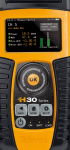
Refer to Figure 1.1 and Figure 1.2 for pictures of the MSQ-800.
Figure 1.1
Rev. 002
3
MSQ-800 Operating Manual
Section 2: General Description and Principles of Operation
Figure 1.2
2.2 Package
Contents
The MSQ-800 package includes:
a MSQ-800 MicroStealth QAM . . . . . . . . . . . . . . . . . . . . . . . 1 pc
b Rubber Boot . . . . . . . . . . . . . . . . . . . . . . . . . . . . . . . . . . . 1 pc
c NiMH, AA Batteries . . . . . . . . . . . . . . . . . . . . . . . . . . . . . 4 pcs
d "F"-"F" Adapter . . . . . . . . . . . . . . . . . . . . . . . . . . . . . . . . . 1 pc
e 12V/1.25A Charger . . . . . . . . . . . . . . . . . . . . . . . . . . . . . . 1 pc
f
Reference Card . . . . . . . . . . . . . . . . . . . . . . . . . . . . . . . . . 1pc
g Quick Start Guide . . . . . . . . . . . . . . . . . . . . . . . . . . . . . . . 1 pc
h Calibration Certificate . . . . . . . . . . . . . . . . . . . . . . . . . . . . 1 pc
4
Rev. 002
MSQ-800 Operating Manual
Section 3: Preparation for Operation
Section 3: Preparation for Operation
Perform an external examination to make sure your MSQ-800 is free
from any visible physical or mechanical damage.
Upon receipt of the package, check the availability of the items
contained in it against the list provided (Section 2.2 Package
Contents).
If the MSQ-800 has been stored in an extreme environment, which
exceeds the rated operating conditions, place the unit inside a temperature controlled facility corresponding to normal operating conditions
of the analyzer for 2 hours prior to operation.
Section 4: Operation Procedure
4.1 Controls and
Indicators
Figure 1.1 illustrates the location of controls, indicators and connectors. These elements have the following functions:
a «F1», «F2», «F3» function keys enable the commands corresponding to icons shown on bottom line of the screen of the
MSQ-800
b «
» key allows for returning to a previous menu level
c «AUX» key enables auxiliary functions
d
«
», «
», «
» and «
» arrows allow to edit the current
operation mode
e «
» key enables the current command
f
» key switches the power of MSQ-800 on/off
«
g «
» key enables auxiliary functions
h «
12V DC 600mA» connector is for connection to an
external power source
Rev. 002
i
«USB
j
«INPUT» connector is for signal input, "F"-male connector
» connector is for interoperability with MSQ-PC
5
MSQ-800 Operating Manual
Section 4: Operation Procedure
4.2 Preparation
for Measurements
Before operating your MSQ-800, carefully read this Operating Manual
and familiarize yourself with the location of the controls and indicators
of the MSQ-800 (Section 4.1 Controls and Indicators).
To operate the MSQ-800 using an external power source, connect the
charger to the port located on the bottom of the MSQ-800 and then to
the power source.
To operate the MSQ-800 in stand-alone mode, powered by the
batteries, push and hold the «
» key until the LCD backlight turns
on.
The following message appears on the screen (Figure 4.2.1):
Figure 4.2.1
The screen displays the name and model of the MSQ-800. After
approximately 1 second, the MSQ-800 opens the main mode selection
menu (Figure 4.3.1), further referred to as Main menu.
When you turn the MSQ-800 on for the first time, the channel template
selection mode opens (Figure 4.2.2).
Figure 4.2.2
6
Rev. 002
MSQ-800 Operating Manual
Section 4: Operation Procedure
This mode allows you to select the channel template corresponding to
the region of the planned operation of your MSQ-800. Use the « »
and « » arrows to select the template from the following list: China,
PAL B/G, PAL Ireland, PAL UK, SECAM D/K, France SECAM-L. To
confirm your choice, press the «F3» key (Ok). After the selection is
made, the MSQ-800 returns to normal operation using the selected
channel template. Once the channel template has been selected, this
screen will not appear again. If you need to change the channel
template later, use the Setup mode described in Section 4.6 Setup.
To open the help message, press the «F2» key (Help). To close it,
press the «
» key.
To exit from the channel template selection mode, press the «F1» key
(Skip). The MSQ-800 switches to normal operation, but the next time
the MSQ-800 is turned on, the channel template selection screen will
appear again.
Rev. 002
7
MSQ-800 Operating Manual
Section 4: Operation Procedure
4.3 Measurement
Procedure
4.3.1 General
Information
The MSQ-800 features an on-screen menu to select modes of operation. The icons of the menu correspond to various functions. The Main
menu appears on the screen after the MSQ-800 is powered up.
Figure 4.3.1
The Main menu shown in Figure 4.3.1 contains six icons corresponding to the following functions:
1 SCAN measurement. . . . . . . . . . . . . . . . . . . . . . . . . . . . . .
2 TILT measurement . . . . . . . . . . . . . . . . . . . . . . . . . . . . . . .
3 AUTOTEST . . . . . . . . . . . . . . . . . . . . . . . . . . . . . . . . . . . .
4 LEVEL measurement . . . . . . . . . . . . . . . . . . . . . . . . . . . . .
5 MER/BER measurement . . . . . . . . . . . . . . . . . . . . . . . . . .
6 Configuration . . . . . . . . . . . . . . . . . . . . . . . . . . . . . . . . . . .
To select the desired function in the Main menu, press the « » or
« » arrow to move the corresponding icon to the bottom line of the
screen. Then press the function key («F1», «F2», «F3») under the
icon. Press the «
» key to return to the Main menu.
To open the Configuration menu, activate the Configuration
function. The Configuration menu appears on the screen.
8
Rev. 002
MSQ-800 Operating Manual
Section 4: Operation Procedure
Figure 4.3.2
The Configuration menu shown if Figure 4.3.2 contains six icons
corresponding to the following functions:
1 Battery Level Status . . . . . . . . . . . . . . . . . . . . . . . . . . . . . .
2 About Device . . . . . . . . . . . . . . . . . . . . . . . . . . . . . . . . . . .
3 Setup . . . . . . . . . . . . . . . . . . . . . . . . . . . . . . . . . . . . . . . . .
4 PC Connection. . . . . . . . . . . . . . . . . . . . . . . . . . . . . . . . . .
5 Channel Plan Settings . . . . . . . . . . . . . . . . . . . . . . . . . . . .
6 Self-Test . . . . . . . . . . . . . . . . . . . . . . . . . . . . . . . . . . . . . . .
Press the «
» key to return to the Main menu.
The MSQ-800 offers four modes to measure TV signal parameters:
a Signal level and TV channel power in channel or frequency
tuning, as well as alternating and direct voltage at the input of
the MSQ-800 in LEVEL mode
b TV channel levels in SCAN mode
c TV channel level tilt in TILT mode
d DVB-C signal reception quality parameters MER/BER
To activate the required mode in the Configuration menu
(Figure 4.3.1), press the « » or « » arrow to move the corresponding icon to the bottom line of the screen and press the «F1»,
«F2» or «F3» key. Press the «
» key to return to the Main menu.
Rev. 002
9
MSQ-800 Operating Manual
Section 4: Operation Procedure
4.3.2 LEVEL
Measurement Mode
The
icon in the Main menu refers to LEVEL measurement
mode. In this mode the user can measure TV channel level parameters in Channel mode (Ch) and signal levels by frequency in
Frequency mode (Freq).
The screen view in channel parameter measurement mode is shown
in Figure 4.3.3 for the analog channel, and in Figure 4.3.4 for the
digital channel.
Figure 4.3.3
The following data is shown on the screen:
1 — channel number
2 — selected channel plan name
3 — channel level measured in dBmV, dBuV or dBm
4 — selected frequency in MHz
5 — V/A ratio in dB
6 — command line with commands activated by the «F1», «F2» or
«F3» keys
7 — channel name
8 — direct voltage or effective alternating voltage at the input of the
MSQ-800, at 50/60 Hz frequency, in V
9 — C/N ratio in dB.
10
Rev. 002
MSQ-800 Operating Manual
Section 4: Operation Procedure
Figure 4.3.4
When the digital channel level is measured you will see DIGITAL
instead of V/A or C/N on the screen.
When you open LEVEL mode, the channel plan name is indicated by
"Plan:" on the second line from the top while operating in Level mode.
If the channel plan has not been selected, in this position you will see
ch template. When the LEVEL function is activated, the MSQ-800
measures the parameters of the TV channel which was last selected
in one of the measurement modes. The channel property DIGITAL/
ANALOG corresponds to the selected channel plan. If the channel
plan has not been selected, the modulation type is determined automatically.
Three parameters are measured for analog channels. Video carrier
level is measured in the frequency point defined according to the
channel allocation standard for operation without channel plan. If the
channel plan has been selected, the frequency point is taken from this
channel plan. To determine V/A ratio, the MSQ-800 measures the
audio carrier, which is defined according to the channel allocation
standard. The V/A value is displayed on the screen in position 5
(Figure 4.3.3).
To measure C/N ratio the MSQ-800 performs measurement in the
frequency point with the lowest content of the useful components of
Radio Frequency (RF) signal within the channel bandwidth. If a
channel plan has been selected the measurement frequency is
defined by the channel plan. If a channel plan has not been selected,
it will be defined according to the channel allocation standard. C/N
ratio appears in position 9 (Figure 4.3.3). The C/N ratio is calculated
by the following formula:
Rev. 002
11
MSQ-800 Operating Manual
Section 4: Operation Procedure
C/N = Uch - Unoise - 10Lg (Bch/Bm) - К
C/N
- carrier to noise ratio value
Uch
- actual channel power
Unoise - noise level
Bch
- digital channel bandwidth
Bm
- measured channel bandwidth
К
- correction coefficient
For digital channels the MSQ-800 uses the integration method to
measure signal power within the channel bandwidth. The MSQ-800
calculates the average value by measuring the power within all of the
channel bandwidths in 125 kHz increments. It then recalculates power
values into an actual power value using the following formula:
Uch = 10Lg (U12+ U22+…+ UN 2) + К,
N = Bch/0.125,
Uch
- actual channel power
U1... UN - measured level in Volts
N
- number of frequency points within the channel bandwidth
Bch
- digital channel bandwidth
К
- correction coefficient
The digital channel bandwidth value is determined by selected
channel template.
Digital channel parameters (central frequency, bandwidth) are taken
from the channel plan or determined automatically if no channel plan
has been selected. To increase the accuracy of the measurement
operating with a channel plan, set the channel parameters
(Section 4.4.2 Channel Plan Editor) to their optimal values.
The range of voltage measurement at the MSQ-800 input is from 10 to
100 V. The absolute error of the measurement is lower than ±1.5 V.
The measured value of the voltage is indicated in position 8
(Figure 4.3.3). If the voltage is direct (DC), V= appears on the screen,
if it is alternating (AC) then V~ appears.
To measure channel parameters, use the «
select the required channel.
12
» and «
» arrows to
Rev. 002
MSQ-800 Operating Manual
Section 4: Operation Procedure
If no channel plan is selected, use the « » and « » arrows to switch
to any channel according to the appropriate TV standard (Section 4.6
Setup). Once a signal is detected, the MSQ-800 automatically determines the channel type, noise measurement frequency, and digital
channel bandwidth.
If one of the channel plans has been selected (Section 4.6 Setup),
tuning is performed between the channels of the plan. In this case the
channel name from the channel plan is shown in position 7.
You can access other measurement modes using the function keys.
The «F1» key activates the mode of signal level measurement in a
frequency point. The «F2» key opens SCAN mode (Section 4.3.3
SCAN Measurement Mode). The «F3» key opens MER/BER
measurement mode (Figure 4.3.5) if the selected channel is digital.
Figure 4.3.5 shows the screen in the signal level measurement in a
frequency point.
Figure 4.3.5
In this mode, V/A ratio, C/N ratio as well as the DIGITAL message are
not displayed.
In the signal level measurement in a frequency point mode the level is
measured at the selected frequency. This mode is indicated by a Freq
message in the command line. Tuning to the frequency is performed
in 125 kHz increments using the « » and « » arrows.
Using the «F1» and «F2» keys you can select channel parameter
measurement mode or switch to SCAN mode (Section 4.3.3 SCAN
Measurement Mode).
Rev. 002
13
MSQ-800 Operating Manual
Section 4: Operation Procedure
4.3.3 SCAN
Measurement Mode
The
icon in the Main menu refers to the SCAN measurement
mode. This mode displays the signal levels as a bar graph. See
Figure 4.3.6.
Figure 4.3.6
The following data is displayed on the screen:
1 — number of channel indicated by marker
2 — command line with commands activated by «F1» or «F2» keys
3 — channel name
4 — measured level of channel indicated by marker, in dBmV, dBuV
or dBm
5 — marker
6 — channel status AN/DG (analog/digital)
Use the «
» and «
» arrows to navigate the marker.
If no channel plan has been selected, all channels of the channel allocation standard are displayed on the screen. Channel modulation type
is determined automatically when you open the mode and what is
shown by the progress indicator (channels scanning). The modulation
type of the channel indicated by the marker is shown in position 6 while
the measurement is being performed.
If one of the channel plans has been selected, the scanning is only
performed over the selected channels. Navigation by using the « »
and « » arrows is only fulfilled within the selected channel plan. The
channel name is displayed in position 3, modulation type is displayed
in position 6.
14
Rev. 002
MSQ-800 Operating Manual
Section 4: Operation Procedure
In SCAN mode the MSQ-800 applies an estimating method to determine the digital channel level. The estimating method measures the
signal level in the central point of the channel and then recalculates it
into a channel level value using the the following formula.
Uch = Um + 10Lg (Bch/Bm) + К
Uch
- actual channel power
Um
- measured level in the central point
Bch
- digital channel bandwidth
Bm
- measured channel bandwidth
К
- correction coefficient
This method helps accelerate the measurement process but gives
additional error when the digital channel has high ripple.
The graph reference level shown in Figure 4.3.6 is automatically set to
the channel with the maximum level.
Use the function keys to access other measurement modes. If the
selected channel is digital, the «F1» key opens MER/BER measurement mode (Section 4.3.5 MER/BER Measurement Mode). The «F2»
key opens the LEVEL measurement mode (Section 4.3.2 LEVEL
Measurement Mode) in either analog or digital mode.
4.3.4 TILT
Measurement Mode
The
icon in the Main menu refers to the TILT measurement
mode. This mode displays signal levels as vertical bars and the tilt line
between the peaks of the two selected channels. See Figure 4.3.7.
Figure 4.3.7
The following data is displayed on the screen:
1 — channel tilt value between A and B markers
Rev. 002
15
MSQ-800 Operating Manual
Section 4: Operation Procedure
2 — A marker
3 — marker setting command line with current status indication
4 — B marker
Use the « » and « » arrows to adjust the marker position and the
«F1» and «F3» keys to select the marker. The selection is indicated by
an asterisk in the command line.
If no channel plan is selected, all channels of the channel allocation
standard are displayed on the screen. Channel modulation type is
determined automatically when you open the mode and what is shown
by the progress indicator (channels scanning).
If one of the channel plans has been selected, the scanning is only
performed over the selected channels. Navigation by using the « »
and « » arrows is only fulfilled within the selected channel plan.
The graph reference level shown in Figure 4.3.7 is automatically set to
the channel with the maximum level. The marker positions are saved
into memory and restored once you open TILT measurement mode
again.
4.3.5 MER/BER
Measurement Mode
The
icon in the Main menu refers to MER/BER measurement
mode. This mode displays the table of the parameters featuring the
input DVB-C signal quality. See Figure 4.3.8.
Figure 4.3.8
The following data is displayed on the screen:
1 — channel number
2 — selected channel plan name
3 — selected frequency + frequency shift in MHz
16
Rev. 002
MSQ-800 Operating Manual
Section 4: Operation Procedure
4—
5—
6—
7—
8—
modulation type QAM64 or QAM256 / Symbol rate in Msps
MER value in dB
preBER value
postBER value
command line with commands activated by the «F1» or «F3»
keys
9 — channel name
10 — demodulator status
When this mode is activated, or tuning to a channel is performed, the
MSQ-800 starts the input signal synchronization process, which is
indicated by a progress bar in position 10. The LOCK message
appears in position 10 once synchronization is achieved. Some time
later MER, preBER and postBER measured values appear in positions
5, 6, 7.
To measure channel parameters, select the required channel using the
« » and « » arrows.
If no channel plan is selected, use the « » and « » arrows and
switch to any channel according to the appropriate TV standard
(Section 4.6 Setup). Once a signal is detected, the MSQ-800 automatically determines the modulation type, symbol rate and spectrum
inversion.
If one of the channel plans has been selected (Section 4.6 Setup), the
tuning is performed between the digital channels of the plan. In this
case the channel name from the channel plan is shown in position 9.
The channel parameters are taken from the channel plan. If the
selected channel plan does not include any digital channels, tuning to
channels is not performed.
You can access other measurement modes using the function keys.
The «F1» key activates SCAN measurement mode (Section 4.3.3
SCAN Measurement Mode). The «F3» key activates LEVEL measurement mode (Section 4.3.2 LEVEL Measurement Mode).
Rev. 002
17
MSQ-800 Operating Manual
Section 4: Operation Procedure
4.4 Autotest
4.4.1 General
Information
The Autotest function provides automation of measurement and result
recording procedures. The MSQ-800 offers two Autotest tools;
Channel Plan Editor and Channel Autotest. The memory capacity
allows you to save up to 16 channel plans (up to 112 frequency points
per plan), and up to 130 Channel Autotest files (with maximum number
of channels). The MSQ-800 allows you to view the saved data in
stand-alone mode or by using a PC.
4.4.2 Channel Plan
Editor
The
icon in the Configuration menu refers to this mode. The
mode allows you to view, edit, delete, and create channel plans. See
Figure 4.4.1.
Figure 4.4.1
The list of channel plans and commands in the command line appears
on the screen. The first column is the channel plan index number, and
the channel plan name is shown in the next column.
Using the « », « » arrows you can select a channel plan from index
number 1 to 16. The selected channel plan is framed (position 1). The
scroll bar is along the right-hand side of the screen (position 3). The
second column is a plan name of up to 15 characters in length. This
name is assigned by the user during creation and can be edited later
by the MSQ-PC program. If the channel plan is not available, it is indicated by *****empty***** message. The bottom line shows the
commands that can be activated by the function keys. If a channel plan
has been selected in Section 4.6 Setup, its name is highlighted in an
inverse color (position 2).
18
Rev. 002
MSQ-800 Operating Manual
Section 4: Operation Procedure
The following is a list of available commands:
1 Select. Activate by pressing the «F1» key. Allows you to view and
edit the selected channel plan.
2 Erase. Activate by pressing the «F2» key. Allows you to delete the
selected channel plan.
3 New. Activate by pressing the «F3» key. Allows you to create a
new channel plan in automatic mode.
4.4.2.1 Channel Plan Editing
To view and edit a channel plan, select the required channel plan and
press the «F1» key. See Figure 4.4.2.
Figure 4.4.2
The table represents a list of channels that make up the channel plan.
The top line divides the table into columns. The first column is the
frequency point number (from 1 to 112). The second column is the
number of the TV channel covering the frequency point. The third
column displays the channel modulation type as either analog or
digital. The fourth column is the channel name of up to 6 characters.
The bottom line shows the commands that can be activated by the
function keys. These commands are as follows:
1 Select. Activate by pressing the «F1» key. Allows you to view and
edit the selected frequency point.
2 Save. Activate by pressing the «F2» key. Allows you to save the
channel plan and exit the table.
3 Erase. Activate by pressing the «F3» key. Allows you to delete the
selected frequency point.
Rev. 002
19
MSQ-800 Operating Manual
Section 4: Operation Procedure
To edit a frequency point, select the required channel by using the
« »and « » arrows (the selected line will be framed, position 1).
Then press the «F1» key. The table of frequency point parameters
shown in Figure 4.4.3 appears.
Figure 4.4.3
The seven parameters available for editing are as follows:
1 Channel: channel number
2 Type: channel type: analog/digital
3 Frequency: frequency of the video carrier for analog channel or
central frequency for digital channel
4 Fnoise: frequency shift for C/N ratio measurement for analog
channels. Can be adjusted from -8000 to +8000 kHz in 125 kHz
increments
5 Band width: channel bandwidth (for digital channels). Can be
adjusted from 5000 to 8000 kHz (but not wider than defined by the
channel template) in 125 kHz increments
6 Modulation: modulation type of digital channel. Available values
are QAM64 or QAM256. The «------» symbol indicates unknown
modulation type
7 Symb rate: symbol rate of digital channel. Can be adjusted from 5
to 7 Msps
The initial values of the parameters are set during automatic detection
of a channel plan and can be edited using the frequency point editing
function.
20
Rev. 002
MSQ-800 Operating Manual
Section 4: Operation Procedure
When a new channel plan is created (Section 4.4.2.3 Channel Plan
Creating using Autoplan™) the channel parameteres are automatically set to the following values:
1 For analog channels the frequency is set to video carrier value.
The noise measurement frequency defaults to 1125 kHz lower
than the video carrier (-1125 kHz).
2 For digital channels the frequency is set to the central frequency of
the digital channel. The channel bandwidth defaults to the value
according to the active channel template.
Use the « », « » arrows to fine tune a parameter and use the «
« » arrows to scroll to the required values.
»,
To save the frequency point press the «F2» key (Save). To quit the
function without saving changes press the «F1» key (Cancel). Always
check all of the parameters after the channel plan has been set. It is
more convenient to determine the parameters in the spectrum
measurement mode using a PC. In case of incorrect (or non-optimal)
settings, fine tune the parameter manually. Otherwise, it can lead to
errors in channel parameters measurements or in Autotest.
To exit from the channel plan editing mode and save the changes
press the «F2» key (Save). Pressing the «
» key confirms saving
any changes and exiting from the mode. Keep in mind that when you
save changes to, or delete a channel plan, all Autotest files with the
corresponding channel plan are deleted.
To delete the selected frequency point press the «F3» key.
4.4.2.2 Channel Plan Erasing
To erase a channel plan, select the required channel plan and press
the «F2» key. The confirmation request dialog appears. To stop
erasing press the «F3» key. To confirm erasing of the plan press the
«F1» key.
4.4.2.3 Channel Plan Creating using Autoplan™
To create a new channel plan automatically in AutoPlan™ mode,
connect the RF signal to the input of the MSQ-800, select the desired
position of the plan in the table and press the «F3» key. The MSQ-800
will automatically begin scanning the channels based on the selected
channel template set in the initial setup of the device. When a channel
Rev. 002
21
MSQ-800 Operating Manual
Section 4: Operation Procedure
is found, the MSQ-800 will determine if it is an analog or digital signal.
If the signal is a digital QAM, it will also determine the channel's bandwidth, modulation type (QAM64 or QAM256) and symbol rate (Msps).
After the MSQ-800 has completed scanning all of the TV channels, it
will switch to channel plan edit mode (Section 4.4.2.1 Channel Plan
Editing). Edit the channel plan parameters if needed and save the plan
to memory. If no channel plan has been detected, the list of all
template channels will be displayed.
4.4.3 Channel
Autotest
4.4.3.1 General Information
The Channel Autotest allows you to measure parameters of TV channels within a channel plan, to check cable network parameters against
the limit plan, and save the check results into memory. This function
allows you to view the measurement results and errors in different
parameters and download the data onto your PC for further processing
and report preparation.
4.4.3.2 Channel Autotest File Manager
The
icon in the Main menu refers to this mode. This mode
allows you to view, delete and create new Autotest files. See
Figure 4.4.4 and Figure 4.4.5.
Figure 4.4.4
22
Rev. 002
MSQ-800 Operating Manual
Section 4: Operation Procedure
Figure 4.4.5
The table of Autotest files appear on the screen (Figure 4.4.4). The top
row of the table (position 1) divides the table into columns. The first
column represents the file numbers from 1 to 130. The second column
is the file name. The third column is the result of the check against the
limit plan. Figure 4.4.5 represents the list of the channel plan names
corresponding to Autotest files. The bottom line (position 3) contains
the list of commands that can be activated by the function keys. Press
the « » and « » arrows to switch between the views of the screen.
Press the « »and « » arrows to select the required file. The selection will be framed (position 2).
The following is a list of available commands:
1 Select. Activate by pressing the «F1» key. Allows you to view,
update and check against the limit plans the selected file.
2 Erase. Activate by pressing the «F2» key. Allows you to delete the
selected file or clear all the files.
3 New. Activate by pressing the «F3» key. Allows you to create new
Autotest files.
Rev. 002
23
MSQ-800 Operating Manual
Section 4: Operation Procedure
4.4.3.3 Channel Autotest Operation
To view a Channel Autotest file, press the «F1» key. Scanning data
table will appear on the screen (Figure 4.4.6 or Figure 4.4.7). Two
views of the table are available, for basic and digital parameters. You
can switch between these views by using the « » and « » arrows.
The top line of the table (position 1) divides the table into the following
columns.
Column 1 - channel number
Column 2 - channel name
Column 3 - video carrier level or digital channel level in dBuV,
dBmV or dBm depending on the preset units
Column 4 - V/A ratio in dB
Column 5 - C/N ratio in dB
The bottom line (position 4) contains the commands that can be activated by the function keys.
The digital parameters screen (Figure 4.4.7) displays MER (in dB) or
EVM (in %) and preBER values in the second and third columns
accordingly. Analog channels are described as analog. If during digital
channel measurement no QAM decoder synchronization is achieved,
a no lock message appears in the line.
Press the « »and « » arrows to select the required frequency point.
The selection will be framed (position 2).
The following is a list of available commands:
1 Run. Activate by pressing the «F1» key. Allows you to repeat the
measurement of the selected Autotest file.
2 View. Activate by pressing the «F2» key. Allows you to view the
measurement results in SCAN measurement mode (Section 4.3.3
SCAN Measurement Mode).
3 Limit. Activate by pressing the «F3» key. Allows you to view the
limit plan parameters.
To scan a file press the «F1» key. The scanning process is indicated
by a progress bar. After scanning is complete, the new values appear
in the measurement result field of the screen. If the channel name is
highlighted in an inverse color, errors have been detected in this
channel during the check against the limit plan.
24
Rev. 002
MSQ-800 Operating Manual
Section 4: Operation Procedure
Figure 4.4.6
Figure 4.4.7
To identify the errors, activate the limit plan manager by pressing the
«F3» key. The table of limit plan parameters appear on the screen
(Figure 4.4.8).
Figure 4.4.8
Rev. 002
25
MSQ-800 Operating Manual
Section 4: Operation Procedure
This table represents the parameters used to verify the measurement
results. You can only edit the parameters using a PC. The table
contains 12 parameters:
1 Lev Vid min. Minimum value of video carrier level for analog
channel. Default value: 0 dBmV.
2 Lev Vid max. Maximum value of video carrier level for analog
channel. Default value is 15 dBmV.
3 Lev Dig min. Minimum value of digital channel level. Default value
is -10 dBmV.
4 Lev Dig max. Maximum value of digital channel level. Default
value is 15 dBmV.
5 Video/Audio min. Minimum value of V/A ratio. Default value is 10
dB.
6 Video/Audio max. Maximum value of V/A ratio. Default value is
17 dB.
7 Video/Noise min. Minimum value of C/N ratio. Default value is 43
dB.
8 dL adjacent max. Maximum value of ratio between the adjacent
channel levels. Default value is 3 dB.
9 Video/Dig max. Maximum value of ratio between analog and
digital channel levels. Default value is 25 dB.
10 MER(QAM64) min. Minimum value of MER for QAM64 modulation. Default value is 28 dB.
11 MER(QAM256) min. Minimum value of MER for QAM256 modulation. Default value is 32 dB.
12 preBER max. Maximum value of preBER. Default value is 1E-6.
Values available are 1E-4, 1E-5, 1E-6, 1E-7, 1E-8, off. If the off
value is chosen, preBER parameter will not be measured when
the Autotest file is updated.
26
Rev. 002
MSQ-800 Operating Manual
Section 4: Operation Procedure
To check an Autotest file against an individual parameter, select the
individual parameter by pressing the « » and « » arrows and the
«
» key. This returns you to the file table. The frequency points,
which failed the check against the selected parameter, are highlighted
with the channel names in an inverse color. To check the file against
some other parameter, open the limit plan manager again and make a
new selection.
Press the «
» key to exit this mode. In the confirmation request
dialog box press the «F1» key to save the results, or the «F2» key to
quit without saving.
4.4.3.4 Channel Autotest File Erasing
To erase a Channel Autotest file, select the required file and press the
«F2» key. The confirmation request dialog box appears. To cancel
erasing, press the «F2» key. To confirm erasing of the selected file,
press the «F1» key. To confirm erasing of all files, press the «F3» key.
4.4.3.5 Channel Autotest File Creating
To create a new Channel Autotest file, select the required file and
press the «F3» key. The channel plan selection screen opens. Press
the « » and « » arrows to select the channel plan to be scanned.
Press «
». The limit plan selection screen appears. Press the « »
and « » arrows to select the limit plan to be used for the check. Press
«
». Memory in the MSQ-800 can store up to 10 limit plans
prepared on a PC and uploaded.
The screen displays the Autotest table with initial values
(Figure 4.4.6). You can then perform all of the operations described in
Section 4.4.3.3 Channel Autotest Operation; such as scanning,
checking against a limit plan, and saving the file into memory.
Rev. 002
27
MSQ-800 Operating Manual
Section 4: Operation Procedure
4.5 Device Status
Mode
4.5.1 General
Information
The
icon refers to this mode. The self-test mode allows you to
check the performance of the components of MSQ-800 and its functional condition.
Figure 4.5.1
The table in Figure 4.5.1 represents the following parameters to be
checked:
1 Temperature. Temperature inside the MSQ-800
2 Bat voltage. Voltage of the battery
3 Bat charge. Battery level status
4 Program mem. Firmware status
5 Calib table. Calibration table status
6 Ch plan mem. Channel plan memory status
7 AutoTst mem. Channel Autotest memory status
8 Devices. Internal device status
28
Rev. 002
MSQ-800 Operating Manual
Section 4: Operation Procedure
4.5.2 Temperature
This function checks the temperature inside the MSQ-800. Temperature is the main environmental factor that influences the accuracy of
measurements. Use the temperature parameter to check the accuracy
of measurements of the signal level. If the temperature value is within
the allowed range of -10 to 50°C (14 to 122°F), Ok status is displayed
at the end of the parameter line. If the temperature is not within this
allowed range, Ok status is not displayed. If temperature «---» value is
displayed, this indicates the temperature measuring device is faulty. In
this case, contact the service center.
4.5.3 Battery Level
Status
The battery voltage and battery level status parameters allow you to
check the battery condition. Perform this check when operating in
stand-alone mode (power supply switched off). If the measured battery
voltage is higher than 4.4 V, Ok status is indicated, if the voltage is
lower than 4.4 V, Low status is indicated. The voltage is then recalculated into the battery level status value in percent, which helps estimate the remaining operating time for the MSQ-800. It should be noted
that when ambient temperature decreases, the battery capacity also
decreases. Take this into account when estimating the operating time
of the MSQ-800.
4.5.4 Firmware Status
This function checks the firmware status of your MSQ-800. The Ok
status is displayed if no errors are detected. The Error status is
displayed if an error is detected. If an error is detected, reinstall the
firmware.
4.5.5 Calibration Table
Status
This function checks the calibration table status. The Ok status is
displayed if no errors are detected. The Error status is displayed if an
error is detected. If an error is detected, contact the the local technical
assistance center (TAC).
4.5.6 Channel Plan
and Channel Autotest
Memory Status
This function shows the free memory in percent for each memory type.
4.5.7 Internal Device
Status
This program checks the condition of the MSQ-800 components. The
Ok status is displayed if no errors are detected. The Error status is
displayed if an error is detected. If an error is detected, contact the
service center.
Rev. 002
29
MSQ-800 Operating Manual
Section 4: Operation Procedure
4.6 Setup
The
icon in the Configuration menu refers to this mode. The
setup mode allows you to modify the general parameters of the MSQ800.
Figure 4.6.1
The table in Figure 4.6.1 represents the following settings:
1 Ch plan. Select channel plan from the available channel plans
(Section 4.4.2 Channel Plan Editor). ch template is displayed if a
channel plan is not selected
2 Ch template. Select channel template. Available settings are
China, PAL B/G, SECAM D/K, PAL UK, PAL Ireland, and
France SECAM-L
3 Unit. Select measurement units for the signal level: dBuV, dBmV,
dBm
4 MER/EVM. Select MER (dB) or EVM (%)
5 Contrast. Set LCD contrast from 0 to 100%
6 Display. Select display mode. Available settings are normal white characters in the blue background and reverse - blue characters in white background
7 Sound. Select key pressing sound. Available settings are off silent and type1, type2, type3 - three types of sound.
30
Rev. 002
MSQ-800 Operating Manual
Section 4: Operation Procedure
4.7 Information
The
icon refers to this mode. The Information function allows
you to determine the MSQ-800 model, serial number, modification and
firmware version. See Figure 4.7.1.
Figure 4.7.1
The data for your MSQ-800 is displayed in the upper part of the
screen:
1 Model. MSQ-800 model
2 HW ver. Hardware version
3 SW ver. Firmware version
4 S/N. MSQ-800 serial number
The service center telephone number and the link to the webpage
describing the MSQ product is located in the lower part of the screen.
4.8 Battery
Operation
The MSQ-800 is powered by four NiMH batteries. One battery
measures 14.5 x 49.5 mm and has a battery capacity rating of no less
than 1600 mAh and no greater than 1900 mAh.
To determine the battery level status, use the self-test function of the
MSQ-800 (Section 4.5.3 Battery Level Status). When the effective
charge level of the battery drops to the critical point you will hear a
warning beep. This signifies that the time of operation until total battery
discharge is a few minutes.
To charge the batteries in an external battery charger, turn the
MSQ-800 off. Open the cover of the battery compartment using a
screwdriver. Carefully remove the batteries. Charge the batteries in a
charger appropriate to the battery type you are using.
Rev. 002
31
MSQ-800 Operating Manual
Section 4: Operation Procedure
When installing the batteries into the battery compartment, make sure
the polarity of batteries in the battery compartment is correct. Close
the battery compartment.
WARNING
Incorrect installation of the batteries may lead to damage to the
MSQ-800 or the batteries. Do not use alkaline batteries or
batteries of any other type than specified.
To charge the batteries without removing them from the MSQ-800,
connect the MSQ-800 to an external 12 V DC power source, such as
the supplied charger, or to your vehicle’s 12 V cigarette lighter socket.
The MSQ-800 will switch on in operating mode.
The MSQ-800 determines the optimal mode of battery charging based
on battery charge status. The charging of fully discharged batteries
takes approximately 12 hours.
The
function.
icon in the auxiliary menu refers to the charging manager
Figure 4.8.1
The screen shown in Figure 4.8.1 displays the following three parameters:
1 Ext.power. Availability of external power source. If powered from
an external power source, the value is «on». If powered by the
batteries, the value is «off».
2 Charge time. Charging time in percent. 12 hours correspond to
100%.
32
Rev. 002
MSQ-800 Operating Manual
Section 4: Operation Procedure
3 Temperature. Temperature inside the MSQ-800.
Battery charging automatically turns on when an external power
source is connected to the MSQ-800. The protection circuit cuts off the
charging process when the temperature in the battery compartment is
higher than 50°C (122°F). It is important to not charge the batteries
when the ambient temperature is greater than 35 - 40°C (95-104°F).
The temperature value will blink on the screen when the temperature
is higher than 40°C (104°F). We do not recommend charging the
batteries under high temperature conditions.
After the batteries are fully charged, the MSQ-800 cuts off the battery
charge current. The charging progress is indicated in the right-hand
part of the screen as a filling battery.
If no external power supply is used, the indicator shows the battery
level status (Figure 4.8.1):
Top 1 - fully charged
Middle 2 - partly charged
Bottom 3 - fully discharged
Rev. 002
33
MSQ-800 Operating Manual
Section 5: Maintenance
Section 5: Maintenance
Follow the instructions in this Operating Manual for the proper operation, storage and shipment of the MSQ-800.
Perform preventive inspections covering check of controls, reliability of
assembly, and the keypad condition after the warranty period has
expired and annually after that.
34
Rev. 002
MSQ-800 Operating Manual
Section 6: Troubleshooting
Section 6: Troubleshooting
Defect detection: The MSQ-800 fails to switch on in stand-alone
mode.
1 Possible reason: Extremely low charge, malfunction, improper
installation, of one or more of the batteries.
Methods of correction: To check the MSQ-800 condition, connect the
charger. If the MSQ-800 switches on, check the battery voltage in selftest mode (Section 4.5.3 Battery Level Status). Low voltage (less than
4.4 V) is evidence that one or more batteries are discharged (or
malfunctioning). Voltage that is higher than normal (greater than 7 V)
indicates that one or more of the batteries are malfunctioning. The
batteries should be charged (Section 4.8 Battery Operation) or
replaced if bad.
2 Possible reason: Firmware failure.
Methods of correction: Re-install the firmware.
Defect detection: The MSQ-800 fails to switch on in stand-alone
mode, but the LCD backlight is on.
1 Possible reason: The program has frozen.
Methods of correction: Push and hold the «
» key for 5 seconds.
The MSQ-800 will switch off. Release the key and switch the MSQ-800
on again.
Defect detection: High error at level measurements in some or all of
the channels.
1 Possible reason: Wear of the RF input adapter.
Method of correction: Replace the RF input adapter with a known good
adapter.
2 Possible reason: Incorrect channel plan setting, making the MSQ800 tune to an offset video carrier point.
Method of correction: Adjust the channel plan (Section 4.4.2.1
Channel Plan Editing).
Rev. 002
35
MSQ-800 Operating Manual
Section 7: Storage
3 Possible reason: Incorrect selection of the channel template.
Method of correction: Check that the correct channel template was
selected in Setup mode (Section 4.6 Setup).
Section 7: Storage
Store the MSQ-800 at temperatures between -20 to 40°C (-4 to
104°F), with a maximum non-condensing relative humidity of no more
than 90% at 30°C (86°F).
Section 8: Transportation
Ship the MSQ-800 in any closed vehicle at temperatures from -20 to
40°C (-4 to 104°F), maximum non-condensing relative humidity 90%
and atmospheric pressure of 84 to 106.7 kPa (630 to 800 mm Hg).
Cargo holds, railway cars, containers, and truck beds used for shipment of the MSQ-800 should be free from any traces of cement, coal,
and corrosive chemicals. When shipped by air the MSQ-800 should be
kept in aircraft sealed compartments.
Section 9: Enviromental Conditions
Normal operating conditions:
a ambient temperature 18 to 28°C (64 to 18°F)
b relative air humidity 55±25%
c atmospheric pressure 84-106 kPa (630-795 mm Hg)
d voltage transients correspond to installation category CAT. II
Rated operating conditions:
a ambient temperature from -10 to 50°C (14 to 122°F)
b relative air humidity no greater than 90% at 25°C (77°F)
temperature
c atmospheric pressure 84-106 kPa (630-795 mm Hg)
36
Rev. 002
Test and Measurement Regional Sales
North America
Toll Free: 1 800 638 2049
Tel: +1 240 404 2999
Fax:+1 240 404 2195
Latin America
Tel: +55 11 5503 3800
Fax:+55 11 5505 1598
Asia Pacific
Tel: +852 2892 0990
Fax:+852 2892 0770
EMEA
Tel: +49 7121 86 2222
Fax:+49 7121 86 1222
Wavetek™ Series Field Meter
September- 2009
English
www.jdsu.com