1
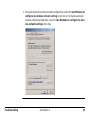
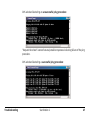
Default gateway: 10.1.1.1
• If your network settings are correct, check if you have a wireless network
enabled. An active wireless network may disrupt the connection between
Cyclone and the instrument.
5. If the progress bar remains at 40% or 70%, then Cyclone is able to locate the
instrument on the network but is unable to complete the connection protocol.
• If the instrument is initializing or performing its periodic accuracy checking,
Cyclone may not be able to connect until the scanner is ready. This is normal.
Refer to chapter "3.2 Understand the Instrument’s Control LED Status" for
more information.
• If Cyclone has not successfully connected within ten minutes:
a) Cancel the connection.
b) Exit Cyclone.
c) Confirm that Cyclone is not running by looking for Cyclone.exe in the
Task Manager's Processes tab. If it is continuing to run, select the
Cyclone.exe process and push the End Process button.
d) Restart Cyclone and try to connect once more.
e) If the second attempt fails, reboot the instrument.
f) If the third attempt fails, reboot the laptop computer and the Scanner,
then attempt to connect to the instrument.
6. If connection to the instrument still fails, initiate the diagnostic procedure
described in chapter "4.2 Diagnostic Procedure".
Troubleshooting
ScanStation 2
43