1
RoverLog User Manual
Tom Mayo, N1MU
06/23/14
2 Introduction
RoverLog is a program that allows you to log your contacts for VHF, UHF, and Microwave
contests that score based on a grid square exchange. It is filled with features useful during these
contests, such as real time scoring, call lookup, duplicate checking, networking, etc. This
document is intended to provide you with the information you will need to use RoverLog.
3 Quick Start
For those who are anxious to get going with RoverLog, here are some basic steps to take:
Windows:
1. Download and run the RoverLog installer (rl-X_Y_Z.exe).
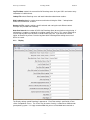
2. From the Start Menu, run inied.tcl to configure RoverLog for your use.
a. Set your Callsign.
b. Set your Default Grid.
c. Set your log file name. Usually it’s your callsign with “.log” appended. Your log file
“lives” in the RoverLog install folder (usually C:\Program Files\RoverLog).
d. Set the Contest .ini file name to make sure your score is calculated properly.
e. Review the other settings and verify they are correct.
3. Optionally, run logheaded.tcl to initialize your log file and header.
4. To start RoverLog, simply double click on the roverlog.tcl icon or select it from the Start
Menu.
Non-Windows:
1. Install Tcl/Tk. This is different depending on what operating system you use.
2. Unzip the RoverLog distribution.
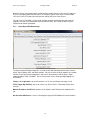
3. Run inied.tcl to configure RoverLog for your use.
a. Set your Callsign.
b. Set your Default Grid.
c. Set your log file name. Usually it’s your callsign with “.log” appended. Your log file
“lives” in the folder in which RoverLog was installed.
d. Set the Contest .ini file name to make sure your score is calculated properly.
e. Review the other settings and verify they are correct.
4. Optionally, run logheaded.tcl to initialize your log file and header.
5. To start RoverLog, run ./roverlog.tcl from the shell prompt or double-click if you have
associated .tcl files with the wish Tk interpretter.
All:
1. Ensure that your system clock is set to the correct time. RoverLog uses UTC time for all
references. It calculates the difference between your local time and UTC using the time
zone you have set for your operating system.
2. If you wish to use RoverLog modules (Keyer, Rotor, Rig, GPS, or Clock), select them in
inied.tcl before running RoverLog so they will start automatically when you start
RoverLog.
3. The Modules (except Clock) can interface to different devices via a serial port on your
computer. Make sure the .ini files for each module are set up for the correct serial port
(COMx: for Windows and /dev/ttySx for Linux for example).
4 RoverLog Files
RoverLog uses different types of files while in operation. All of RoverLog’s files, including your
contest logs, are stored within the installation folder/directory.
• .ini scripts configure RoverLog for your station and preferences.
• .rlk files to give RoverLog’s Keyer Module a different personality for different operators
or operating grids.
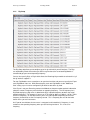
• The .log file stores your contest entry in Cabrillo format.
-5-