1
Web Access
Thermostats
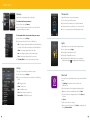
Adding TouchScreen Apps
1
1. In the top menu bar, click on the TouchScreen app you
2
The current states of your thermostats: are displayed on the Main
screen. To manage your thermostat:
1
want to add.
2. Click Install. The Subscriber Portal pushes the app to the
TouchScreen. An “installing” message is displayed while the app
is being added.
1. On the Main screen, in the Thermostats tool, click View
Thermostats. The current temperature appears in the middle of the
screen. The Unit of Measure button on the right indicates whether
3
3. Once you’ve added more than 10 apps, you must manage
apps from your TouchScreen.
4
5
2
the temperature is displayed in Fahrenheit or Celsius.
2. You can click Unit of Measure button to toggle the display between
Fahrenheit or Celsius.
3. On the top of the screen, you can click Off, Cool or Heat,
or set the mode.
Deleting TouchScreen Apps
4. Turn Fan on or off using the toggle switch.
1. From the Manage Apps screen, hover your cursor over the app you
want to delete. A label is displayed over the app.
5. You can click Hold to maintain the mode and temperature settings
and ignore any programming configured on the thermostat device.
2. Click Delete.
3. Click Delete App in the displayed confirmation dialog box.
Repositioning TouchScreen Apps
1
You can change the order in which TouchScreen apps are displayed on
the TouchScreen. All apps, except the Security, Settings and Cameras
apps, can be moved to your preferred location on the TouchScreen.
1. Click Reposition Apps to re-arrange the apps.
2. Drag and drop the apps to the preferred location on the
TouchScreen.
3. When all the apps are repositioned to your satisfaction,
click Update.
17
Lights
1
2
The current state of your light settings is displayed on the Main screen.
To manage your lights:
1. On the Main screen, in the Lights tool, click Manage Lights.
2. In the Lights tool, you can turn the light on or off and set its
dimming percentage.
18