1
Mobile Access
2
Cameras
Thermostats
View live video or captured pictures and video clips.
Adjust all thermostats connected to your system.
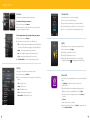
To view live video from your cameras:
1. On the Home screen, tap Thermostats.
1. On the Home screen, tap Cameras.
2. Tap the name of any thermostat to control that thermostat.
2. From the list, tap the camera you’d like to access. Live video will
3. Tap the mode button to switch from cool to heat, or turn off.
appear for that respective camera.
2
To view captured video clips or pictures from your cameras:
1. On the Home screen, tap History.
2. Use the menu at the top of the screen to filter History:
3
4. Tap + or – to change the Heat or Cool temperature setting.
• All – View images captured manually from the Subscriber Portal or
as a result of a Schedule rule configured in the Subscriber Portal.
Lights
Adjust all lights connected to your system via plug-in modules.
• Alarm – View images captured as part of an alarm.
1. On the Home screen, tap Lights.
• Arm – View images captured as part of an arming event.
2. If the light is on, tap bulb to turn it off.
• Zone – View images captured as part of a zone event.
3. If the light is off, tap bulb to turn it on.
3. Tap Pictures/Video to view the captured images and video.
4. If the light includes the dimmer function, you can adjust its
brightness by tapping
and tapping your preferred setting.
History
View a log of events that have occurred in the system.
2
1. On the Home screen, tap History.
Door Lock
2. Choose to view a history of recent events based on the following
How to “pair” (connect) your Kwikset door lock to your Home Controller
system:
criteria:
• All – All logged events.
• Alarm – Alarm events.
• Arm – Arm/Disarm events.
• Zone – Events related to security zones
• Pictures/Video – Pictures/Video events.
1. Tap Settings. Then tap Home Devices > Door Locks >
Add Door Locks
2. Place the Kwikset door lock in “pairing mode” by pressing the
A button on the interior assembly 4 times. Then tap Next.
3. The new Door Lock icon will appear when found. Tap Done after
it is found.
4. Tap Next.
5. Tap the door lock icon to configure.
6. Enter a new name for the door lock. Tap Next to complete the edit.
Then tap Return to Menu.
21
22