1
TouchScreen
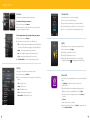
System Status Icons
The various user interfaces include the following icons that provide an at-a-glance overview of the
status of your system.
The security status of your system is displayed in the large Security Status header.
This is the Security Status header when the status
is “Armed.”
When you arm the system, an exit delay period
begins. The System Status header indicates the
number of seconds before the system is armed.
You must exit the premises and secure the entry/exit
door before the exit delay period ends.
This is the Security Status header when the status
is “Disarmed.”
You must exit the premises and secure the entry/
exit door before the exit delay period ends. When
someone enters an armed premises,
an entry delay period starts (generally, around 30
seconds long).
Introduction
The interactive TouchScreen acts as the control center that enables you to operate your security system and
interact with your home at the touch of a button. Use it to arm and disarm your system, view live video from
cameras placed in your home and view real-time web content all from the full-color display. This section
provides an overview of your TouchScreen and offers quick tips on how to use its various features.
Home Screen
The Home Screen is the main display that provides quick access to all
TouchScreen features. In addition to the descriptive icons that make
navigating easy, this screen provides a visible and audible alert if a
sensor is triggered when the system is armed or if an environmental
sensor, such as a smoke detector, is activated.
Press the
button on the TouchScreen at any time to return to the
Home Screen.
System & Zone Trouble Header
The System & Zone Trouble header displays in the upper right corner of the Subscriber Portal and
TouchScreen. Whenever there is an issue with the TouchScreen such as connectivity, power, or sensor
problems the System & Zone Trouble Header will display.
Security Status Header
The Security Status header appears in the upper left corner of the
TouchScreen. It displays whether the system is armed or disarmed.
During an alarm, the Security Status header changes to show an
Alarm state.
Displayed events that prevent arming replace the Security Status
header altogether.
When a System & Zone header is displayed, click it to display more information.
1
2