1
ESO / Sampo / Reflex
FORS Interactive Tools
3.
REF
: ESO-SAMPOISSUE : 0.1
DATE : 22.11.2007
FORS SKYLINE ALIGNMENT TOOL
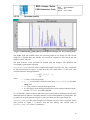
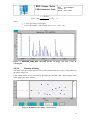
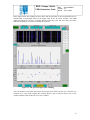
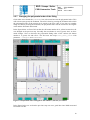
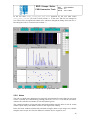
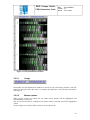
The FORS skyline alignment tool can be run either within Reflex or stand-alone. The purpose
of the tool is to view and modify the results of the skyline alignment done by the recipes
fors_align_sky(_lss) and fors_resample. In the classification tags below the
MXU acronym can be read also as MOS or LSS.
3.1
Inputs of the tool
Inputs of fors_align_sky(_lss)
•
•
•
•
•
•
•
•
SPATIAL_MAP_MXU: map of spatial positions on the CCD i.e. the distance from the
top edge of the spectrum for each pixel (not in case of LSS(like) data)
CURV_COEFF_MXU: spectral curvature coefficients (not in case of LSS(like) data)
DISP_COEFF_MXU: wavelength solution coefficients
RECTIFIED_ALL_SCI_MXU: spatially rectified slit spectra (not in case of
LSS(like) data)
SCIENCE_UNFLAT_MXU: flat field corrected science frame (only in case of
LSS(like) data)
SLIT_LOCATION_MXU: slit positions
MASTER_SKYLINECAT: the reference wavelengths of the sky lines used for
adjusting the input wavelength solution to the observed scientific spectra
GRISM_TABLE: a subset of recipe configuration parameters
Outputs of fors_align_sky(_lss)
•
•
•
SKY_SHIFTS_SLIT_SCI_MXU, or SKY_SHIFTS_LONG_SCI_MXU in case of
LSS(like) data: the observed sky lines offsets for adjusting the input wavelength
solutions
WAVELENGTH_MAP_SCI_MXU: map of wavelengths at the center of each pixel on
the CCD, upgraded from WAVELENGTH_MAP_MXU
DISP_COEFF_SCI_MXU: the DISP_COEFF_MXU after alignment of the solutions
to the position of the sky lines
Outputs of fors_resample
•
3.2
•
•
MAPPED_ALL_SCI_MXU: rectified and wavelength calibrated slit spectra
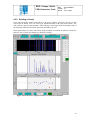
Outputs of the tool
the outputs of fors_align_sky(_lss) and fors_resample (see above)
refilled according to changed slit(s)
a fits table indicating slit(s) from where the user removed line(s)
21