1
ESO / Sampo / Reflex
FORS Interactive Tools
REF
: ESO-SAMPOISSUE : 0.1
DATE : 22.11.2007
Of all the parameters of fors_align_sky, the tool can modify only --skyalign, the
polynomial order of the alignment.
Normally this recipe would calibrate all the slit spectra at once, but this tool makes it work for
a single slit spectrum at a time. The input data is modified in such a way that it looks like on
the CCD just one spectrum is present. The inputs of the tool are listed in Chapter 3.1 and the
outputs in Chapter 3.2. The tool creates the set of inputs for fors_align_sky and
fors_resample by slicing lanes from the inputs for all slit spectra:
•
•
•
•
From SLIT_LOCATION_MXU the row where the 1st column is the slit identification
number slit_id of the slit to be refitted. So this input will contain only one row.
From CURV_COEFF_MXU a lane of two rows where the 1st column is the slit_id
of the slit to be refitted.
From RECTIFIED_ALL_SCI_MXU a lane with starting row and length (number of
rows) indicated by position and length in SLIT_LOCATION_MXU in the last
two columns of the row starting with slit_id of the slit to be refitted.
SPATIAL_MAP_MXU, MASTER_SKYLINECAT and GRISM_TABLE are used as-is.
The tool recreates the set of outputs of fors_align_sky and fors_resample by
refilling in the outputs the area corresponding to the refitted slit:
•
•
•
In DISP_COEFF_SCI_MXU and MAPPED_ALL_SCI_MXU a lane with starting row
and length indicated by position and length in SLIT_LOCATION_MXU in the
last two columns of the row starting with slit_id of the realigned slit.
In SKY_SHIFTS_SLIT_SCI_MXU the column offset<slit_id> with the one
produced by the tool.
WAVELENGTH_MAP_SCI_MXU is refilled with all non-zero values of the file
produced for one slit (the dimensions of this fits file are the same when produced for
one slit or all slits)
The
observed
sky
lines
offsets
from
their
expected
positions
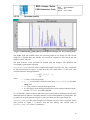
(SKY_SHIFTS_SLIT_SCI_MXU) are fitted by polynomials that are then added to the input
wavelength
calibration
polynomials
(DISP_COEFF_MXU)
thus
creating
DISP_COEFF_SCI_MXU.
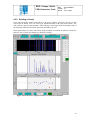
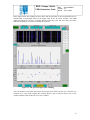
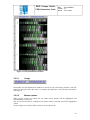
3.5.5 Deleting of line(s)
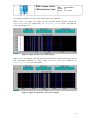
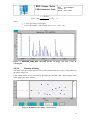
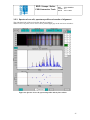
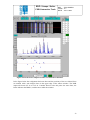
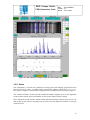
Click with left mouse button blue ball(s) in the lower window. The ball will turn red and
activate the align button. You can cancel your intended deletion with right mouse button. The
realignment is done by pressing the align-button. After realignment, a red triangle down in the
upper edge of the offsets window will indicate the line(s) deleted by the user.
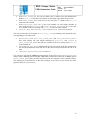
In the figure below two lines with the largest offsets are marked for deletion and the alignbutton is active.
32