1
CHAPTER
2
In this chapter,
you will learn:
• About the various operating
systems and
the differences
between them
• About the
components of
Windows operating systems
• How operating
systems interface
with users, files
and folders,
applications,
and hardware
Introducing Operating Systems
I
n Chapter 1, you were introduced to the different hardware
devices. In this chapter, you’ll learn about the different operating
systems, how they are designed and work, and what they do. You’ll
learn about the different components of an OS and see how an OS
provides the interface that users and applications need to command
and use hardware devices. You’ll learn to use several Windows tools
and utilities that are useful to examine a system, change desktop
settings, and view and manage some hardware devices.
As you work through this chapter, you’ll learn that computer
systems contain both hardware and software and that it’s important
for you as a computer technician to understand how they work
together. Although the physical hardware is the visible part of a
computer system, the software is the intelligence of the system that
makes it possible for hardware components to work.
35
36
CHAPTER 2
Introducing Operating Systems
OPERATING SYSTEMS PAST AND PRESENT
An operating system (OS) is software that controls a computer. It manages hardware, runs
applications, provides an interface for users, and stores, retrieves, and manipulates files. In general,
you can think of an operating system as the middleman between applications and hardware,
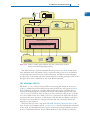
between the user and hardware, and between the user and applications (see Figure 2-1).
Application
(Microsoft Word)
Operating system (Windows Vista)
Hardware
CPU
RAM
Hard drive
ROM BIOS
Printer
Figure 2-1 Users and applications depend on the OS to relate to all applications and hardware components
Courtesy: Course Technology/Cengage Learning
Several applications might be installed on a computer to meet various user needs, but a computer really needs only one operating system. As a PC support technician, you should be aware
of the older and current operating systems and how these operating systems have evolved.
DOS (DISK OPERATING SYSTEM)
In 1986, MS-DOS (also known as DOS) was introduced and quickly became the most
popular OS among IBM computers and IBM-compatible computers using the Intel 8086
processors. Figure 2-2 shows a computer screen using the DOS operating system. In those
days, all computer screens used text and no graphics. DOS is outdated as a viable option
for a desktop computer operating system today. However, you might occasionally encounter
a diagnostic utility used to fix the most stubborn hardware or software problem that is
booted from a floppy disk or CD that uses the DOS operating system.
Figure 2-2 DOS provides a command-line prompt to receive user commands
Courtesy: Course Technology/Cengage Learning
Operating Systems Past and Present
37
DOS WITH WINDOWS 3.X
Early versions of Windows, including Windows 3.1 and Windows 3.11 (collectively
referred to as Windows 3.x) used DOS as the operating system. Windows 3.x had to
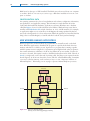
use DOS because Windows 3.x didn’t perform OS functions, but simply served as a userfriendly intermediate program between DOS, applications, and the user (see Figure 2-3).
Windows 3.x offered a graphical user interface, the Windows desktop, the windows concept, and the ability to keep more than one application open at the same time. A graphical user interface (GUI; pronounced “GOO-ee”) is an interface that uses graphics as
compared to a command-driven interface. A desktop is the initial screen that is displayed
when an OS has a GUI interface loaded. All these concepts are still with us today.
User
Applications
Windows 3.x
DOS operating system
Hardware
Figure 2-3 Windows 3.x was layered between DOS and the user and applications to provide
a graphics interface for the user and a multitasking environment for applications
Courtesy: Course Technology/Cengage Learning
WINDOWS 9X/ME
Windows 95, Windows 98, and Windows Me, collectively called Windows 9x/Me, used
some DOS programs as part of the underlying OS (called a DOS core), and therefore had
some DOS characteristics. However, these were true operating systems that provided a userfriendly interface shown in Figure 2-4. Because of the DOS core, technicians sometimes used
a DOS startup disk to troubleshoot Windows 9x. To learn more about Windows 9x/Me, see
the content “Supporting Windows 9x/Me” and the content “Windows 9x/Me Commands
and Startup Disk” on the CD that accompanies this book.
WINDOWS NT
Windows NT (New Technology) came in two versions: Windows NT Workstation and
Windows NT Server. The workstation version was used on high-end corporate or engineering
desktop computers, and the server version was used to control a network. Windows NT
corrected many problems with Windows 9x/Me because it completely rewrote the OS core,
totally eliminating the DOS core, and introduced many new problems of its own that were
later solved by Windows 2000 and Windows XP.
Windows NT was the first Windows OS that did all its processing using 32 bits at a time
as compared to DOS, which processed 16 bits at a time and Windows 9x/Me, which used a
combination of 16-bit and 32-bit processing.
2
38
CHAPTER 2
Introducing Operating Systems
Figure 2-4 Windows 98 SE desktop
Courtesy: Course Technology/Cengage Learning
WINDOWS 2000
Windows 2000 was an upgrade of Windows NT, and also came in several versions, some
designed for the desktop and others designed for high-end servers. Windows 2000 Professional
was popular as an OS for the corporate desktop. Windows 2000 Server, Advanced Server, and
Datacenter Server are network server OSs. Windows 2000 offered several improvements over
Windows NT, including a more stable environment, support for Plug and Play, Device Manager,
Recovery Console, Active Directory, better network support, and features specifically targeting
notebook computers. The Windows 2000 Professional desktop is shown in Figure 2-5.
Figure 2-5 The Windows 2000 Professional desktop
Courtesy: Course Technology/Cengage Learning
Operating Systems Past and Present
39
Microsoft didn’t target Windows 2000 to the home computer and game computer market
because Windows 9x/Me was still serving those markets. Also, Microsoft did not make a
commitment for Windows 2000 to be backward-compatible with older software and
hardware. Therefore, many hardware devices and applications that worked under Windows
9x/Me did not work under Windows 2000.
Windows 2000 is considered a dying OS, although as a PC support technician you still
need to know how to support it because it is still in use. However, you cannot buy a new
license for it, and Microsoft no longer supports it.
A+ Tip
The only operating systems covered on the A+ exams are Windows 2000, Windows XP,
and Windows Vista.
WINDOWS XP
Windows XP is an upgrade of Windows 2000 and attempts to integrate Windows 9x/Me
and 2000, while providing added support for multimedia and networking technologies. The
two main versions are Windows XP Home Edition and Windows XP Professional, though
other less significant editions include Windows XP Media Center Edition, Windows XP
Tablet PC Edition, and Windows XP Professional x64 Edition.
The Windows XP desktop (see Figure 2-6) has a different look from the desktops for earlier Windows. Windows XP is the first Windows OS to allow multiple users to log on simultaneously to the OS, each with their own applications open. Windows Messenger and
Windows Media Player are inherent parts of Windows XP. And XP includes several new
security features, including Windows Firewall.
Although Windows XP was first released with some bugs, the second service pack (Service
Pack 2) resolved most of these problems. A service pack is a major update or fix to an OS
occasionally released by Microsoft. Minor updates or fixes that are released more frequently
are called patches. Windows XP has undergone three service packs, making it an extremely
Figure 2-6 The Windows XP desktop and Start menu
Courtesy: Course Technology/Cengage Learning
2
40
CHAPTER 2
Introducing Operating Systems
stable OS, and is popular in both the home and corporate markets. Because it does not
require as much hardware resources as Windows Vista and most compatibility issues and
bugs have been resolved, many people and corporations still prefer it over Windows Vista.
Because of consumers’ demands, Microsoft has been forced to extend support for XP long
past their initial timeframe. Currently, manufacturers can still purchase a license for a new
PC (called an original equipment manufacturer (OEM) license). However, these OEM
licenses are about to become available only for low-end PCs that cannot support Windows
Vista. Microsoft still publishes services packs and patches for XP.
WINDOWS VISTA
Windows Vista, an upgrade to Windows XP, is the latest Windows desktop operating system by
Microsoft. Vista has a new 3D user interface called the Aero user interface, which is not available for all versions of Vista and requires 1 GB of RAM and a video card or on-board video that
supports the DirectX 9 graphics standard and has at least 128 MB of graphics memory. The
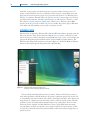
Windows Vista desktop and Start menu are shown in Figure 2-7. Notice the Windows XP Start
button has been replaced by the Vista sphere with a Windows flag.
Figure 2-7 Windows Vista desktop and Start menu
Courtesy: Course Technology/Cengage Learning
Vista was better tested than XP was before its release, therefore Vista did not present as
many initial problems as did XP. However, the greatest complaints against Vista are the lack
of compatibility with older hardware and software (called legacy hardware and software), the
large amount of computer resources that Vista requires, and its slow performance. The first
problem is partly caused by hardware manufacturers not providing Vista drivers for their
devices that were originally sold with XP drivers. The second problem means that many
low-end desktop and laptop computers can’t run Vista. And the slow performance of Vista
is partly due to the many unnecessary features (fluff) it offers; these features weigh heavy on
system resources.
Operating Systems Past and Present
41
Vista comes in five versions: Windows Vista Home Basic, Home Premium, Business,
Enterprise, and Ultimate. (Vista Starter is a sixth version available only to developing
nations.) Also, Vista comes in 32-bit versions and 64-bit versions; an explanation of the
differences between these versions is covered later in the chapter.
WINDOWS 7
With many frustrations over Windows Vista still not resolved, some consumers have dubbed
Windows 7 “the ultimate Vista fix.” Windows 7 is the next generation of Microsoft operating systems, and was due to be released not long after the printing of this book. Now that
technicians have taken a first look at Windows 7 and have compared it to Vista, it appears
that Windows 7 will perform better, be more compatible with legacy hardware and software, and provide a leaner and simpler user interface.
It is expected that Windows 7 will run on netbooks that currently run only on Windows
XP or Linux. A netbook is a low-end inexpensive laptop with a small 9- or 10-inch screen
and no optical drive. Netbooks are generally used for Web browsing, e-mail, and word
processing by users on the go.
MAC OS
Currently, the Mac OS, which has its roots in the UNIX OS, is available only on Macintosh computers from the Apple Corporation (www.apple.com). The Mac and the Mac OS were first introduced in 1984. The latest OS is Mac OS X (ten), which has had several releases. The latest release is
called Mac OS X Leopard. Figure 2-8 shows the Mac OS X Leopard desktop with a browser open.
Figure 2-8 The Mac OS X Leopard desktop and browser window
Courtesy: Course Technology/Cengage Learning
2
42
CHAPTER 2
Introducing Operating Systems
At one time, all Macintosh computers were built using PowerPC processors by IBM or
Motorola. Macs now use Intel processors, which make it possible for Windows to run on a
Mac. Boot Camp software by Apple can be used to install Windows on a Mac computer as
a dual boot with Mac OS X. (A dual boot makes it possible to boot a computer into one of
two installed OSs.) Also, an application called VMWare Fusion can be installed on a Mac;
the application creates a virtual machine on the Mac. (A virtual machine (VM) is an environment created by software that works as though it is a standalone computer system.
A VM is a logical computer within a physical computer. Software testers often use multiple
VMs on a single PC to test software under different OSs.) Windows is then installed on
this virtual machine, making it possible to run both Mac OS X and Windows at the same
time without having to reboot the system. Applications written for Windows can then be
installed in the virtual machine environment. You will learn to use a virtual machine in
a project at the end of Chapter 12.
Because it is stable and easy to use, the Mac OS has been popular in educational environments, from elementary school through the university level. It also provides excellent support for graphics and multimedia applications and is popular in the graphics and musical
markets. Currently, about 10 percent of personal computers sold today are Macs. In the
past, a Mac was more expensive than a comparable Windows computer and applications
for the Mac were limited. But now costs are about the same and tons of Mac applications
exist, many of them free. Macs are beginning to gain ground in both the corporate and
home markets because Macs are stable and fun to use, costs are down, and software is
more available.
Notes You can learn more about the Mac OS by reading the content “Introducing the Mac OS,” which
you can find on the CD that accompanies this book.
LINUX
Linux is a variation of UNIX that was created by Linus Torvalds when he was a student at
the University of Helsinki in Finland. Versions of this OS are available for free, and all the underlying programming instructions (called source code) are also freely distributed. Like UNIX, Linux
is distributed by several different companies, whose versions of Linux are sometimes called
distributions. Popular distributions of Linux include SuSE (www.novell.com/linux/suse), RedHat
(www.redhat.com), TurboLinux (www.turbolinux.com), Slackware Linux (www.slackware.com),
and Ubuntu (www.ubuntu.com).
A+ Exam Tip The A+ exams do not cover Linux, the Mac OS, or server operating systems.
Network services such as a Web server or e-mail server often are provided by a computer
running the Linux operating system. Linux is well suited to support various types of server
applications. Because Linux is extremely reliable and does not require a lot of computing
power, it is sometimes used as a desktop OS. It is not as popular for this purpose because it
is not easy to install or use and fewer Linux applications exist, as compared to those written
for Windows or the Mac OS. Linux is also used on netbooks because it requires less system
resources than Windows. (A technician would say it has a small footprint.) Recently, Linux
has gained popularity as an embedded operating system on mobile devices such as smart
phones. Linux is an excellent training tool for learning UNIX.
How Windows 2000/XP/Vista Works
43
A shell is the portion of an OS that relates to the user and to applications. The first Linux
and UNIX shells consisted of commands entered at a command prompt. Two popular
command-line shells for UNIX and Linux are the older Bourne shell and the newer BourneAgain shell (BASH). But many users prefer a Windows-style GUI desktop. These GUI shells
are built using a technology called X Windows. The most popular GUI shells are GNOME,
KDE, and Xfce. A typical Linux desktop is shown in Figure 2-9.
Figure 2-9 A desktop using the Ubuntu distribution of Linux
Courtesy: Course Technology/Cengage Learning
Notes You can find out more about Linux by reading the content “Introducing Linux” on the CD that
accompanies this book or by visiting the Web site, www.linux.org.
Now that you know a little about operating systems in general, let’s turn our attention to
learning about the Windows 2000/XP/Vista operating system.
HOW WINDOWS 2000/XP/VISTA WORKS
Windows 2000, XP, and Vista are three evolutions of the same basic operating system.
Therefore, they have many things in common. In this part of the chapter, we’ll look under the
hood of these OSs to see how they are built, what are the main components, and how the OS
interfaces with users, applications, data, and hardware. We begin our discussion by looking
at the four main functions of any OS, and then we’ll look at how Windows accomplishes
these four functions.
2
44
CHAPTER 2
Introducing Operating Systems
WHAT AN OPERATING SYSTEM DOES
Although there are important differences among them, all operating systems share the
following four main functions:
Function 1. Provide a user interface
• Performing housekeeping procedures requested by the user, often
concerning secondary storage devices, such as reorganizing a hard drive,
deleting files, copying files, and changing the system date
• Providing a way for the user to manage the desktop, hardware,
applications, and data
Function 2. Manage files
• Managing files on hard drives, DVD drives, CD drives, floppy drives, and
other drives
• Creating, storing, retrieving, deleting, and moving files
Function 3. Manage hardware
• Managing the BIOS (programs permanently stored on hardware devices)
• Managing memory, which is a temporary place to store data and
instructions as they are being processed
• Diagnosing problems with software and hardware
• Interfacing between hardware and software (that is, interpreting
application software needs to the hardware and interpreting hardware
needs to application software)
Function 4. Manage applications
• Installing and uninstalling applications
• Running applications and managing the interface to the hardware on
behalf of an application
COMPONENTS OF WINDOWS
Every operating system has three main internal components: the shell, the kernel, and configuration data. Recall that a shell is the portion of an OS that relates to the user and to
applications; the kernel is responsible for interacting with hardware. Configuration data is
information the OS keeps about hardware, applications, data, and users. As a support technician, you don’t need to understand all of how they work, but it does help to know some
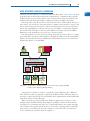
basic concepts. Figure 2-10 shows how the shell and kernel relate to users, applications, and
hardware. Use the diagram as a reference for this discussion of how the components of
Windows work.
THE WINDOWS SHELL
The shell provides a way for the user to do such things as select music to burn to a CD,
install an application, or change the wallpaper on the Windows desktop. The shell does
this using various interface tools such as Windows Explorer, the Control Panel, or
My Computer, which can have command, menu, or icon-driven interfaces for the user.
For applications, the shell provides commands and procedures that applications can
call on to do such things as print a spreadsheet, read from a database, or display
a photograph on-screen.
How Windows 2000/XP/Vista Works
45
Applications
2
User
Operating System
User interface tools
Configuration data
Shell
Win32
subsystem
Win32
security
subsystem
The Registry
Configuration files
Other
subsystems
Kernel
Executive Services
Hardware Abstraction Layer (HAL)
Hardware
Figure 2-10 Inside an operating system, different components perform various functions
Courtesy: Course Technology/Cengage Learning
The shell is made up of several subsystems that all operate in user mode, which means
these subsystems have only limited access to system information and can access hardware
only through other OS services. One of these subsystems, the Win32 security subsystem,
provides logon to the system and other security functions, including privileges for file access.
All applications relate to Windows by way of the Win32 subsystem.
THE WINDOWS KERNEL
The kernel, or core, of the OS is responsible for interacting with hardware. It has more
power to communicate with hardware devices than the shell has, and operates in kernel
mode. Therefore, applications operating under the OS cannot get to hardware devices
without the shell passing those requests to the kernel. This module approach that says,
“You do your job and I’ll do mine, and we won’t mess with each other’s work,” provides
for a more stable system. If you think of an OS as a restaurant, the shell is like the hosts
and waiters that serve customers, and the kernel is like the chefs and kitchen staff. Hosts
and waiters are responsible for customer interaction but aren’t allowed in the kitchen
where the food is prepared.
The kernel has two main components. The HAL (hardware abstraction layer) is the
layer closest to the hardware and the executive services interface between the subsystems
in user mode and the HAL. Executive services components manage hardware resources
by way of the HAL and device drivers. When Windows is first installed, it builds the
46
CHAPTER 2
Introducing Operating Systems
HAL based on the type of CPU installed. The HAL cannot be moved from one computer
to another, which is one reason you cannot copy a Windows installation from one computer to another.
CONFIGURATION DATA
An operating system needs a place to keep hardware and software configuration information,
user preferences, and application settings. This information is used when the OS is first
loaded and when needed by hardware, applications, and users. Windows uses a database
called the Registry for most of this information. In addition, Windows keeps some data in
text files called initialization files, which often have an .ini or .inf file extension. For example,
an application might store in a text file or in the Registry the settings preferred by the last
user, such as background color, font, and text size. When the application is launched, the first
thing it does is read the Registry or text file and then loads the user’s preferred settings.
HOW WINDOWS MANAGES APPLICATIONS
When an application is first installed, its program files are normally stored on the hard
drive. When the application is launched, the program is copied from the hard drive into
memory and there it is called a process. A process is a program that is running, together
with the system resources assigned to it. System resources might include other programs it
has started and memory addresses to hold its data. When the process makes a request for
resources to be used, this request is made to the Win32 subsystem and is called a thread. A
thread is a single task, such as the task of printing a file, that the process requests from the
kernel. Figure 2-11 shows two threads in action, which is called multithreading. Sometimes
a process is called an instance, such as when you say to a user, “Open two instances of
Internet Explorer.” Technically, you are saying to open two Internet Explorer processes.
Process
MS word.exe
Open
a
file
Print
job
Win 32
Thread
Thread
Kernel
Printer
Hard drive
Figure 2-11 A process with two threads
Courtesy: Course Technology/Cengage Learning
How Windows 2000/XP/Vista Works
47
HOW WINDOWS MANAGES HARDWARE
The kernel uses device drivers to communicate with a hardware device. Device drivers are small
programs stored on the hard drive that tell the computer how to communicate with a specific
hardware device such as a printer, network card, or modem. These drivers are installed on the
hard drive when the OS is first installed, or when new hardware is added to the system.
The OS provides some device drivers, and the manufacturer of the hardware device provides others. You also need to know that when a computer is first turned on, it uses some
devices such as the keyboard, monitor, and hard drive before the OS starts up. In this situation, the system BIOS provides the instructions to the CPU to communicate with these
devices. Recall from Chapter 1 that the system BIOS uses settings stored in the CMOS
RAM chip on the motherboard to know how to start the system.
Later during the boot process, the OS is started, and it then uses device drivers to communicate with these same devices, although there still might be limited use of the system BIOS.
Figure 2-12 shows that the kernel communicates with hardware by way of its own drivers,
manufacturer drivers, or system BIOS.
User
Applications
Operating system
Kernel
Device
drivers
Device
drivers
System
BIOS
BIOS
Hard drive
Video
card
Floppy disk
drive
Figure 2-12 An OS relates to hardware by way of device drivers and possibly system BIOS
Courtesy: Course Technology/Cengage Learning
A device driver is written to work for a specific OS, such as Windows XP or Windows
Vista. Therefore, when you upgrade a computer from Windows XP to Windows Vista, it is
necessary to obtain Vista drivers for each installed device. Manufacturers usually publish the
latest device drivers on their Web sites.
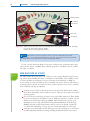
When you purchase a printer, DVD drive, Zip drive, digital camera, scanner, or other
hardware device, bundled with the device might be a CD that contains the device drivers
(see Figure 2-13). Sometimes, the device also comes bundled with a user manual and applications software that interfaces with the device. You use the operating system to install the
device drivers so it will have the necessary software to control the device. You will learn
how to install devices and their drivers in Chapter 9.
2
48
CHAPTER 2
Introducing Operating Systems
Gaming software
CD containing
device drivers
Video card
User manual
Figure 2-13 A device such as this video card comes packaged with its device drivers stored on a CD; alternately,
you can use device drivers built into the OS
Courtesy: Course Technology/Cengage Learning
Notes Device drivers come from a number of sources. Some come with and are part of the
operating system, some come with hardware devices when they are purchased, and some are provided
for downloading over the Internet from a device manufacturer’s Web site.
So now you have been introduced to four types of software: the operating system, applications, device drivers, and BIOS. Every software program is considered to be one of these
four types of software.
A+
220-701
3.1
HOW MANY BITS AT A TIME?
The CPU (Central Processing Unit), also called a processor, partly determines which operating system can be installed. One major consideration is the number of bits a CPU processes
at a time. All desktop and laptop processors sold today from either Intel or AMD can
process 64 bits at a time, but older processors handled only 32 bits. To know which type of
operating system to install, you need to be aware of three categories of processors currently
used on desktop and laptop computers:
32-bit processors. These are known as x86 processors because Intel used the number
86 in the model number of these earlier processors. These processors must use a 32-bit
operating system.
Processors that use underlying 32-bit processing with 64-bit instructions. These hybrid
processors are known as x86-64bit processors. AMD was the first to produce one (the
Athlon 64) and called the technology AMD64. Intel followed with a version of its
Pentium 4 processors and called the technology Extended Memory 64 Technology
(EM64T). Because of their hybrid nature, these processors can handle a 32-bit OS
or a 64-bit OS. All desktop or laptop processors made after 2007 are of this type.
64-bit processors. Intel makes several 64-bit processors for workstations or servers that
use fully implemented 64-bit processing, including the Itanium and Xeon processors.
How Windows 2000/XP/Vista Works
A+
220-701
3.1
49
Intel calls the technology IA64, but they are also called x64 processors. They are not
compatible with 32-bit processing and require a 64-bit operating system.
Point 1. 64-bit processing is faster than 32-bit processing because the CPU is handling
more bits at once. However, a 64-bit OS requires more resources than a 32-bit OS.
Point 2. A 64-bit OS requires that device drivers operating in kernel mode be 64-bit
drivers. These 64-bit drivers must be available from the device manufacturer.
Point 3. An application is compiled to process 64 bits or 32 bits. A 64-bit OS can run
either 64-bit applications or 32-bit applications, but 64-bit applications are faster.
Also, 64-bit applications cannot run on a 32-bit OS.
Point 4. A 32-bit OS can only address up to 4 GB of memory. More than that might be
installed on the motherboard, but the OS cannot use it because it does not have enough
memory addresses to assign to the physical memory. A 64-bit OS theoretically can address
up to 1 terabyte (TB) of memory, although in practice, most motherboards can only hold
from 12 to 16 GB of memory. (A terabyte is roughly 1000 GB or 1 trillion bytes).
Point 5. If you open many applications at the same time and have high computing
needs and enough hard drive space and memory, you can benefit from 64-bit computing. To get the most out of it, the processor, motherboard, operating system, drivers,
and applications must all be 64 bit, and you should have installed the maximum
amount of memory the motherboard supports.
Often a manufacturer will install a 32-bit OS on a computer that could support a 64-bit OS.
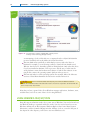
In Vista, to find out what type of processor and OS is installed, click Start, right-click
Computer, and select Properties from the shortcut menu. Figure 2-14 shows the results for
one laptop. It shows a 32-bit operating system installed with a Core2 Duo CPU. This CPU
could have handled a 64-bit OS.
Here’s one more important tip you need to know about 64-bit computing. When
Microsoft publishes a patch or update for Windows on its Web site, some patches are designated for specific processors, and error messages use terminology that might be confusing if
you don’t understand the terms. Follow these guidelines when reading error messages or
documentation on the Microsoft site:
The term x86 refers to 32-bit processors and to 32-bit operating systems. For example,
you need to download a patch from Microsoft to fix a Vista problem you are having
with USB devices. The article on the Microsoft Web site that applies to your problem
says to download the patch if you are using a Windows Vista, x86-based version. Take
that to mean you can use this patch if you are using a 32-bit version of Vista.
The term x86-64 refers to a 64-bit OS or to 32-bit processors that process 64-bit
instructions such as the Intel Core2 Duo or 64-bit AMD processors (AMD64 refers
specifically to these AMD processors). For example, a Windows error message might
be, “You are attempting to load an x86-64 operating system.” Take that to mean you
A+ 220-701
Windows 2000 is a 32-bit OS. Windows XP Professional x64 Edition is a 64-bit OS,
and all other Windows XP editions are 32-bit operating systems. Vista Home Basic, Home
Premium, Business, Enterprise, and Ultimate editions all come in either 32-bit or 64-bit
versions. When you purchase of the retail version of the Ultimate Edition, the 32-bit DVD
and 64-bit DVD are included in the package. For the other Vista editions, you must request
the 64-bit DVD from Microsoft after you have purchased the retail version of the OS. The
OEM version of each Vista OS can be purchased in 32-bit or 64-bit code.
Most modern desktop and laptop processors today can handle either a 32-bit or 64-bit
OS, which are sometimes referred to as an x86 or x64 OS. Keep these discussion points in
mind when deciding which to install:
2
50
CHAPTER 2
Introducing Operating Systems
A+
220-701
3.1
Figure 2-14 A 32-bit version of Vista is installed with a 64-bit processor
Courtesy: Course Technology/Cengage Learning
are attempting to load a 64-bit OS onto a computer that has a hybrid 32-bit/64-bit
processor installed, such as the Athlon 64 or Intel Core2 Duo.
The term IA64 refers specifically to 64-bit Intel processors such as the Xeon or
Itanium. For example, you are selecting a utility to download from the Microsoft
Web site. One choice for the utility specifies an IA64 platform. Only select this choice
if you have installed an Itanium or Xeon processor. (By the way, a techie uses the
word platform to mean the hardware and software on which other software is running. In this context, the operating system’s platform is the processor.)
The term x64 refers to 64-bit operating systems. For example, Microsoft offers two
versions of Vista Home Premium: the x86 version and the x64 version.
A+ Tip
The A+ 220-701 Essentials exam expects you to know the difference between
Windows XP and Windows Vista 32-bit and 64-bit versions. You are also expected to be familiar with the
terms 32-bit, 64-bit, x86, and x64.
Now that you have a general idea of how Windows manages applications, hardware, users,
and their data, let’s look at some of the tools for using Windows.
USING WINDOWS 2000/XP/VISTA
Every PC support technician needs to be a power user of Windows. You need to know how
the Windows desktop is organized and how it works. You also need to know how to use
Windows utilities such as My Computer, Windows Explorer, the Control Panel, System
Information, and the Command Prompt window. All these tools are covered in this part of
the chapter. In other chapters, you’ll learn to use more Windows tools.
Using Windows 2000/XP/Vista
A+
220-701
3.1
3.2
51
THE WINDOWS VISTA DESKTOP
THE START MENU
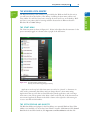
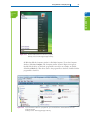
The Vista Start menu is shown in Figure 2-15. Notice in the figure that the username for the
person currently logged on is shown at the top right of the Start menu.
Figure 2-15 The Vista desktop and Start menu
Courtesy: Course Technology/Cengage Learning
Applications at the top left of the Start menu are said to be “pinned” to the menu—in
other words, permanently listed there until you change them in a Start menu setting.
Applications that are used often are listed below the pinned applications and can change
from time to time. The programs in the white column on the left side of the Start menu are
user-oriented applications. Entries in the black column on the right side of the menu give
access to user files and OS utilities.
THE VISTA SIDEBAR AND GADGETS
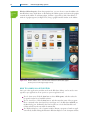
The Windows Sidebar and gadgets for the Vista desktop are new with Windows Vista. If the
sidebar is not installed, you can use the Control Panel to install it. Click Start and click Control
Panel. In the Control Panel window, click Appearances and Personalization and then click
2
A+ 220-701
The Windows desktop is the primary tool provided by the Windows shell. In this section,
you will learn about the features of the desktop, including the Start menu, taskbar, and
Vista sidebar. You will also learn how to manage shortcuts and icons on the desktop. We’ll
use Vista as our primary OS for learning and then discuss what is different about the
Windows XP and 2000 desktops.
52
A+
220-701
3.1
3.2
CHAPTER 2
Introducing Operating Systems
Windows Sidebar Properties. From the properties box, you can choose to start the sidebar each
time Windows starts, decide where on the desktop the sidebar appears, and remove the gadgets
currently in the sidebar. To add new gadgets, click the + sign at the top left of the sidebar. A
window of gadgets appears (see Figure 2-16). Drag a gadget from this window to the sidebar.
Figure 2-16 Windows Sidebar can be customized with installed and downloaded gadgets
Courtesy: Course Technology/Cengage Learning
HOW TO LAUNCH AN APPLICATION
Let’s open a few applications and then see how the Windows desktop can be used to manage these open applications. Four options to open an application are:
Use the Start menu. Click the Start button, select All Programs, and then select the
program from the list of installed software.
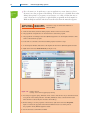
Use the Search box. Click the Start button, and then enter the name of the program
file or command in the Start Search box (see Figure 2-17). In Windows 2000/XP, use
the Run dialog box. Incidentally, the Vista search box can also find data files and
folders and will search text within document files.
Use Windows Explorer or the Computer window. Execute a program or launch an application file by double-clicking the filename in Windows Explorer or the Computer window.
Using Windows 2000/XP/Vista
53
A+
220-701
2
3.1
3.2
A+ 220-701
Figure 2-17 Use the Vista Search box to launch a program
Courtesy: Course Technology/Cengage Learning
(In Windows XP, the Computer window is called My Computer.) To use the Computer
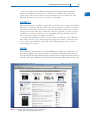
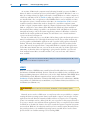
window, click Start, Computer. The Computer window shown in Figure 2-18 appears.
Double-click the drive on which the program file is stored. In our example, we doubleclicked Local Disk (C:). Then drive down to the program file on the drive. Double-click the
program file to launch it.
Figure 2-18 If you know the location of a program file, you can drill down to it and launch it from the
Computer window
Courtesy: Course Technology/Cengage Learning
54
A+
220-701
3.1
3.2
CHAPTER 2
Introducing Operating Systems
Use a shortcut icon. A quick way to open an application you use often is to place a
shortcut icon to the program on the desktop. A shortcut icon is a clickable item on the
desktop that points to a program you can execute, or to a file or folder. One way to
create a shortcut for a program is to right-click the program file in the Computer or
Windows Explorer window and select Create Shortcut from the menu that appears.
APPLYING CONCEPTS
Follow these steps to launch three instances of
Microsoft Paint:
1. From the Start menu, launch the Paint program, which is in the Accessories folder.
2. The program file is mspaint.exe. Use the Search box to launch the program.
3. The program file is normally located at C:\Windows\System32. Use the Computer window to drill
down to and launch the program.
To create and use a shortcut to the Microsoft Paint program, follow these steps:
1. In the Computer window, drill down to the mspaint.exe file in the C:\Windows\System32 folder.
2. Right-click it and select Create Shortcut (see Figure 2-19).
Figure 2-19 Create a shortcut
Courtesy: Course Technology/Cengage Learning
3. If a dialog box appears saying, “Windows cannot create a shortcut here. Do you want the shortcut
to be placed on the desktop instead?” click Yes. (If Windows creates a shortcut in the folder
where the file is located, drag the shortcut to the desktop.)
4. On the desktop, to see the properties of the shortcut, right-click it and select Properties.
Figure 2-20 shows the properties of the Microsoft Paint shortcut icon, which points to
the program in the E:\Windows\System32 folder.
5. Use the shortcut to launch Microsoft Paint.
Using Windows 2000/XP/Vista
55
A+
220-701
2
3.1
3.2
A+ 220-701
Figure 2-20 The shortcut properties show the name and location of the program file
to which it points
Courtesy: Course Technology/Cengage Learning
If you’re following along at your computer while reading this chapter, you might want to
leave the instances of Microsoft Paint open so you can practice managing open applications
in the sections that follow.
A+
220-701
3.2
THE TASKBAR AND NOTIFICATION AREA (SYSTEM TRAY)
The taskbar is normally located at the bottom of the Windows desktop, displaying
information about open programs and providing quick access to others (see Figure 2-21).
Items displayed in the taskbar can be programs running or not running. An open application
displays its title in the taskbar (see Figure 2-21). If you are using the Aero interface, when
you hover over the title, a thumbnail of the open application appears. Quick Launch icons on
the left are displayed in the taskbar so you can quickly find and launch them. Click the double right arrow to the right of the Quick Launch area to reveal more icons.
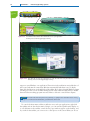
Notes To get a flip view of applications, press Alt+Tab, and to minimize all applications, click Show
the Desktop in the Quick Launch area. If you are using the Aero interface, in the Quick Launch area,
click the Switch between windows icon to see the flip 3D view of open applications (see Figure 2-22).
Alternately, you can press Win+Tab (the Windows key and the Tab key). Then use the Tab key to move
from one open application to another.
The notification area, also called the system tray or systray, is usually on the right side of
the taskbar and displays open services. A service is a program that runs in the background to
56
CHAPTER 2
Introducing Operating Systems
A+
220-701
3.2
Figure 2-21 The Windows Vista taskbar with a thumbnail of one open application
Courtesy: Course Technology/Cengage Learning
Figure 2-22 Press Win+Tab to view open applications in a flip 3D view when using the Vista Aero interface
Courtesy: Course Technology/Cengage Learning
support or serve Windows or an application. The services in the notification area include the volume control and network connectivity. Windows automatically hides these icons. To display
them, click the left arrow on the right side of the taskbar. If you have a sluggish Windows system,
one thing you can do is look at all the running services in the notification tray and try to disable
the services that are taking up system resources. How to do that is covered in later chapters.
Notes Microsoft insists that using the term system tray or systray for the notification area is wrong,
although in some Microsoft documentation, you’ll find these terms used.
To control the Start menu, taskbar, notification area, and open applications, right-click
the taskbar and use the shortcut menu. Using it, you can turn the Quick Launch display on
or off, add items to the taskbar, control the way open windows appear on the desktop, and,
if you unlock the taskbar, you can move it to other places on the screen. When you choose
Using Windows 2000/XP/Vista
A+
220-701
3.2
57
Properties from this shortcut menu, the Taskbar and Start Menu Properties dialog box
appears (see Figure 2-23). Using it, you can further control the Start menu and the taskbar.
2
A+ 220-701
Figure 2-23 Use the Taskbar and Start Menu Properties window to control what appears in
the Start menu and taskbar
Courtesy: Course Technology/Cengage Learning
A+ Exam Tip The A+ 220-701 Essentials exam expects you to know how to configure and use the
Start Menu, taskbar, and notification area, also called the systray.
PERSONALIZE THE WINDOWS DESKTOP
You can also personalize the desktop. To use the Personalization window, right-click anywhere on
the desktop, and choose Personalize from the shortcut menu (see Figure 2-24). Using this window,
you can personalize the way Windows appears, including the desktop, sounds, mouse action,
color themes, and display settings. As a support technician, you are often called on to solve problems with display settings. When and how to change these settings are covered in Chapter 9.
A+
220-701
3.3
DEFAULT PROGRAMS AND FILE ASSOCIATIONS
The Default Programs entry in the right column of the Start menu accesses the Default Program
window to change default programs associated with certain file extensions and activities. For
example, look at the top left of the Start menu column in Figure 2-15, and you can see that the
current default browser is Internet Explorer and the default e-mail software is Windows Mail.
You can use the Default Programs window to change these applications to another browser or
e-mail software. You can also use this window to change the way audio CDs, DVD movies,
games, pictures, video files, and audio files are handled and to change the default program associated with a certain file extension. A file extension is one or more characters following the last
period in a filename, such as .exe, .txt, or .avi. The file extension indicates how the file is organized or formatted, the type content in the file, and what program uses the file. For example,
the .avi file extension is a video file that is normally played by Windows Media Player.
58
CHAPTER 2
Introducing Operating Systems
A+
220-701
3.3
Figure 2-24 Use the Personalization window to change the appearance of Windows
Courtesy: Course Technology/Cengage Learning
Follow these steps to use the Default Programs window to change the program associated
with a file extension:
1. Click Start and then click Default Programs. The Default Programs window opens (see
Figure 2-25).
Figure 2-25 The Default Programs window is used to change file associations
Courtesy: Course Technology/Cengage Learning
Using Windows 2000/XP/Vista
A+
220-701
3.3
59
2. Click Associate a file type or protocol with a program. The list of current associations
appears.
4. The box displays installed programs that can handle .avi files. Make your selection
and click OK and then click Close. Close the Default Programs window.
Figure 2-26 Select the default program to play an .avi video file
Courtesy: Course Technology/Cengage Learning
A+
220-701
3.1
3.2
DIFFERENCES IN THE WINDOWS XP/2000 DESKTOP
AND THE VISTA DESKTOP
Comparing the Windows XP desktop shown in Figure 2-27 to the Vista desktop, you can
see many similarities. When you point to All Programs in Figure 2-27, the list of currently
installed software appears. Figure 2-28 shows the default entries that appear when you point
to Accessories and then System Tools. You can use these tools to back up data, clean up a
hard drive, schedule tasks, restore Windows settings, and do various other things when solving
problems with Windows. In Vista, the System Tools group includes all the XP tools plus a new
one: Internet Explorer (No Add-ons). This tool makes it possible to open Internet Explorer in
its bare-bones state with no add-ons running; this state is useful when troubleshooting.
Windows 2000 menus are organized similar to those of Windows XP.
2
A+ 220-701
3. Select the file extension you want to change and click Change program. The Open
With dialog box appears (see Figure 2-26).
60
CHAPTER 2
Introducing Operating Systems
A+
220-701
This line divides pinned
programs from recently
used programs
3.1
3.2
Current user
Pinned programs
Recently used folders
Programs recently used
Utilities recently used
Default utilities
Used to access list
of programs
Figure 2-27 The Windows XP desktop and Start menu
Courtesy: Course Technology/Cengage Learning
Figure 2-28 Click Start, All Programs to view the list of currently installed software
Courtesy: Course Technology/Cengage Learning
You can control the Start menu and taskbar in Windows XP/2000 in a similar way as
in Vista. However, Windows XP/2000 uses the Display Properties window rather than
the Personalization window of Vista to control the appearance of Windows. You access
the window the same way as the Personalization window of Vista: Right-click the desktop and select Properties from the shortcut menu (see Figure 2-29). The left side of
Figure 2-29 shows the Desktop tab of the Display Properties window for Windows XP.
Using Windows 2000/XP/Vista
61
A+
220-701
2
3.1
3.2
A+ 220-701
Figure 2-29 Windows XP Display Properties window lets you change settings for your desktop
Courtesy: Course Technology/Cengage Learning
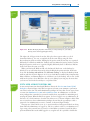
The right side of Figure 2-29 shows the dialog box that appears when you click
Customize Desktop. You can accomplish about the same things using the Vista
Personalization window and the XP Display Properties window, but they are organized
differently. For Windows 2000, the Taskbar and Start Menu Properties window and the
Display Properties window are organized slightly differently than for Windows XP, but
both work about the same as in XP.
When you first install Windows XP, only the Recycle Bin shows on the desktop by
default. You can add other shortcuts by using the Display Properties window. In the window, click the Desktop tab and then click Customize Desktop to display the Desktop Items
window, which is shown in Figure 2-29. You can check My Documents, My Computer, My
Network Places, and Internet Explorer to add these icons to the desktop. Also notice on this
window the option to have Windows clean up your desktop by moving any shortcuts that
you have not used in the last 60 days to a separate folder.
A+
220-701
3.1
VISTA USER ACCOUNT CONTROL BOX
A new security feature introduced with Windows Vista is the User Account Control (UAC)
dialog box, shown in Figure 2-30. This box appears each time a user attempts to perform an
action that can be done only with administrative privileges. In Vista, there are two types of user
accounts: An administrator account and a standard account. An administrator account has
more privileges than a standard account and is used by those responsible for maintaining and
securing the system. When the UAC box appears, if a user is logged on as an administrator, all
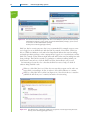
she has to do is click Continue to close the box and move on, as shown in Figure 2-30(a). If the
user account does not have administrative privileges, the user has the opportunity to enter a
password of an administrative account to continue, as shown in Figure 2-30(b).
The purposes of the UAC box are: (1) to prevent malicious background tasks from doing
harm when the administrator is logged on, and (2) to make it easier for an administrator to
log in using a less powerful user account for normal desktop activities, but still be able to
perform administrative tasks while logged in as a regular user. It is possible to disable the
62
CHAPTER 2
Introducing Operating Systems
(b)
A+
220-701
3.1
(a)
Figure 2-30 The User Account Control box appears each time a user attempts to perform an action requiring
administrative privileges: (a) the current account has administrative privileges; (b) the current
account does not have administrative privileges
Courtesy: Course Technology/Cengage Learning
UAC box, but for security purposes, that is not recommended. For example, suppose someone is logged on as an administrator with the UAC box turned off and clicks a malicious
link on a Web site. Malware can download and install itself without the user’s knowledge
and might get admin privileges on the computer. If he’s logged on as a standard user and the
UAC box is turned off, the malware might still install without the user’s knowledge but with
lesser privileges. The UAC box stands as a gatekeeper to malware installing behind your
back because someone has to click the UAC box before the installation can proceed.
It’s interesting to know the color codes that the UAC box uses to help you decide if
software being installed is safe:
If the top of the UAC box is red, Vista does not trust this program one bit and is not
happy with you installing it. In fact, it refuses to allow the installation to continue.
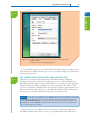
If the top of the UAC box is yellow (see Figure 2-31), Vista doesn’t know or trust the
publisher. It will allow you to continue, but with a serious warning.
Figure 2-31 This UAC box using a yellow bar indicates the program has not been approved by Microsoft
Courtesy: Course Technology/Cengage Learning
Using Windows 2000/XP/Vista
A+
220-701
3.1
3.2
3.3
If the top of the UAC box is green, Vista is happy to accept one of its own Windows
components to be installed.
If the top of the UAC box is gray, the program has signed in with Microsoft and Vista
is happy to install it.
WINDOWS EXPLORER AND THE COMPUTER WINDOW
The two most useful tools to explore files and folders on your computer are Windows
Explorer and the Vista Computer window. (Windows 2000/XP calls the Computer window
the My Computer window.) With Windows Vista and Windows XP, these windows are
really the same tools with different names. Under Windows 2000, there are slight differences
between the My Computer window and Windows Explorer. Because all the windows work
about the same way, in this part of the chapter we’ll cover them for all three operating
systems together.
To access the Computer or My Computer window, use one of these methods:
For Windows Vista, click Start and click Computer.
For Windows XP, click Start and click My Computer.
For Windows 2000, double-click My Computer on the desktop.
Earlier in the chapter, you saw the Vista Computer window in Figure 2-18. Figure 2-32
shows the Windows XP My Computer window, which looks the same as the Windows 2000
My Computer window.
Figure 2-32 Use Windows XP My Computer to manage system resources
Courtesy: Course Technology/Cengage Learning
Regardless of the OS, Windows Explorer is easily opened in these two ways:
Right-click Computer or My Computer and select Explore from the menu.
Right-click Start and select Explore from the menu.
2
A+ 220-701
A+
220-701
63
64
A+
220-701
3.2
3.3
CHAPTER 2
Introducing Operating Systems
Let’s now turn our attention to how to use the Computer, My Computer, and Explorer
windows in all three OSs to manage files and folders and other system resources.
FILES AND DIRECTORIES
A+
220-701
3.3
Every OS manages a hard drive, optical drive, floppy disk, or USB drive by using directories
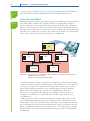
(also called folders), subdirectories, and files. The drive is organized with a single root
directory at the top of the top-down hierarchical structure of subdirectories, as shown in
Figure 2-33. The exception to this rule is a hard drive because it can be divided into partitions that can have more than one volume such as drive C and drive D on the same physical
hard drive. For a volume, such as drive C, the root directory is written as C:\. Each volume
has its own root directory and hierarchical structure of subdirectories.
C:\
Files
C:\Windows
C:\Data
Files
C:\Program Files
Files
C:\Data\Business
Files, including
Letter.docx
Files
Hard drive
C:\Data\Friends
Files
Figure 2-33 Storage devices such as a USB drive, CD, or hard drive, are organized into directories and
subdirectories that contain files
Courtesy: Course Technology/Cengage Learning
As shown in Figure 2-33, the root directory can hold files or other directories, which
can have names such as C:\Data. These directories, called subdirectories, child directories,
or folders, can, in turn, have other directories listed in them. Any directory can have
files and other subdirectories listed in it; for example, Figure 2-33 shows C:\Data\
Business\Letter.docx. In this path to the file, the C: identifies the volume. If a
directory is on a floppy disk, then either A: or B: identifies it. If a directory is on
a volume on a hard drive or on a CD, USB drive, or DVD, a letter such as C:, D:,
or F: identifies it.
When you refer to a drive and directories that are pointing to the location of a file,
as in C:\Data\Business\Letter.docx, the drive and directories are called the path to the
file (see Figure 2-34). As you learned earlier in the chapter, when naming a file, the first
part of the name before the period is called the filename (Letter), and the part after the
period is called the file extension (docx), which has one or more characters to identify
the type file. The .docx file extension identifies the file type as a Microsoft Word 2007
document file.
n
to
si
o
ex
te
n
le
Fi
Fi
le
na
m
e
ct
or
re
Su
b
di
re
di
Su
b
oo
R
C: \
Data \ Business \ Letter . docx
Figure 2-34 The complete path to a file includes the volume letter, directories, filename, and file
extension; the colon, backslashes, and period are required to separate items in the path
Courtesy: Course Technology/Cengage Learning
NAVIGATE THE DIRECTORY STRUCTURE
When working with the Windows Explorer or Computer window, these tips can make your
work easier:
Tip 1. Drill down to subfolders inside folders by double-clicking the folder to cause
files and subdirectories (also called subfolders) to appear in the right pane. When you
click the white arrow to the left of a folder in Vista or click the plus sign to the left of
a folder in 2000/XP, its subfolders appear underneath it in the left pane.
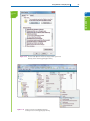
Tip 2. To control what information appears about files and subfolders in the right
pane, right-click the heading bar in the pane (see Figure 2-35). Check items you want
to appear as columns in the right pane.
Tip 3. Often-used folders are listed at the top of the left pane in the Favorite Links
area. Click an entry there to display its contents.
Tip 4. For Vista, to find a folder or file, use the Search box in the upper-right corner
of the window.
Tip 5. For Vista, use the forward and back arrows in the upper-left corner to move
forward and backward to previous views.
Figure 2-35 Right-click the column heading to select columns to display
Courtesy: Course Technology/Cengage Learning
2
A+ 220-701
td
ir e
ct
or
y
ct
or
3.3
y
y
to
ro
\d
a
ot
A+
220-701
65
ta
Using Windows 2000/XP/Vista
66
A+
220-701
3.3
CHAPTER 2
Introducing Operating Systems
As a PC support technician, you need to understand where Windows puts important user
files and folders. Here’s the default layout, although later in the book you will learn how to
change these locations:
In Windows Vista, user data and settings are stored in a user folder and its subfolders.
The folder name is the user account name and the folder is created under the
%SystemDrive%\Users folder, for example, C:\Users\Jean Andrews.
In Windows 2000/XP, the user folder is also named after the user account name. The
folder is created under the %SystemDrive%\Documents and Settings folder, for example, C:\Documents and Settings\Jean Andrews. The subfolders under the user folder
are organized differently under Windows 2000/XP than under Windows Vista.
Notes In Microsoft documentation, the %SystemDrive% folder means the volume on which Windows is
installed. Most often, this drive is C:, although in a dual boot environment, one OS might be installed on C:
and another on a different drive. For example, Windows XP can be installed on C: and Windows Vista
installed on E:. You will learn how to set up these dual boot installations in Chapter 12.
CHANGING FOLDER OPTIONS
You can also view and change options assigned to folders; these options control how users
view the files in the folder and what they can do with these files.
Windows identifies file types primarily by the file extension. In Windows Explorer and the
Computer window, Windows has an annoying habit of hiding the extensions of certain files.
By default, Windows hides the file extension of a file if it knows which application to use to
open or execute the file. For example, just after installation, it hides .exe, .com, .sys, and .txt
file extensions, but does not hide .doc, .ppt, or .xls file extensions until the software to open
these files has been installed. Also, Windows really doesn’t want you to see its own system
files, and it hides these files from view until you force it to show them.
To view hidden files and file extensions, do the following:
1. Select the folder where system files are located.
2. Click Tools and then click Folder Options. The Folder Options window opens.
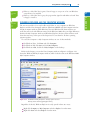
3. Click the View tab (see Figure 2-36). Select Show hidden files and folders. Uncheck
Hide extensions for known file types. Uncheck Hide protected operating system files.
Windows complains it doesn’t want to show you these files. Click Yes to confirm that
you really want to see them.
4. Click Apply. Click OK to close the Folder Options window.
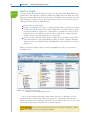
CREATE A FILE
You can create a file using a particular application, or you can create a file using
Windows Explorer or the Computer window. In Explorer and the Computer window, to
create a file, right-click in the unused white area in the right pane of the window and
select New from the shortcut menu. (Alternately, in the menu bar, you can click File and
then click New.) The menu lists applications you can use to create the file in the current
folder (see Figure 2-37). Click the application and the file is created. You can then
rename the filename. However, to keep the proper file association, don’t change the file
extension.
Using Windows 2000/XP/Vista
A+
220-701
67
2
3.3
A+ 220-701
Figure 2-36 Use the Folder Options window to display hidden system files
Courtesy: Course Technology/Cengage Learning
Figure 2-37 Create a new file using Windows Explorer
Courtesy: Course Technology/Cengage Learning
68
A+
220-701
3.3
CHAPTER 2
Introducing Operating Systems
CREATE A FOLDER
To create a folder, first select the folder you want to be the parent folder. (Remember that a
parent folder is the folder that contains the child folder.) Right-click in the white area of the
right pane and select New from the shortcut menu (or click File, New in the menu bar). The
menu in Figure 2-37 appears. Notice in the menu that for Vista, you have three choices for
folder types. These choices are explained here:
Folder creates a regular folder.
Compressed (zipped) Folder creates a compressed folder with a .zip extension. Any file
or folder that you put in this folder will be compressed to a smaller size than normal.
A compressed folder is often used to compress files to a smaller size so they can more
easily be sent by e-mail. When you remove a file or folder from a compressed folder,
the file or folder is uncompressed back to its original size.
Briefcase creates a Briefcase folder, which is a folder that can be used to sync up files
in this folder with its corresponding Briefcase folder on another computer. (Windows
offers two ways to sync files: Briefcase and Offline Files, both of which are covered in
Chapter 17.)
Make your selection and the folder is created and highlighted so that you can rename it
(see Figure 2-38).
Figure 2-38 Edit the new folder’s name
Courtesy: Course Technology/Cengage Learning
You can create folders within folders within folders, but there is a limitation as to the
maximum depth of folders under folders; how deep you can nest folders depends on the
length of the folder names themselves. In Chapter 13, you will learn that you can also create
and rename a folder using commands from a command prompt.
A+ Exam Tip The A+ 220-701 Essentials exam expects you to know how to create folders, navigate
the directory structure, create files, and change file attributes.
Using Windows 2000/XP/Vista
A+
220-701
3.3
69
COPY OR DELETE FILES OR FOLDERS
To copy a file or folder, right-click it and select Copy from the shortcut menu. Then click
in the white area of the folder where the copied item is to go and select Paste from the
shortcut menu. You can also drag and drop the item to its new location. If the location is
on the same drive as the original location, the file or folder will be automatically deleted
from its original location. If you don’t want it deleted, hold down the Ctrl key while you
drag and drop.
To delete a file or folder using Explorer, right-click the file or folder and select Delete from
the shortcut menu. A confirmation dialog box asks if you are sure you want to delete the
item. If you click Yes, you send the file or folder and all its contents, including subfolders, to
the Recycle Bin. You can also hold down the Shift or Ctrl key as you click to select multiple
items to delete, copy, or move at the same time.
Notes Appendix B lists handy keystrokes to save you time when working with Windows.
Emptying the Recycle Bin will free up your disk space. Files and folders sent to the
Recycle Bin are not really deleted until you empty the bin. To do that, right-click the bin
and select Empty Recycle Bin from the shortcut menu. In Chapter 13, you will learn that
you can also copy and delete files and folders using commands from a command prompt.
CHANGE FILE ATTRIBUTES
Using Explorer or the Computer window, you can view and change the properties assigned
to a file; these properties are called the file attributes. Using these attributes, you can do
such things as hide a file, make it a read-only file, or flag a file to be backed up. From
Explorer or the Computer window, right-click a file and select Properties from the shortcut
menu. The Properties window shown on the left side of Figure 2-39 opens.
From the Properties window, you can change the read-only, hidden, archive, and indexing
attributes of the file. (Indexing is used only in Windows Vista.) To make the file a read-only
file or to hide the file so that it does not appear in the directory list, check the appropriate
box and click Apply. The archive attribute is used to determine if a file has changed since
the last backup. To change its value, click Advanced in the Properties window (see the right
side of Figure 2-39). Make your change and click OK.
Also notice in the Advanced Attributes box in Figure 2-39 the option to Index this file
for faster searching. An index is a list of items that is used to speed up a search, and Vista
is the first Windows OS to use indexing for its searches. By default, it includes in the
index only common user data files and folders that are normally searched for. Program
files and Windows files are not included by default. Using the Advanced Attributes box,
you can include or exclude the file or folder from the index. Incidentally, to change the
type of files that Vista indexes, in the left pane of Control Panel, click Change how
Windows searches.
2
A+ 220-701
It’s also interesting to know that the Windows desktop is itself a folder. The Desktop of the
currently logged in user is always listed as the first entry at the top of the Folders list in the
Explorer or Computer window. However, the Desktop folder is located at %SystemDrive%\
Users\username\Desktop for Windows Vista. For example, if the user, Anne, wants to create a
folder named Presentations on the Vista desktop, she can right-click anywhere on the desktop
and select New, Folder from the shortcut menu. The folder is created and she can then rename
it Presentations. The folder appears on the desktop each time she logs onto the system. The
actual location of this folder is at C:\Users\Anne\Desktop\Presentations.
70
CHAPTER 2
Introducing Operating Systems
A+
220-701
3.3
Figure 2-39 Properties of a file in Windows
Courtesy: Course Technology/Cengage Learning
A+
220-701
3.2
THE CONTROL PANEL
The Control Panel is a window containing several small utility programs called applets that
are used to manage hardware, software, users, and the system. For Windows Vista and XP,
to access the Control Panel, click Start and then click Control Panel. For Windows 2000, to
open Control Panel, click Start, Settings, and Control Panel.
Figure 2-40 shows the Windows Vista Control Panel, and Figure 2-41 shows the
Windows XP Control Panel in Category View. Select a category to see the applets in that
category, or click Switch to Classic View to see the applets when you first open Control
Panel as they are displayed in earlier versions of Windows.
Besides accessing the several applets in Control Panel from the Control Panel window,
each applet can be accessed directly. You will learn how to do this as you learn to use
these applets later in the book. For all the applets, if you know the name of the applet
program file, you can launch the applet by using the Vista Start dialog box (called the
Run dialog box in Windows 2000/XP). For example, to open the Mouse Properties
applet, type Main.cpl in the Start box, and then press Enter. An applet has a .cpl file
extension.
A+ Exam Tip The A+ 220-701 Essentials exam expects you to be familiar with the Control Panel
and its applets.
Using Windows 2000/XP/Vista
A+
220-701
71
2
3.2
A+ 220-701
Figure 2-40 The Windows Vista Control Panel is organized by category, although you can easily switch to
Classic View
Courtesy: Course Technology/Cengage Learning
View items rather
than categories
Figure 2-41 The Windows XP Control Panel
Courtesy: Course Technology/Cengage Learning
72
A+
220-701
3.2
CHAPTER 2
Introducing Operating Systems
SYSTEM INFORMATION UTILITY
The System Information utility (see Figure 2-42) gives a wealth of information about
installed hardware and software, the current system configuration, and currently running
programs. For example, you can use it to find out what processor or BIOS version is
installed on the motherboard, how much RAM is installed, the directory where the OS is
installed, the size of the hard drive, the names of currently running drivers, and much more.
The System Information window is a composite of information available from several other
windows and is especially useful when talking with a technical support person on the phone
because it provides a broad technical view of information about the system.
Figure 2-42 Use the Windows System Information utility to examine your system
Courtesy: Course Technology/Cengage Learning
To run System Information in Windows Vista, click Start, and enter Msinfo32.exe in the
Start box and press Enter. The System Information window opens. For Windows 2000/XP,
click Start, click Run, enter Msinfo32.exe in the Run dialog box, and press Enter.
System Information can be useful when strange error messages appear during startup. Use
it to get a list of drivers that loaded successfully. If you have saved the System Information
report when the system was starting successfully, comparing the two reports can help identify the problem device.
A+ Exam Tip The A+ 220-701 Essentials exam expects you to be familiar with and know how to
use the Windows 2000/XP/Vista desktop, Computer, My Computer, Windows Explorer, Control Panel,
System Information, and the Command Prompt windows. All these tools are discussed in this section. If
the utility can be accessed by more than one method, you are expected to know all of the methods.
Using Windows 2000/XP/Vista
A+
220-701
3.2
73
COMMAND PROMPT WINDOW
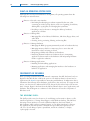
Figure 2-43 Use the Exit command to close the Command Prompt window
Courtesy: Course Technology/Cengage Learning
When you’re working in the window, to clear the text in the window, type cls and press
Enter. To close the window, type exit and press Enter, as shown in the figure. Alternately,
you can click the X close window icon in the upper-right corner of the window. Throughout
this book, you will learn many commands that work from this window, and you can also
launch a program from this window. For example, when you enter the msinfo32.exe program name, the System Information window is launched.
Windows Vista has two levels of command prompt windows: a standard window and an
elevated window. The standard window is shown in Figure 2-43. Notice in the figure that the
default directory is the currently logged on user’s folder. Commands that require administrative
privileges will not work from this standard command prompt window. To get an elevated
command prompt window, click Start, All Programs, Accessories, and right-click Command
Prompt. Then select Run as administrator from the shortcut window and respond to the UAC
box. The resulting command prompt window is shown in Figure 2-44. Notice the word
Figure 2-44 An elevated command prompt window
Courtesy: Course Technology/Cengage Learning
2
A+ 220-701
As you have already seen in this chapter, individual commands can be entered in the Vista
Search box or the Windows 2000/XP Run box. However, you can also open a command
prompt window and use it to enter multiple commands to perform a variety of tasks. To
open the window, in the Vista Start box or the Windows 2000/XP Run box, enter cmd.exe
and press Enter. Alternately, you can click Start, All Programs, Accessories, and Command
Prompt. The Vista Command Prompt window is shown in Figure 2-43.
74
CHAPTER 2
Introducing Operating Systems
Administrator in the title bar, which indicates the elevated window, and the default directory,
which is the %systemdrive%\Windows\system32 folder.
>> CHAPTER SUMMARY
Operating systems that have been or are being used for desktop computers include DOS,
Windows 9x/Me, Windows NT/2000/XP/Vista, UNIX, a version of UNIX called Linux,
and the Mac OS. Windows 7 is the next Microsoft operating system.
A dual boot makes it possible to boot a computer from one of two installed operating systems.
A virtual machine is software that creates one or more logical computers on a physical
computer.
An operating system manages hardware, runs applications, provides an interface for
users, and stores, retrieves, and manipulates files.
Every OS is composed of two main internal components: a shell portion to interact with
users and applications and a kernel portion to interact with hardware. In addition, an OS
needs a place to store configuration information, which is normally stored in a database
such as the Windows Registry, or in text files, called initialization files.
An application is launched as a Windows process which can then create multiple threads
to the OS requesting tasks to be done.
An OS manages hardware by way of device drivers or by using system BIOS (firmware).
Sometimes, device drivers are considered part of the OS.
Current processors can process 32 bits or 64 bits at a time. Most processors used with
desktop or laptop systems are hybrid processors: They use a 32-bit core and can work
using either a 32-bit instruction set or a 64-bit instruction set.
Operating systems process either 32 bits or 64 bits. Microsoft calls 32-bit operating
systems x86-based OSs. The term x64 applies to 64-bit OSs.
64-bit operating systems require 64-bit drivers.
Each edition of Vista comes in 32-bit and 64-bit versions. Windows XP Professional
comes in a 64-bit version.
The Vista desktop differs from the Windows 2000/XP desktop in that Vista offers the
Aero user interface and the sidebar with gadgets. Also, the Start menu is reorganized.
Four ways to launch an application are to use the Start menu, the Search box
(Windows 2000/XP Run box), Windows Explorer (similar to the Vista Computer or
Windows 2000/XP My Computer window), or a shortcut icon.
The right side of the taskbar is called the notification area, which some call the system tray.
Windows uses the file extension to know which application to open to manage the file,
which is called the file association.
The Vista UAC box is used to protect the system against malware.
Windows Explorer, the Vista Computer window, and the XP/2000 My Computer window
are used to manage files and folders in secondary storage.
System Information gives much information about the computer, including hardware,
device drivers, the OS, and applications.
Reviewing the Basics
75
Control Panel holds a group of applets to manage the system.
Multiple commands can be issued from a Command Prompt window.
>> KEY TERMS
For explanations of key terms, see the Glossary near the end of the book.
administrator account
Aero user interface
backward-compatible
Briefcase
child directory
command prompt window
Compressed (zipped) Folder
desktop
device driver
distribution
dual boot
elevated command prompt
window
executive services
file attribute
file extension
filename
folders
graphical user interface (GUI)
HAL (hardware abstraction layer)
initialization files
kernel
kernel mode
netbook
notification area
operating system (OS)
original equipment manufacturer
(OEM) license
patches
path
Registry
root directory
service
service pack
shell
standard account
subdirectory
system tray
systray
taskbar
thread
User Account Control (UAC)
dialog box
user mode
virtual machine (VM)
volume
>> REVIEWING THE BASICS
1. Which Microsoft operating system was the first to use all 32-bit processing?
2. What are the hardware requirements to use the Vista Aero user interface?
3. What is the application mentioned in the chapter that creates a virtual machine on a computer?
4. List four major functions of an OS.
5. What is the next Microsoft operating system for desktop computers to be released in 2010?
6. The Windows shell operates in ______ mode and the kernel operates in ______ mode.
7. How many bits does an x86-based operating system process at one time?
8. What term does Intel use to describe a processor technology that uses all 64-bit
processing?
9. What term does AMD use to describe the processor technology that uses a 64-bit instruction set with 32-bit internal core processing?
10. In question 9 above, what term does Intel use to describe the same technology?
11. Which Windows XP operating system is a 64-bit OS?
12. Which edition of Vista comes packaged with a 32-bit DVD as well as a 64-bit DVD?
13. What is the memory limitation for a 32-bit operating system?
14. On the Vista Start menu, where might you expect to be able to access user files?
15. How can you add the sidebar to the Vista desktop?
16. When is the Vista flip 3D view available to Vista?
2
76
CHAPTER 2
Introducing Operating Systems
17. What is the keyboard shortcut to the flip 3D view?
18. The taskbar notification area includes icons for currently running services. What is another
term for this area?
19. What part of a filename does Windows use to know which application to open to manage
the file?
20. When does a user need to enter a password into the UAC box in order to continue?
21. What extension is used to name a compressed folder?
22. What is the path and folder name to the desktop folder for the user Jane when Windows
Vista is installed on drive C?
23. List five file attributes. Which attribute applies only to Vista?
24. How do you access the Properties box for a file to change an attribute?
25. What is the program name for the System Information utility?
>> THINKING CRITICALLY
1. If your printer is giving you trouble, what is the best way to obtain an update for the
device driver?
2. What Windows tool can you use to know how much RAM is installed on your system?
3. Why is 16-bit Windows software considered to be legacy software?
4. Can you install Vista Ultimate 32-bit version or 64-bit version on an Intel Quad Core
system manufactured in 2008?
5. Mary wants her x86-based version of Windows Vista Business edition to run faster.
She has 4 GB of memory installed on the motherboard. She decides more memory
will help. She installs an additional 2 GB of memory for a total of 6 GB, but does not see
any performance improvement. What is the problem and what should you tell Mary?
a. She should use Device Manager to install the memory in Vista. After it is installed,
performance should improve. Tell Mary how to open Device Manager.
b. A 32-bit OS cannot use more than 4 GB of memory. Tell Mary she has wasted her money.
c. A 32-bit OS cannot use more than 4 GB of memory. Tell Mary to upgrade her system
to the 64-bit version of Vista Business.
d. A 32-bit OS cannot use more than 4 GB of memory. Explain to Mary the problem and
discuss with her the possible solutions.
6. Jack needs to e-mail two documents to a friend but the files are so large his e-mail server
bounced them back as undeliverable. What is your advice?
a. Tell Jack to open the documents and break each of them into two documents and then
e-mail the four documents separately.
b. Tell Jack to put the two documents in a compressed folder and e-mail the folder.
c. Tell Jack to put each document in a different compressed folder and e-mail each folder
separately.
d. Tell Jack to put the documents on a USB drive and snail mail the drive to his friend.
Hands-On Projects
77
>> HANDS-ON PROJECTS
PROJECT 2-1:
Using the System Information Utility
Do the following to run the System Information utility and gather information about your
system:
1. In the Vista Search box or the XP/2000 Run box, type Msinfo32.exe and press Enter.
The System Information window opens.
2. Browse through the different levels of information in this window and answer the following questions:
a. What OS and OS version are you using?
b. What is your CPU speed?
c. What is your BIOS manufacturer and version?
d. How much video RAM is available to your video adapter card? Explain how you
got this information.
e. What is the name of the driver file that manages your parallel port? Your
USB ports?
PROJECT 2-2:
Using a Freeware Diagnostic Utility
You can download many freeware diagnostic utilities from the Internet and use them to
examine, troubleshoot, and benchmark a system. Do the following to download and use one
utility to examine your system:
1. Go to the CNET Networks Web site at www.download.com and use the Web site search
box to search for Fresh Diagnose. Download the utility, saving it to a folder on your
hard drive named Downloads.
2. Double-click the file to execute the program and install the software. When given the
opportunity, choose to create a shortcut to the software on your desktop.
3. Double-click the shortcut to run the Fresh Diagnose program.
4. Browse through the Fresh Diagnose menus and answer the same questions listed in
Project 2-1 for the Windows 2000/XP/Vista System Information utility.
5. Compare the two utilities, Fresh Diagnose and System Information, by answering the following questions:
a. Which utility is easier to use and why?
b. Which utility gives more information about your system?
c. What is one advantage that System Information has over Fresh Diagnose?
d. What is one advantage that Fresh Diagnose has over System Information?
e. Which utility do you prefer and why?
2
78
CHAPTER 2
PROJECT 2-3:
Introducing Operating Systems
Using the Taskbar
Using a Windows 2000/XP/Vista computer, do the following and answer the following questions about the taskbar:
1. List the items in the Quick Launch area of the taskbar. What is the program name and
path to each item?
2. List the items in the notification area (system tray) of the taskbar. Don’t forget to list the
items hidden in this area. Investigate and describe the purpose of each program.
3. Move the taskbar from the bottom of the screen to the left side. List the steps you took
to do that.
4. If you are using a Vista computer, press Win+Tab and describe the results. Are you using
the Vista Aero user interface?
PROJECT 2-4:
Practicing Keystrokes
Refer to Appendix B, Keystroke Shortcuts in Windows, for help with this project.
Disconnect your mouse and then practice using the keyboard in case you must troubleshoot
a system when the mouse does not work. Do the following:
1. Open Explorer and display the files in the root directory of drive C. List the steps and
keystrokes you used to do this.
2. Unhide all the files in this folder. From the Tools menu, select Folder Options, select the
View tab, and then select Show hidden files and folders. Also uncheck Hide extensions
for known file types and uncheck Hide protected operating system files. List the steps and
keystrokes you used.
3. What is the exact size of the file Pagefile.sys in bytes, and the date and time the file was
last modified?
PROJECT 2-5:
Using Windows Explorer
Do the following to practice using Windows Explorer:
1. Open Windows Explorer.
2. Create a folder under the root directory of the hard drive called \Temp. List the steps
you took.
3. Add a subfolder to \Temp called \MyFiles. List the steps you took.
4. Create a text file in the MyFiles folder named Text1.txt. List the steps you took.
5. Create a shortcut to that folder on the Windows desktop. List the steps you took.
6. Rename the file Text2.txt.
7. Double-click the shortcut on the desktop. What error did you get?
8. To clean up after yourself, delete the \Temp folder and the shortcut.
Real Problems, Real Solutions
79
>> REAL PROBLEMS, REAL SOLUTIONS
REAL PROBLEM 2-1: Becoming a PC Support Technician
You’ve just been hired as a PC support technician in the IT department of your university.
At the job interview, you were promised a two-week training period, but by noon on your
first day on the job it dawns on you that “training period” means you gotta train yourself
really quick! Listed below are some problems you encounter that day. How do you solve
these problems and what Windows tools do you use?
1. A history professor calls you into his office and tells you he thinks the memory on his
Vista computer needs upgrading. He wants you to tell him how much RAM is currently
installed. What do you do?
2. A PE instructor discovers the history professor has Windows Vista on his desktop. She
thinks she has Windows XP on her desktop and wants you to tell her exactly which OS
she has installed. What do you do?
3. Your boss asks you to go down the hall to the Windows XP computer in the break room
and find out the path and name of the device driver for the optical drive (CD drive or
DVD drive) that is installed. What steps do you use? What is the path and name of the
optical drive device driver on your Windows XP or Vista system?
4. The Office Administrator for Career Education uses MSWord often and wants you to
place a shortcut on her desktop to launch this application. List the steps to do that.
5. A student in a computer lab is trying to answer a question in the lab about the Windows
Vista sidebar. She needs to add a gadget to the sidebar to show the current temperature
in Seattle. What steps do you give her to find the answer? Print the screen showing the
gadget. List the steps you took to print the screen.
REAL PROBLEM 2-2: Becoming a PC Technician Researcher
Windows Help might provide useful information when you try to resolve a problem. To
access Windows Help, click Start, and then click Help and Support. Also, the Microsoft
Web site (http://support.microsoft.com) has lots of information on troubleshooting. Search
for the device, an error message, a Windows utility, a symptom, a software application,
an update version number, or keywords that lead you to articles about problems and
solutions. You can also go to www.microsoft.com to browse for links on hardware
and software compatibility. Other sources of help are user and installation manuals for
applications and hardware devices, training materials, and the Web sites of application and
device manufacturers. You can also use a search engine such as Google (www.google.com).
Enter the error message, software application, symptom, or Windows utility in the search
box to search the Web for answers, suggestions, and comments.
Notes If you are serious about learning to provide professional support for Windows, each OS has a
resource kit, including support software and a huge reference book containing inside information about
the OS. Check out Microsoft Windows Vista Resource Kit, Microsoft Windows XP Professional Resource Kit,
or Microsoft Windows 2000 Professional Resource Kit. All three are put out by Microsoft Press.
2
80
CHAPTER 2
Introducing Operating Systems
Beware, however, that you don’t bump into a site that does more harm than good. Some
sites are simply guessing, offering incomplete and possibly wrong solutions, and even offering a utility the site claims will solve your problem but really contains only pop-up ads or
spyware. Use only reputable sites you can trust. You’ll learn about several of these excellent
sites in this book.
Answer the following questions using any of the resources mentioned previously:
1. You have just purchased Vista Home Premium edition, which comes on a 32-bit DVD.
List the steps to buy the 64-bit DVD version of Vista Home Premium. What sources of
information did you use?
2. Your Vista system is slow and you decide to turn off the Aero user interface to save on
resources. List the steps to do that and the source of information you used.
3. You have upgraded your Windows XP system to Vista but now the network connection
will not work. You realize you need to install Vista drivers for the network port that
comes directly off your ASUS P4P800 motherboard. What is the name of the driver file
you need to download and how did you find it?
4. Your friend has asked you if you know how to turn off the UAC box so it never appears
on his Vista system. List the steps to do that and the source of information you used.
5. What was the first Intel processor to use the EM64T technology? What is your source of
information?