1
Transmitting, Receiving and Adjusting Pictures
Messages containing a picture can be composed and sent either in a complete digital fashion or a mix
of digital and analog modes.
In practical terms, only small pictures, typically JPEG colour pictures of 50x50 pixels (e.g. avatar
pictures) or PNG black and white 200x50 pixels (e.g. scanned signatures), which result in a saved file
size of around 2kB or less can be sent digitally.
Above that size AndFlmsg has the option of sending the text in digital mode and the image in analog
mode. The received picture is then digitized and saved in the message body as if it was transmitted
digitally.
Therefore it is a tradeoff between quality (digital of course is 100%) and speed (faster in analog mode
for larger pictures).
In analog image mode, in most cases, the wider the mode and the slower the transmission speed, the
better the quality of transfer will be.
So, provided the s/n is sufficient, use MFSK64 or better MFSK128 rather than MFSK16 for picture
transmissions.
On a good FM link, MFSK128 with a speed a 4x should give good results.
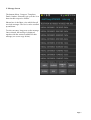
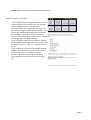
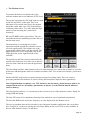
To compose a message with an attached picture, select the picture.html form, click on the “Attach
Picture” button. A list of image sources is presented. It typically includes the Camera, the Gallery and
any File Manager, plus any other installed app that advertize itself as being able to supply an image.
Once you have taken a new picture or selected an existing one, the app will check that the picture
number of pixels is not superior to the limit set in the preferences. If it is, it will re-size the image to
below that limit and insert it in the form.
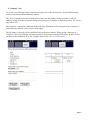
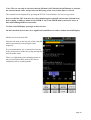
That limit can be adjusted in the “Image Attachment” section of the preferences. The number entered
is the maximum number of MEGA pixels of the picture (as in Width x Height in pixels / 1Million).
The app will choose between the JPEG and PNG format for the smallest file size. The other preference
parameter named “Jpeg compression quality” affects the size (and quality) of the JPEG images, but not
of the PNG ones. A value between 60 and 80 provides normally the best compromise between quality
and file size.
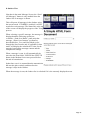
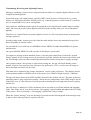
Once the image is attached, it's GPS coordinates can be extracted to pre-fill the latitude and longitude
fields. This works only if your device has the “Geo-tagging” option enabled and updates the Exif fields
of the picture. There is normally a “Geo-tagging” option in the Camera setting.
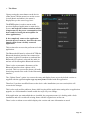
When the “picture message” if saved, the image is base64 encoded and integrated in the message body
so that it can be shared, printed or copied as one file.
Page 14