1
Chapter 3. Inspection Procedures
3.2.2 XL Go
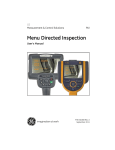
To perform an inspection on the XL Go VideoProbe, follow the instructions in the
following sections.
3.2.2a
Starting an Inspection
To perform an inspection using MDI, select the following menu option:
LIVE MAIN MENU>MDI>(INSPECTION NAME)
3.2.2b
Entering Study Level Information
At the start of an MDI inspection, you are prompted to enter the study level
information and to select the PC drive that will be used to save your inspection
results. You can use either the on-screen keyboard or an external USB keyboard to
enter your information on the VideoProbe.
Note: For a list of supported keyboards, see your VideoProbe user's manual.
3.2.2c
Selecting an Inspection Point
At this time, a list of your inspection points, which is organized by level, is
displayed. To select the desired level, either press the right Soft Key or use the
Joystick to navigate left or right. Continue to navigate through the inspection levels
until you have reached the desired inspection point.
When you see the annotation for the selected inspection point at the top of your
screen, you may save an image or video of that inspection point. To select a
different inspection point, go to the following menu:
GOTO MENU>(INSPECTION NAME)>CONTINUE
16
Menu Directed Inspection User’s Manual