1
Multi-stop route generator
If you want to visit a number of different locations in one day, it is possible to enter up to sixteen locations and the navigation software
will create the optimum route around all of them. It is possible to create and save up to eight Multi-stop routes in total.
Create a Multi-stop route
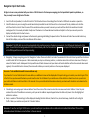
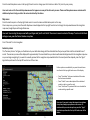
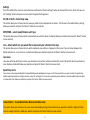
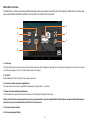
Press the middle of the screen to access the “Navigate” menu. Then press the “Multi-stop” icon. At this point the unit allows you to
create a new Multi-stop route, use or amend a saved Multi-stop route or delete a Multi-stop route.
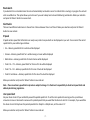
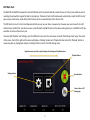
Press the “+” to start creating a Multi-stop route. You will first be prompted to add a Name for your Multi-stop route. Enter the name and
press “Done” to continue.
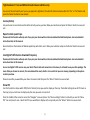
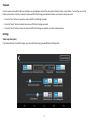
The device will automatically use your current location or the last location the device was used at to create the start point of your Multistop route. To change this address or location, press the ‘Change’ button. You can find the address you require using one of the following
options:•
•
•
•
•
“Find address”
“Find by favourites”
“Find by POI”
“Find using recent routes”
“Current location”
Once you are happy with the start position you can then enter the details of your first destination. Press “Add” and search for the address
using one of the following options:-
•
•
•
•
•
“Find address”
“Find by favourites”
“Find by POI”
“Find using recent routes”
“Current location”
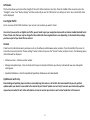
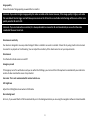
When you are ready to add another address, press the “Add” button again to enter additional destinations. Once you have added all the
addresses or locations you require, you have two options. Press “Save” to save them in the order you have entered them, or press the
“Sort” button and your device will sort them in to the most appropriate order to route around them.
17.