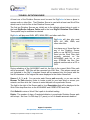
1
Audio Video Transcriber
Technology by Apptec
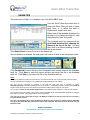
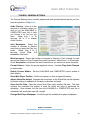
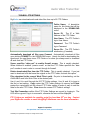
Show Date as: MM/DD/YYYY (North American) or as DD/MM/YYYY (European) format.
Save Reports As: .txt or .doc or .wpd to open the AVAILABLE and COMPLETED work lists
(when the Report key is clicked) in Notepad or Word or Word Perfect respectively.
Transcriptionist’s Name: Display this name in the Saved field of the AVAILABLE work list for
a saved dictation. The transcriptionist should put their name in this field. This name will also
show in a DigiAlert email to indicate the transcriptionist that is working on a particular file.
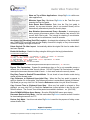
Use Windows User as Transcriptionist’s Name: Use the current User logged into Windows
as the Transcriptionist‟s Name when noting who Saved and Completed a files.
DSS to WAV Conversion Rate: DSS file to WAV file conversion rate (kHz). Higher rates may
result in higher playback fidelity, but it can be set for personal preference.
Transpose F/R Foot Pedals: Swap the functions of the Rewind and
Fast Forward foot pedals.
Allow Skip Begin/End: Allow Skip-to-the-Beginning or Skip-to-theEnd of a dictation by quickly double-pressing the Rewind or Fast
Forward foot pedals.
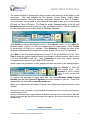
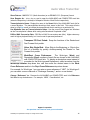
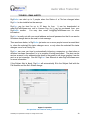
Work/Dept Cross References:
The Work-type (Work) and
Department (Dept) numbers of each file are shown in the AVAILABLE
and COMPLETED work lists. To display a descriptive name instead of
a number for the Work-type and Department, select a number from the
Work/Dept Number drop-down box, and then enter the desired name in the Work
Cross Reference and/or in the Dept Cross Reference drop-down boxes.
For example, for Work-type 1 you can enter a cross reference of “H&P”, for Work-type 2
you can enter a cross reference of “Discharge Summary”, and so on as desired.
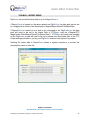
Change “Reference” to: Rename the AVAILABLE and COMPLETED work list‟s Reference
field label to any desired name. For example, “MRN”, “Case Number”, etc.
Apptec Corporation
Our products and solutions make your work easier!
Availability and specifications subject to change without notice.
16