1
Audio Video Transcriber
Technology by Apptec
INSTALLATION
PC Requirements
USB Port: One for an Infinity brand, model IN-USB2 or IN-USB1 USB Foot Pedal
Hard Disk: 10 MB for DigiScribe program
Optional:
Sound Card: If not using a USB Headset
USB Port: One for a Spectra SP-USB USB Headset
Interface: Internet access for downloading files from FTP Folders
Interface: Network Interface Card to access files across a network
Optional Software:
Microsoft Windows Media Player: Version 10 or higher
Microsoft Windows Media Format Runtime: Version 11 or higher
Microsoft DirectX Runtime: Version 9 or higher
DSP Group‟s TrueSpeech Codec: Latest Version
Operating Systems
WINDOWS 2000, 2000/2008 Server, XP, VISTA, WINDOWS 7
SOFTWARE INSTALLATION
1. LOG-IN to Windows as a user with Administrator Rights if necessary.
2. DOWNLOAD the latest DigiScribe at www.DigiTelSoftware.com by clicking on
SOFTWARE then New Installation. Then click on the version number under the
DigiScribe heading and follow the on-screen instructions. (Only setup in the
default directory, and if asked “do you want to keep this file” click Yes).
DigiScribe will run for a 30-day Evaluation Period prior to a License Key being entered.
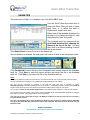
To place a DigiScribe Shortcut onto your desktop, locate DigiScribe in All Programs,
then right-click on DigiScribe and select Send To - Desktop.
HARDWARE INSTALLATION
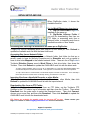
1. Connect the USB Foot Pedal to a USB port and wait one minute for Windows
Found New Hardware wizard to automatically install its driver.
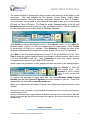
2. If using a USB Headset, connect it to a USB port and wait one minute for
Windows Found New Hardware wizard to automatically install its driver.
Note: If the pedal or headset is disconnected from a USB port and then reconnected while DigiScribe is
running, exit and then re-run DigiScribe so it may initialize the pedal and headset.
Apptec Corporation
Our products and solutions make your work easier!
Availability and specifications subject to change without notice.
5