1
Audio Video Transcriber
Technology by Apptec
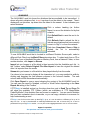
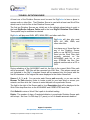
The current dictation‟s demographic data is shown in the status-bar at the bottom of the
mini-player. This data includes the File Number, Priority Status, Author Name,
Department Number, Work-type Number, Reference Number, and Date of Dictation.
You may hover over its fields to see additional demographic data such as the Author
PIN and the Time of Dictation. The Total file length, Current position in the file, and
Remaining length is shown at the top of the mini-player, and the Total file length and
Current position in the file is also shown in Windows‟ Task Bar.
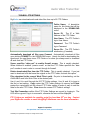
Slide Volume to adjust the playback volume. Slide Speed or click - or + to adjust the
playback speed, or click ^ to return the speed control to normal speed. Click Toolbox
to adjust many of DigiScribe‟s settings. Click Reference to change the data in the
dictation‟s Reference field to correct it or to enter a short note of up to 15 characters.
Click Skip to skip the current dictation and return it to the AVAILABLE work list. Click
Save to mark the current dictation Saved, to bookmark its current position, and to return
it to the AVAILABLE work list. Click Completed to mark the current dictation
Completed and to send it to the COMPLETED work list.
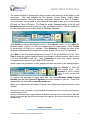
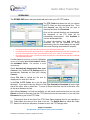
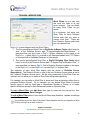
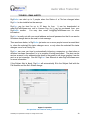
When a video file is selected, a video window will open, as shown in the example below.
Click Enlarge to make the
video window larger. Click
Snapshot to save a bitmap
(.bmp) file of the current video
frame.
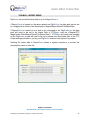
To support the playback of some video files, the latest Windows Media Format
Runtime and the latest DirectX 9 Runtime should be installed on your pc. These files
are available for download at www.Microsoft.com
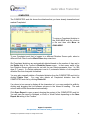
Many more adjustments and special features are available and described later in this
manual.
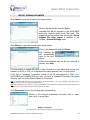
You may click on the Current time to Copy it to Windows’ Clipboard so that you may use Ctrl-V to Paste it
into your Word Processor.
You may click the Status Bar to Copy the Reference Number to the Clipboard, or double-click the Status Bar
to Copy all the Status Bar data plus the Total time to the Clipboard. Use Ctrl-V to Paste the data into your
Word Processor.
Apptec Corporation
Our products and solutions make your work easier!
Availability and specifications subject to change without notice.
9