1
NETStudy
Temporary User Manual
For Paying Programs
Minnesota Department of Human Services
Division of Licensing
PO Box 64242
St. Paul, MN 55164-0242
February 2013
I. Overview
II. Logging in to your account
A. Know your facility ID number.
B. Obtain your temporary user name.
C. Obtain your password.
D. Log in to your account at https://bgs.dhs.state.mn.us
III. Main Menu
A. Create Background Study Request.
1. “Privacy Notice” tab
2. “General Information” tab
a) Name – First
b) Name - Middle
c) Name - Last
d) Gender
e) MN DL or MN ID Number
f) Race
g) SSN
h) Phone
i) Date of Birth
j) Age
3. “Address” tab
a) Address
b) State
c) City
d) Zip code
e) International addresses
4. “Other Names” tab
5. “PCA Services?” tab
6. Submitting the study
B. Make Payment
C. Reviewing Results of Studies.
1. “Request ID#”
2. “Name”
3. “DOB”
4. “Created”
5. “Created by”
6. “Result Date”
7. “Results Status”
See attachment A for statuses and definitions.
2
IV. Security
A.
B.
C.
D.
E.
F.
Data Protection.
Application Logon.
Discouraging Browsing.
Creating your password.
Password Protection.
Logging off/Closing Browser.
V. Attachments
A.
B.
C.
D.
E.
F.
NETStudy Statuses and Definitions.
Registration and Training Information.
Frequently Asked Questions.
For Further Information.
US Postal Service Recommendations.
Background Study Fee Schedule.
3
Overview
The Department of Human Services has developed an internet-based application that allows users to
submit and receive the results of background studies electronically via the Internet. You must use one of
the following internet browsers: Internet Explorer Version 6.0 or higher, Firefox version 2.0 or higher or
Safari version 3.0 or higher.
In the past, agencies were allowed to activate and use their account only after attending a NETStudy
training session.
You agency has requested expedited enrollment in NETStudy. This manual will describe the limited
functions available to you under an expedited enrollment.
Your administrator and/or background study contact person have been provided with one temporary user
and password.
IMPORTANT NOTE: The temporary user and password will expire 120 days from the
date it was issued. If someone from your agency has not completed a NETStudy
training session by that time, the ability to review study results on-line will be removed.
You will still have the ability to create, pay and submit studies but you will have to wait
for the result to come in the mail.
Logging in to your account
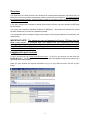
To log in your account, go to https://bgs.dhs.state.mn.us. To log in to your account, you will need your
facility ID number. You will also need the temporary user name and password that were provided to you
by the NETStudy Administrator.
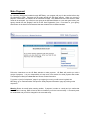
When you have entered the required information to log in to your facility account, click the <Login>
button.
4
Main Menu
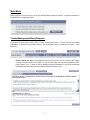
Upon logging in to your account, you will see the Main Menu with three options. The three functions on
the Main Menu are explained below.
Create Background Study Request
There are four tabs on the screen used to create a background study: 1) Privacy Notice, 2) General
Information, 3) Address, and 4) Other Names. Some programs have an additional tab called: “PCA
Services?”.
Privacy Notice tab: Before a background study can be initiated on an individual, the subject
must be informed of their privacy rights. A copy of these rights can be printed through the “Print
Privacy Notice” icon. In order to enter in background study information, a user must confirm that
the background study subject has reviewed/received the privacy notice.
5
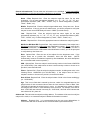
General Information tab: This tab holds the information on the individual. It is the responsibility
of the organization to verify the information submitted on the subject. The information should be
entered as follows:
Name - First: Required field. Enter the subject’s legal first name. Do not enter
nicknames. Do not enter generational indicators (e.g. “Jr.”, “Sr.”, “II”, “III”, “IV”, etc.),
professional indicators (“MD”, “PhD”, “LICSW”, etc), or clerical designations (“Father”,
“Sister”, “Rabbi”, etc.).
Middle: Required field. Enter the subject’s legal middle name, if they have one. Do not
enter nicknames. If they do not have a middle name, you will be prompted to verify that
they don’t have one and NETStudy will enter in “NMN” (no middle name).
Last: Required field. Enter the subject’s legal last name. Again, do not enter
generational indicators (e.g. “Jr.”, “Sr.”, “II”, “III”, “IV”, etc.), professional indicators (“MD”,
“PhD”, “LICSW”, etc), or clerical designations (“Father”, “Sister”, “Rabbi”, etc.).
Gender: Required field. Click on the appropriate button to indicate the subject’s gender.
MN DL# or MN State ID#: Required field. Only enter this information if the subject has a
Minnesota driver’s license or Minnesota state identification number. Do not enter driver’s
license or identification numbers from other states. If the subject does not have a
Minnesota driver’s license or Minnesota state identification number, you will be prompted
to verify that they don’t have one.
Race: Optional field. Enter the race of the subject from the drop-down menu. If the
subject chose not to provide this information, leave this field blank.
(NOTE:
Unfortunately, because of limitations imposed by other databases, the racial descriptions
are not consistent with common practice.)
SSN: Optional field. Enter the subject’s social security number in the format 123456789
(not 123-45-6789). If the subject does not have a social security number or chose not to
provide it, leave this field blank.
Phone: Optional field. Enter the subject’s telephone number, including area code, in the
following format: 1234567899 (not 123-456-7899). If the subject does not have a
telephone number or chose not to provide it, leave this field blank.
Date of Birth: Required field. Enter the subject’s date of birth in the format mm/dd/yyyy
(ex: “12/25/1960”).
Age: This is not a field that is entered by the user, rather it is computed based on the
subject’s date of birth as entered above when the user leaves the “Date of Birth” field.
This field will calculate the subject’s age in years. It is intended as a means of doublechecking the date of birth, in case data entry errors occurred. For example, if the date of
birth “12/25/1960 was entered incorrectly as “12/25/1690”, this field would indicate that
the individual is 321 years old.
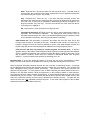
Address tab: This tab holds the subject’s mailing address. The address will be used to notify the
subject of the result, or to contact the subject if additional information is needed.
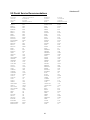
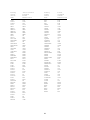
Address: Required field. It is recommended that the user enter abbreviations in
conformance with the US Postal Service recommendations (See Attachment E).
6
State: Required field. Choose the state from the drop-down menu. The state must be
chosen before the city because if the state is Minnesota, then the application assists the
user with entering the city (see “City” below).
City: Required field. Enter the city. If the state that was previously chosen was
Minnesota, then when the user starts typing the city name, the application will present the
user with a list of valid cities or townships in Minnesota (the names will appear in the
large box beneath “City” and “Zip”). The user must choose one of the cities from the list
by clicking on it to highlight it.
Zip: Required field. Enter the subject’s five-digit zip code.
International addresses: NETStudy cannot be used to submit background studies for
individuals with international addresses. The background study request must be
submitted using the paper form, with a note attached explaining why a background study
of the individual is necessary, and listing the individual’s full address.
Other Names tab: This information is required if the subject has used any other first or last
name(s) either formally or informally in the past. Examples would include, but would not be
limited to: changes of name as a result of marriage or divorce, other legal changes of name, and
English-language names informally adopted as substitutes for foreign-language names.
PCA Services? tab (this only shows for certain programs and certain users: A question
appears asking “If the subject of the background study is going to provide personal care assistant
(PCA) or qualified professional (QP) services for which the agency intends to bill under “T1019
with or without a modifier” and/or enroll as a PCA/QP in Minnesota Health Care Programs
(MHCP)? A user must answer the question by answering yes or no.
Important Note: If at any time during the creation of a study, the user clicks <Cancel/Return to Main
Menu>, the user will be returned to the Main Menu and any information already entered will be lost.
When all required information has been entered, the user clicks the <Create Study> button. A message
will be displayed that confirms that the study has been created but not submitted. The message will
state, “Background study request created successfully. This individual can’t provide services until
payment has been made. To make payment, click on ‘Make Payment and Submit Studies’ button to be
directed to the US Bank website. Follow the instructions on the US Bank website to make payment.
Once payment has been made, log back into NETStudy, go to the Review Results page and print out the
submitted study for your records. The individual will then be able to provide direct contact services with
continuous supervision pending a notice from the Department of Human Services.” The data that was
entered is saved, but is not submitted to DHS at this point. A user must make payment on the US Bank
website (see section entitled “Make Payment”).
7
Make Payment
By submitting background studies through NETStudy, your program will pay for the studies before they
are submitted to DHS. Payments will be made through the US Bank website. When you receive a
payment confirmation, the studies will be submitted to DHS. Only MasterCard and VISA credit or debit
cards will be accepted. As a first time user going to the US Bank website or a user who gets locked, your
agency should click the “Register” and fill out the ‘User Registration’ form. From there on, your agency
should enter in the User ID and Password that was created for the US Bank website.
Follow the instructions on the US Bank website to make payment. US Bank will provide you with a
receipt of payment. It is your responsibility to keep track of the studies for which payment was made.
The Background Study Unit does not have access to that information.
To receive a “proof of submission” page for your agency’s record, you will have to log back into
NETStudy, go to “Review Results” and print the ‘Study Request Information’ page by clicking on the
request ID.
Warning Please be careful when entering studies. If payment is made on a study and you realize that
the information is wrong, DHS will not be able to reimburse you for the incorrect study. A new study must
be resubmitted and you will be charged for the corrected study.
8
Reviewing Results of Studies
The status of background studies submitted can be checked by choosing this option at the Main Menu.
Because of the unique and often complex nature of individual background studies, results will be
communicated via US mail in addition to NETStudy. This will ensure that the subject of the background
study (who does not have a means of accessing the result electronically) and the organization will receive
the paper result at the same time. It also allows the communication of the result, and any actions
required of either party, in much greater detail than would be possible in a one or two-word description.
Periodically, results will be purged from the application. A final result will be maintained on the site for an
additional 60 days. This will allow the assurance that the agency and subject have had time to receive
the paper notification of the study result.
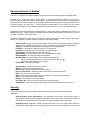
The “Review Results of Studies” screen includes the following elements, from left to right on the screen.
(NOTE: It is possible to sort the studies by clicking on the column header).
Request ID #: Clicking on this link will allow the user to view the information that was submitted
as part of the background study process. This is a tracking # that is used through NETStudy.
Study ID: The background study # that will appear on all correspondence.
Facility ID: The program’s license #, agency #, or program #.
Created by: The User Name of the user who created the study.
Date Created: The date that the study was created.
Submitted By: The User Name of the user who submitted the study.
Date Submitted: The date the study was submitted.
Results Status: See Attachment A for the statuses and definitions.
NOTE: These definitions can be viewed by clicking on the icon
to the right of the “Results status” header.
Result Date: The date of the status.
Subject Name: The name of the study subject.
Gender: The gender of the study subject.
Date of Birth: The date of birth of the study subject.
Driver License/ID No: A Minnesota driver’s license # of Minnesota State ID.
Race: The race of the study subject.
SSN: The social security number of the study subject. This # will show in asterisks.
Phone: The phone # of the study subject.
Address: The address of the study subject.
City, State, Zip: The city, state, and zip code of the study subject.
Other Names: Other first and last name by which the study subject has been known by.
Security
There are a number of issues to consider that relate to the security of the data managed by the
application.
Data protection during transmission: The application uses secure sockets layer (SSL) to
encrypt traffic between each workstation's browser and the web server. This prevents someone
who might intercept the traffic from being able to read the requests and the responses.
Application logon: Application security requires each user to log on in order to have access to
the information that applies to that user. Since the login process is also encrypted, the user id and
9
password for each session is also secure. This leaves the most likely source of "hacking" as a
user who shares (knowingly or not) an ID and password with someone else.
Discouraging browsing: Organizations must take reasonable measures to assure that there is
no inappropriate use of the application.
Creating your password: As a basic rule, a good password adheres to as many of the following
guidelines as a system will accommodate:
•
•
•
•
•
•
•
Do not use familiar names
Avoid using commonly known facts about yourself
Do not use words found in the dictionary
Utilize both letters and numbers
Use special characters, if possible
Use upper- and lower-case letters, if possible
Combine misspelled words
Password protection:
Do not share your password with anyone: If you share your password with someone
else then you compromise the accountability of your user ID. You may have to accept the
responsibility of any actions they take on our systems using your ID. Do not share your
password with anyone for any reason. If you feel your password has been compromised
change it immediately.
Never write down your password: The safest place to store your password is in your
head. Using the previous tips for creating a better password, devise something that will
be secure yet you can remember. If, for some reason, you feel you can not remember
your password, try writing a phrase or hint that will remind you but not give it away to
anyone that might find it.
Don't store your password in a computer file: Storing your password in a computer
file, whether on your hard drive or on a floppy disk, can make it vulnerable to access by
others.
If you ever receive a telephone call from someone claiming to need your password,
report it immediately: No one in DHS should ever call you and ask for your password.
Your user ID and password are unique and are used to identify you on our systems. As
previously stated, you should never share them with anyone. If you ever receive a call
requesting that you divulge your ID and password, simply refuse and notify the Licensing
Division at 651-431-6620.
Logging off / closing browser: Logging off of the application after a session, or if the user has
to leave the workstation is important in order to assure that another individual does not make
inappropriate or unauthorized use of the application. IMPORTANT NOTE: Failure to close the
browser while the computer is unattended could allow unauthorized users to access private data
by using use the browser’s <BACK> button to view previous screens.
10
Attachment A
NETStudy Statuses and Definitions
Updated: August 2012
Key – DQ = Disqualified
“Call for Status”: Call the Background Studies Call Center at 651-431-6620 for further information.
“Disqualified A”: The individual is disqualified from a position allowing direct contact with, or access to,
people receiving services. Your program may choose whether or not to allow the person to continue to
provide direct contact services pending a possible reconsideration decision by the Commissioner. If your
program does choose to allow the person to continue in a position allowing direct contact services, the
program must first:
• Obtain from the individual a copy of his/her notice of disqualification, which explains the reason(s)
for disqualification; and
• Ensure that he/she requests reconsideration within 15 days of receiving his/her notice of
disqualification.
Letters explaining this matter in further detail have been mailed to the individual and your program.
“Disqualified B”: The individual is disqualified from a position allowing direct contact with, or access to,
people receiving services. Your program may choose to allow the person to continue to provide direct
contact services pending a possible reconsideration decision by the Commissioner. If your program does
choose to allow the person to continue in a position allowing direct contact services, the program must
first:
• Obtain from the individual a copy of his/her notice of disqualification, which explains the reason(s)
for disqualification;
• Ensure that he/she requests reconsideration within 30 days of receiving his/her notice of
disqualification; and
• Ensure that the individual is under continuous, direct supervision (as defined in Minnesota
Statutes, section 245C.02, subdivision 8) when providing direct contact services. If the program is
a nursing home or boarding care home licensed by the Minnesota Department of Health, the
subject must also be supervised when having access to persons receiving services.
Letters explaining this matter in further detail have been mailed to the individual and your program.
“Disqualified C”: County or private agency studies related to CHILD FOSTER CARE: The individual’s
background study is affiliated with an initial application for child foster care. The individual is disqualified
from a position allowing direct contact with, or access to, people receiving services. A letter explaining
this matter in further detail has been mailed to the individual. A copy of the letter has been mailed to the
county or private agency that submitted the background study.
“Done-Passed, Other Finding”: County or private agency studies related to CHILD FOSTER CARE:
The background study request has been processed and a notice is being mailed to the individual and the
county or private agency that submitted the study. The individual is not disqualified. Other information has
been obtained as a result of the background study which is being included with the notice to the county or
private agency that initiated the study in order to fully inform the agency of the results of the study.
County agency studies related to INDIVIDUAL ADULT FOSTER CARE: The background study request
has been processed and a notice is being mailed to the individual and the county or private agency that
submitted the study. The individual is not disqualified. Other information has been obtained as a result of
the background study which is being included with the notice to the county agency that initiated the study
in order to fully inform the agency of the results of the study.
11
“Done-Passed”: The background study request has been processed and a notice is being mailed to both
the individual and your program indicating that the study subject may provide direct contact services for
your program. "Direct contact services" is defined in Minnesota Statutes, section 245C.02, subdivision 11,
as "providing face-to-face care, training, supervision, counseling, consultation, or medication assistance
to persons served by a program."
County or private agency studies related to CHILD FOSTER CARE: The background study request has
been processed and a notice is being mailed to the individual and the county or private agency that
submitted the study. The individual is not disqualified.
“DQ Set Aside: The individual remains disqualified, but the disqualification has been set aside for this
program. The individual can work in a position allowing direct contact with, or access to, persons
receiving services from your program. Letters explaining this matter in further detail have been mailed to
the individual and your program.
County or private agency studies related to CHILD FOSTER CARE: The individual remains disqualified,
but the disqualification has been set aside for this child foster care license or application. Letters
explaining this matter in further detail have been mailed to the individual, the license holder (if applicable)
and the county or private agency.
“DQ Previously Set Aside”: The individual was the subject of a previous background study which
resulted in his/her disqualification. The individual requested reconsideration, and the disqualification was
set aside for the program or agency that submitted the previous background study. Regarding the current
background study, the individual remains disqualified, but the disqualification has been set aside for the
program or agency that submitted the current background study request. The individual can work in a
position allowing direct contact with, or access to, persons receiving services from your program. Letters
explaining this matter in further detail have been mailed to the individual and your program.
“DQ w/ Variance”: Your program has been granted a variance to the individual’s disqualification. Letters
explaining the terms under which the individual may work have been mailed to your program or agency.
County or private agency studies related to CHILD FOSTER CARE: The license holder has been granted
a variance to the individual’s disqualification. Letters explaining the terms of the variance have been
mailed to the license holder and the county or private agency.
“DQ-Recon Requested”: The individual is disqualified. A request for reconsideration has been
submitted. Refer to your previous correspondence from DHS for details regarding the individual’s
ability to work or remain in a position allowing direct contact pending reconsideration. You will be
notified in writing once a decision is made regarding the individual’s request for reconsideration.
County or private agency studies related to CHILD FOSTER CARE: The individual is disqualified. A
request for reconsideration has been submitted. Refer to your previous correspondence from DHS for
details regarding the individual’s ability to work or remain in a position allowing direct contact
pending reconsideration. You will be notified in writing once a decision is made regarding the
individual’s request for reconsideration.
“DQ-Variance Denied”: The request for a variance to the individual’s disqualification has been denied.
Letters explaining this matter in further detail have been mailed to the subject and your program.
County or private agency studies related to CHILD FOSTER CARE: The request for a variance to the
individual’s disqualification has been denied. Letters explaining this matter in further detail have been
mailed to the subject, the license holder and the county or private agency.
“Finding: County or private agency studies related to ADOPTIONS: The background study on the
individual has been completed. Information has been found as a result of the background study, which
will be sent to the county or private agency that initiated the background study. The information obtained
12
does not include a “barrier” conviction. A mailer explaining this matter in further detail has been sent to
the agency.
Studies conducted under interagency agreement between tribal organization and DHS related to CHILD
FOSTER CARE AND ADOPTIONS: The background study on the individual has been completed.
Information has been found as a result of the background study, which will be sent to the tribal
organization that initiated the background study. The information obtained does not include a “barrier”
conviction. A mailer explaining this matter in further detail has been sent to the tribal organization.
Studies conducted for the Board of Behavioral Health and Therapy: The background study on the
individual has been completed. Information has been found as a result of the background study. The
information will be sent to the Board of Behavioral Health and Therapy.
Studies conducted for Guardian Ad Litem: The background study on the individual has been completed.
Information has been found as a result of the background. The information will be sent to the court that
initiated the background study.
“Finding – Barrier”: County or private agency studies related to ADOPTIONS: The background study on
the individual has been completed. Information has been found as a result of the background study,
which will be sent to the county or private agency that initiated the background study. The information
obtained DOES include a “barrier” conviction. A letter explaining this matter in further detail has been
mailed to the agency.
Studies conducted under interagency agreement between tribal organization and DHS related to CHILD
FOSTER CARE AND ADOPTIONS: The background study on the individual has been completed.
Information has been found as a result of the background study, which will be sent to the tribal
organization that initiated the background study. The information obtained DOES include a “barrier”
conviction. A letter explaining this matter in further detail has been mailed to the tribal organization.
“Incomplete”: Fingerprints were not received. The individual's background study can't be completed.
“Inv – Must Immediately Remove”: The Licensing Division has information regarding the individual that
may cause this person to be disqualified. Your program must immediately remove this individual from any
position allowing direct contact with, or access to, persons receiving services from your program pending
a possible disqualification decision by the Commissioner. You and the individual will be notified in writing
of the Commissioner's decision.
“Inv – Must Supervise”: The Licensing Division has information regarding the individual that may cause
this person to be disqualified. Your program may allow the person to continue in a position allowing direct
contact with persons receiving services from your program pending a possible disqualification decision by
the Commissioner providing that your program has arranged for the individual to be continuously within
sight or hearing of a supervising staff person whenever s/he is in a position allowing direct contact with
persons receiving services from your program. You and the individual will be notified in writing of the
Commissioner's decision.
“Limited Set Aside”: The individual remains disqualified, but the program has been granted a limited set
aside to the individual’s disqualification. Letters explaining this matter in further detail have been mailed to
the individual and your program.
“More Time Is Needed”: County or private agency studies related to ADOPTIONS: The background
study request has been received but is not complete. A notice has been sent to the county or private
agency that initiated the background study indicating more time is needed to complete the study. The
county or private agency will receive written notification once the background study is complete.
Studies conducted under interagency agreement between tribal organization and DHS related to CHILD
FOSTER CARE AND ADOPTIONS: The background study request has been received but is not
13
complete. A notice has been sent to the tribal organization that initiated the background study indicating
more time is needed to complete the study. The tribal organization will receive written notification once
the background study is complete.
Studies conducted for Guardian Ad Litem: The background study request has been received but is not
complete. A notice has been sent to the court that initiated the background study indicating more time is
needed to complete the study. The court will receive written notification once the background study is
complete.
“Must Immediately Remove”: The individual is disqualified and must be immediately removed from a
position allowing direct contact with, or access to, people receiving services. The individual and your
program will receive written notification of the individual’s background study status.
County or private agency studies related to CHILD FOSTER CARE: The individual is disqualified and
must be immediately removed from a position allowing direct contact with, or access to, people receiving
services. The individual, license holder and the county or private agency will receive written notification
explaining the individual’s background study status.
“No Finding”: County or private agency studies related to ADOPTIONS: The background study on the
individual has been completed. No criminal or maltreatment history has been found. A notice has been
sent to the county or private agency that initiated the background study.
Studies conducted under interagency agreement between tribal organization and DHS related to CHILD
FOSTER CARE AND ADOPTIONS: The background study on the individual has been completed. No
criminal or maltreatment history has been found. A notice has been sent to the tribal organization that
initiated the background study.
Studies conducted for the Board of Behavioral Health and Therapy: The background study on the
individual has been completed. No criminal or maltreatment history has been found. A written notice has
been sent to the Board of Behavioral Health and Therapy.
Studies conducted for Guardian Ad Litem: The background study on the individual has been completed.
No criminal or maltreatment history has been found. A notice has been sent to the court that initiated the
background study.
“Not Done-Cannot Yet Enroll”: The individual may not provide personal care assistant services or
qualified professional services (as defined in Minnesota Statutes, section 256B.0659, subdivision 1) in
Minnesota Health Care Programs (MHCP) for which the agency intends to bill under T1019 (with or
without a modifier), or enroll as an individual Personal Care Assistant in MHCP until a background study
under Minnesota Statutes Chapter 245C has been completed and your agency and individual receive a
written notice stating either that the individual isn't disqualified, or that the individual is disqualified, but
the disqualification has been set aside for your agency.
“Not Done-Must Supervise”: The background study request has been received and is being processed.
More time is needed to complete the study. While this study is being processed your program must
ensure that the individual is under continuous, direct supervision (as defined in Minnesota Statutes,
section 245C.02, subdivision 8) when providing direct contact services. If the program is a nursing home
or boarding care home licensed by the Minnesota Department of Health, the subject must also be
supervised when having access to persons receiving services.
“Not Done-No Superv Requ”: The background study request has been received and is being
processed. However a notice is being mailed to both the individual and your program indicating that more
time is needed to complete the study. Your program may allow the subject to provide direct contact
services without continuous supervision.
14
When the study has been completed one of two things will happen: A) The subject and your program will
receive a background study clearance form; or B) the subject and your program will receive further
notification of the individual’s background study status.
County or private agency studies related to CHILD FOSTER CARE: The background study request has
been received and is being processed. A notice is being mailed to the individual and the county/private
agency indicating that more time is needed to complete the study. If the study is affiliated with a currently
licensed child foster care, the license holder has also received a notice.
While the study is being completed, the individual may be in a position providing direct contact services
without continuous supervision. Once the study is complete, the individual and the county or private
agency (and licensed holder, if applicable) will either receive a background study clearance form or
further notification of the individual’s background study status.
“Processing Not Yet Begun”: The background study request has been submitted, but processing has
not yet begun. NOTE: If this status persists for more than three business days, email the NETStudy
Administrator at [email protected] .
“Remains Set Aside”: This individual's background study was submitted because he/she is a person
affiliated with a licensed program. The individual's background study resulted in criminal or maltreatment
information being obtained which causes him/her to be disqualified. A previous study done by the agency
that submitted this background study request resulted in the same findings. At that time the individual was
disqualified, requested reconsideration and the disqualification was set aside for the same licensed
program.
Because this background study resulted in no new information that would indicate the individual may
pose a risk of harm to persons served by the program, his/her disqualification remains set aside for
program for which the background study request was submitted. A mailer has been sent to your
program, the individual, and, if the background study request was for a licensed child foster care program,
to the county or private agency explaining this matter in further detail.
“Study Cancelled”: The study was cancelled at the request of your program or agency, or because
either the study subject is no longer affiliated with the program, or it was a duplicate of a study previously
submitted.
15
Attachment B
Frequently Asked Questions
Last Updated: August 2012
Q: What is NETStudy?
A: NETStudy is a Web-based application that allows certain agencies to submit employee background
studies to the Minnesota Department of Human Services, and to track the studies via the Internet.
Q: Who can participate?
A: Any agency that is required to conduct studies under Minnesota Statutes, section 245C, or Minnesota
Statutes, section 144.057 may submit studies electronically. This includes the following types of agencies:
1) agencies licensed by the Minnesota Department of Human Services, 2) agencies licensed by the
Minnesota Health Department, 3) certain agencies licensed by the Minnesota Department of Corrections,
4) nonlicensed Personal Care Provider Organizations, 5) certain personnel agencies / educational
programs / professional services agencies 6) supplemental nursing services agencies registered with the
Minnesota Health Department, 7) consumer directed community supports, and 8) county and private
agencies for purposes of submitting background studies associated with child foster care licensing and
adoptions.
Q: How will it work?
A: The agency will log in to its account via the Internet. The agency will then be able to enter the
information required to conduct a background study, submit the information to the Department of Human
Services and view the result. The agency will be able to create and maintain their own users, and assign
various rights to those users to tailor the application and security to its own needs.
Q: Is any special software required?
A: The application requires a compatible Internet browser (Internet Explorer version 6.0 or higher, Safari
version 3.0 or higher or Firefox version 2.0 or higher).
Q: Is any special equipment/hardware required?
A: No.
Q: I have a dial-up internet connection. Can I still submit my studies electronically?
A: Yes. The application is designed to minimize download time for users with dial-up connections.
Q: Is there a cost?
A: Yes, for most of the background studies that we process. Please refer to the fee schedule to see if
your program has a cost or not.
Q: Who will enter the information?
A: The information on the study subject can be entered either by the agency or by the subject.
Q: Who is responsible for the accuracy of the information submitted?
A: The agency is responsible for verifying that the information submitted is complete and accurate.
Q: How is the information secured?
A: The application uses secure sockets layer (SSL) to encrypt data traveling in each direction between
the user's workstation and the Web server. This prevents someone who might intercept the traffic from
being able to read the requests and the responses. In addition, application security requires each user to
log on in order to have access to the application.
Q: Will background clearance forms (e.g. the blue and yellow mailers) and other correspondence
continue to be sent?
16
A: Yes. All of the paper correspondence that is currently generated by DHS will continue to be sent.
Because of the unique and often complex nature of individual background studies, results will be
communicated via US mail in addition to NETStudy. This will ensure that the subject of the background
study (who does not have a means of accessing the result electronically) and the organization will receive
the result at the same time. It also allows the communication of the result, and any actions required of
either party, in much greater detail than would be possible in a one or two word description.
Q: Is the study result communicated by e-mail?
A: No. For security reasons, the result is only accessible via the application.
Q: Who will receive the electronic result?
A: Only those individuals who have access to the agency's NETStudy account and who have been
granted the right to see the result will be able to do so.
Q: Can the subject of the study access the result online?
A: No. At this point, there is no means for a study subject to access the result online. Study subjects will
continue to receive their notification via U.S. Postal Service.
Q: What kind of results will be posted?
A: There are a number of statuses that will be posted. There is a link to the definitions of the statuses
within NETStudy.
Q: How long will the results remain on the Web site?
A: Periodically, results will be purged from the application. The results will be maintained on the site for
60 days.
Q: What will the turnaround time be?
A: The turnaround time fluctuates depending on the volume and rate of studies received. Currently, the
results of studies submitted via NETStudy are available an average of 2 to 4 working days after having
been submitted.
Q: I'm interested in participating. What should I do next?
A: Visit http://www.dhs.state.mn.us/licensing and follow the link to “Background Studies”. Details on upcoming training will be posted periodically, along with instructions on how to enroll.
Q: Who should I contact for further information regarding NETStudy?
A: For specific questions regarding the application, technical questions (such as password issues,
computer related issues, how do I create a new user, there is an error in a study, etc.) contact the
NETStudy Administrator by e-mail at [email protected] .
Q: Who should I contact if I have general questions regarding background study
requirements/procedures?
A: For general questions regarding background study requirements (such as what does the law state,
who needs a study, what causes a person to be disqualified, need a copy of a result, why is a study
taking such a long time, etc.) e-mail the Background Study Administrator at
[email protected] or call the Minnesota Department of Human Services,
Licensing Division at (651) 431-6620.
Q: Who should I contact if I have general questions regarding background study
requirements/procedures in regards to Adult Foster Care studies?
A: For general questions regarding background study requirements (such as what does the law state,
who needs a study, what causes a person to be disqualified, need a copy of a result, why is a study
taking such a long time, etc.) e-mail the Background Study Administrator at [email protected]
or call the Minnesota Department of Human Services, Licensing Division at (651) 431-6620.
17
Q: Who should I contact if I have general questions regarding background study
requirements/procedures in regards to Child Foster Care or Adoption studies?
A: For general questions regarding background study requirements (such as what does the law state,
who needs a study, what causes a person to be disqualified, need a copy of a result, why is a study
taking such a long time, need more fingerprint cards, etc.) e-mail the Background Study Administrator at
[email protected] or call the Minnesota Department of Human Services,
Licensing Division at (651) 431-6620.
Q: Who should I contact if I have questions regarding a letter or other correspondence I have
received?
A: If you have specific questions about correspondence you have received, please refer to that
correspondence for the name and phone number of the appropriate contact person.
18
Attachment C
Registration and Training Information
The Department of Human Services is offering training on NETStudy, the web-based application used to
submit background studies and receive the results online. A limited user has been given to your program.
The temporary user only has the rights to create/submit studies and view the results of those studies. In
order to receive full rights, a representative from your program has to attend a NETStudy training course.
Below is a list of dates for the training and instructions on how to register.
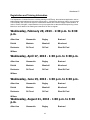
Wednesday, February 20, 2013 - 1:30 p.m. to 3:30
p.m.
Albert Lea
Alexandria
Bagley
Brainerd
Duluth
Mankato
Marshall
Moorhead
Rochester
St Cloud
St Paul
West St. Paul
Willmar
Wednesday, April 17, 2013 - 1:30 p.m. to 3:30 p.m.
Albert Lea
Alexandria
Bagley
Brainerd
Duluth
Mankato
Marshall
Moorhead
Rochester
St Cloud
St Paul
West St. Paul
Willmar
Wednesday, June 19, 2013 - 1:30 p.m. to 3:30 p.m.
Albert Lea
Alexandria
Bagley
Brainerd
Duluth
Mankato
Marshall
Moorhead
Rochester
St Cloud
St Paul
West St. Paul
Willmar
Wednesday, August 21, 2013 - 1:30 p.m. to 3:30
p.m.
Albert Lea
Alexandria
Bagley
19
Brainerd
Duluth
Mankato
Marshall
Moorhead
Rochester
St Cloud
St Paul
West St. Paul
Willmar
Wednesday, October 16, 2013 - 1:30 p.m. to 3:30
p.m.
Albert Lea
Alexandria
Bagley
Brainerd
Duluth
Mankato
Marshall
Moorhead
Rochester
St Cloud
St Paul
West St. Paul
Willmar
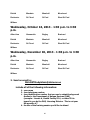
Wednesday, December 18, 2013 - 1:30 p.m. to 3:30
p.m.
Albert Lea
Alexandria
Bagley
Brainerd
Duluth
Mankato
Marshall
Moorhead
Rochester
St Cloud
St Paul
West St. Paul
Willmar
2. Send an email to:
[email protected]
include all of the following information:
1. your name
2. your telephone number
3. your identification number that you use to submit background
studies to the Department of Human Services (DHS)
(example: License #, Health Facility ID #, or other ID #s
issued to you by the DHS, Licensing Division. This is not your
MA provider #)
4. the site of the training session you’d like to attend
20
3. You will receive notice by email once your registration has been
confirmed.
FOR FURTHER INFORMATION: Visit the web at
www.dhs.state.mn.us/licensing and follow the link to “Background
Studies”, then to “NETStudy”.
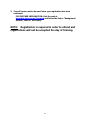
NOTE: Registration is required in order to attend and
registrations will not be accepted the day of training.
21
Attachment D
For Further Information
•
Contact the Background Study Administrator for policy/procedure/status issues such as:
turnaround time, clarifying requirements, changing the names of facility contacts, checking
the status of studies, re-printing studies, etc.
•
•
•
By email at [email protected]
or visit the web at www.dhs.state.mn.us/licensing
Contact the NETStudy Administrator for technical issues such as: unable to log in, web site
down, forgotten password, registration for training, request for temporary or permanent
activation of a NETStudy account, etc.
•
•
By email at [email protected]
or visit the web at www.dhs.state.mn.us/licensing
22
Attachment E
US Postal Service Recommendations
Primary
Street
Suffix
Name
Postal Service
Standard
Suffix
Abbreviation
Primary
Street
Suffix
Name
Postal
Standard
Suffix
Abbreviation
ALLEY
ANNEX
ARCADE
AVENUE
BAYOO
BEACH
BEND
BLUFF
BLUFFS
BOTTOM
BOULEVARD
BRANCH
BRIDGE
BROOK
BROOKS
BURG
BURGS
BYPASS
CAMP
CANYON
CAPE
CAUSEWAY
CENTER
CENTERS
CIRCLE
CIRCLES
CLIFF
CLIFFS
CLUB
COMMON
CORNER
CORNERS
COURSE
COURT
COURTS
COVE
COVES
CREEK
CRESCENT
CREST
CROSSING
CROSSROAD
CURVE
DALE
DAM
DIVIDE
DRIVE
DRIVES
ESTATE
ESTATES
EXPRESSWAY
EXTENSION
ALY
ANX
ARC
AVE
BYU
BCH
BND
BLF
BLFS
BTM
BLVD
BR
BRG
BRK
BRKS
BG
BGS
BYP
CP
CYN
CPE
CSWY
CTR
CTRS
CIR
CIRS
CLF
CLFS
CLB
CMN
COR
CORS
CRSE
CT
CTS
CV
CVS
CRK
CRES
CRST
XING
XRD
CURV
DL
DM
DV
DR
DRS
EST
ESTS
EXPY
EXT
EXTENSIONS
FALL
FALLS
FERRY
FIELD
FIELDS
FLAT
FLATS
FORD
FORDS
FOREST
FORGE
FORGES
FORK
FORKS
FORT
FREEWAY
GARDEN
GARDENS
GATEWAY
GLEN
GLENS
GREEN
GREENS
GROVE
GROVES
HARBOR
HARBORS
HAVEN
HEIGHTS
HIGHWAY
HILL
HILLS
HOLLOW
INLET
ISLAND
ISLANDS
ISLE
JUNCTION
JUNCTIONS
KEY
KEYS
KNOLL
KNOLLS
LAKE
LAKES
LAND
LANDING
LANE
LIGHT
LIGHTS
LOAF
EXTS
FALL
FLS
FRY
FLD
FLDS
FLT
FLTS
FRD
FRDS
FRST
FRG
FRGS
FRK
FRKS
FT
FWY
GDN
GDNS
GTWY
GLN
GLNS
GRN
GRNS
GRV
GRVS
HBR
HBRS
HVN
HTS
HWY
HL
HLS
HOLW
INLT
IS
ISS
ISLE
JCT
JCTS
KY
KYS
KNL
KNLS
LK
LKS
LAND
LNDG
LN
LGT
LGTS
LF
23
Primary
Street
Suffix
Name
Postal Service
Standard
Suffix
Abbreviation
Primary
Street
Suffix
Name
Postal
Standard
Suffix
Abbreviation
LOCK
LOCKS
LODGE
LOOP
MALL
MANOR
MANORS
MEADOW
MEADOWS
MEWS
MILL
MILLS
MISSION
MOTORWAY
MOUNT
MOUNTAIN
MOUNTAINS
NECK
ORCHARD
OVAL
OVERPASS
PARK
PARKS
PARKWAY
PARKWAYS
PASS
PASSAGE
PATH
PIKE
PINE
PINES
PLACE
PLAIN
PLAINS
PLAZA
POINT
POINTS
PORT
PORTS
PRAIRIE
RADIAL
RAMP
RANCH
RAPID
RAPIDS
REST
RIDGE
RIDGES
RIVER
ROAD
ROADS
LCK
LCKS
LDG
LOOP
MALL
MNR
MNRS
MDW
MDWS
MEWS
ML
MLS
MSN
MTWY
MT
MTN
MTNS
NCK
ORCH
OVAL
OPAS
PARK
PARK
PKWY
PKWY
PASS
PSGE
PATH
PIKE
PNE
PNES
PL
PLN
PLNS
PLZ
PT
PTS
PRT
PRTS
PR
RADL
RAMP
RNCH
RPD
RPDS
RST
RDG
RDGS
RIV
RD
RDS
ROW
RUE
RUN
SHOAL
SHOALS
SHORE
SHORES
SKYWAY
SPRING
SPRINGS
SPUR
SPURS
SQUARE
SQUARES
STATION
STRAVENUE
STREAM
STREET
STREETS
SUMMIT
TERRACE
THROUGHWAY
TRACE
TRACK
TRAFFICWAY
TRAIL
TUNNEL
TURNPIKE
UNDERPASS
UNION
UNIONS
VALLEY
VALLEYS
VIADUCT
VIEW
VIEWS
VILLAGE
VILLAGES
VILLE
VISTA
WALK
WALKS
WALL
WAY
WAYS
WELL
WELLS
ROW
RUE
RUN
SHL
SHLS
SHR
SHRS
SKWY
SPG
SPGS
SPUR
SPUR
SQ
SQS
STA
STRA
STRM
ST
STS
SMT
TER
TRWY
TRCE
TRAK
TRFY
TRL
TUNL
TPKE
UPAS
UN
UNS
VLY
VLYS
VIA
VW
VWS
VLG
VLGS
VL
VIS
WALK
WALK
WALL
WAY
WAYS
WL
WLS
ROUTE
RTE
24
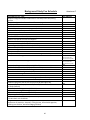
Background Study Fee Schedule
Attachment F
Program/Service Type
Fee amount
Adoption background studies conducted for licensed private child placing
agencies
Adoption background studies conducted for county agencies
Adult day care centers
Adult foster care
Chemical dependency treatment programs (Rule 31)
Child care centers (Rule 3)
Child foster care
Child placing agencies (Rule 4)
Children's residential facilities (Chapter 2960)
Children’s therapeutic services and supports
Consumer directed community supports
Crisis respite services (245B CR)
Day training and habilitation services (245B DTH)
Detox services (Rule 32)
Educational Programs
Family adult day services
Family child care (DHS does not conduct these background studies)
Guardian ad litem background studies
$70
Guardian and conservator background studies
$20
Independent living assistance for youth (245A.22)
Juvenile facilities licensed solely by the Minnesota Department of Corrections
Minnesota Sex Offender Treatment Programs
Personal Care Provider Organization (PCA)
Professional Services Agencies
Residential facilities for adults with mental illness (Rule 36)
Intensive residential treatment service programs (IRTS Variance)
Residential habilitation services (245B DD waiver)
Residential programs and services for physically disabled (Rule 80)
Residential facilities for people with DD (both ICF/DD certified and those not
certified) (245B RS)
Semi-independent living services (245B SILS)
Supplemental nursing services agencies
Supported employment services (245B SES)
Temporary personnel agencies
Unlicensed home and community based waiver providers of services to seniors
and individuals with disabilities
Background studies conducted for programs licensed by the Minnesota
Department of Health (ex. hospitals, nursing homes, home health agencies,
boarding care facilities, board and lodging facilities)
$20
$0
$20
$20
$20
$20
$20
$20
$20
$20
$0
$20
$20
$20
$20
$0
$20
$20
$20
$20
$20
$20
$20
$20
$20
N/A
$20
(or $50 when FBI
record check required)
(or $50 when FBI
record check required)
25
$20
$20
$20
$20
$20
$0