1
5) The 'Upload project' button...
... lets you upload an already prepared .vum project to the RANCH.
6) The 'CPU detect' button...
... displays the name of the CPU in your system with its standard frequency, real frequency
(useful for overclocked systems) and available render threads.
7) The 'Price info' button...
... connects you to the RANCH Price info page, to see all the RANCH payment formulas and
choose the most appropriate formula for your needs.
8) The 'Config' button...
... lets you decide if RANCHecker must automatically check for updates on the web at launch.
It also lets you change the RANCH login and password stored (crypted) in the
RANCHecker_Maxwell.ini file. This does not change the real login/password in your
RANCH account at all, it only changes the login/password used by RANCHecker to connect
to the RANCH web site automatically (without you having to login manually on the site).
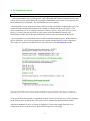
Important: Upgrading from Maxwell 2.x to Maxwell 3.x
If you have previously used RANCHecker with Maxwell 2.x and are upgrading to Maxwell
3.x, do not forget to change the Maxwell Render executable path to point to the Maxwell 3
executable.
To do so, simply edit the RANCHecker_Maxwell.ini text file (in your RANCHecker
installation folder) and change the second line to the appropriate path.
5