1
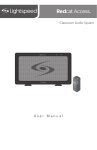
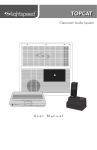
Classroom Audio System
CH A
PWR
CH B
User Manual
TABLE OF CONTENTS
SECTION 1:
Overview
5
6
7
7
8
8
9
10
System Components and Unpacking
Optional Components
Front Panel Indicators
Top Panel Controls
Side Panel Controls and Connections
Rear Panel Controls and Connections
Redmike Controls and Connections
Cradle Charger Controls and Connections
SECTION 2:
Set-up & Use
11
11
12
13
14
15
16
17
18
19
Step 1. Determine Set-up Location
1A. To Set-Up on Table Top
1B. To Set-Up Mounted on a Wall
1C. Wall Mounting Locations
Step 2. Connecting the Power Supply
Step 3. Audio Integration
Step 4. Charging the Redmike
Operating the Redmike
Output to Assistive Listening Device (ALD)
Using Redmike as Wireless Audio Link
SECTION 3:
Optional
Accessories
20
21
Optional Redmike VC Controls and Connections
Redmike VC: Charging
21
22
23
24
25
26
26
Redmike VC: Intial Set-up
Redmike Share: Controls and Connections
Redmike Redmike Share: Charging
Redmike Share: Initial Set-up
Initial Set-up: Optional iRMC Media Connector
Optional iRMC Media Connector Audio
Integration
Optional Accessories
SECTION 4:
Troubleshooting
27
28
Common Problems and Solutions
Tips to Obtain Optimum Audio Performance
SECTION 5:
Warranty, Safety
& Specifications
29
30
34
Five-Year Limited Warranty
Safety Warnings and Certifications
System Specifications
IMPORTANT SAFETY INSTRUCTIONS
1.
2.
3.
4.
5.
Read these instructions.
Keep these instructions.
Heed all warnings.
Follow all instructions.
Do not use the apparatus near
water.
6. Clean only with dry cloth.
7. Do not block any ventilation
openings. Install in accordance
with the manufacturer’s
instructions.
8. Do not install near any heat
sources such as radiators,
heat registers, stoves, or other
apparatus (including amplifiers)
that produce heat.
9. Do not defeat the safety purpose
of the polarized or groundingtype plug. A polarized plug
has two blades with one wider
than the other. A groundingtype plug has two blades and
a third grounding prong. The
wide blade or the third prong is
provided for your safety. If the
provided plug does not fit into
your outlet, consult an electrician
for replacement of the obsolete
outlet.
10.Protect the power cord from
being walked on or pinched
particularly at plugs, convenience
receptacles, and the point where
they exit from the apparatus.
11.Only use attachments/
accessories specified by the
manufacturer.
12.Use only with a cart, stand, tripod,
bracket or table specified by the
manufacturer, or sold with the
apparatus. When a cart is used,
use caution when moving the
cart/apparatus combination to
avoid injury from tip-over.
13.Unplug this apparatus during
lightning storms or when unused for
long periods of time.
14.Refer all servicing to qualified
service personnel. Servicing is
required when the apparatus has
been damaged in any way, such
as power-supply cord or plug is
damaged, liquid has been spilled
or objects have fallen into the
apparatus, the apparatus has been
exposed to rain or moisture, does
not operate normally, or has been
dropped.
15.When the mains plug or appliance
coupler is used as the disconnect
device, it shall remain readily
operable.
16.Please keep the unit in a good
ventilation environment.
17.WARNING: To reduce the risk of fire
or electric shock, do not expose this
apparatus to rain or moisture.
18.Apparatus shall not be exposed to
dripping or splashing and no objects
filled with liquids, such as vases, shall
be placed on the apparatus.
19.Warning - battery pack shall not be
exposed to excessive heat such as
sunshine, fire or the like.
SYSTEM COMPONENTS AND UNPACKING
The standard configuration of the Redcat® will contain:
CH B
Redmike®
Classroom
Microphone
1. Overview
2. Setup & Use
Redcat® Infrared
Receiver/Amplifier
and Power Supply
PWR
3. Optional
Accessories
CH A
5. Warranty, Safety
& Specifications
OVERVIEW
4. Troubleshooting
SECTION 1:
Cradle Charger
and Power Supply
5
5. Warranty, Safety
& Specifications
4. Troubleshooting
3. Optional
Accessories
OPTIONAL COMPONENTS
Optional equipment which may be part of your Redcat system:
Redmike® VC
Volume Control
Microphone
Redmike® Share
Handheld Mic &
Charging Cable
2. Setup & Use
STANDARD COMPONENTS
RC2
24V-1.75-NA
24V-1.75-_
RMT2
RMLC3
Redcat all-in-one receiver/amplifier/speaker with power supply
Power supply for Redcat
Power supply for Redcat, specify country
Redmike classroom microphone with rechargeable battery and
lavalier cord
Lightspeed AA rechargeable sensing battery
(for Redmike)
Lavaliere cord for Redmike
RMCC
5V-1.0-NA
5V-1.0-INT
Redmike cradle charger
Cradle charger power supply
Cradle charger power supply, universal plug attachment
1. Overview
NH2A27
OPTIONAL COMPONENTS
RMV2
RMS2
NH2APK
IRMC2
WMKRC2
6
Redmike VC microphone with battery
Redmike Share handheld microphone with battery pack
NiMH rechargeable battery pack for Redmike Share
Infrared media connector with cables and power supply
Redcat wall mounting kit includes screws, wall anchors, security clip
and extra RC feet
5. Warranty, Safety
& Specifications
FRONT PANEL INDICATORS
1. POWER ON INDICATOR: The power LED will glow
blue when power is applied.
2
2
1
PWR
CH B
2. Setup & Use
3. Optional
Accessories
CH A
4. Troubleshooting
2. CH A & CH B: Illuminate red when the audio for the
corresponding microphone is received.
TOP PANEL CONTROLS
1. Overview
1. CHANNEL A VOLUME: Controls the volume level of the
microphone set to channel A.
2. CHANNEL B VOLUME: Controls the volume level of the
microphone set to channel B.
2
1
CH A
MIN
MICROPHONE
CH B
MAX
MAX
MIN
7
5. Warranty, Safety
& Specifications
4. Troubleshooting
3. Optional
Accessories
SIDE PANEL CONTROLS / CONNECTIONS
1.TONE CONTROL: Adjusts the audio
level for optimum sound quality.
2. AUDIO INPUT VOLUME CONTROL &
INPUT JACK: 3.5mm stereo connector
for connecting classroom audio sources
to the Redcat. Controls the volume level
of the audio input from the connected
audio source.
1
2
3.AUDIO OUTPUT VOLUME CONTROL
& INPUT JACK: 3.5mm stereo
connector for connecting to an assisted
listening device (ALD) or to a computer
for recording. Controls the volume level
of the audio output.
3
4
1. Overview
2. Setup & Use
5
4.POWER SWITCH: This switch is used
to turn the Redcat on or off. The front
panel blue LED lights when power is on.
5.DC POWER INPUT JACK: Plug the
power supply (24V/1.75A) into this jack.
REAR PANEL FEATURES
1.CARRYING INSET: Cutaway grip for moving or carrying
the Redcat Access.
2. CABLE MANAGEMENT AND STRAIN RELIEF
3. WALL MOUNTING SLOTS
4. SECURITY BRACKET SLOT
1
2
4
Testing Purposes Only
8
3
1
Slide battery door o
p
Remove tab before en
us e
4
5. Warranty, Safety
& Specifications
4. Troubleshooting
REDMIKE CONTROLS AND CONNECTIONS
5
6
3. Optional
Accessories
2
2. Setup & Use
3
1. POWER BUTTON: Press this
button to turn the Redmike on,
press again to turn it off (mute).
leaving fragments.
2. POWER/LOW BATTERY
INDICATOR: A blue light
indicates the Redmike is on and
fully charged. A red light indicates
a charge is needed.
5. AUDIO/MICROPHONE INPUT:
Use this input to plug in a laptop,
MP3 player or other audio
source to wirelessly transmit
audio to be played through the
system. Alternatively, an external
microphone can be connected.
3. BATTERY COMPARTMENT: To
access the battery compartment,
slide the door downward. The
battery should only be replaced
by a Lightspeed AA rechargeable
sensing battery (part # NH2A27).
6. CHANNEL SELECT SWITCH
(CH A/B): This switch allows
for selection between Channel
A or B. If you are using a single
microphone, we recommend using
Channel A.
4. YELLOW PROTECTIVE TAB: Slide
the battery compartment door
open to remove this disposable
protective tab before use. NOTE:
do not attempt to remove the
tab without first opening the
compartment door, as it may tear,
7. CHARGER CONTACTS (+ -):
These contacts interface with the
charging tabs in the RMCC cradle
charger for daily charging. Simply
place the Redmike in the charger.
1. Overview
7
9
5. Warranty, Safety
& Specifications
1. Overview
2. Setup & Use
3. Optional
Accessories
4. Troubleshooting
CRADLE CHARGER CONTROLS AND
CONNECTIONS
10
1
2
3
1. CHARGE INDICATORS: The light
glows red while the Redmike is
charging. When fully charged, the
light will glow green. A blinking
red light indicates that no battery
is sensed, (Redmike Yellow
Protective Tab may not have been
completely removed—see page
10, item 4.) A blinking green LED
means a non- Lightspeed battery
has been installed (possibly an
alkaline battery).
2. DC POWER PORT: Connect the
5V/1.0A DC power cord here.
3. OPTIONAL CHARGING PORT:
Plug the charging cord for
the optional Redmike Share
microphone here.
1. DETERMINE SET-UP LOCATION
The Redcat is shipped with feet to stand on a cabinet or tabletop. Alternatively,
the feet can be used as wall mount brackets.
Advantages of either include:
Tabletop (recommended):
Wall-mount:
• Virtually no setup time
• More permanent setup
• Greater flexibility to move to
different locations
• Greater security
3. Optional
Accessories
SET-UP & USE
4. Troubleshooting
5. Warranty, Safety
& Specifications
SECTION 2:
Next, find a location as far away as
possible from the teacher who will
be using the mic. The best place is
against the wall opposite where the
teacher will be speaking. If this is not
possible, other good locations are
along either wall next to the teacher
or in a corner. Avoid placing the
Redcat next to where the teacher
instructs. Putting the Redcat s in close
proximity to the teacher’s mic can
result in feedback.
Good placement
1. Overview
First, consider that the Redcat should
be placed within 7 feet of an electrical
outlet and on a surface about 3-6 feet
off the ground.
2. Setup & Use
1A. TO SET-UP ON TABLE-TOP
Best placement
Avoid!
11
5. Warranty, Safety
& Specifications
4. Troubleshooting
First, consider that the Redcat should
be placed within 7 feet of an electrical
outlet and about 6-8 feet off the
ground.
Next, find a location as far away as
possible from the teacher who will
be using the mic. The best place is
centered on the long wall opposite
Best placement
1. Overview
Avoid!
12
the teacher. If this is not possible,
other good locations are on the wall
next to the teacher. Avoid placing the
Redcat on any wall close to where
the teacher usually stands to instruct
the class. Having the teacher’s mic
too close to the Redcat can result in
feedback.
Good placement
2. Setup & Use
3. Optional
Accessories
1B. TO SET-UP MOUNTED ON A WALL
1.Level template and tape to wall
5. Warranty, Safety
& Specifications
1B. TO SET-UP MOUNTED ON A WALL CONT’D
2.Mark position of drill holes on wall
4.Insert anchors
5.Remove feet from Redcat and place over anchors
6.Insert and secure screws through the Redcat feet into the anchors
7.If using optional security bracket, mount on wall using the
provided screws and anchors
4. Troubleshooting
3.Drill pilot holes
3. Optional
Accessories
8.Slide the Redcat onto the wall mounted feet
1. Overview
2. Setup & Use
OR
13
1. Locate the power supply and
AC power cord. Connect the AC
power cord into the DC power
supply.
Power On
1. Overview
2. Setup & Use
3. Optional
Accessories
4. Troubleshooting
5. Warranty, Safety
& Specifications
2. CONNECTING THE POWER SUPPLY
2. Insert the DC connector into the
“DC INPUT” connector on the
Redcat and plug the other end to
an electrical outlet.
3. Power on the Redcat by pressing
the power button.
14
5. Warranty, Safety
& Specifications
4. Troubleshooting
The Redcat has one AUDIO INPUT with volume control for connecting to
classroom audio sources. Use a patch cable (not included) to connect a
computer, iPod, iPad, or other audio source.
3. Optional
Accessories
Audio Input
2. Setup & Use
The next step in setting up your Redcat system is to connect it to the other
elements of your audio system. Audio systems have varying elements – you
may have a computer, television, DVD/VCR player, a visual projection system
or other devices. In this section you will find instructions on how to connect an
external audio device like a TV, VCR, DVD, MP3 or computer directly into the
Redcat.
1. Overview
3. AUDIO INTEGRATION
15
5. Warranty, Safety
& Specifications
4. Troubleshooting
3. Optional
Accessories
Before use, the Redmike should be charged. It will take 8-9 hours for the
Redmike to obtain a full charge. A fully charged Redmike will last for over 7
hours of use. If microphones are used daily, they should be kept in the cradle –
microphones can be left in a charging cradle constantly for up to 2 weeks without
causing degradation to battery life.
A red light on the charging cradle indicates the Redmike is charging. A green
light indicates that charging is complete and a full charge has been reached. A
blinking light indicates a charging or sensing error. See Troubleshooting section
for more information.
Redmike incorporates alkaline protection into the microphone design. Always
use a Lightspeed rechargeable sensing battery. Replacement AA NiMH batteries
may only be purchased through Lightspeed Technologies (part # NH2A27). Do
not attempt to charge alkaline batteries. They can overheat and expand creating
a significant hazard and damaging the microphone (this is not covered by
warranty).
1. Plug power cord into the cradle
charger and then plug the AC end
into an electrical outlet.
1. Overview
2. Setup & Use
4. CHARGING THE REDMIKE
2. Place the Redmike into the cradle.
The LED on the cradle will glow
red indicating charging has
started. When the Redmike is fully
charged the LED on the cradle
charger will change to green.
16
3. Slip the Redmike with lanyard
around the neck. The top of the
microphone will be approximately
just below the collarbone.
4. Slowly increase the channel A/B
volume up to the ‘green’ section
of the dial. This designates normal
volume range in the classroom.
5. While speaking in a normal voice,
fine-tune the volume up or down.
Proper volume level should be as
follows:
a. Your voice should be clearly
heard by another person on the
other side of the room.
b. You should barely be able to
hear your own voice.
c. There should not be any audio
“feedback” or squealing outside
of 2-3 feet (if there is, turn the
volume down slightly).
5. Warranty, Safety
& Specifications
4. Troubleshooting
2. Remove the Redmike from the
charging cradle and turn it on.
3. Optional
Accessories
1. Turn the Redcat power on. The
blue LED will glow.
2. Setup & Use
Once the Redmike is charged, follow these steps to set it up for use.
1. Overview
5. OPERATING THE REDMIKE
REMEMBER: This equipment
supplements the user’s voice so they
are able to speak in a conversational
tone. Having the volume set too high
will result in feedback and listener
fatigue.
6. Once initial volume level is set,
walk around the room and listen
for audio dropout and overall
audio quality.
7. If a second Redmike was
purchased, repeat steps 2-4.
17
5. Warranty, Safety
& Specifications
4. Troubleshooting
3. Optional
Accessories
2. Setup & Use
1. Overview
18
6. OUTPUT TO ASSISTIVE LISTENING
DEVICE (ALD)
1. Turn the ALD (Assistive Listening
Device) volume control
on the Redcat side panel
counterclockwise all way the down.
2. Determine the size and type of
audio input jack on the device as
many manufacturers’ products
differ in connector size and shape.
The Lightspeed 370 Transmitter
requires a 3.5mm to 3.5mm
patch cable (part# MSC3535, not
included).
3. Connect a patch cable from the
ALD’s microphone jack or AUX
input to the 3.5mm audio jack
labeled “ALD OUT” on the side
of the Redcat.
4. With the Redcat and ALD turned
on, speak into the Redmike and
slowly adjust the ALD volume
control until the appropriate
audio level is attained in the ALD’s
receiver headphones.
5. It may be necessary to adjust
the volume on the Personal FM
receiver to achieve appropriate
volume level.
To determine which Redmike is set to Channel B, you can look at the switch on
the back of the mike or speak into one of the mics and watch which set of LED’s
glow on the front panel of the Redcat (A Volume or B Volume correspond to
Channels A or B).
1. Plug your external audio
equipment (for example, laptop),
into the input on the Redmike
labeled “INPUT” using a 3.5mm
patch cable.
1. Overview
AUDIO
INPUT
3. Optional
Accessories
If your system includes two Redmikes, we recommend using Channel B (student
mike) to amplify the external audio equipment so the teacher’s volume on the
Channel A (teacher mike) does not have to be adjusted.
2. Setup & Use
The Redmike includes a 3.5mm audio input jack to connect to an audio source
like a laptop or MP3 player. The Redmike will transmit the audio signal to be
played through the system.
4. Troubleshooting
5. Warranty, Safety
& Specifications
USING REDMIKE TO AMPLIFY
EXTERNAL AUDIO EQUIPMENT
AUDIO
OUTPUT
2. Adjust the volume of the selected mic
channel to achieve desired loudness.
CH A
MIN
MICROPHONE
CH B
MAX
MAX
MIN
19
5. Warranty, Safety
& Specifications
4. Troubleshooting
3. Optional
Accessories
2. Setup & Use
OPTIONAL ACCESSORIES
OPTIONAL Redmike VC (Volume Control)
Controls and Connections
1
4
Slide battery door o
p
Remove tab before en
us e
1. Overview
SECTION 3:
6
2
7
3
8
1. POWER /MUTE BUTTON
2. POWER/LOW BATTERY
INDICATOR: A blue light
indicates the Redmike VC is on
and fully charged. A red light
indicates a charge is needed.
3. BATTERY COMPARTMENT: To
open, slide the door downward.
The battery should only be
replaced by a Lightspeed AA
rechargeable sensing battery
(part # NH2A27).
4. YELLOW PROTECTIVE TAB: Slide
the battery compartment door and
remove this disposable protective
tab before use.
5. AUDIO/MICROPHONE INPUT:
Use this input to plug in a laptop,
MP3 player or other audio
20
5
source to wirelessly transmit
audio to be played through the
system. Alternatively, an external
microphone can be connected.
6. CHANNEL SELECT SWITCH (CH
A/B): Use this to choose Channel
A or B. If you are using a single
microphone, we recommend using
Channel A.
7. VOLUME CONTROLS (UP DOWN)
8. CHARGER CONTACTS (+ -):
These contacts interface with the
charging tabs when the Redmike
VC is placed in the RMCC cradle
charger.
4. Troubleshooting
Before use, the Redmike VC should
be charged. See page 18 and
follow the same instructions for the
Redmike.
5. Warranty, Safety
& Specifications
REDMIKE VC : Charging
The teacher can now use the controls
on the Redmike VC to adjust the
volume level from anywhere in the
room. The microphone volume control
has 4 steps up and 4 steps down from
the mid point (9 levels total).
2. Setup & Use
NOTE: A nominal volume level must
be set on the Redcat before adjusting
controls on the Redmike VC.
1. Overview
See page 19 and follow the same
instructions for the Redmike to setup
the Redmike VC.
3. Optional
Accessories
REDMIKE VC : Initial Set-up
21
1
4
5. Warranty, Safety
& Specifications
2. Setup & Use
1. Overview
3
2
3. Optional
Accessories
4. Troubleshooting
REDMIKE SHARE: Controls and Connections
5
1. POWER SWITCH
2. POWER/CHARGE INDICATOR:
this light glows blue when turned
on and turns off to indicate low
battery level. When charging, the
light glows red.
3. AUDIO INPUT: plug a laptop, MP3
player or other audio device into
this jack to wirelessly transmit the
audio signal to be played through
the system.
4. CHANNEL SELECT SWITCH
(CH A/B): Located in the battery
compartment, this switch is set to
Channel B at the factory.
5. CHARGER INPUT: Plug the
charging cable from the Redmike
cradle charger or into this jack.
22
5. Leave the Redmike Share plugged
in overnight (8-10 hours) to obtain
a full charge. A blinking red
LED indicates that charging is
complete.
5. Warranty, Safety
& Specifications
4. Troubleshooting
4. The LED on the microphone will
glow red to indicate charging.
3. Optional
Accessories
2. Make sure the cradle charger
is plugged into a wall outlet.
Connect one end of the charging
cable into the jack labeled
CHARGER on the bottom of the
Redmike Share.
3. Plug the other end into the
charging jack on the rear of the
cradle charger.
2. Setup & Use
1. Ensure that the Redmike Share is
turned off.
1. Overview
REDMIKE SHARE: Charging
23
5. Warranty, Safety
& Specifications
REDMIKE SHARE: Initial Set-up
1. Ensure the Redcat is on. The blue LED
on the front panel will glow.
1. Overview
2. Setup & Use
3. Optional
Accessories
4. Troubleshooting
2. Turn on the Redmike Share by sliding
the switch to the top position.
24
3. Grip the barrel in the center section.
Avoid covering the infrared
emitters just below the microphone
grille. This could interrupt signal
transmission.
4. While speaking in a normal voice,
increase the channel B volume on
the Redcat until your voice is barely
audible.
REMEMBER: This equipment is designed
to supplement and distribute the user’s
voice so they are able to speak in a
conversational tone. Having the volume
set too high will result in feedback and
listener fatigue.
5. Warranty, Safety
& Specifications
INITIAL SET-UP:
OPTIONAL IR MEDIA CONNECTOR
4. Troubleshooting
1. Turn off the second microphone.
The iR Media Connector uses
the same channel (channel B) as
the optional second microphone
(Redmike or Redmike Share). As
a result, they cannot be used
simultaneously. If you have a
second microphone, turn it off
before transmitting audio from the
iRMC.
2. Setup & Use
3. Optional
Accessories
NOTE: If you adjust the CH B
volume on the classroom audio
system, you will also be changing
the volume for your second
microphone. Return the CH B
volume knob to the original
position before turning the second
microphone back on.
2. The iR Media Connector volume
is preset for most standard audio
signals. If you need to turn the
volume up or down, follow this
procedure:
1. Overview
A. Adjust the volume at the
computer, television, or other
audio source if possible.
B. If the audio source does not
have a volume control (such as
many DVD players) adjust the
volume at the iRMC.
CH A
PWR
CH B
C. If the first two options do not
give optimum volume level, the
last place to adjust the volume is
the CH. B volume on the Redcat.
25
5. Warranty, Safety
& Specifications
The iRMC is designed to integrate with the Redcat and multiple audio sources,
allowing other instructional technologies to be clearly heard throughout the
classroom.
Video In
Projector
Projector
3. Optional
Accessories
4. Troubleshooting
OPTIONAL IR MEDIA CONNECTOR AUDIO
INTEGRATION
CH A
PWR
CH B
2. Setup & Use
Teacher Microphone
Audio Out
VGA Out
Redcat
Audio In
Video Out
Audio Out
1. Overview
iR Media Connector
Video Out
DVD/VCR
Audio Out
OTHER OPTIONAL ACCESSORIES
26
IRMC2
Infrared Media Connector
TK250M
Noise-canceling headset microphone
TCC7
Charging cable for Redmike Share
NH2APK
AA NiMH rechargeable battery pack for Redmike
Share, one per microphone
MSC3535
3.5mm to 3.5mm stereo audio cable
COMMON PROBLEMS AND SOLUTIONS
Note: Most problems are directly related to low battery power. Please run
through the “Battery Check” items first. For remaining troubleshooting, use
known good, fully-charged batteries.
•Confirm batteries are charged
each night.
• Confirm proper batteries are used.
The Redmike requires the Lightspeed
NH2A27 rechargeable sensing battery
for proper charging. The Redmike
Share uses the NH2APK rechargeable
battery pack.
•Make sure the microphones are
turned off while charging so a full
charge is attained. Full charge will
last eight hours.
•Inspect the battery contacts. Clean
and adjust if necessary.
PROBLEM: Hearing Static
SOLUTION: Follow these steps to
eliminate static.
•Ensure Redcat is in optimum location
(refer to Redcat placement in
manual). A Redcat will cover a 1200
sq. ft. enclosed classroom.
• Ensure that no other Redmike/
Redmike Share is operating on the
same channel.
•If the optional iR media connection
is in use, set the microphone to
Channel A.
SOLUTION: Follow these steps to
eliminate low volume or feedback.
•Ensure microphone is positioned
appropriately, just below the collar
bone.
3. Optional
Accessories
SOLUTION: Battery Check
PROBLEM: Low Volume or Feedback
•Check volume level on the amplifier.
If the volume is too high, feedback
will occur. Adjust accordingly.
•Adjust the volume level on the back
of the optional Redmike VC.
• Turn up the volume on the Redcat if
volume seems too low. If feedback
occurs, try turning down the volume
on the Redcat.
PROBLEM: No Sound From Speaker
SOLUTION: Follow these steps to
produce sound from speakers.
2. Setup & Use
related to low battery power.
1. Overview
ALL PROBLEMS: Most Problems are
5. Warranty, Safety
& Specifications
TROUBLESHOOTING
4. Troubleshooting
SECTION 4:
•Turn the Redcat on. Confirm that the
POWER light located on the front
panel is on.
•Confirm signal is being received at
the Redcat. The audio signal light will
be red indicating a signal is being
received.
• Confirm that Redmike is turned on.
There will be a blue LED on
the microphone to indicate it is
powered on.
If you review these instructions and still have questions, write down the
serial number and model number of your system and call Lightspeed
Technical Services at 800.732.8999, 5 a.m. – 5 p.m., PST. Customers outside
the U.S. should contact their local reseller.
27
5. Warranty, Safety
& Specifications
4. Troubleshooting
TIPS TO OBTAIN OPTIMUM AUDIO
PERFORMANCE
• Speak in a natural voice. A normal
conversational speech level will
provide an adequate signal.
It is not necessary to increase
the intensity of your voice—the
audio system provides adequate
amplification (approximately 5 – 10
dB) above ambient room noises.
1. Overview
2. Setup & Use
3. Optional
Accessories
• Avoid wearing jewelry that may rub
or bump against the microphone.
28
• Turn the Redmike off during
private conversations with a
student, parent, or other classroom
visitor. You can also cover the LED
lens on top of the Redmike to
block the signal.
• Recharge batteries each night.
When recharged nightly, operating
time (actual usage) for the
transmitters will last through a
typical school day.
Lightspeed Classroom Audio Systems are guaranteed against malfunction due to
defects in materials and workmanship for a period of FIVE (5) YEARS, beginning
at the date of the purchase invoice. If such malfunction occurs, the product
will be repaired or replaced (at Lightspeed’s option) without charge during the
warranty period.
Lightspeed’s Warranty Exchange Program applies to all infrared systems within
the five (5) year warranty period. If an infrared product or component has an
issue that requires service, a refurbished replacement will immediately be sent
to the customer to minimize downtime. Customers will receive the exchange
product(s) or component(s) within 2-3 days. A prepaid return label will be
included with exchanged products so original malfunctioned equipment can
be returned to Lightspeed. Any exchanged equipment will remain covered
under the original five (5) year warranty.
1. Warranty on infrared microphones is FIVE (5) YEARS.
5. Warranty, Safety
& Specifications
4. Troubleshooting
FIVE-YEAR LIMITED WARRANTY
3. Optional
Accessories
WARRANTY, SAFETY &
SPECIFICATIONS
2. Setup & Use
SECTION 5:
2. Warranty on Lightspeed NiMH rechargeable batteries is one (1) year.
4. Warranty does not extend to finish, appearance items, or malfunctions due
to abuse or operation other than specified conditions, nor does it extend to
incidental or consequential damages. Repair by other than Lightspeed or its
authorized service agencies will void this warranty. Information on authorized
service agencies is available from Lightspeed Technologies, Inc.
1. Overview
3. Prepaid shipping label provided by Lightspeed for warranty repairs within the
U.S.
Our Service Department (800.732.8999, 5 a.m. – 5 p.m., PST) will handle all your
repair/replacement needs. Customers outside the U.S. should contact their local
resller.
29
5. Warranty, Safety
& Specifications
4. Troubleshooting
3. Optional
Accessories
SAFETY WARNINGS AND CERTIFICATIONS
!
The lightning flash with arrowhead symbol
inside an equilateral triangle is intended
to alert the user to the presence of non
insulated “hazardous voltage” within the
product’s enclosure, which may be of sufficient
magnitude to induce a risk of electric shock
to persons.
2. Setup & Use
The exclamation mark inside an equilateral
triangle is intended to alert the user to
the presence of important operating and
maintenance (servicing) instruction in the
literature accompanying this product.
USE A LIGHTSPEED
SUPPLIED BATTERY ONLY
CERTIFICATIONS
ATTENTION
!
1. Overview
RISQUE D’ÉLECTROCUTION
NE PAS OUVRIR
CONFORMÉMENT AUX
NORMES
D’INSTALLATION
APPLICABLES,
This product
is listed
to UL standards
and requirements
electrical
by
CE PRODUIT DOIT ÊTRE
INSTALLÉforPAR
UNEsafety
PERSONNE
FAMILIARIUnderwriters Laboratories Inc.
SÉE AVEC LA CONCEPTION
ET LE FONCTIONNEMENT DU PRODUIT
ET CONSCIENTE DES RISQUE ENCOURUS.
This product conforms with the essential
requirements of the following European Union
Directives: 2004/108/EC Electromagnetic
Compatibility (EMC) and 2006/95/EC Low
Voltage Directive (LVD).
Lightspeed Technologies launched a formal
product recycle program in Europe that
complies with the European Union Directive
2002/96/EC on Waste Electrical and Electronic
Equipment (“WEEE Directive”). Please visit our
website at www.Lightspeed-tek.com for more
information.
This product is manufactured using lead-free
processes and is free of other materials
harmful to the environment. It conforms to the
most stringent new European guidelines for
consumer products (RoHS).
30
5. Warranty, Safety
& Specifications
PRÉCAUTIONS DE SÉCURITÉ ET
CERTIFICATIONS
L’éclair flèche dans un triangle équilatéral avertit
l’utilisateur de la présence d’une “tension
dangereuse” non isolée a l’interieur de l’appareil,
qui peut être d’une ampleur suffisante pour
constituir un risque d’électrocution.
Le point d’exclamation contenu dans un triangle
équilatéral avertit l’utilisateur de la présence
d’importantes instructions d’exploitation et
de maintenance dans la documentation qui
accompagne ce produit.
UTILISEZ UNIQUEMENT LA BATTERIE
LIGHTSPEED FOURNIE
3. Optional
Accessories
CONFORMÉMENT AUX NORMES D’INSTALLATION APPLICABLES,
CE PRODUIT DOIT ÊTRE INSTALLÉ PAR UNE PERSONNE FAMILIARISÉE AVEC LA CONCEPTION ET LE FONCTIONNEMENT DU PRODUIT
ET CONSCIENTE DES RISQUE ENCOURUS.
2. Setup & Use
!
4. Troubleshooting
ATTENTION
RISQUE D’ÉLECTROCUTION
NE PAS OUVRIR
Ce produit est certifié conforme aux normes et aux
exigences UL en matière de sécurité électrique par
Underwriters Laboratories Inc.
1. Overview
CERTIFICATIONS
Ce produit est conforme aux principales exigences
des directives de l’Union Européenne suivantes :
2004/108/EC Electromagnetic Compatibility (EMC)
and 2006/95/EC Low Voltage Directive (LVD).
Lightspeed Technologies a lancé un programme
de recyclage de produits en Europe conformément
à la directive de l’Union Européenne 2002/96/CE
relative aux déchets d’équipements électriques et
électroniques (directive « DEEE »). Veuillez visiter
notre page Web www.Lightspeed-tek.com pour
plus de renseignements.
Ce produit est fabriqué en utilisant des processus
sans plomb ni aucune autre matière nuisible à
l’environnement. Il est conforme aux nouvelles
règles européennes les plus strictes en matière de
biens de consommation (RoHS).
31
5. Warranty, Safety
& Specifications
4. Troubleshooting
3. Optional
Accessories
2. Setup & Use
This device complies with part 15 of the FCC Rules. Operation is subject to the following two conditions: (1) This device may not cause harmful interference, and (2) this
device must accept any interference received, including interference that may cause
undesired operation.
Changes or modifications not expressly approved by the party responsible for compliance could
void the user’s authority to operate this equipment.
This equipment has been tested and found to comply with the limits of a Class B Digital Device,
pursuant to Part 15 of the FCC Rules. These limits are designed to provide reasonable protection
against harmful interference in a residential installation.
This equipment generates, uses and can radiate radio frequency energy and, if not installed and
used in accordance with the instruction may cause harmful interference to radio communication.
However, there is no guarantee that interference will not occur in a particular installation. If this
equipment does cause interference to radio or television reception, which can be determined by
turning the equipment off and on, the user is encouraged to try to correct the interference by one
or more of the following measures.
• Reorient or relocate the receiving antenna
• Increase the separation between the equipment and the receiver
• Connect the equipment into an outlet on a circuit different from that to which the receiver
is connected
• Consult the dealer or an experienced radio/TV technician for help
Ce dispositif est conforme à l’article 15 de la réglementation FCC. Le fonctionnement
est soumis aux deux conditions suivantes : (1) ce dispositif ne peut pas causer
d’interférence nuisible et (2) ce dispositif doit accepter toute interférence reçue,
notamment les interférences pouvant occasionner un fonctionnement non souhaité.
Tout changement ou modification n’ayant pas fait l’objet d’une autorisation expresse émanant de la partie responsable de la conformité pourraient entraîner la perte du droit d’usage de
l’équipement par l’utilisateur.
1. Overview
Cet équipement a été testé et certifié conforme aux restrictions pour les appareils numériques de
Classe B, conformément à l’article 15 de la réglementation FCC. Ces restrictions visent à assurer
une protection raisonnable contre les interférences nuisibles dans les installations résidentielles.
Cet équipement produit, utilise et peut émettre de l’énergie de fréquence radio et, s’il n’est pas
installé et utilisé conformément aux instructions, peut causer des interférences nuisibles aux
communications radio. Toutefois, rien ne garantit l’absence d’interférences dans une installation
particulière Si cet équipement provoque des interférences avec la réception radio ou télévision
- ce qui peut être déterminé en éteignant et en rallumant l’équipement - il est recommandé à
l’utilisateur d’essayer de corriger les interférences par l’un des moyens suivants :
•
•
•
•
32
En réorientant ou en réinstallant l’antenne de réception
En augmentant la distance entre l’équipement et le récepteur
En branchant l’équipement à un circuit autre que celui où le récepteur est branché
En contactant le revendeur ou un technicien expérimenté en radio/télévision
ACCORDING TO EC LVD DIRECTIVE 2006/42/EC
Manufacturer: Lightspeed Technologies,lnc.
Address: 11509 SW Herman Rd,
Tualatin, Oregon 97062
We Herewith declare, that the following system complies with the appropriate basic safety and
health requirements of the Directive based on its design and type, as brought into circulation by
us. ln case of alteration of the system, not agreed upon by us, this
declaration will lose its validity.
Product: REDCAT SERIES
Model Number(s): REDCAT (RC2)
4. Troubleshooting
5. Warranty, Safety
& Specifications
EU DECLARATION OF CONFORMITY
The Technical Construction File is available to proper authorities and the product is CE marked.
2. Setup & Use
Low Voltage Directive: 73/23/EEC and amendments; UL/lEC 60065
EMC Directives: 89/336/EEC, 92/31/EEC, 93/68/EEC, 2004/108/EC, EN
55022:2006+A1:2007, EN55024:1998+A1:2001 + A2:2003,
EN61000-3 & -4 – Generic Immunity Standard,
CISPR 22, Class B – Radiated and Conducted Emissions from Audio Equipment.
Including: EN 61000-3-2:2000
EN 61000-4-5:2005
EN 61000-3-3:1995+A1:2001+A2:2005 EN 61000-4-6:2006
EN 61000-4-2:2001
EN 61000-4-8:2001
EN 61000-4-3:2006
EN 61000-4-11:2004
EN 61000-4-4:2004
3. Optional
Accessories
Conforms to the following EU Directives and the standards stated:
2/9/2012
John Chabot, Compliance Engineer
Dave Jordahl, Chief Engineer
Date
1. Overview
LST Representatives:
33
5. Warranty, Safety
& Specifications
4. Troubleshooting
SYSTEM SPECIFICATIONS
OVERALL SPECIFICATIONS
Power Output
Amplifier Frequency Response
Signal-to-Noise Ratio
Dynamic Range
Overall Dimensions (W x D x H)
Weight
20 Watts
120 Hz – 13 kHz
>77 dB
> 73 dB
16” x 9.5” x 1.75”
(406.4 mm x 241.3 mm x 44.5 mm)
3.23 lbs. (1.5 kg)
1. Overview
2. Setup & Use
3. Optional
Accessories
RECEIVER SPECIFICATIONS
Carrier Frequencies (IR)
IR Operating Range
Receiver Type
Receiver Sensitivity
Image and Spurious Rejection
2.06 / 2.54 MHz
up to 1200 square feet
Superheterodyne
6 μV for 60 dB S/N
> 70 dB
Alternate Carrier Frequencies (iR)
3.20/3.70 MHz
TRANSMITTER SPECIFICATIONS
Redmike and Redmike VC
Audio Distortion
Built-in Microphone
Battery Power (1-year warranty)
Audio Input
Dimensions (W x D x H)
Weight
Redmike Share Handheld Microphone
Audio Distortion
Built-in Microphone
Battery Power (1-year warranty)
Dimensions (W x D x H)
Weight
34
<1%
Unidirectional Electret
1 AA NiMH Rechargeable
Sensing Battery
3.5 mm
0.9” x 1.0” x 3.5”
(22.9 mm x 25.4 mm x 88.9 mm)
2.1 oz. (59.5 g)
<1%
Unidirectional Electret
2 AA NiMH Rechargeable
2.25” x 2.25” x 8.75”
(57.2 mm x 57.2 mm x 222.3 mm)
7.36 oz. (208.7 g)
LIGH T SPEED TECHN O L O G I ES
1 15 09 SW HERM AN RO A D / TUA L ATIN , O R 9 7 0 6 2
T O LL FREE: 800.732.8 9 9 9 / PHO N E : 5 0 3 .6 8 4 .5 5 3 8 / FAX : 503. 684. 3197
LI G HT SPEED-TEK.COM
MN0435US01-7