1
03 fp ch03
48
8/27/04
10:33 AM
Page 48
BASIC NOTE ENTRY, ARTICULATIONS, AND EXPRESSIONS — Chapter 3
The Simple Entry Tool
This recently renovated Simple Entry Tool is now more powerful than ever. You can use the Simple Entry Tool
to enter all the basic-notation building blocks including notes, rests, chords, grace notes, tuplets, and ties.
In addition, you can use the new Entry Caret feature to add articulations, expressions, and even clef, key and
time signature changes into your score as you enter notes. Simple Entry is also a powerful editing tool. You
can modify the pitch of any note, add accidentals and augmentation dots as well as flip stems, break/join
beams, and even hide notes. Though this can be the simplest and most intuitive form of note entry, you can
use its incredible versatility to perform the majority of your work. Users of any skill level will benefit greatly
by learning how to harness the full potential of this tool. You’ll start by getting acquainted with entering
notes. Note that these instructions may not apply if you are using a Finale version earlier than 2005.
Entering Notes in Simple Entry with a Mouse
To prepare for this chapter, begin a new document. Click the File menu, choose New, and select Default
Document. This provides a good canvas to experiment with basic note entry. The first time you launch
Finale, the Simple Entry Tool is already selected by default. Click the Simple Entry Tool now if it isn’t chosen
already. You should see a note and vertical line in measure one. This is called the Simple Entry Caret, and
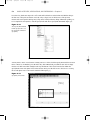
you’ll learn about it later. For now, press Esc to hide it. Click the eighth note in the Simple Entry Palette
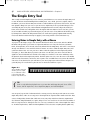
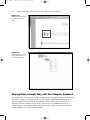
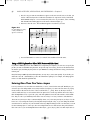
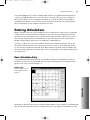
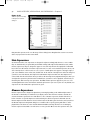
(see Figure 3.1). Notice that when you position your mouse over the staff, your cursor now looks like an
eighth note. Now click the half note and the cursor changes to a half note. Your cursor will always reflect
the duration chosen in the Simple Entry Palette. Click the quarter note icon, move the cursor to the middle
staff line in the first measure, and click to enter a quarter note on middle line B. You can use this method to
enter notes of any duration into your staff. Notice your cursor jump between the staff lines and spaces as
you slowly drag over a staff. Click to place the note on the desired staff line or space.
Figure 3.1
Choose a rhythmic value, pitch
alteration, grace note, triplet,
tie, or a combination of these
tools from the Simple Entry
Palette for entry into the score
TIP
Finale is set by default to play back notes as you enter them and change their pitch. To turn off this
feature, click the Simple menu, choose Simple Entry Options, and uncheck Playback.
You can specify a great deal of information before entering a note by choosing several items at once in the
Simple Entry Palette. There are six categories in the Simple Palette separated with a small vertical bar. These
consist of independent elements that could exist on any entry. They include note duration, augmentation
dot, alteration (sharp/flat/natural), tie, tuplet, and grace note. You can choose one item from any number of
these six categories before clicking into the score. Let’s say you wanted to enter a dotted eighth note with a
tie. From the Simple Palette, double-click the Eighth Note Tool (to deselect everything but the eighth note),